
Canon 5733C002
Canon XA60 Professional UHD 4K Camcorder
Instruction Manual
Model: XA60 (5733C002)
1. Introduction
The Canon XA60 Professional UHD 4K Camcorder is a compact and powerful device designed for capturing high-quality video. It features a 1/2.3" CMOS sensor, DIGIC DV6 processor, and a 20x optical zoom lens, making it suitable for a wide range of professional applications, from documentary filmmaking to live streaming.
This manual provides detailed instructions on how to set up, operate, and maintain your XA60 camcorder to ensure optimal performance and longevity.

Figure 1.1: The Canon XA60 Professional UHD 4K Camcorder, a compact and powerful device for high-quality video capture.
2. What's in the Box
Your Canon XA60 Professional UHD 4K Camcorder package should contain the following items:
- XA60 Body
- Handle Unit
- PD-E1 USB Power Adapter
- BP-820 Battery Pack
- Lens Hood with Lens Barrier
- Microphone Holder Unit (Mic Holder)
- Lens Cap

Figure 2.1: All components included with the Canon XA60 camcorder. (A) XA60 Body, (B) Handle Unit, (C) PD-E1 USB Power Adapter, (D) BP-820 Battery Pack, (E) Lens Hood with Lens Barrier, (F) Mic Holder.
3. Setup
3.1. Charging the Battery
Before first use, fully charge the BP-820 Battery Pack using the provided PD-E1 USB Power Adapter. Connect the adapter to the camcorder and a power outlet. The charging indicator will show the charging status.
3.2. Attaching the Handle Unit
Align the handle unit with the accessory shoe on top of the camcorder body. Slide it forward until it clicks into place. Secure it with the locking screw. The handle unit provides additional controls and XLR audio inputs.
3.3. Inserting an SD Card
The XA60 features dual SD card slots for flexible recording options. Open the SD card slot cover on the side of the camcorder. Insert an SDXC memory card into either slot A or B until it clicks. Ensure the card is inserted in the correct orientation. Close the cover securely.

Figure 3.1: A hand inserting an SD card into one of the dual SD card slots on the Canon XA60 camcorder, illustrating the simultaneous recording capability.
3.4. Attaching the Lens Hood
Attach the lens hood to the front of the lens by aligning the marks and twisting until it locks. The lens hood helps to reduce flare and protect the lens. The integrated lens barrier can be opened and closed as needed.
4. Operating the Camcorder
4.1. Powering On/Off
To power on the camcorder, slide the POWER switch to the ON position. To power off, slide it to the OFF position. Ensure the lens barrier is open before recording.
4.2. Basic Recording
Press the REC START/STOP button to begin and end recording. The recording indicator will illuminate during recording. The 3.5" touchscreen LCD and tiltable OLED EVF allow for flexible framing and monitoring.

Figure 4.1: The Canon XA60 camcorder with its LCD touchscreen open, displaying a live view, ready for recording.
4.3. Zoom and Focus
Use the zoom rocker on the handle or camcorder body to control the 20x optical zoom lens. For precise focusing, switch between auto-focus (AF) and manual focus (MF) modes. Face detection focusing is also available.
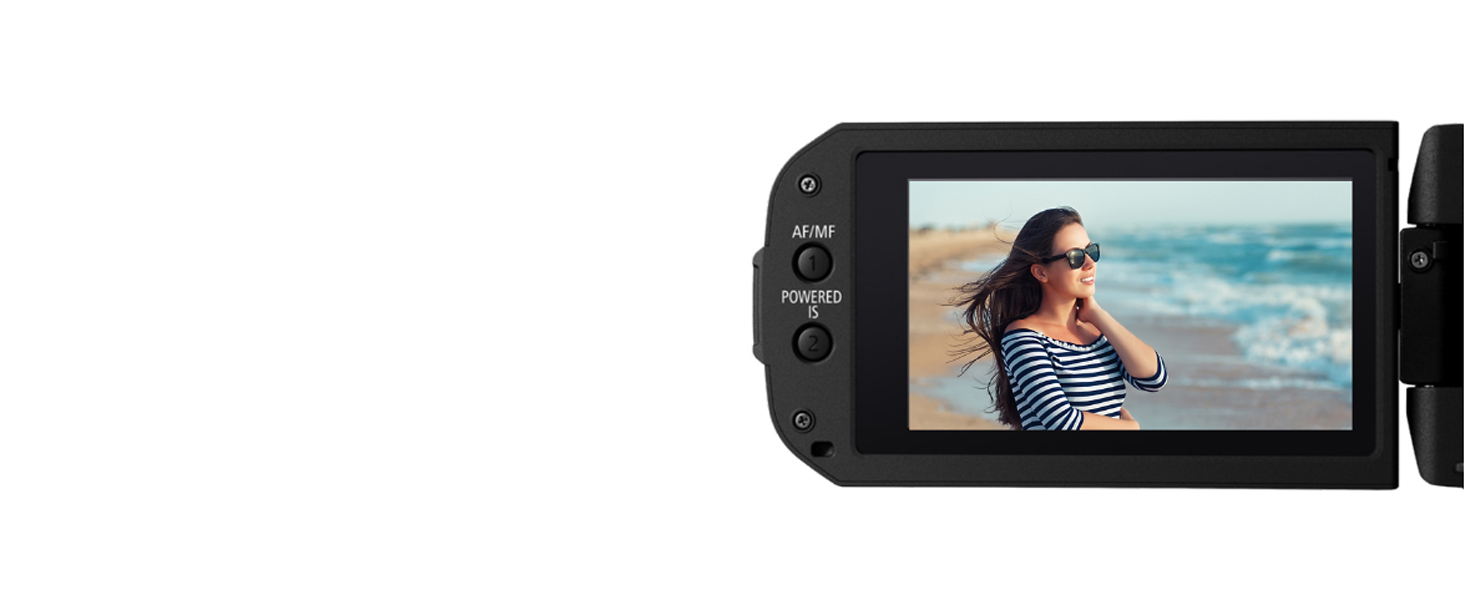
Figure 4.2: An image illustrating the 20x optical zoom capability of the Canon XA60, showing a subject zoomed in from a distance.
4.4. Advanced Recording Features
- 4K UHD and Full HD Recording: The XA60 supports recording in stunning 4K UHD (160Mbps at 30P/24P) and Full HD (45Mbps at 60P/60i/30P/24P) using XF-AVC and MP4 formats.
- Dynamic IS 5-axis Image Stabilization: This feature ensures steady and shake-free footage, even in challenging shooting conditions.
- OSD Time Stamp Recording: Embed date, time, and timecode directly into your videos, ideal for legal and law enforcement applications.
- Slow and Fast Motion Recording: Capture unique effects with fast (up to 1200x) or slow (down to 0.4x) motion recording capabilities.

Figure 4.3: A diagram illustrating the multi-directional compensation provided by the 5-axis image stabilization system of the Canon XA60.

Figure 4.4: The Canon XA60 camcorder's display showing the On-Screen Display (OSD) Time Stamp recording feature activated.

Figure 4.5: An illustration highlighting the key internal components of the Canon XA60: the optical zoom lens, 4K UHD sensor, and DIGIC DV6 processor.
4.5. Audio Control
The detachable handle unit includes two XLR terminals and supports 4-channel linear PCM audio, providing professional-level audio input options for high-quality sound recording.
4.6. Live Streaming and Connectivity
The XA60 supports HD live streaming to a PC or Mac via USB Type-C output with UVC* support. It also features Mini-HDMI video output for connecting to external monitors or recording devices.
*Note: A USB-C cable (e.g., IFC-400U, or IFC-150AB III) is required and not included. Audio output through USB is not supported.

Figure 4.6: A close-up of the Canon XA60 camcorder showing a USB-C cable being connected, highlighting its versatile connectivity options for live streaming and data transfer.
5. Maintenance
5.1. Cleaning the Camcorder
- Body: Wipe the camcorder body with a soft, dry cloth. For stubborn dirt, use a cloth lightly dampened with water and then wipe dry.
- Lens: Use a lens brush to remove dust, then gently wipe with a lens cleaning cloth and lens cleaning solution. Avoid touching the lens surface with your fingers.
- LCD Screen: Use a soft, dry cloth specifically designed for LCD screens. Do not use alcohol-based cleaners.
5.2. Storage
When not in use for extended periods, store the camcorder in a cool, dry, and well-ventilated place, away from direct sunlight and extreme temperatures. Remove the battery before storage to prevent leakage.
6. Troubleshooting
| Problem | Possible Cause | Solution |
|---|---|---|
| Camcorder does not power on. | Battery is depleted or not inserted correctly. | Charge the battery or reinsert it correctly. Ensure the power switch is ON. |
| Cannot record video. | No SD card inserted, SD card full, or write-protected. | Insert an SD card, delete unnecessary files, or unlock the SD card's write-protect tab. |
| Image is blurry. | Focus issue or dirty lens. | Adjust focus (AF/MF), clean the lens. Ensure image stabilization is active if shooting handheld. |
| No audio recorded. | Microphone settings incorrect or external mic not connected properly. | Check audio input settings (internal/external mic), ensure XLR cables are securely connected. |
7. Specifications
| Feature | Detail |
|---|---|
| Model Number | 5733C002 |
| Product Dimensions | 7.2 x 3.3 x 4.3 inches |
| Item Weight | 1.63 pounds |
| Photo Sensor Technology | CMOS (1/2.3") |
| Video Capture Resolution | 4K UHD |
| Optical Zoom | 20x |
| Maximum Aperture | 2.8 f |
| Flash Memory Type | SDXC (Dual Slots) |
| Video Capture Format | MP4, XF-AVC |
| Supported Audio Format | PCM (4-channel linear) |
| Screen Size | 3.5 Inches (LCD Touchscreen) |
| Connectivity Technology | HDMI, USB (Type-C) |
| Image Stabilization | Dynamic IS 5-axis, Optical |
| Manufacturer | Canon USA |
8. Warranty and Support
8.1. Warranty Information
Canon products typically come with a limited manufacturer's warranty covering defects in materials and workmanship. Please refer to the warranty card included with your product or visit the official Canon website for specific warranty terms and conditions applicable to your region.
8.2. Customer Support
For technical assistance, troubleshooting beyond this manual, or service inquiries, please contact Canon customer support. You can find contact information and additional resources on the official Canon Store on Amazon or the main Canon website.
When contacting support, please have your camcorder's model number (XA60 / 5733C002) and serial number ready.
Related Documents - 5733C002
 |
Canon XH G1s and XH A1s: Professional HD Camcorders - Features & Specifications Explore the advanced features, specifications, and capabilities of the Canon XH G1s and XH A1s professional HD camcorders, designed for broadcast and high-end video production. |
 |
Canon BCTV Zoom Lens Operation Manual: UJ90x9B, UJ86x9.3B, UJ27x6.5B Comprehensive operation manual for Canon BCTV Zoom Lenses, including models UJ90x9B, UJ86x9.3B, and UJ27x6.5B. Covers installation, preparation, operation, safety, specifications, and troubleshooting. |
 |
Canon VIXIA HF G60 4K Camcorder Instruction Manual This comprehensive instruction manual guides users through the features and operation of the Canon VIXIA HF G60 4K Camcorder. Learn about its advanced 4K recording capabilities, Dual Pixel CMOS AF, versatile shooting modes, and connectivity options for professional video production. |
 |
Canon VIXIA HF G70 4K Camcorder Instruction Manual Official instruction manual for the Canon VIXIA HF G70 4K Camcorder. Learn about setup, recording, playback, customization, and troubleshooting for this high-performance camcorder. |
 |
Canon XA60/XA65 4K Camcorder Instruction Manual This document provides a comprehensive instruction manual for the Canon XA60 and XA65 4K Camcorders, covering setup, operation, recording features, customization, playback, and external connections. |
 |
Canon RF 75-300mm f/4-5.6 Telephoto Zoom Lens Instructions and Specifications User manual and specifications for the Canon RF 75-300mm f/4-5.6 telephoto zoom lens, covering safety precautions, handling, operation, and technical details for EOS R series cameras. |