
Introduction
This manual provides essential instructions for the safe and effective operation of your Canon XA65 Pro Camcorder. Please read this manual thoroughly before using the camcorder and retain it for future reference. The Canon XA65 is designed for professional video capture, offering 4K UHD recording, advanced optical zoom, and versatile connectivity options.

Figure 1: Canon XA65 Pro Camcorder Overview
What's in the Box
Verify that all items listed below are included in your package:
- XA65 Body
- Lens Cap
- Lens Hood with Lens Barrier
- Microphone Holder Unit
- Handle Unit
- BP-820 Battery Pack
- PD-E1 USB Power Adapter
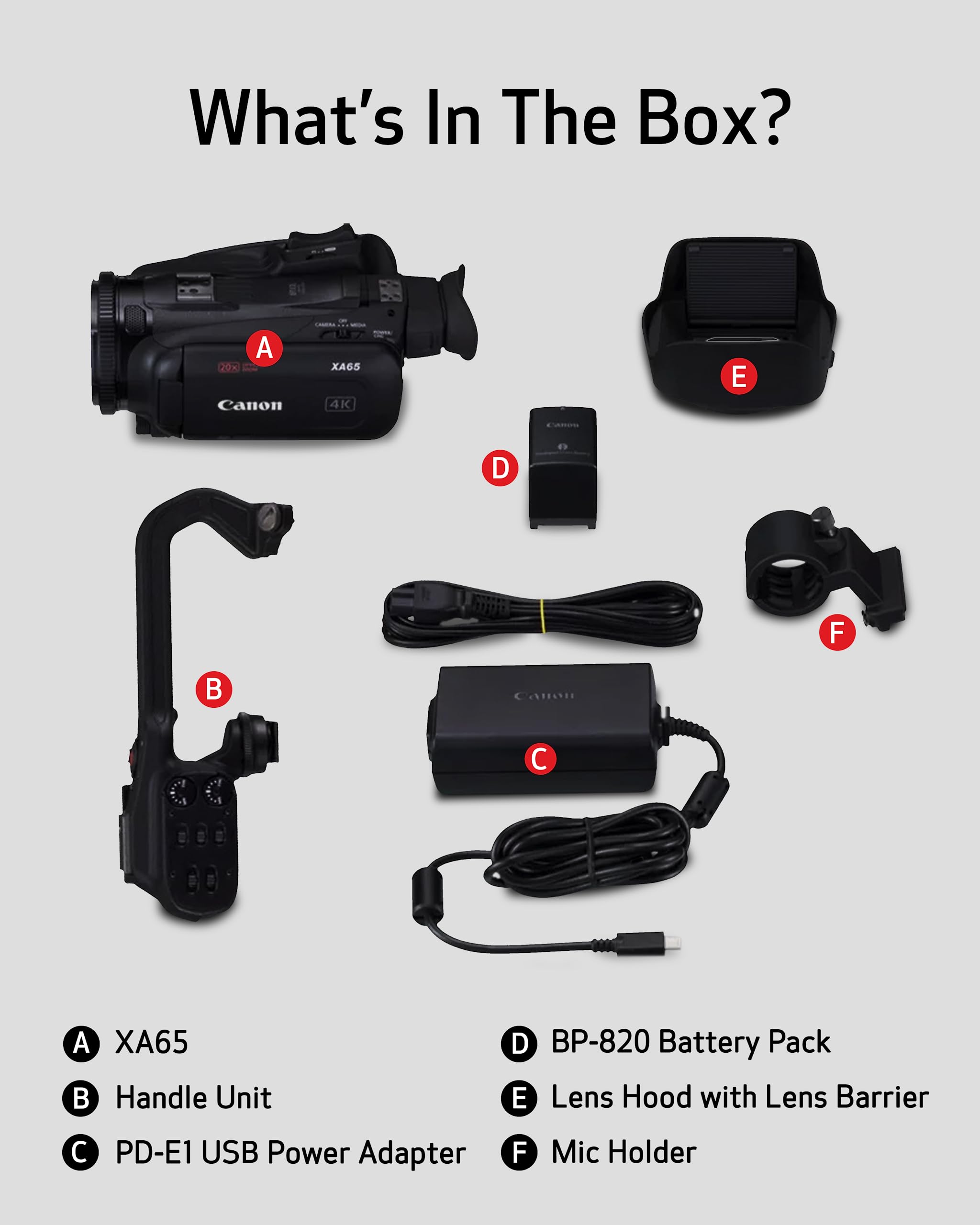
Figure 2: Package Contents
Setup
1. Attaching the Handle Unit
Align the handle unit with the mounting shoe on top of the camcorder body and slide it forward until it clicks into place. Secure it with the locking screw. The handle unit provides additional controls and XLR audio inputs.
2. Installing the Battery Pack
- Ensure the camcorder is powered off.
- Open the battery compartment cover.
- Insert the BP-820 battery pack into the compartment, ensuring the contacts align. Push until it locks.
- Close the battery compartment cover.
3. Inserting SD Cards
The XA65 features dual SD card slots for flexible recording. Open the SD card slot cover on the side of the camcorder. Insert SD cards into slots A and B until they click. Close the cover. For optimal performance, use high-speed SD cards (UHS-I or faster) for 4K recording.
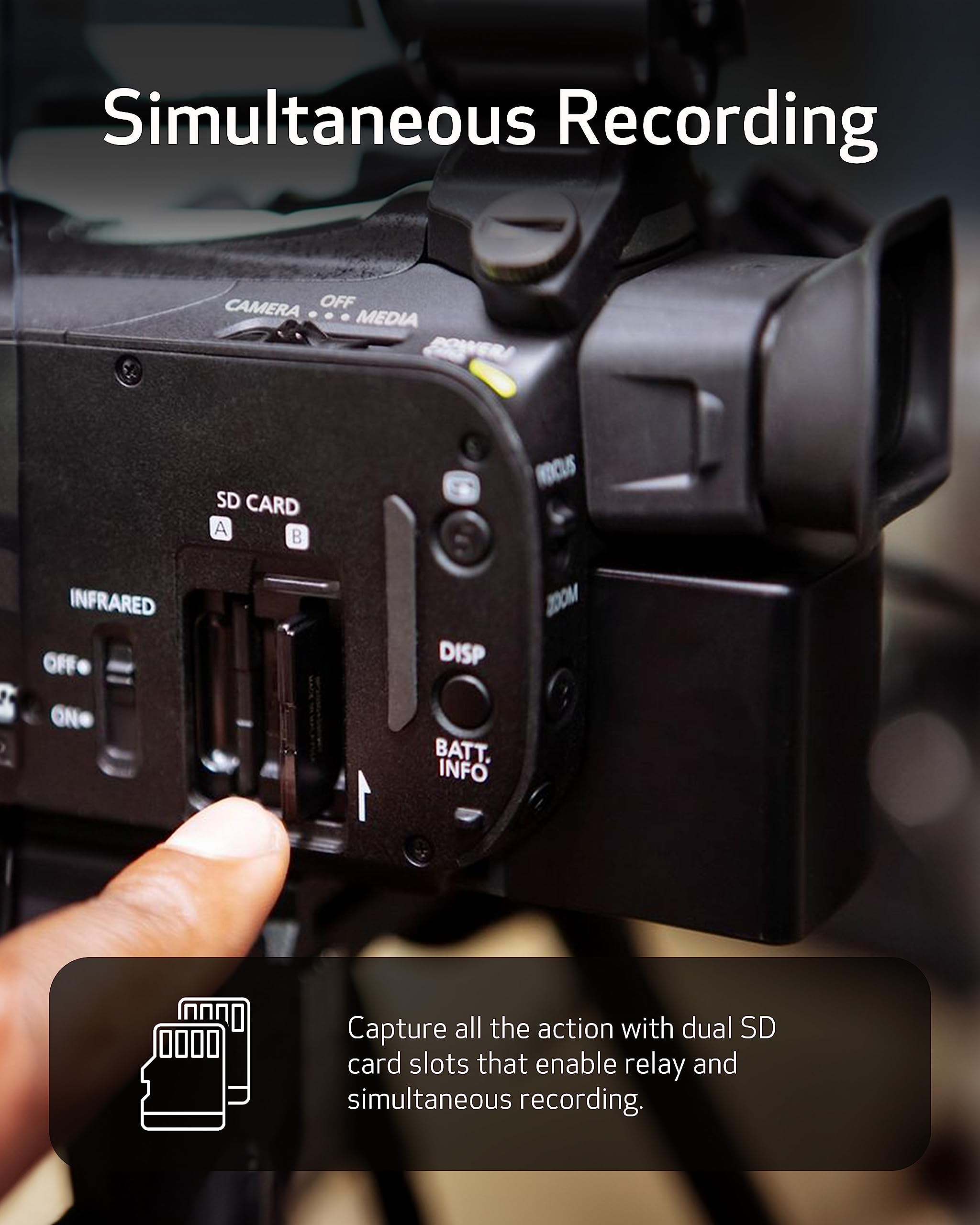
Figure 3: Inserting SD Cards
4. Attaching the Lens Hood and Microphone Holder
Attach the lens hood to the front of the lens by aligning the marks and twisting until it locks. This helps prevent glare. The microphone holder can be attached to the handle unit if an external microphone is used.
Operating the Camcorder
Power On/Off
To power on the camcorder, slide the POWER switch to the ON position. To power off, slide it to OFF.
Recording Video
The XA65 supports 4K UHD and Full HD recording in XF-AVC and MP4 formats. Select your desired recording format and resolution via the menu system. Press the REC button to start and stop recording.

Figure 4: Recording in 4K UHD
Zoom Operation
Utilize the 20x optical zoom lens for clear magnification. The camcorder also features an 800x digital zoom for extended reach. Control zoom using the zoom rocker on the handle or the lens ring.
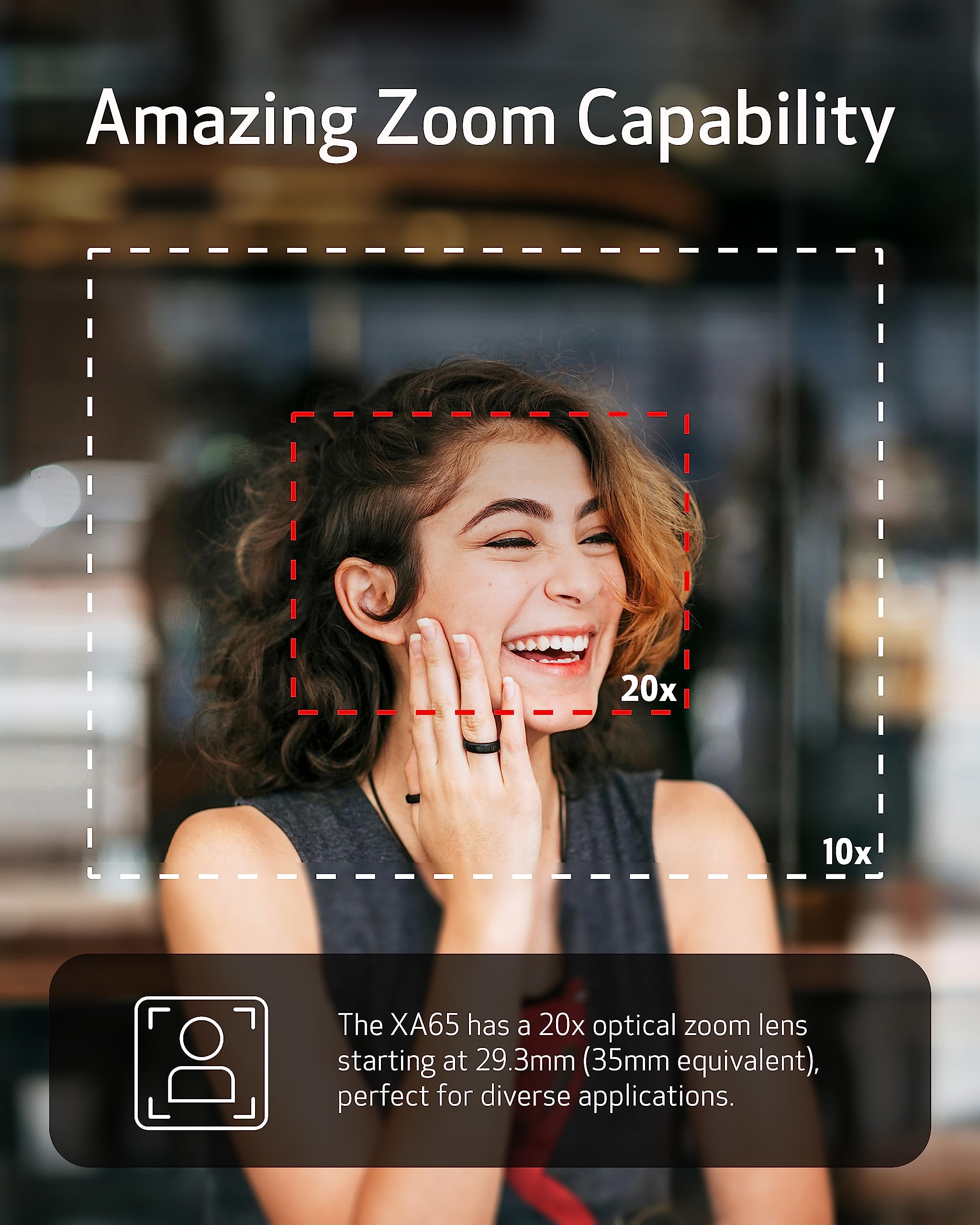
Figure 5: 20x Optical Zoom Capability
Image Stabilization
The Canon XA65 incorporates Dynamic IS 5-axis image stabilization to minimize camera shake, ensuring steady and clear footage even in dynamic shooting conditions. This feature is particularly useful when shooting handheld or at maximum zoom.

Figure 6: 5-Axis Image Stabilization
Audio Recording
Professional audio control is available through two XLR terminals on the detachable handle. The camcorder supports 4-channel linear PCM audio, providing high-quality sound capture. Adjust audio levels using the dedicated controls.
Display and Viewfinder
Frame and monitor your shots using the 3.5" touchscreen LCD or the tiltable OLED EVF (Electronic Viewfinder). The touchscreen allows for intuitive menu navigation and focus adjustments.

Figure 7: Touchscreen LCD Display
Connectivity and Live Streaming
The XA65 offers mini-HDMI and 3G-SDI outputs for connecting to external monitors or professional broadcasting equipment. For live streaming, connect the camcorder to a PC or Mac via the USB Type-C output, which supports UVC (USB Video Class).

Figure 8: USB Type-C Connectivity

Figure 9: UVC Support for Live Streaming
Time Stamp Recording
Utilize the On-Screen Display (OSD) Time Stamp recording feature to embed data such as date, time, and timecode directly into your video footage. This is particularly useful for documentation purposes.

Figure 10: OSD Time Stamp Recording
Slow and Fast Motion Recording
The camcorder supports both slow and fast motion recording modes, allowing for creative effects and capturing events in a unique way. Adjust the frame rate settings in the menu to achieve desired playback speeds.
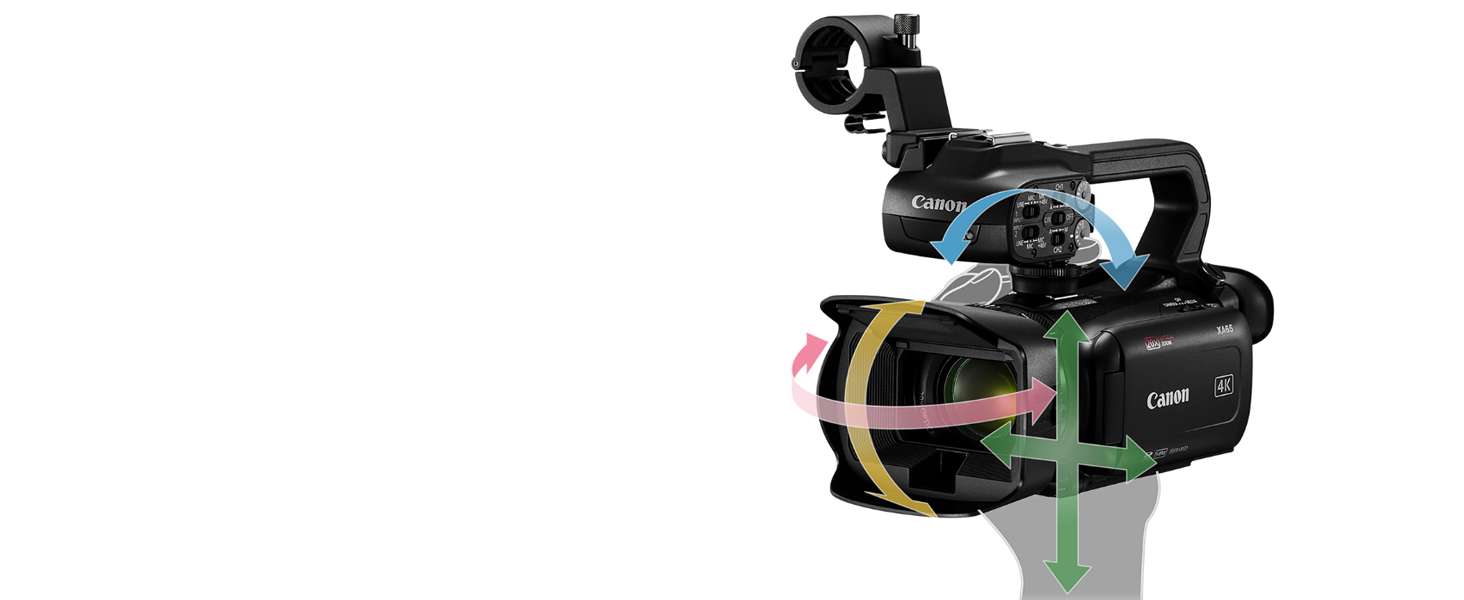
Figure 11: Slow and Fast Motion Recording Examples
Maintenance
Cleaning the Camcorder
- Use a soft, dry cloth to clean the camcorder body.
- For the lens, use a lens brush or blower to remove dust, then gently wipe with a lens cleaning cloth and lens cleaning solution if necessary.
- Avoid using strong solvents or abrasive cleaners.
Storage
When not in use, store the camcorder in a cool, dry place away from direct sunlight and extreme temperatures. Remove the battery pack if storing for an extended period.
Troubleshooting
If you encounter issues with your Canon XA65, refer to the following common solutions:
- Camcorder does not power on: Ensure the battery is fully charged and correctly inserted, or connect the power adapter.
- No image on screen/viewfinder: Check if the lens cap is removed. Adjust brightness settings.
- Recording issues: Verify that an SD card is inserted and has sufficient free space. Check recording format settings.
- Unstable footage: Ensure Image Stabilization is enabled in the menu.
- Audio problems: Check microphone connections and audio input levels.
For more complex issues, consult the full Canon XA65 service manual or contact Canon customer support.
Specifications
Below are the key technical specifications for the Canon XA65 Pro Camcorder:
| Feature | Specification |
|---|---|
| Product Dimensions | 7.17 x 3.94 x 3.31 inches |
| Item Weight | 3 ounces |
| ASIN | B0BCMNSC6W |
| Item Model Number | 5732C002 |
| Batteries | 1 Lithium Ion battery required |
| Manufacturer | Canon USA |
| Photo Sensor Technology | CMOS |
| Video Capture Resolution | 4K |
| Maximum Focal Length | 627 mm |
| Maximum Aperture | f/2.8 |
| Flash Memory Type | SD |
| Video Capture Format | MP4 |
| Supported Audio Format | WAV, Linear PCM |
| Screen Size | 3.5 inches |
| Connectivity Technology | HDMI, USB |
For a detailed comparison with other models, refer to the specification tables provided by Canon:

Figure 12: Detailed Specifications Table (Part 1)

Figure 13: Detailed Specifications Table (Part 2)
Warranty and Support
For information regarding the product warranty, please refer to the warranty card included with your camcorder or visit the official Canon website. For technical support, service, or additional inquiries, please contact Canon customer service through their official channels.
You can find more information and support resources on the Canon Store on Amazon.


