
COSTWAY MU10083DE-DKSE-GJ
COSTWAY 88-Key Portable Digital Keyboard User Manual
Model: MU10083DE-DKSE-GJ
1. Introduction
Thank you for purchasing the COSTWAY 88-Key Portable Digital Keyboard. This instrument is designed for both beginners and experienced musicians, offering a full-size, semi-weighted keyboard with a rich array of features including 128 tones, 128 rhythms, and 20 demo songs. Its portable design, long battery life, and versatile connectivity options make it ideal for practice, performance, and music creation. Please read this manual thoroughly to understand the product's functions and ensure safe and optimal use.
2. Safety Instructions
- Do not expose the keyboard to direct sunlight, high temperatures, or excessive humidity.
- Avoid placing the keyboard near heat sources such as radiators or stoves.
- Do not place heavy objects on the keyboard.
- Keep the keyboard away from water or other liquids. If liquid enters the unit, disconnect power immediately and contact customer support.
- Use only the provided power adapter.
- Do not attempt to disassemble or modify the keyboard. This will void the warranty.
- Ensure proper ventilation around the keyboard during use.
3. Package Contents
Please check that all items listed below are included in your package:
- COSTWAY 88-Key Portable Digital Keyboard
- Power Adapter
- USB Cable
- Sustain Pedal
- Music Stand
- Carry Bag
- User Manual (this document)

Image: The COSTWAY 88-Key Portable Digital Keyboard shown with its power adapter, USB cable, sustain pedal, user manual, and carry bag.
4. Product Overview
4.1 Keyboard Features
The keyboard features 88 full-size, semi-weighted keys designed to simulate the feel of an acoustic piano. The keys are sensitive to touch, allowing for dynamic expression.

Image: A close-up view of the keyboard keys, highlighting the semi-weighted design and touch sensitivity for realistic play.
4.2 Control Panel
The control panel is located above the keys and includes an LCD screen, power button, volume controls, a 'Setting' button, and a 'Record' button.

Image: Detailed view of the control panel, showing the power switch, volume buttons, LCD display, 'Setting' button, and 'Record' button, along with the integrated dual speakers.
4.3 Connectivity Ports
The keyboard offers various ports for external connections, including Sustain, MP3 input, Microphone input, Audio output, and USB (MIDI/charging).

Image: A close-up of the keyboard's rear panel, showing the Sustain pedal input, MP3 input, Microphone input, Audio output, and USB port for versatile connectivity.
5. Setup
5.1 Charging the Keyboard
Before first use, fully charge the keyboard. Connect the provided power adapter to the keyboard's USB port and plug it into a power outlet. The charging indicator will show the charging status. A full charge takes approximately 4 hours and provides 10-12 hours of playtime.
5.2 Attaching the Music Stand
Insert the music stand into the designated slot on the top of the keyboard. Ensure it is securely in place to hold your sheet music or tablet.
5.3 Connecting the Sustain Pedal
Plug the sustain pedal cable into the 'SUS' port on the back of the keyboard.
6. Operating Instructions
6.1 Power On/Off and Volume Adjustment
- Power On: Press the power button on the control panel. The LCD screen will light up.
- Power Off: Press and hold the power button until the LCD screen turns off.
- Volume Adjustment: Use the '+' and '-' buttons on the control panel to increase or decrease the volume.
6.2 Selecting Tones, Rhythms, and Playing Demos
The keyboard offers 128 tones, 128 rhythms, and 20 demo songs to enhance your playing and learning experience.

Image: The keyboard's display indicating the availability of 128 tones, 128 rhythms, and 20 demo songs, suggesting a rich sound and powerful stereo output.
- Selecting Tones: Press the 'Tone' function key (activated via 'Setting' button) and use the number keys to select a tone.
- Selecting Rhythms: Press the 'Rhythm' function key and use the number keys to select a rhythm.
- Playing Demo Songs: Press the 'Demo' function key to cycle through the 20 built-in demo songs.
6.3 Weighted Keys and Dynamic Adjustment
The weighted keys respond to your playing strength. To adjust the dynamic sensitivity (touch response), long press the 'Transpose+' key (activated via 'Setting' button).
6.4 Sustain and Vibrato Functions
- Sustain: Press the 'Sustain' function key to activate the sustain effect, allowing notes to ring out longer.
- Vibrato: Press the 'Vibrato' function key to add a vibrato effect to the notes.
6.5 MIDI/USB and Bluetooth Connectivity
The keyboard supports various connection methods for enhanced functionality.

Image: The keyboard demonstrating its LED-illuminated key function and Bluetooth connectivity, showing a smartphone connected to music learning applications like GarageBand, Perfect Piano, and POPiano.
- MIDI/USB: Connect the keyboard to a computer or smart device using the USB cable for MIDI data transfer, allowing you to use the keyboard with music software.
- Bluetooth: Activate Bluetooth on your smartphone or tablet and pair it with the keyboard. This allows you to connect to various music learning applications for interactive lessons.
6.6 Multifunctional "Setting" Key
The 'Setting' button has dual functionality:
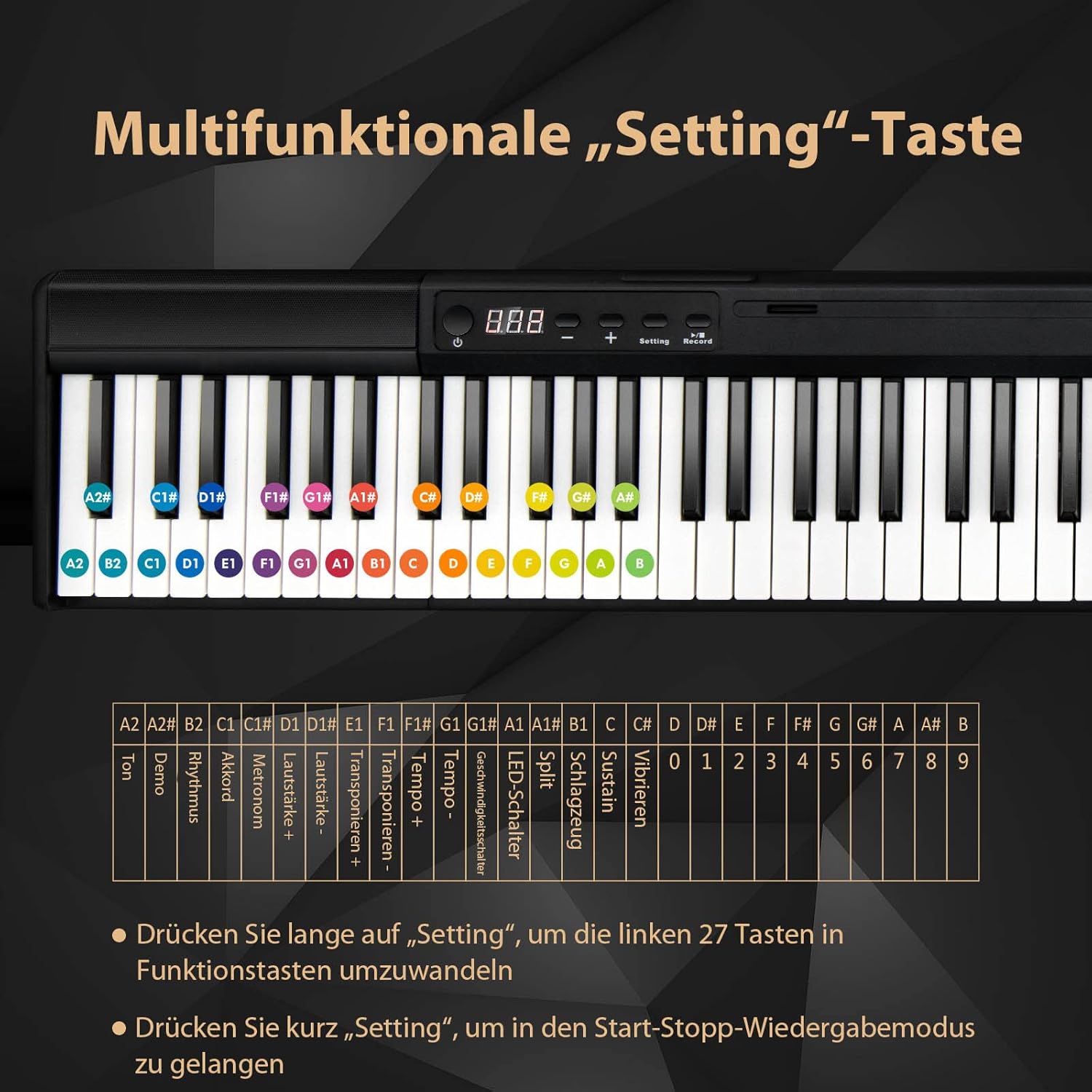
Image: A detailed view of the keyboard's keys, illustrating how the left 27 keys transform into function keys (e.g., Tone, Rhythm, Metronome, Transpose, Sustain, Vibrato, Drum Kit, Split Function, LED Scale) when the 'Setting' button is long-pressed.
- Long Press: Long press the 'Setting' button to convert the left 27 keys into function keys (e.g., Tone, Rhythm, Metronome, Transpose, Sustain, Vibrato, Drum Kit, Split Function, LED Scale). Refer to the diagram on the keyboard for specific key assignments.
- Short Press: Short press the 'Setting' button to enter the start/stop playback mode for rhythms or demo songs.
6.7 Split Function for Duet Play
The split function allows two players to play simultaneously on the same keyboard, with each side having its own range.
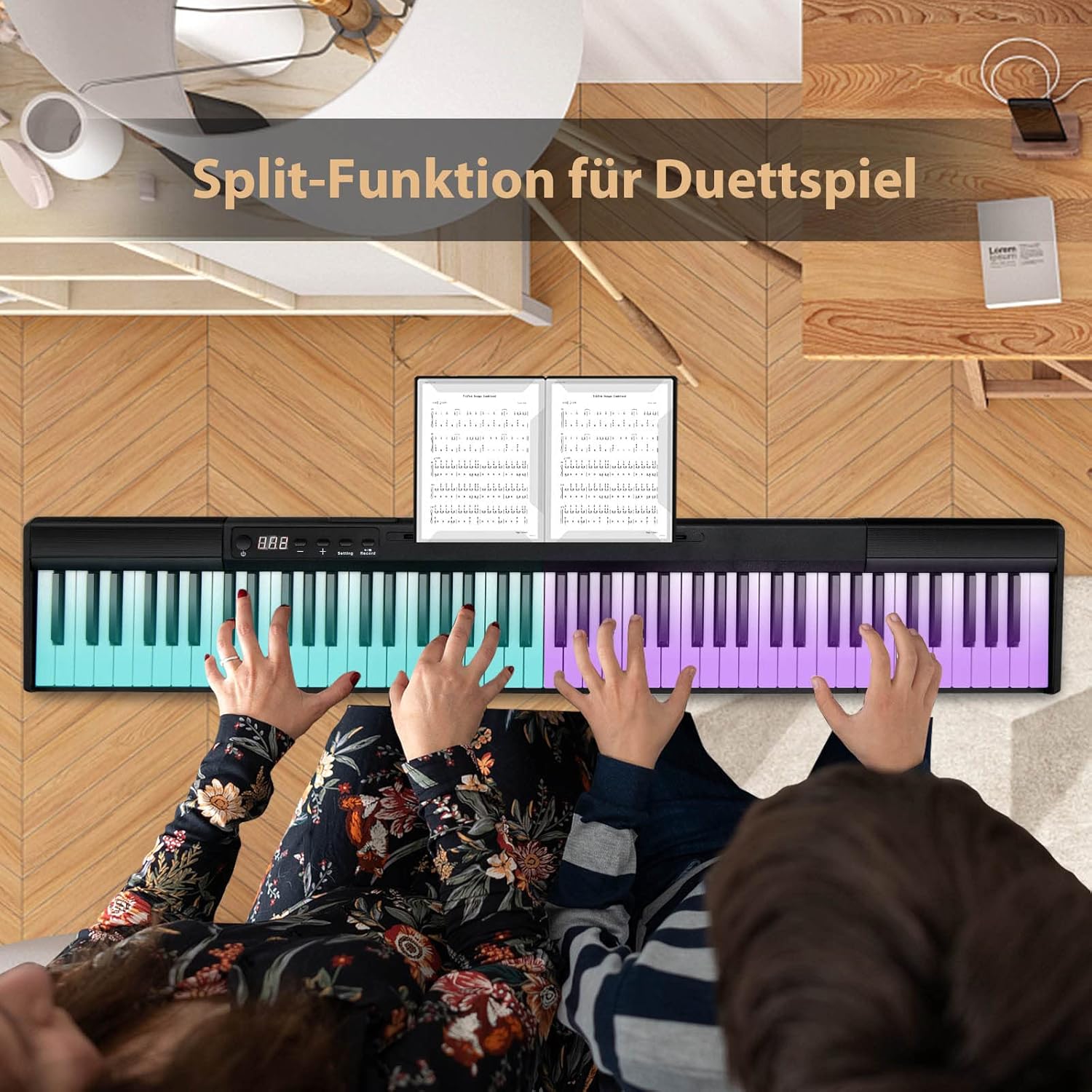
Image: Two individuals playing the digital keyboard simultaneously, demonstrating the 'Split Function' which divides the keyboard into two playable sections for duet performances.
- Activate Split: Press the 'Split' function key (activated via 'Setting' button). The keyboard will divide into two independent sections.
- Deactivate Split: Press the 'Split' function key again.
6.8 Recording Function
The keyboard allows you to record your performances.
- Start Recording: Press the 'Record' button. The recording indicator will light up.
- Stop Recording: Press the 'Record' button again.
- Playback Recording: Press the 'Playback' function key (if available, or refer to specific key combination in the manual).
7. Maintenance
- Cleaning: Use a soft, dry cloth to wipe the surface of the keyboard. For stubborn dirt, slightly dampen the cloth with water and mild soap, then wipe dry immediately. Do not use abrasive cleaners or solvents.
- Storage: When not in use, store the keyboard in its carry bag to protect it from dust and scratches. Store in a cool, dry place away from direct sunlight and extreme temperatures.
- Battery Care: To prolong battery life, avoid fully discharging the battery frequently. If storing for a long period, charge the battery to about 50% and recharge every few months.
8. Troubleshooting
| Problem | Possible Cause | Solution |
|---|---|---|
| Keyboard does not power on. | Low battery or power adapter not connected. | Charge the keyboard using the provided power adapter. Ensure the power button is pressed firmly. |
| No sound from speakers. | Volume is too low or muted. External headphones/speakers connected. | Increase volume using '+' button. Disconnect any headphones or external speakers. |
| Keys are not responding. | Keyboard might be in a specific mode (e.g., demo mode) or a temporary software glitch. | Try restarting the keyboard. Ensure no other function is active that might disable keys. |
| Bluetooth connection issues. | Keyboard not in pairing mode or device is too far. | Ensure Bluetooth is enabled on both devices. Move devices closer. Try re-pairing. |
9. Specifications
| Feature | Detail |
|---|---|
| Model Number | MU10083DE-DKSE-GJ |
| Number of Keys | 88 (Semi-weighted) |
| Tones | 128 |
| Rhythms | 128 |
| Demo Songs | 20 |
| Connectivity | Bluetooth, USB (MIDI/Charging), 3.5mm Audio In/Out, Microphone In, Sustain Pedal |
| Power Source | Battery Powered (3.7V 1750mAh Lithium Battery) |
| Charging Time | Approx. 4 hours |
| Playtime | 10-12 hours |
| Dimensions (L x W x H) | Approx. 126 cm x 21 cm x 6 cm (Keyboard only) |
| Net Weight | Approx. 4.7 kg |

Image: A visual representation of the keyboard's dimensions (126cm length, 21cm width, 6cm height) and the net weight (4.7 kg), along with the included accessories: power adapter, USB cable, pedal, user manual, and piano bag.

Image: Information regarding the keyboard's battery life, showing a 1750mAh battery, 4 hours charging time, and 10-12 hours of playtime.
10. Warranty and Support
For warranty information and customer support, please refer to the warranty card included in your package or contact COSTWAY customer service directly. Keep your purchase receipt as proof of purchase.