
1. Introduction and Overview
The Getue WD-R1201U WiFi Repeater is designed to extend the coverage of your existing wireless network, eliminating Wi-Fi dead zones and providing a stable, high-speed connection throughout your home or office. This device supports dual-band frequencies (2.4GHz and 5GHz) and offers a combined transmission speed of up to 1200Mbps. It intelligently selects the optimal frequency band for connected devices.
This repeater is equipped with both external and internal dual antennas, enhancing signal penetration through obstacles like walls, ensuring a robust wireless signal in previously hard-to-reach areas.
2. Safety Information
- Do not expose the device to water or moisture.
- Do not attempt to disassemble or repair the device yourself.
- Use only the power adapter provided or recommended by the manufacturer.
- Keep the device away from heat sources and direct sunlight.
- Ensure proper ventilation around the device to prevent overheating.
3. Package Contents
Please check the package for the following items:
- 1x Getue WD-R1201U WiFi Repeater
- 1x User Manual
If any item is missing or damaged, please contact customer support.
4. Product Features and Diagram
4.1 Strong Signal and High Speed
The WD-R1201U supports both 2.4GHz and 5GHz dual-band frequencies, offering a maximum transmission speed of 1200Mbps. Its dual antenna design ensures strong signal penetration.
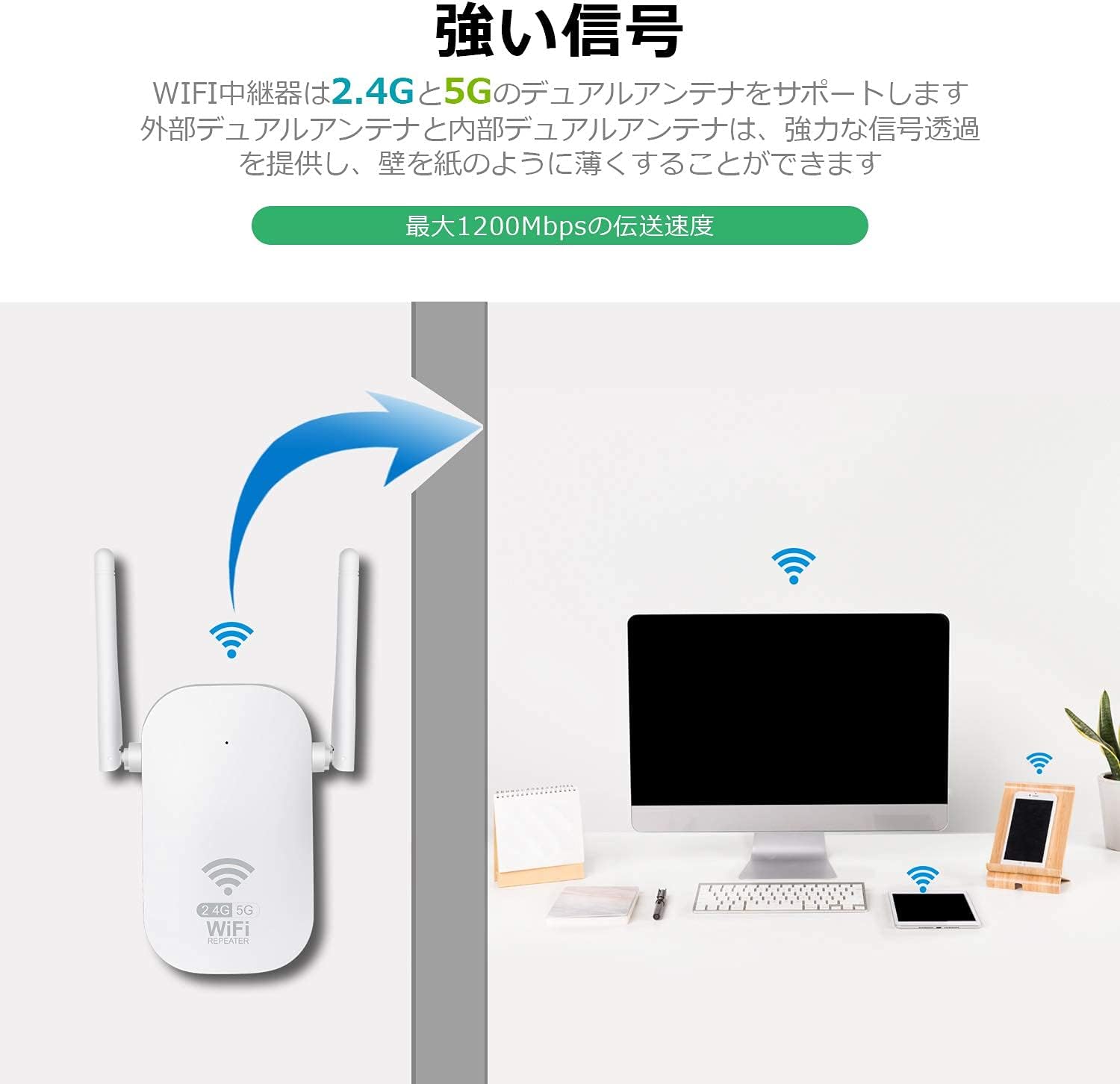
Image: The Getue WD-R1201U WiFi Repeater illustrating its strong signal capability and dual antenna design for enhanced coverage.
4.2 Multiple Operating Modes
This device supports Repeater and AP modes to meet various networking needs. It can also function as a router.

Image: Illustration of the repeater operating in Repeater mode (extending wireless LAN) and AP mode (converting wired LAN to wireless).
4.3 Wide Device Compatibility
The repeater is compatible with various devices such as iPads, computers, mobile phones, and laptops. It can connect up to 10 wireless devices simultaneously, maintaining stable and smooth signals.
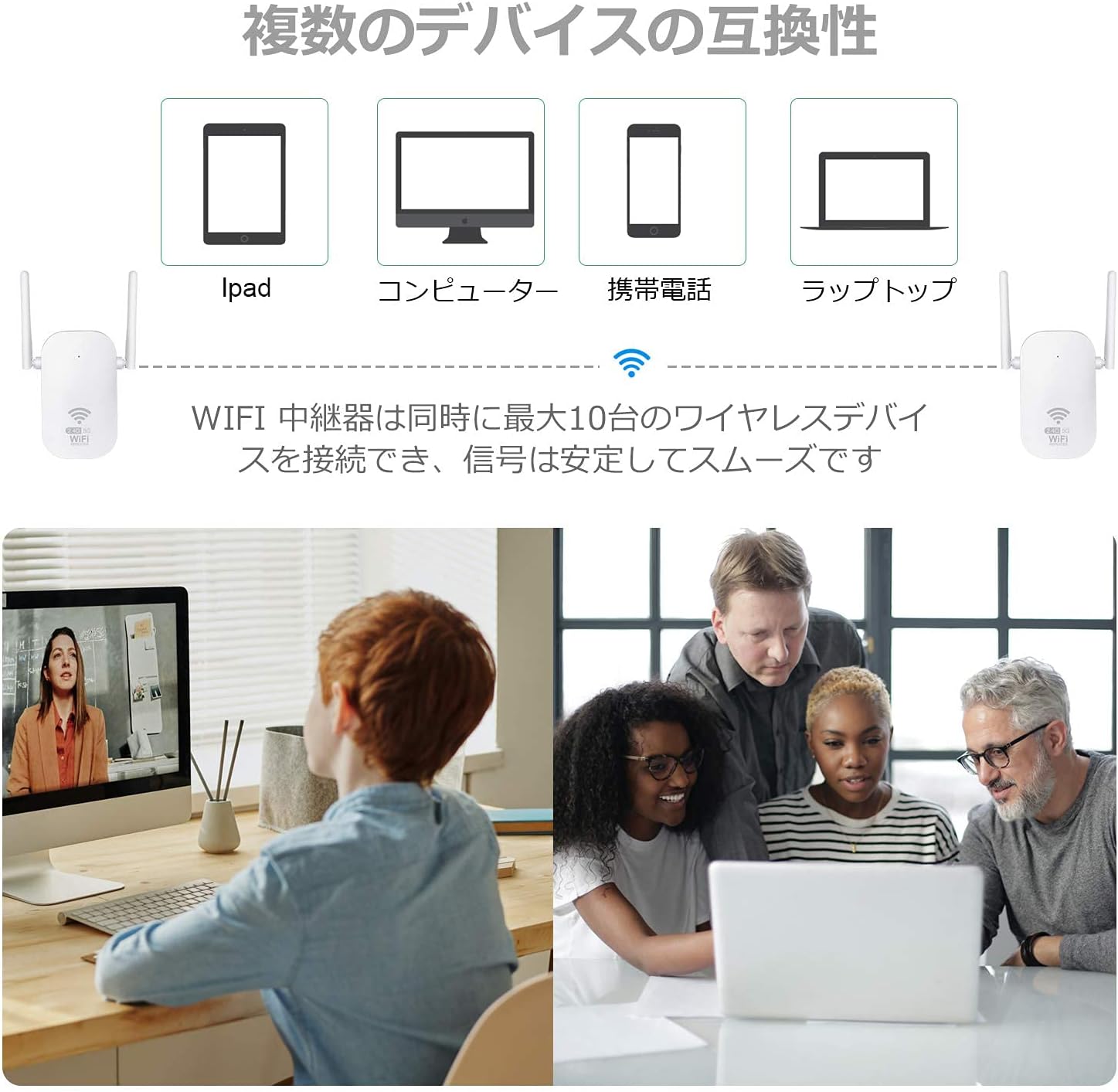
Image: Visual representation of the repeater's compatibility with various devices including iPads, computers, mobile phones, and laptops.
4.4 Intelligent Signal Indicator
The repeater features an intelligent signal indicator that changes color based on the signal strength. This helps you identify the optimal placement for the device.
- Green: Strong signal
- Red: Weak signal
- Blue: Connection failure

Image: Close-up of the Getue WD-R1201U WiFi Repeater highlighting its signal indicator and explaining the meaning of different LED colors.
4.5 Application Scenarios
The Getue WD-R1201U WiFi Repeater is suitable for various environments, including offices, warehouses, hotels, libraries, coffee shops, and homes, effectively resolving unstable signal issues in wide areas.
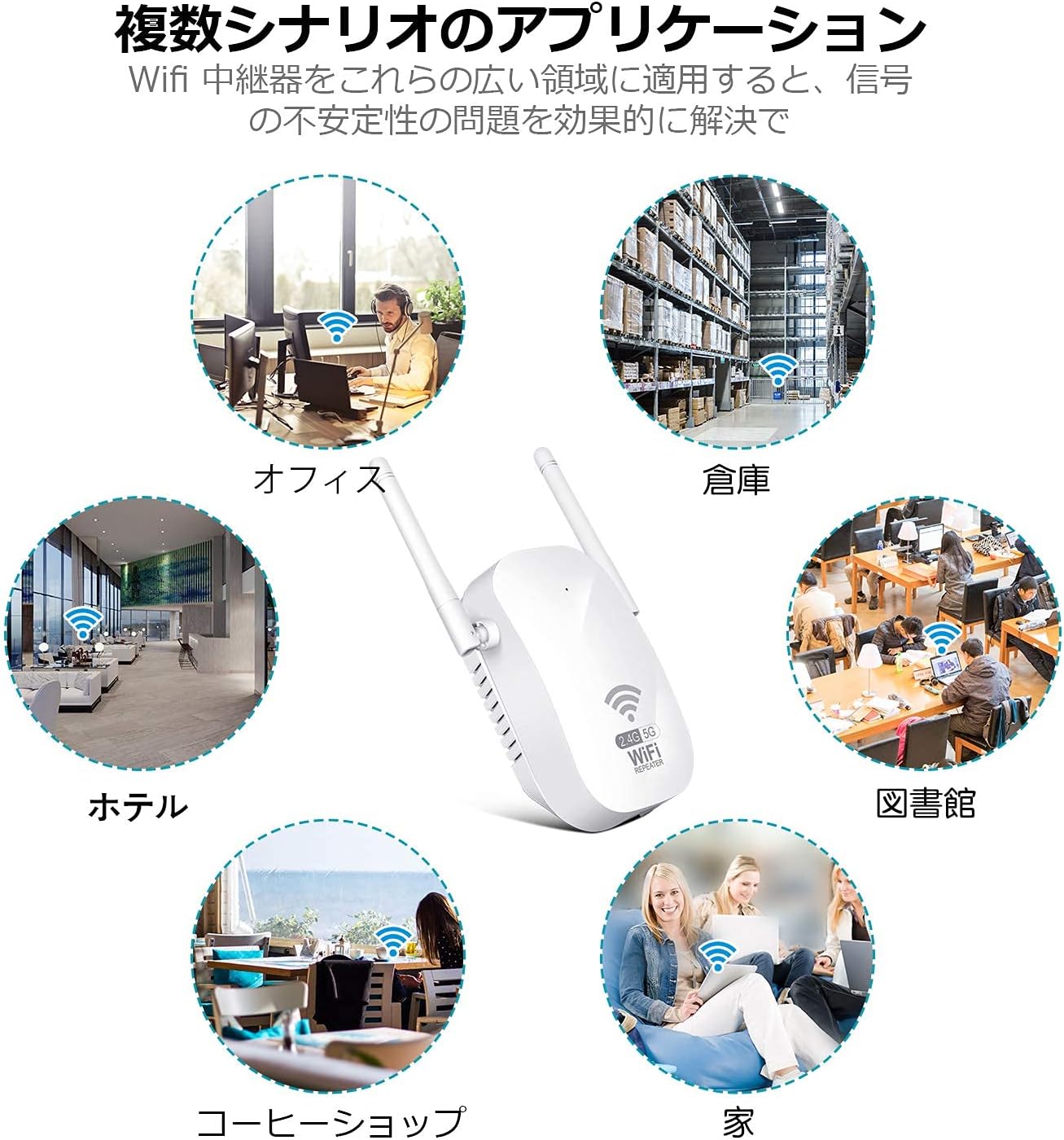
Image: Collage showing various application scenarios for the WiFi repeater, such as office, warehouse, hotel, library, coffee shop, and home.
5. Setup Guide
The Getue WD-R1201U WiFi Repeater is designed for quick and easy setup. Follow these general steps:
- Power On: Plug the repeater into a power outlet. Wait for the indicator light to turn on.
- Connect to Repeater: On your computer or mobile device, connect to the repeater's default Wi-Fi network (e.g., "WiFi-Repeater" or similar, check the device label).
- Access Web Interface: Open a web browser and enter the default IP address or domain name (usually found on the device label or in a quick start guide).
- Select Mode: Choose your desired operating mode (Repeater or AP).
- Configure Network: If in Repeater mode, select your existing Wi-Fi network from the list and enter its password. If in AP mode, configure the new Wi-Fi network name (SSID) and password.
- Apply Settings: Save the settings and wait for the repeater to restart.
- Relocate (for Repeater mode): Once setup is complete, unplug the repeater and move it to an optimal location between your main router and the weak signal area. Refer to the signal indicator for best placement.
6. Operating Modes
6.1 Repeater Mode
In Repeater mode, the device extends the coverage of an existing wireless network. It receives the Wi-Fi signal from your main router and re-transmits it, effectively expanding the range to eliminate dead zones. This mode is ideal for large homes or offices where the main router's signal doesn't reach all areas.
6.2 AP (Access Point) Mode
In AP mode, the device transforms a wired network connection into a wireless one. Connect the repeater to your router via an Ethernet cable, and it will create a new Wi-Fi hotspot. This mode is suitable for areas where only a wired connection is available but you need wireless access.
7. Placement Recommendations
For optimal performance, the placement of your WiFi repeater is crucial:
- Place the repeater roughly halfway between your main router and the area where you experience weak Wi-Fi signals.
- Ensure the repeater is within the existing Wi-Fi range of your main router.
- Use the intelligent signal indicator on the device to find the best location. A green light indicates a strong connection to the main router, while a red light suggests the repeater is too far or has a weak connection.
- Avoid placing the repeater near large metal objects, concrete walls, or other electronic devices that may cause interference.
8. Troubleshooting
Q1: Can the WiFi repeater increase my internet speed?
A1: No, a WiFi repeater extends the coverage of your existing WiFi network, but it cannot increase the actual internet speed provided by your internet service provider or main router. It helps maintain a stable connection in areas where the signal was previously weak or non-existent.
Q2: The repeater is not connecting to my main router.
A2:
- Ensure the repeater is within the range of your main router. Try moving it closer during the setup process.
- Verify that you have entered the correct Wi-Fi password for your main router during setup.
- Check the signal indicator on the repeater. If it's red or blue, adjust its position.
- Restart both your main router and the repeater.
Q3: I can't access the web management interface.
A3:
- Ensure your device is connected to the repeater's Wi-Fi network.
- Verify the IP address or domain name you are using is correct (check the device label or quick start guide).
- Try clearing your browser's cache or using a different browser.
Q4: The extended network is unstable or slow.
A4:
- Relocate the repeater to a more optimal position, using the signal indicator as a guide. It should be close enough to the main router to receive a strong signal, but also close enough to the dead zone to extend coverage effectively.
- Check for potential interference from other electronic devices (e.g., microwaves, cordless phones).
- Ensure your main router's firmware is up to date.
9. Specifications
| Model Number | WFR-01 |
| Brand | Getue |
| Transmission Speed | 1200 Mbps |
| Antennas | 2x High-gain External Antennas |
| Operating Modes | Repeater, AP |
| Frequency Bands | 2.4GHz, 5GHz (Dual-Band) |
| Wireless Standards | IEEE 802.11 ac / a / b / g / n |
| Color | White |
| Included Components | User Manual |
10. Maintenance
- Cleaning: Use a soft, dry cloth to clean the device. Do not use liquid or aerosol cleaners.
- Firmware Updates: Periodically check the manufacturer's website for firmware updates to ensure optimal performance and security.
- Restart: If you experience persistent network issues, try restarting the repeater by unplugging it from the power outlet for 10 seconds and then plugging it back in.
11. Warranty and Support
Specific warranty information is not provided in the product details. Please refer to the packaging or contact your retailer for warranty terms and conditions.
For technical support or further assistance, please contact Getue customer service through the contact information provided on the product packaging or the official Getue website.