Product Overview
The HP LaserJet Pro 4002 dn printer is designed for maximum productivity and seamless management. It offers high-speed printing and reliable hardware, making it easy to integrate into daily workflows. This printer includes dynamic security features, designed to work exclusively with HP original chips and electronic circuits in cartridges. Regular firmware updates ensure these security measures remain effective, blocking non-HP cartridges.

Image: Front view of the HP LaserJet Pro 4002 dn printer, showcasing its compact design and paper output tray.
Key Features:
- Accelerated workflow with print speeds up to 40 ppm (black and white).
- High-productivity laser printer with fast duplex (two-sided) printing.
- HP Wolf Pro Security ensures printer security from startup with pre-configured settings and PIN/Pull options for print jobs.
- Sustainable printing with Energy Star compliance and HP Auto-On/Auto-Off technology for optimized energy use.
- Print quality up to 1200 x 1200 dpi.
- Connectivity options: 1 High-Speed USB 2.0, 1 rear USB host, Gigabit Ethernet 10/100/1000BASE-T network port.
- Designed exclusively for cartridges with original HP chips and circuits; third-party chips/circuits are blocked.
Setup Guide
Follow these steps to set up your HP LaserJet Pro 4002 dn printer for the first time.
- Unpack the Printer: Carefully remove the printer from its packaging. Remove all protective tapes and packing materials from the exterior and interior of the printer.
- Connect Power: Connect the power cable to the printer and then to a grounded electrical outlet. Do not connect the USB cable yet.
- Install Toner Cartridge: Open the toner cartridge access door. Remove the new toner cartridge from its packaging and gently shake it to distribute the toner. Insert the cartridge into its slot until it clicks into place. Close the access door.
- Load Paper: Open the paper input tray. Adjust the paper guides to fit the paper size you are using. Load a stack of plain paper into the tray, ensuring it is flat and not exceeding the maximum fill line. Close the tray.
- Initial Power On: Press the power button to turn on the printer. Follow any on-screen prompts on the printer's LCD display for initial setup, such as language selection.
- Install Software and Drivers: Insert the software CD (if provided) into your computer, or visit the official HP support website to download the latest drivers and software for your operating system (e.g., Windows 11). Follow the on-screen instructions to complete the installation.
- Connect to Computer/Network:
- USB Connection: If connecting via USB, connect the USB cable from the printer to your computer only when prompted by the software installation.
- Ethernet Connection: Connect an Ethernet cable from the printer's network port to your router or network switch. The printer will automatically obtain an IP address.
- Perform a Test Print: Once the software is installed and the printer is connected, perform a test print to ensure everything is working correctly.
Operating the Printer
This section covers basic operations of your HP LaserJet Pro 4002 dn printer.
Printing Documents
To print a document from your computer:
- Open the document you wish to print.
- Go to File > Print (or press Ctrl+P/Cmd+P).
- Select "HP LaserJet Pro 4002 dn" from the list of available printers.
- Adjust print settings such as number of copies, paper size, and print quality.
- For two-sided printing, select the duplex printing option in the print dialog. This printer supports automatic duplex printing.
- Click Print.
Mobile Printing with HP Smart App
The HP Smart App allows you to print, scan, and manage your printer from your smartphone or tablet. It provides shortcuts and enhances productivity.

Image: Screenshot of the HP Smart App interface on a smartphone, showing options like Get Supplies, Shortcuts, Print Photos, and Mobile Fax.
- Download the HP Smart App from your device's app store (Apple App Store or Google Play Store).
- Open the app and follow the on-screen instructions to add your HP LaserJet Pro 4002 dn printer. Ensure your mobile device is connected to the same network as the printer.
- Once connected, you can use various features like printing documents or photos directly from your device, checking ink levels, and accessing troubleshooting tools.
Maintenance
Regular maintenance ensures optimal performance and longevity of your printer.
Replacing the Toner Cartridge
When the print quality deteriorates or the printer indicates a low toner level, it's time to replace the toner cartridge. Use only genuine HP toner cartridges for best results and to ensure compatibility with the printer's dynamic security features.
- Ensure the printer is powered on.
- Open the toner cartridge access door.
- Grasp the handle of the old toner cartridge and pull it straight out to remove it.
- Unpack the new HP toner cartridge. Gently shake it from side to side to distribute the toner evenly.
- Insert the new cartridge into the printer until it locks firmly into place.
- Close the toner cartridge access door.
Cleaning the Printer
Periodically clean the exterior of the printer with a soft, lint-free cloth. Do not use abrasive cleaners or solvents. For internal cleaning, refer to the HP Smart App or the printer's control panel for specific cleaning cycles, such as cleaning the paper path to prevent streaks.
Troubleshooting
This section provides solutions to common issues you might encounter with your printer.
Paper Jams
- Turn off the printer and unplug it.
- Carefully open all access doors (front, rear, and top) and remove any jammed paper. Pull the paper gently in the direction of the paper path to avoid tearing.
- Ensure no small pieces of paper remain inside.
- Close all doors, plug in the printer, and turn it back on.
Print Quality Issues
- Streaks or Faded Prints: Check the toner cartridge level. If low, replace it. Perform a cleaning cycle from the printer's control panel or HP Smart App.
- Smudges or Spots: Ensure you are using recommended paper types. Clean the paper path if necessary.
- Incorrect Colors (for color printers, though this is mono): Not applicable for this monochrome printer.
Connectivity Problems
- Printer Offline: Check all cable connections (USB or Ethernet). Restart both the printer and your computer/router. Ensure the printer is selected as the default printer in your operating system.
- Network Issues: Verify your network settings on the printer's control panel. Ensure the printer has a valid IP address.
If these steps do not resolve the issue, refer to the HP support website or contact customer service for further assistance.
Specifications
Detailed technical specifications for the HP LaserJet Pro 4002 dn printer.
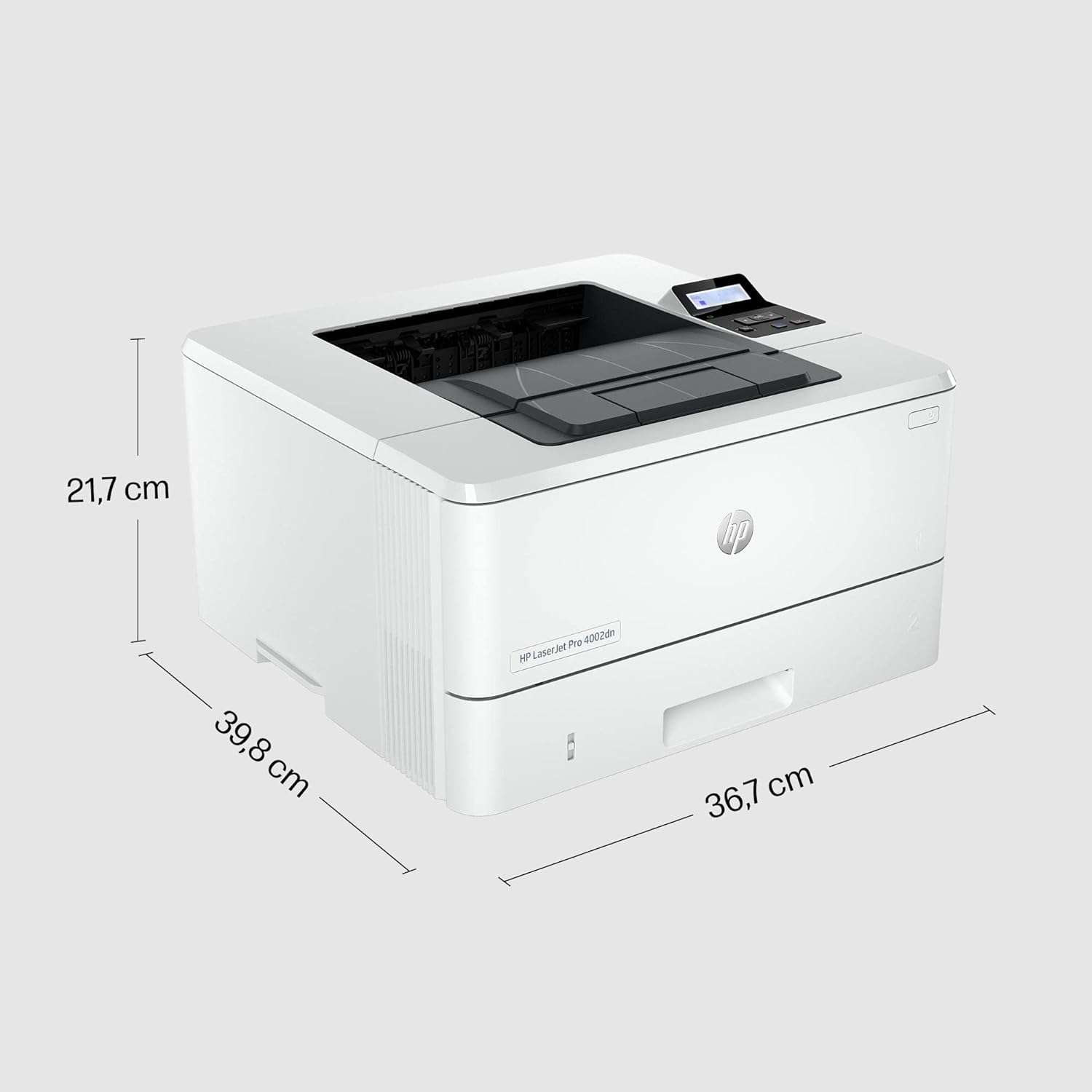
Image: Diagram showing the dimensions of the HP LaserJet Pro 4002 dn printer: 35.7 cm depth, 38.1 cm width, and 21.6 cm height.
| Feature | Specification |
|---|---|
| Model Number | 2Z605F |
| Print Technology | Laser |
| Print Output | Monochrome |
| Max Print Speed (Black & White) | Up to 40 pages per minute |
| Max Print Resolution (Black & White) | 1200 x 1200 dpi |
| Duplex Printing | Yes (Automatic) |
| Max Media Size | A4 |
| Max Sheet Feeding Capacity | 900 sheets |
| Connectivity | USB, Ethernet (RJ-45) |
| Compatible Devices | Smartphone, PC |
| Operating System Compatibility | Windows 11 (and other compatible OS) |
| Display Type | LCD |
| Item Weight | 8560 Grams |
| Product Dimensions (D x W x H) | 35.7 x 38.1 x 21.6 centimeters |
Warranty and Support
Manufacturer's Warranty
The HP LaserJet Pro 4002 dn printer comes with a three-year manufacturer's warranty. Please retain your proof of purchase for warranty claims. For detailed terms and conditions, refer to the warranty documentation included with your product or visit the official HP website.
Customer Support
For technical assistance, troubleshooting, or to order genuine HP supplies, please visit the official HP support website or contact HP customer service. You can find contact information and support resources on www.hp.com/support.