
NHOPEEW NHOPEEW

NHOPEEW Single Din Car Stereo
Instruction Manual
Introduction
This manual provides detailed instructions for the installation, operation, and maintenance of your NHOPEEW Single Din Car Stereo. This unit features a 7-inch flip-out touchscreen, Apple CarPlay, Android Auto, Bluetooth connectivity, and various multimedia functions. Please read this manual thoroughly before use to ensure proper functionality and safety.

Image: Front view of the NHOPEEW Single Din Car Stereo with its 7-inch flip-out touchscreen displaying the Apple CarPlay interface.
1. Setup
1.1 Unpacking and Contents
Carefully unpack all components and verify that the following items are included:
- 1x Single Din Car Stereo Unit
- 1x Remote Control
- 1x User Manual (this document)
- 1x Microphone
- 1x Installation Harness

Image: All components included in the product packaging, such as the main stereo unit, remote control, microphone, and wiring harness.
1.2 Installation Dimensions
The installation size for this single din in-dash car radio is 188mm (length) x 58mm (height) x 152mm (depth). Please ensure your vehicle's dashboard opening is compatible with these dimensions. Additional wiring harnesses or dash kits may be required depending on your specific vehicle model for a perfect fit.
- Product Dimensions: 7.4 x 5.98 x 2.28 inches
- Item Weight: 3.19 pounds
1.3 Wiring and Connections
Connect the provided installation harness to your vehicle's wiring system. Refer to your vehicle's specific wiring diagram for accurate connections. The unit includes ports for USB, AUX-IN, and a backup camera input. For optimal performance and safety, professional installation of this product is strongly recommended.

Image: Rear view of the car stereo unit, highlighting the various input and output ports for power, speakers, and accessories.
1.4 Initial Power-On
After installation, turn on your vehicle's ignition. The unit should power on automatically. If not, press the power button on the unit. The 7-inch screen will automatically flip out and display the main interface.
2. Operating Instructions
2.1 Basic Controls
The unit features a responsive touchscreen for most operations. Physical buttons and a rotary knob are also available for essential functions such as volume control, mode selection, and track skipping. Refer to the on-screen interface for specific menu navigation.
2.2 Apple CarPlay and Android Auto
Connect your smartphone to the stereo using a certified USB cable. The unit will automatically detect and launch Apple CarPlay (for iPhone) or Android Auto (for Android phones). This allows you to access phone, music, maps, messages, and other compatible apps directly from the stereo's touchscreen with voice control.

Image: The car stereo displaying both Apple CarPlay and Android Auto interfaces, demonstrating smartphone integration.
2.3 Phone Mirror Link
The unit supports Phone Mirror Link for both Android and iPhone devices via USB cable. This function allows you to display your phone's screen content directly on the stereo's display, enabling access to apps not natively supported by CarPlay or Android Auto, such as YouTube.

Image: A demonstration of the Mirror Link function, where a smartphone's screen content is duplicated on the car stereo's display.
2.4 Bluetooth Connectivity
The built-in Bluetooth allows for hands-free calling and wireless audio streaming. To pair your device, navigate to the Bluetooth settings on the stereo, enable Bluetooth on your phone, and select the stereo from the list of available devices. The unit also includes an external microphone for clear call quality.
2.5 FM Radio Tuner
Access the FM radio function to listen to local radio stations. Use the touchscreen or physical buttons to scan for stations, save presets, and switch between FM1, FM2, and FM3 bands.
2.6 USB Input and AUX IN Connectivity
The unit supports media playback via USB input for audio and video files. Connect a USB drive to the designated port. An AUX IN port is also available for connecting external audio devices using a 3.5mm jack.
2.7 Steering Wheel Control
The stereo is compatible with steering wheel controls. If your vehicle has this feature, you can configure the unit to respond to your steering wheel buttons for functions like volume adjustment and track changes. Refer to the unit's settings menu for setup instructions.
2.8 7 Color LED Buttons
Customize the appearance of your stereo with 7 selectable LED button colors. Access this setting through the unit's display menu to choose your preferred illumination.

Image: A collage illustrating various features of the head unit, including customizable button colors, Bluetooth interface, FM radio display, and steering wheel control functionality.
2.9 HD Video Playback
The unit supports high-definition video playback from USB storage devices, offering a clear visual experience on the 7-inch screen.
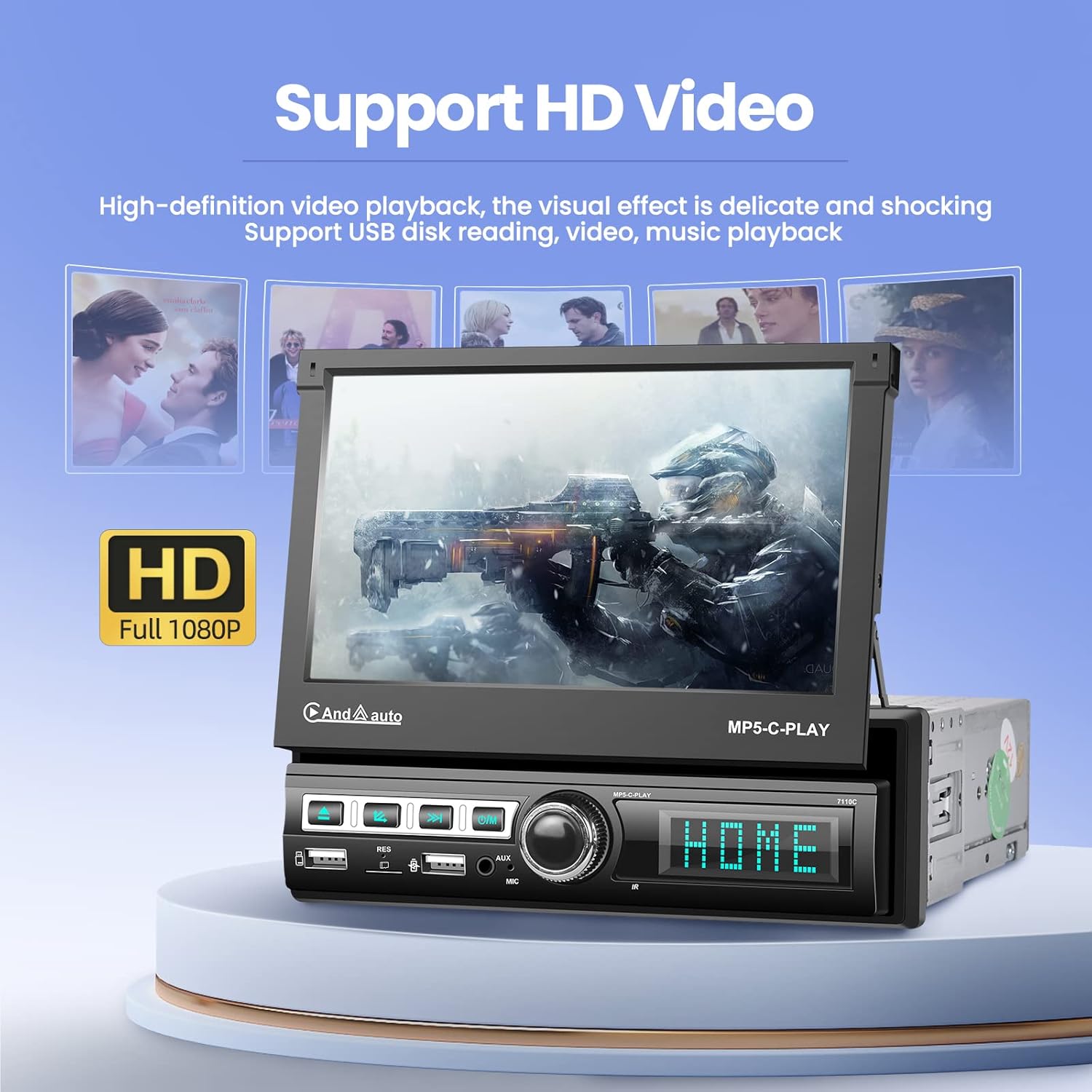
Image: The car stereo's screen showing a high-definition video playing, indicating its capability for HD video playback.
2.10 Mobile Phone Fast Charge
The USB port on the unit supports both data reading and mobile phone charging, allowing you to keep your device powered while on the go.

Image: A visual representation of the mobile phone fast charge feature, showing a smartphone connected to the stereo and charging.
3. Maintenance
3.1 Screen Cleaning
To clean the touchscreen, power off the unit and gently wipe the screen with a soft, lint-free cloth. For stubborn smudges, use a screen cleaner specifically designed for electronic displays. Avoid using harsh chemicals or abrasive materials.
3.2 General Care
Keep the unit free from dust and debris. Ensure proper ventilation around the unit to prevent overheating. Avoid exposing the unit to extreme temperatures or direct sunlight for extended periods.
4. Troubleshooting
If you encounter issues with your NHOPEEW Car Stereo, please refer to the following common troubleshooting steps:
- No Power: Check all power connections and fuses. Ensure the ignition is on.
- No Sound: Verify speaker connections. Check volume levels and audio settings. Ensure the mute function is not activated.
- Bluetooth Connectivity Issues: Ensure Bluetooth is enabled on both the stereo and your device. Try unpairing and re-pairing the device.
- CarPlay/Android Auto Not Connecting: Use a certified USB cable. Ensure your phone's operating system is up to date. Try restarting both the stereo and your phone.
- Screen Not Responding: Try restarting the unit. If the issue persists, contact customer support.
For more complex issues or if troubleshooting steps do not resolve the problem, please contact NHOPEEW customer support.
5. Specifications
| Feature | Detail |
|---|---|
| Product Dimensions | 7.4"D x 5.98"W x 2.28"H |
| Item Weight | 3.19 pounds |
| Brand | NHOPEEW |
| Connectivity Technology | Bluetooth |
| Controller Type | Android (compatible with Apple CarPlay) |
| Special Features | Android Auto, Apple CarPlay, Automatic stretching, Phone Mirror Link |
| Compatible Devices | Smartphone |
| Connector Type | 3.5mm Jack, USB |
| Audio Output Mode | Stereo |
| Surround Sound Channel Configuration | 4.0 |
| Color | Black |
6. Warranty and Support
6.1 Warranty Information
Your NHOPEEW Single Din Car Stereo comes with a 30-day Money-Back Guarantee and 2-years of after-sales support from the date of purchase. This warranty covers manufacturing defects and ensures product functionality under normal use.
6.2 Customer Support
NHOPEEW provides 7*24 hours of after-sales service. If you have any questions, require technical assistance, or need to claim warranty service, please contact us through the platform where you purchased the product or visit the official NHOPEEW store page for contact details. If the radio harness does not fit your vehicle, please contact us for assistance.
For more information, visit the NHOPEEW Store.
Ask a question about this manual
Ask about setup, troubleshooting, compatibility, parts, safety, or missing instructions. Manuals+ will review the question and use this page’s manual context to help answer it.