
1. Introduction
The Oassuose OTG Cable Adapter is a versatile accessory designed to expand the connectivity of your compatible devices. This adapter allows you to connect various USB peripherals such as keyboards, mice, flash drives, and external hard drives to host devices like Fire TV Sticks, Android smartphones, and tablets. This manual provides comprehensive instructions to help you set up and use your OTG adapters effectively.
2. Product Overview
The Oassuose OTG Cable Adapter features a 2-in-1 design, providing both data transfer and power input capabilities for connected peripherals. Each pack includes three adapters.
2.1 Components
- Micro USB Male Connector: Connects to your host device (e.g., Fire TV Stick, Android tablet).
- USB 2.0 Type A Female Port: Connects to USB peripherals (e.g., USB flash drive, mouse, keyboard).
- Micro USB 5 Pin Female Port: Provides power input for connected USB peripherals. Note: This port is for powering peripherals and will NOT charge your Android smartphone or tablet devices.

Figure 2.1: Three Oassuose OTG Cable Adapters included in the pack.

Figure 2.2: Detailed view of the OTG adapter ports, indicating connections for host device, USB peripherals, and power input.
3. Compatibility
This OTG adapter is compatible with a wide range of devices that support USB host OTG (On-The-Go) functionality. Please confirm your device's OTG support before use.
3.1 Compatible Host Devices
- Fire TV Stick (2nd Gen, 3rd Gen, 4K, 4K MAX)
- Android Smartphones and Tablets (with Micro USB port and OTG support)
- Gaming Consoles (e.g., SNES Classic, NES Classic, N64)
- Intel TV Stick
- Raspberry Pi Zero
- Chromecast
Important Note: Not compatible with 1st generation Fire Stick.
3.2 Compatible USB Peripherals
- USB Keyboards
- USB Mice
- USB Flash Drives (must be formatted as FAT32)
- External Hard Drives
- USB Card Readers
- USB Ethernet Adapters
- Game Controllers
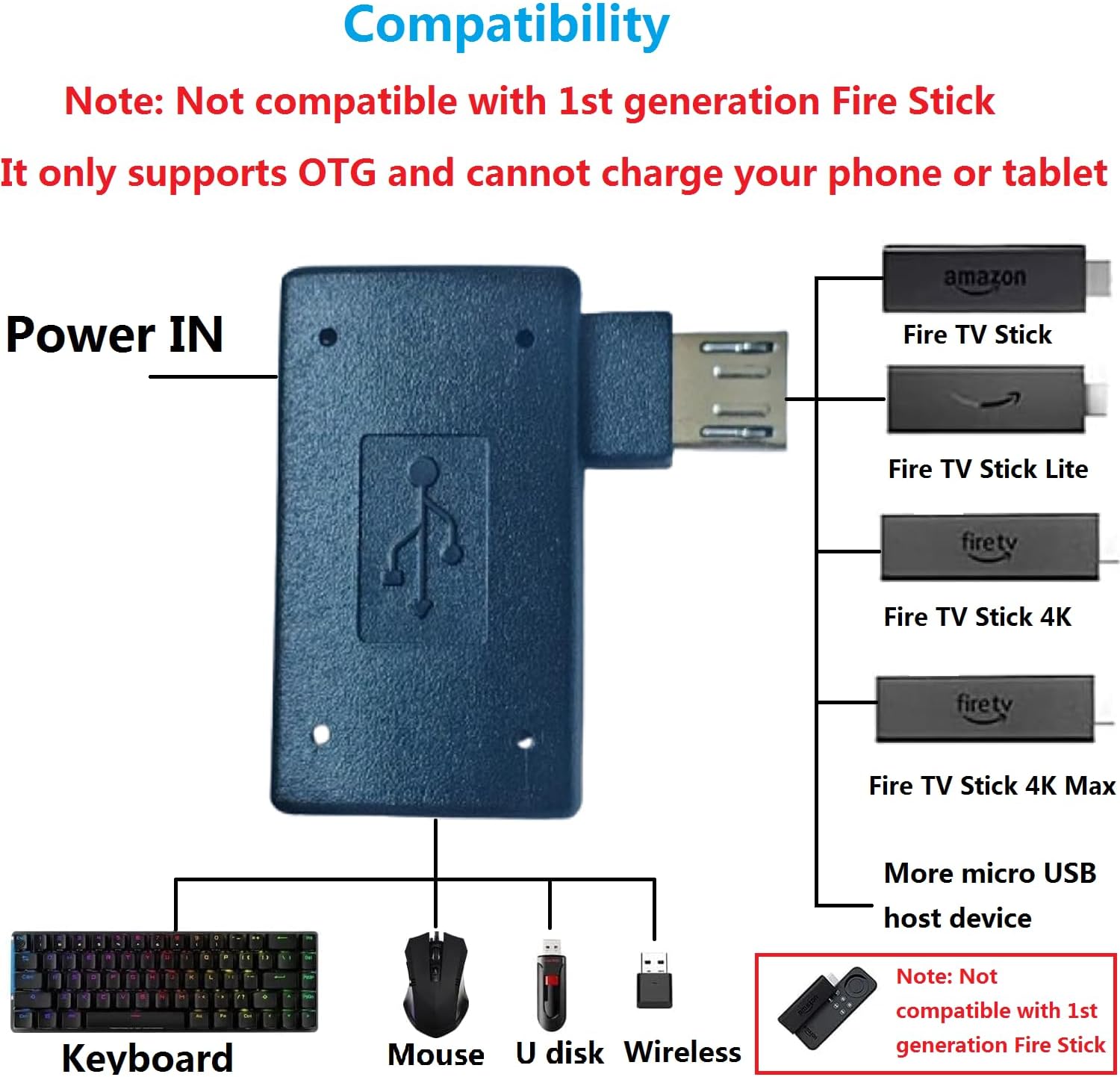
Figure 3.1: Visual guide to compatible Fire TV Stick models and various USB peripherals that can be connected.
4. Setup Instructions
Follow these steps to connect your OTG Cable Adapter and expand your device's functionality.
4.1 Connecting to a Fire TV Stick (Example)
- Prepare Components: Ensure you have your Fire TV Stick, the Oassuose OTG adapter, your Fire TV Stick's power adapter cable, and the USB peripheral you wish to connect (e.g., USB flash drive).
- Connect Power: Insert the micro USB end of your Fire TV Stick's power adapter cable into the micro USB female port on the OTG adapter. This port is specifically for powering the connected USB peripherals.
- Connect USB Peripheral: Plug your USB flash drive or other USB peripheral into the USB 2.0 Type A female port of the OTG adapter. Ensure USB flash drives are formatted as FAT32 for proper recognition.
- Connect to Fire TV Stick: Plug the micro USB male connector of the OTG adapter into the micro USB port of your Fire TV Stick.
- Connect Fire TV Stick to TV: Finally, plug your Fire TV Stick (with the connected OTG adapter) into an available HDMI port on your TV or monitor.
Once connected, your Fire TV Stick should recognize the external storage or peripheral, allowing you to access files or use the connected device.
Video 4.1: Demonstrates how to connect the OTG Cable Adapter to a Fire TV Stick to add external memory or connect peripherals like a mouse.
5. Operating Instructions
Once the OTG adapter is correctly set up with your host device and peripherals, operation is generally straightforward.
5.1 Accessing External Storage
For devices like Fire TV Sticks or Android tablets, external storage (USB flash drives, external hard drives) connected via the OTG adapter will typically appear as a mounted drive. You can then use file manager applications on your host device to browse, open, or transfer files to and from the external storage.
5.2 Using Input Devices
When connecting a keyboard or mouse, your host device should automatically detect and allow you to use these input devices for navigation, typing, and other functions, enhancing the user experience.

Figure 5.1: Examples of USB peripherals such as keyboards, mice, and flash drives that can be connected using the OTG adapter.
6. Maintenance
To ensure the longevity and optimal performance of your Oassuose OTG Cable Adapters, follow these simple maintenance guidelines:
- Storage: Store the adapters in a cool, dry place away from direct sunlight and extreme temperatures.
- Cleaning: Use a soft, dry cloth to gently wipe the adapter. Avoid using liquid cleaners or abrasive materials.
- Handling: Avoid bending or twisting the adapter excessively, as this can damage internal wiring or connectors. Always grasp the connector housing when plugging or unplugging.
- Protection: When not in use, consider using a small pouch or container to protect the adapters from dust and physical damage.
7. Troubleshooting
If you encounter issues while using your OTG Cable Adapter, refer to the following common problems and their solutions:
7.1 Adapter Not Recognized / Peripherals Not Working
- Check OTG Support: Ensure your host device (smartphone, tablet, Fire TV Stick) explicitly supports USB OTG functionality. Not all devices with a Micro USB port have OTG capabilities.
- Secure Connections: Verify that all connections (OTG adapter to host, peripheral to adapter, power cable to adapter) are firmly seated.
- Power Supply: If connecting power-hungry peripherals (like external hard drives), ensure the Micro USB 5 Pin Female port on the adapter is connected to a sufficient power source.
- Peripheral Compatibility: Test the peripheral directly with a computer to ensure it is functioning correctly.
- Fire TV Stick Generation: Remember that the adapter is not compatible with 1st generation Fire Stick. Confirm your Fire TV Stick model.
7.2 USB Flash Drive Not Detected
- Format: Ensure your USB flash drive is formatted to FAT32. Other formats like NTFS or exFAT may not be recognized by all host devices via OTG.
- Capacity: Some older devices or specific firmware might have limitations on the maximum capacity of external storage they can recognize.
7.3 Device Reboots Continuously (Fire TV Stick)
- This can sometimes occur if the power supply is insufficient or if there's a compatibility issue with the specific Fire TV Stick model or firmware. Ensure you are using the original power adapter for your Fire TV Stick and that the OTG adapter's power input is connected if needed. Double-check that your Fire TV Stick is not a 1st generation model.
8. Specifications
| Feature | Detail |
|---|---|
| Input Connector | USB Micro USB Male |
| Output Connector | USB 2.0 Type A Female |
| Power Input | One Straight Micro USB 5 Pin Female (for power charge to peripherals) |
| Package Dimensions | 3.35 x 2.24 x 0.47 inches |
| Item Weight | 0.634 ounces |
| Model Number | 76966c73-a964-4af3-b6a7-2ccc018976e6 |
| Manufacturer | Oassuose |
| Country of Origin | China |

Figure 8.1: Dimensions of the Oassuose OTG Cable Adapter.
9. Warranty and Support
Oassuose provides a 24-month warranty for this product, ensuring peace of mind with your purchase. We are committed to providing lifetime customer support.
If you have any questions, concerns, or require assistance with your OTG Cable Adapter, please do not hesitate to contact us. You will receive an answer within 24 hours.
Contact Information:
- Please refer to your purchase platform or product packaging for the most current contact details.