
1. Introduction
Thank you for choosing the BEENOCAM WiFi Outdoor Security Camera. This manual provides comprehensive instructions for the installation, operation, and maintenance of your new security camera. Designed for outdoor use, this camera offers 2K HD resolution, color night vision, advanced motion detection, and two-way audio, all powered efficiently by solar energy. Please read this manual carefully before use to ensure proper setup and optimal performance.
2. Safety Information
To ensure safe operation and prevent damage, please observe the following safety guidelines:
- Power Source: The camera is primarily powered by an internal rechargeable battery, which is charged by the included solar panel. Ensure the solar panel receives adequate sunlight for continuous operation.
- Installation Location: Install the camera and solar panel in a secure location where they are not easily accessible for tampering. Ensure the mounting surface is stable and can support the weight of the devices.
- Water Resistance: The camera is IP66 waterproof, designed to withstand various weather conditions. However, avoid submerging the device in water.
- Temperature: Operate the camera within the specified temperature range. Extreme temperatures can affect battery life and performance.
- Cleaning: Use a soft, dry cloth for cleaning. Do not use harsh chemicals or abrasive cleaners.
- Disassembly: Do not attempt to disassemble or modify the camera or solar panel. This will void the warranty and may cause damage or injury.
- Wi-Fi Connection: Ensure your Wi-Fi network is secure to protect your privacy.
3. Package Contents
Please check the package for the following items:
- BEENOCAM WiFi Outdoor Security Camera (Model D5)
- Solar Panel
- Mounting Brackets and Screws
- USB Charging Cable (for initial charge)
- User Manual (this document)
4. Product Overview
4.1 Components
Familiarize yourself with the main components of your BEENOCAM camera:
- Camera Lens: Captures 2K HD video and images.
- LED Light: Provides illumination for color night vision and acts as a visual alarm.
- PIR Sensor: Passive Infrared sensor for accurate motion detection, including humanoid detection.
- Microphone: Captures audio for two-way communication.
- Speaker: Outputs audio for two-way communication and siren alarm.
- Solar Panel Connector: Port for connecting the solar panel to charge the internal battery.
- SD Card Slot: Supports local storage of recordings (SD card not included).
4.2 Features
The BEENOCAM D5 camera offers a range of advanced features:
- 2K HD Resolution: Provides clear and detailed video at 2034 x 1296p, offering 4 times the clarity of 1080p.
- Color Night Vision: See clear, full-color images even in low-light conditions.
- WDR Image Processing: Automatically compensates for low light and suppresses overexposure for balanced images.
- PIR Humanoid Detection: Advanced motion detection that accurately identifies human shapes, reducing false positives.
- Two-Way Audio: Communicate directly with visitors or deter intruders using the built-in microphone and speaker.
- Smart Alarms: Features white light flashing alarm and siren alarm, configurable for automatic or manual activation.
- Motion Detection Notifications: Receive instant alerts on your smartphone when motion is detected.
- Solar Powered: Equipped with a solar panel for continuous charging, providing 5-10 months of battery life on a single charge (based on 10-30 motion-triggered events per day).
- IP66 Waterproof: Durable design ensures reliable performance in rain, snow, and dust.
- Flexible Storage: Supports both cloud storage (3-day free cycle) and local SD card storage.
- Multi-User Viewing: Share live video access with multiple authorized users simultaneously.
- 2.4GHz Wi-Fi Connectivity: Connects easily to your home Wi-Fi network.
5. Setup
5.1 Initial Charging
Before first use, it is recommended to fully charge the camera's internal battery using the provided USB cable. Connect the USB cable to the camera's charging port and a standard USB power adapter (not included). The charging indicator will show the charging status.

Image: The camera's internal battery provides extended operation, with the solar panel ensuring continuous power. A full charge can last 5-10 months depending on motion detection frequency.
5.2 App Download and Installation
The BEENOCAM camera operates via a dedicated mobile application. Scan the QR code below or visit the provided link to download the 'O-KAM' app:

Image: A visual guide to the four simple steps for camera installation: scan QR code for app, register/login, configure 2.4GHz Wi-Fi, and add the camera.
Download Link: https://www.veepai.com/veecam_download.html
Follow the on-screen instructions to install the app on your smartphone.
5.3 Account Registration and Login
Open the 'O-KAM' app and register a new account if you don't have one, or log in with your existing credentials.
5.4 Adding the Camera to the App
- Ensure your smartphone is connected to a 2.4GHz Wi-Fi network. The camera only supports 2.4GHz Wi-Fi.
- In the app, tap 'Add Device' or the '+' icon.
- Select your camera model or scan the QR code located on the camera itself.
- Follow the app's prompts to connect the camera to your Wi-Fi network. This usually involves displaying a QR code on your phone screen for the camera to scan.
- Once connected, you can name your camera and begin live viewing.
5.5 Physical Installation
Choose a suitable outdoor location for your camera and solar panel. Consider the following:
- Camera Placement: Position the camera to cover the desired surveillance area. Ensure it has a clear line of sight and is within Wi-Fi range.
- Solar Panel Placement: Mount the solar panel in a location that receives maximum direct sunlight throughout the day to ensure optimal charging. The solar panel cable allows for flexible placement up to 3 meters away from the camera.
- Mounting: Use the provided mounting brackets and screws to securely attach both the camera and the solar panel to a wall or other stable surface.

Image: The BEENOCAM outdoor security camera and its accompanying solar panel, designed for all-weather performance.
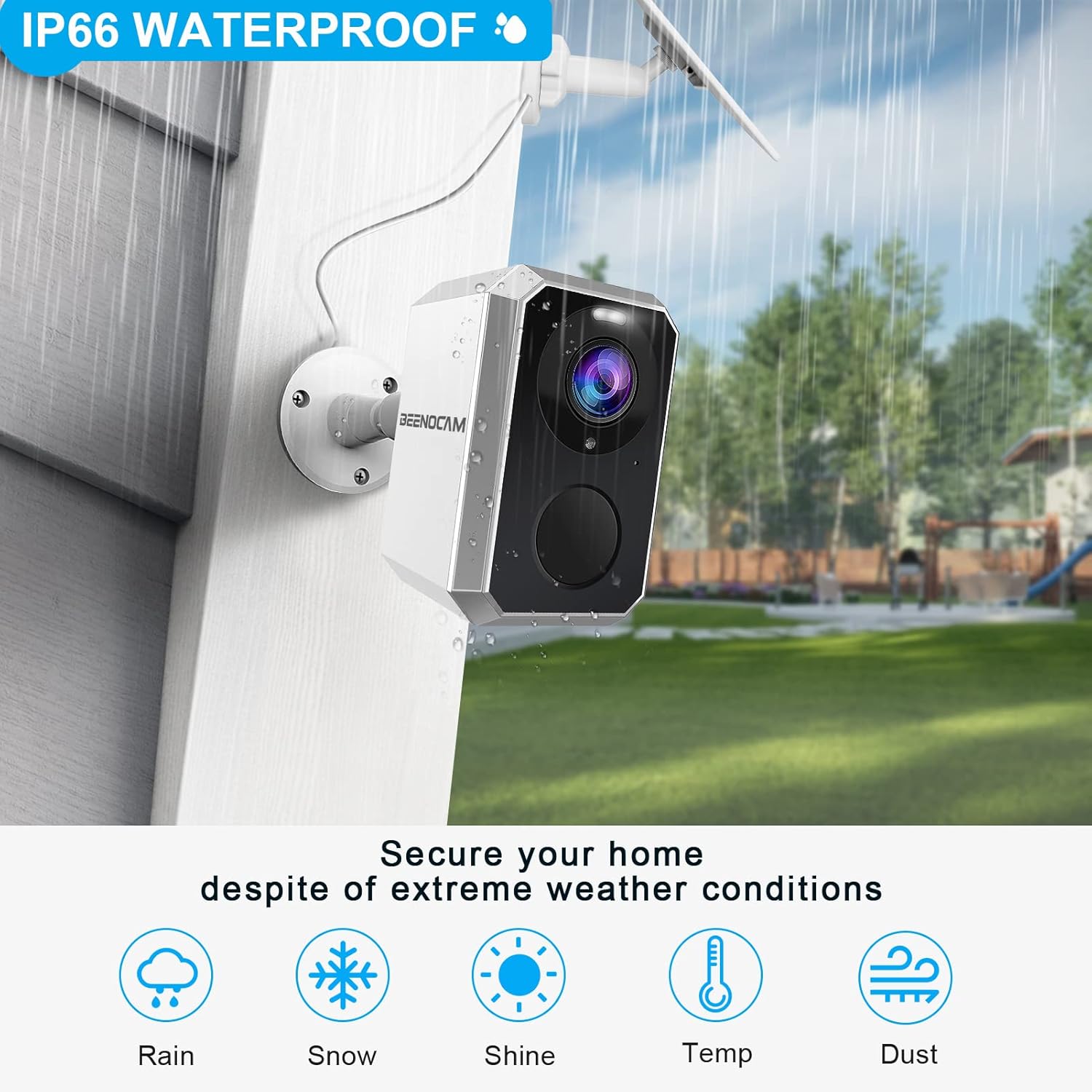
Image: The camera is IP66 waterproof, ensuring reliable operation in various weather conditions including rain, snow, and dust.
6. Operating the Camera
6.1 Live View and Basic Controls
Open the 'O-KAM' app and select your camera to access the live view. From here, you can:
- View Live Feed: See real-time video from your camera.
- Take Snapshots: Capture still images from the live feed.
- Record Video: Manually record video clips.
- Two-Way Audio: Tap the microphone icon to speak through the camera's speaker and hear audio from the camera.

Image: The camera supports two-way audio, allowing communication with individuals near the camera, and enables multiple users to view the live video simultaneously.
6.2 Motion Detection and Alerts
The camera uses PIR (Passive Infrared) detection to identify motion. You can customize alert settings:
- Sensitivity: Adjust the motion detection sensitivity to minimize false alarms.
- Detection Zone: Define specific areas within the camera's view where motion detection should be active.
- Alert Types: Configure the camera to send push notifications to your phone, activate the white light flashing alarm, or trigger the siren alarm upon detection.

Image: The camera features longer PIR infrared detection distance and free humanoid detection, providing more accurate alerts and reducing false positives.
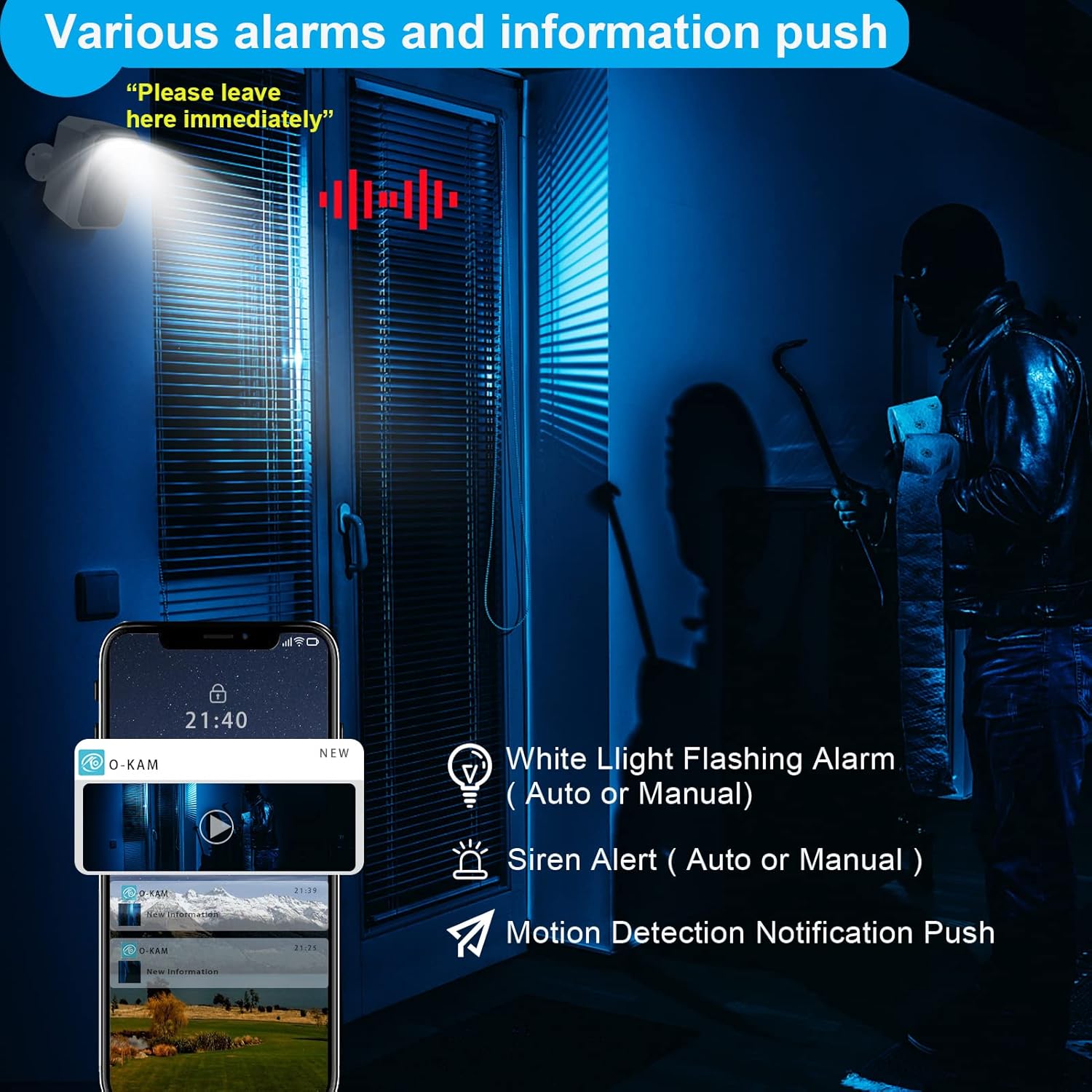
Image: The camera offers various alarms including white light flashing (auto/manual), siren alert (auto/manual), and motion detection notification pushes to your phone.
6.3 Night Vision Modes
The camera supports multiple night vision modes:
- Color Night Vision: Activates the built-in LED light to provide full-color video in dark conditions.
- Infrared Night Vision: Provides black and white video using infrared LEDs for discreet monitoring.
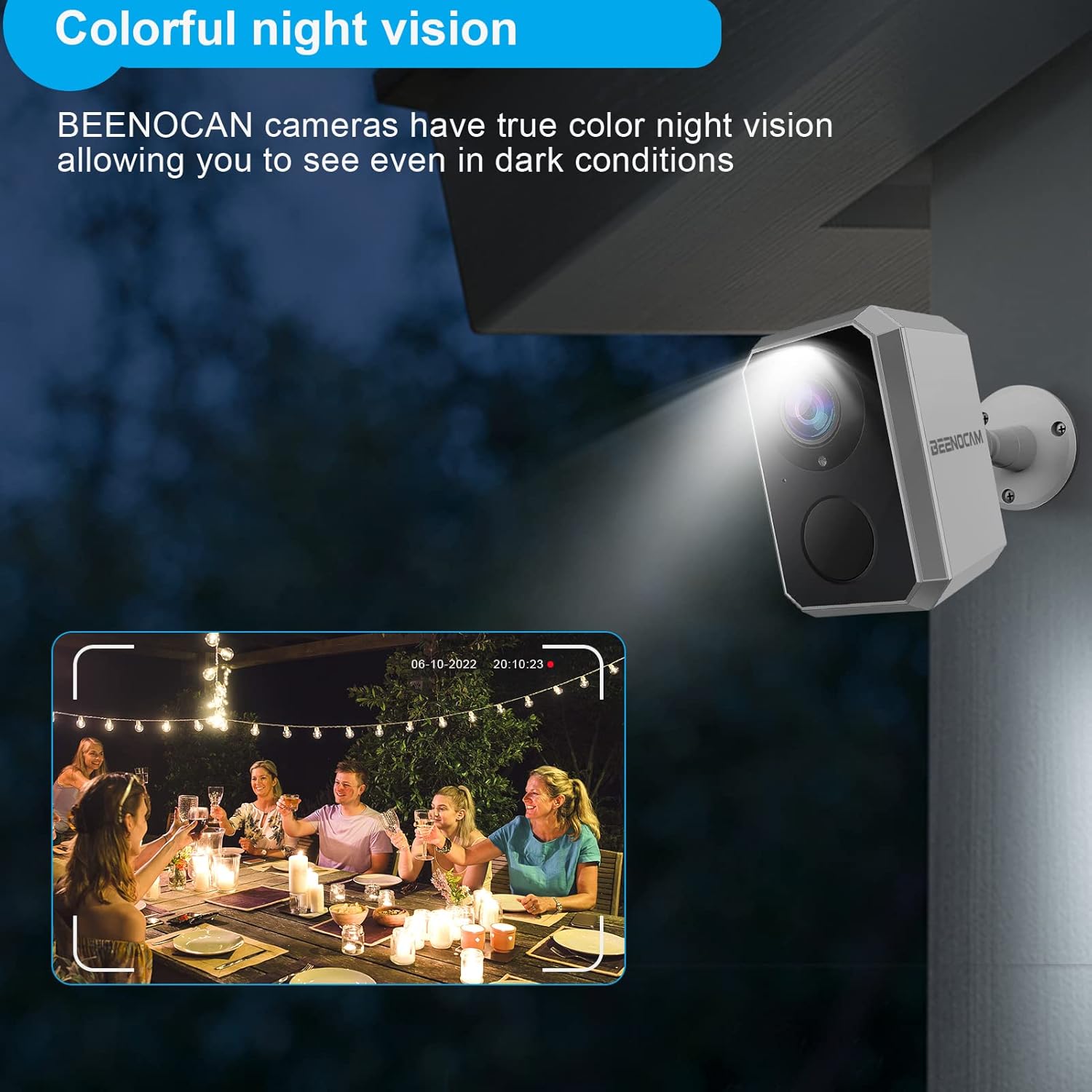
Image: BEENOCAM cameras feature true color night vision, allowing you to see clearly even in dark conditions.
6.4 Storage Options
Your camera offers two storage methods for recorded footage:
- Cloud Storage: Enjoy a 3-day free cycle of cloud storage. Paid plans are available for extended storage duration.
- SD Card Storage: Insert a microSD card (up to 128GB, not included) into the camera's SD card slot for local storage.

Image: The camera supports both cloud storage and local storage via a memory card inserted into its dedicated slot.
7. Maintenance
Regular maintenance ensures the longevity and optimal performance of your BEENOCAM camera:
- Clean Lens and Solar Panel: Periodically wipe the camera lens and solar panel with a soft, damp cloth to remove dust, dirt, or water spots. A clean solar panel ensures efficient charging.
- Check Connections: Ensure all cables and mounting hardware are secure, especially after severe weather.
- Battery Monitoring: Monitor the battery level via the app. If the battery consistently runs low, check the solar panel's exposure to sunlight.
- Firmware Updates: Check the app regularly for firmware updates. Updates can improve performance, add new features, and enhance security.

Image: The O-KAM app provides notifications for low battery levels, prompting users to ensure the solar panel is charging effectively.
8. Troubleshooting
If you encounter issues with your BEENOCAM camera, refer to the following common problems and solutions:
| Problem | Possible Cause / Solution |
|---|---|
| Camera not powering on / not charging |
|
| Cannot connect to Wi-Fi |
|
| Frequent false alarms |
|
| No recordings saved |
|
| Poor image quality |
|
9. Specifications
Key technical specifications for the BEENOCAM D5 camera:
- Model: D5
- Resolution: 2K (2034 x 1296p), 3MP video recording
- Wireless Technology: Wi-Fi (2.4 GHz)
- Power Source: Solar powered (internal rechargeable battery)
- Power Consumption: 9 Watt-hours
- Dimensions (L x W x H): 8 x 8 x 15 cm
- Weight: 510 grams
- Waterproof Rating: IP66
- Special Features: HD Resolution, Color Night Vision, PIR Detection, Two-way Audio, Smart Alarms
- Recommended Use: Surveillance
- Compatible Devices: Smartphone (iOS/Android via O-KAM app)
10. Warranty and Support
For warranty information, please refer to the purchase documentation or contact your retailer. BEENOCAM provides customer support to assist with any product-related inquiries or issues.
- Online Support: Visit the BEENOCAM official website for FAQs, troubleshooting guides, and contact information.
- In-App Support: The 'O-KAM' app may offer a support section or direct contact options.


