
ienRon iSH582-1
Thermal Receipt Printer User Manual
Model: iSH582-1
Brand: ienRon
1. Introduction
This manual provides comprehensive instructions for the installation, operation, and maintenance of your ienRon Thermal Receipt Printer (Model: iSH582-1). This 58mm max-width POS printer features high-speed printing and advanced thermal technology, supporting ESC/POS commands on Windows and Linux operating systems. Please read this manual thoroughly before using the printer to ensure proper function and longevity.
2. Safety Information
- Do not expose the printer to water or moisture.
- Ensure the power supply matches the printer's requirements.
- Avoid touching the print head immediately after printing, as it may be hot.
- Do not attempt to disassemble or repair the printer yourself. Contact qualified personnel for service.
- Use only thermal paper designed for this printer.
3. Package Contents
Verify that all items listed below are included in your package:
- Thermal Receipt Printer (iSH582-1)
- Power Cord
- USB Transfer Cable
- U Disk (containing drivers and instructions)
- One Roll of Thermal Paper
- User Manual
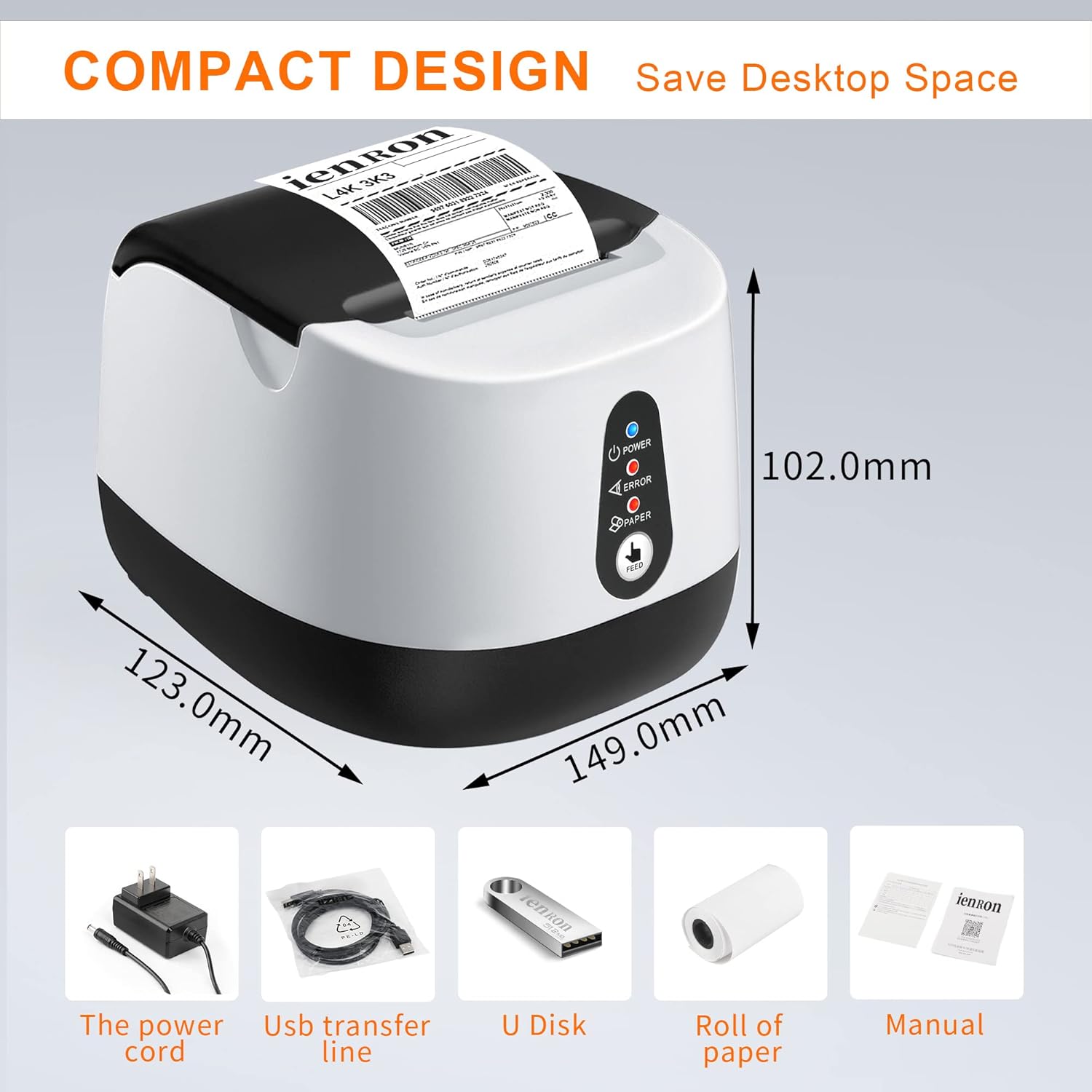
Figure 3.1: Contents of the package, including the printer and its accessories.
4. Setup
4.1 Hardware Connection
- Connect the power cord to the printer's power interface and then to a power outlet.
- Connect the USB transfer cable to the printer's USB port and the other end to your computer's USB port.
- Open the printer cover by pressing the release button.
- Insert the thermal paper roll into the built-in roll bin, ensuring the paper feeds out from the top and is aligned correctly. Close the cover firmly until it clicks.

Figure 4.1: Printer interfaces and internal paper loading area.
4.2 Driver Installation
The printer supports Windows and Linux operating systems. Driver installation is crucial for proper functionality.
- Insert the provided U Disk into your computer's USB port.
- Locate and run the driver installation file from the U Disk.
- Follow the on-screen prompts to complete the driver installation. Refer to the "printer installation precautions" and "installation video" mentioned in the product description for detailed guidance if needed.
- After installation, restart your computer if prompted.
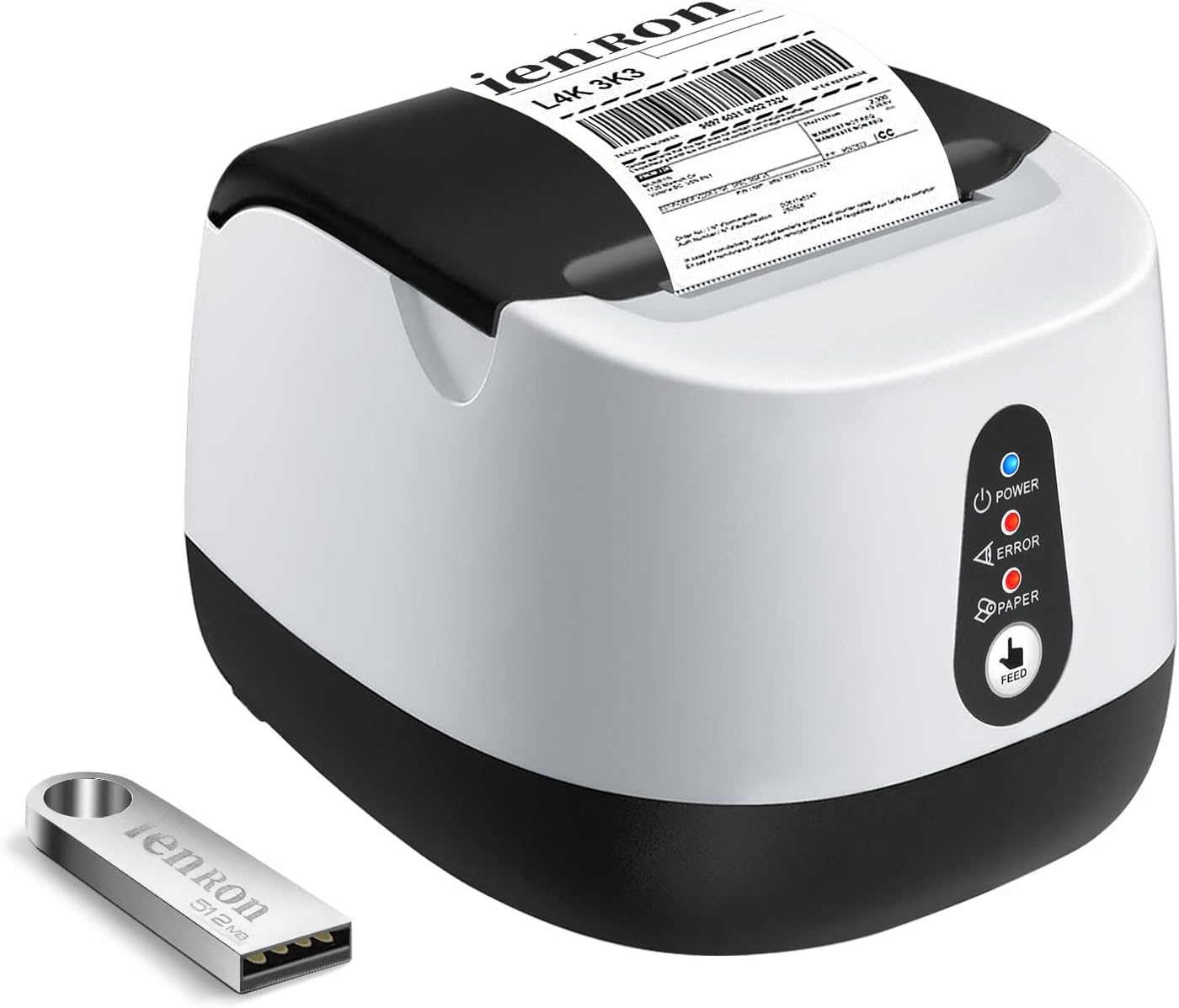
Figure 4.2: Printer and included U Disk for driver installation.

Figure 4.3: System compatibility with Windows and Linux (represented by Android icon in image, but product description states Linux).
5. Operating Instructions
5.1 Basic Operation
- Power On/Off: Press the Power button to turn the printer on or off. The Power indicator light will illuminate when on.
- Feed Button: Press the FEED button to advance the paper manually.
- Printing: Once drivers are installed and the printer is connected, you can print receipts or other documents from your application. The printer supports ESC/POS commands.

Figure 5.1: Printer's fast printing capabilities.

Figure 5.2: Printer compatibility and typical usage environments.
6. Maintenance
6.1 Cleaning the Print Head
Regular cleaning of the print head ensures optimal print quality and extends the printer's lifespan. Clean the print head when print quality degrades or after every few paper roll changes.
- Turn off the printer and disconnect the power cord.
- Open the printer cover.
- Use a cotton swab lightly dampened with isopropyl alcohol to gently wipe the print head surface.
- Allow the print head to dry completely before closing the cover and reconnecting power.
6.2 Paper Roll Replacement
When the paper roll is depleted or near its end, replace it as follows:
- Open the printer cover.
- Remove the empty paper core.
- Insert a new 58mm thermal paper roll, ensuring the paper feeds from the bottom of the roll towards the top of the printer.
- Pull a small amount of paper out past the cutting edge and close the cover firmly.

Figure 6.1: Printer's internal view, highlighting the thermal printing mechanism that requires no ink or ribbon.
7. Troubleshooting
| Problem | Possible Cause | Solution |
|---|---|---|
| Printer does not power on. | No power, loose connection. | Check power cord connection to printer and outlet. Ensure outlet has power. |
| No printing or blank output. | Paper loaded incorrectly, out of paper, driver issue, printer not selected. | Reload paper correctly. Replace paper roll. Reinstall drivers. Ensure printer is selected as default in software. |
| Poor print quality. | Dirty print head, low quality thermal paper. | Clean the print head (refer to Section 6.1). Use high-quality thermal paper. |
| Printer not recognized by computer. | USB cable issue, driver not installed or corrupted. | Try a different USB port or cable. Reinstall printer drivers. |
| Paper jam. | Paper loaded incorrectly, foreign object. | Turn off printer, open cover, carefully remove jammed paper. Ensure paper is loaded straight. |
8. Specifications
| Feature | Detail |
|---|---|
| Model Name | iSH582-1 |
| Printing Technology | Thermal |
| Connectivity Technology | USB |
| Maximum Media Size | 58mm |
| Max Print Speed (Monochrome) | 70mm/s |
| Print Resolution | 203 DPI |
| Ink/Ribbon Required | No (Thermal Printing) |
| Compatible Operating Systems | Windows, Linux (Does not support iPad, iPhone, iOS, or Bluetooth devices) |
| Interface | USB |
| Dimensions (L x W x H) | 149.0mm x 123.0mm x 102.0mm |
| Item Weight | 1.7 pounds |
| Special Features | Easy to Set Up, Excellent Printing Performance, High Speed, No Ink & No Ribbon, Overheating Protection, Data Buffer |

Figure 8.1: High performance features of the printer.

Figure 8.2: Key features for small business use, including USB, 203DPI, and ink/ribbon-free operation.
Figure 8.3: Compact design and dimensions of the printer.
9. Warranty and Support
9.1 Limited Warranty
This ienRon Thermal Receipt Printer comes with a limited warranty. Please refer to the warranty card included in your package or contact customer support for details regarding warranty terms and conditions.
9.2 Customer Support
If you encounter any problems during installation or use, or have any questions not covered in this manual, please feel free to contact ienRon customer support. We are committed to providing assistance and resolving any issues you may experience.
Note: Contact information for customer support is typically found on the product packaging, warranty card, or the manufacturer's official website.
Ask a question about this manual
Ask about setup, troubleshooting, compatibility, parts, safety, or missing instructions. Manuals+ will review the question and use this page’s manual context to help answer it.