
1. Introduction
This manual provides detailed instructions for the installation, use, and maintenance of your DTTO Protective Case. Designed for durability and functionality, this case offers comprehensive protection for your compatible iPad models.
2. Compatibility
This DTTO Protective Case is specifically designed for the following iPad models:
- iPad (A16) 11th Generation 11-inch 2025 (Model Numbers: A3356, A3355, A3354)
- iPad 10th Generation 10.9-inch 2022 (Model Numbers: A2777, A2757, A2696)
Note: This case is NOT compatible with other iPad models.

Figure 2.1: Compatible iPad Models and Dimensions.
3. Product Features
- Dual Layer Design: The case features a high-quality shock-proof TPU layer combined with a hard PC backplate. This design effectively reduces impact from collisions and prevents scratches to your iPad.
- Functional Kickstand: A built-in foldable kickstand provides multiple viewing angles, ideal for watching videos, playing games, or typing.
- Precise Cutouts: Designed with precise cutouts for easy access to all ports, buttons, and functions without removing the case. It includes a dust plug to protect the charging port from foreign matter.
- Built-in Screen Protector: Made of PC material with a plating process, ensuring a close fit with the iPad screen without bubbles. It effectively prevents scratches and is easy to clean, maintaining screen sensitivity.
- Drop Protection: The robust design provides shockproof and anti-fall protection, safeguarding your device from accidental drops and impacts.

Figure 3.1: Dual Layer Protection Design.

Figure 3.2: Built-in Kickstand for Multiple Angles.
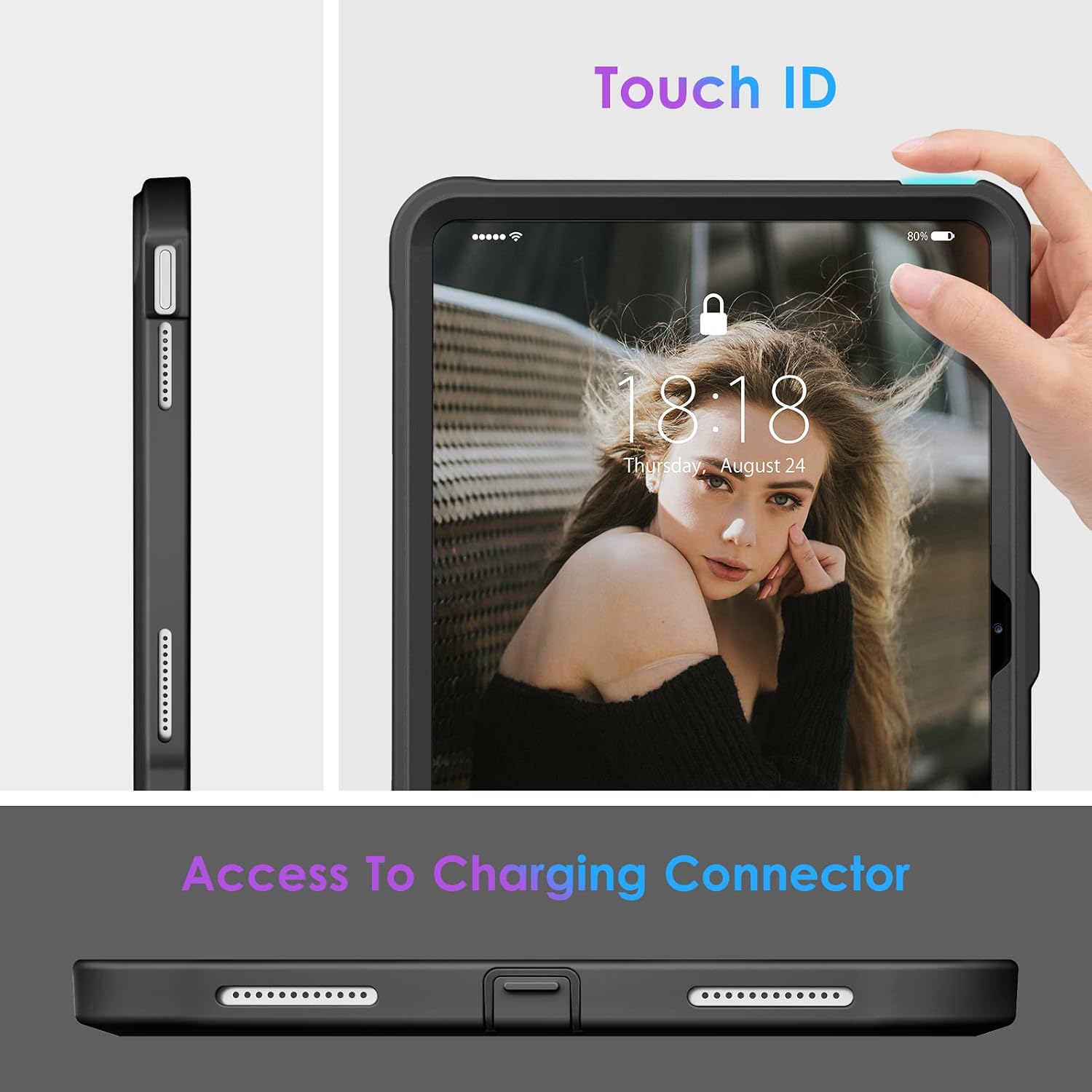
Figure 3.3: Precise Cutouts and Charging Port Access.

Figure 3.4: Drop Protection Feature.
4. Setup and Installation
Follow these steps to properly install your iPad into the DTTO Protective Case:
- Disassemble the Case: Carefully separate the screen protector frame from the back case. Start from the top edge and gently pry them apart.
- Remove Protective Films: Peel off any inner and outer protective films from the built-in screen protector.
- Insert iPad: Securely place your iPad into the screen protector frame, ensuring all edges align with the frame's contours. Pay attention to camera and button alignments.
- Reassemble Case: Align the screen protector frame with the back case. Snap the two parts together, starting from one corner and working your way around, ensuring all clips are securely fastened.

Figure 4.1: Step-by-Step Installation Instructions.
Installation Video Guide:
Video 4.1: Detailed guide on how to install your DTTO Protective Case.
5. Operating Instructions
- Using the Kickstand: Locate the foldable kickstand on the back of the case. Gently pull it out to deploy. Adjust to your desired viewing or typing angle (e.g., 45° viewing mode, 30° work mode). Push it back in until it clicks to secure it when not in use.
- Accessing Ports and Buttons: All ports, buttons, and the camera are accessible through precise cutouts. The charging port is protected by a dust plug; gently lift it to access the port for charging.
- Touch ID Functionality: The case is designed to allow full functionality of the Touch ID sensor. Ensure your finger is clean and dry for optimal performance.
6. Maintenance
- Cleaning the Case: Use a soft, damp cloth to wipe down the exterior of the case. For stubborn dirt, a mild soap solution can be used. Avoid harsh chemicals or abrasive cleaners.
- Cleaning the Screen Protector: The built-in screen protector can be cleaned with a microfiber cloth. For smudges, a screen cleaner spray designed for electronics can be applied to the cloth (not directly to the screen protector).
- Removing the Case: To remove the case, carefully separate the screen protector frame from the back case, similar to the installation process, but in reverse.
Case Removal Video Guide:
Video 6.1: Detailed guide on how to remove your DTTO Protective Case.
7. Troubleshooting
- Screen Protector Bubbles: If bubbles appear after installation, gently press them towards the edge of the screen protector to push out the air. Ensure the screen and protector are free of dust during installation.
- Difficulty with Buttons/Ports: Ensure the iPad is correctly seated within the case and that all cutouts align perfectly. If the dust plug for the charging port is stiff, gently work it open a few times.
- Kickstand Issues: Ensure the kickstand is fully extended and locked into position for stable support. If it feels loose, check for any obstructions.
8. Specifications
| Feature | Detail |
|---|---|
| Brand | DTTO |
| Compatible Devices | iPad (A16) 11th Generation 11 inch 2025 (A3356/A3355/A3354), iPad 10th Generation 10.9 inch 2022 (A2777/A2757/A2696) |
| Form Factor | Case |
| Shell Type | Hard |
| Item Weight | 8.4 ounces |
| Product Dimensions | 10 x 7 x 0.6 inches |
| Color | Black |
| Manufacturer | DTTO |
9. Warranty and Support
DTTO is committed to providing high-quality products and customer satisfaction. For any questions, concerns, or support needs regarding your DTTO Protective Case, please contact us directly.
- Contact Information: Refer to the service card included with your product or visit the official DTTO website for customer service details.
- Warranty: Specific warranty details may vary. Please retain your proof of purchase for any warranty claims.
Our goal is to provide the best service and reliable products for every customer. We value your opinions and are always ready to assist.