
Introduction
Thank you for choosing the eStar Urban 1020L LTE Tablet. This manual provides essential information for setting up, operating, maintaining, and troubleshooting your device. Please read this manual carefully before using your tablet to ensure optimal performance and longevity.
The eStar Urban 1020L LTE is a versatile 10-inch tablet running on Android 10, designed for both productivity and entertainment, featuring LTE connectivity for on-the-go internet access.
Safety Information
To prevent injury or damage to your device, please observe the following safety precautions:
- Do not expose the tablet to extreme temperatures, direct sunlight, or high humidity.
- Avoid dropping or subjecting the tablet to severe impact.
- Use only manufacturer-approved chargers and accessories.
- Do not attempt to disassemble or repair the tablet yourself. Refer to qualified service personnel.
- Keep the tablet away from water and other liquids.
- Dispose of the tablet and its battery responsibly according to local regulations.
Package Contents
Please check the box for the following items:
- eStar Urban 1020L LTE Tablet
- USB Charging Cable
- Power Adapter
- Quick Start Guide
Device Overview
Familiarize yourself with the physical components of your eStar Urban 1020L LTE Tablet.
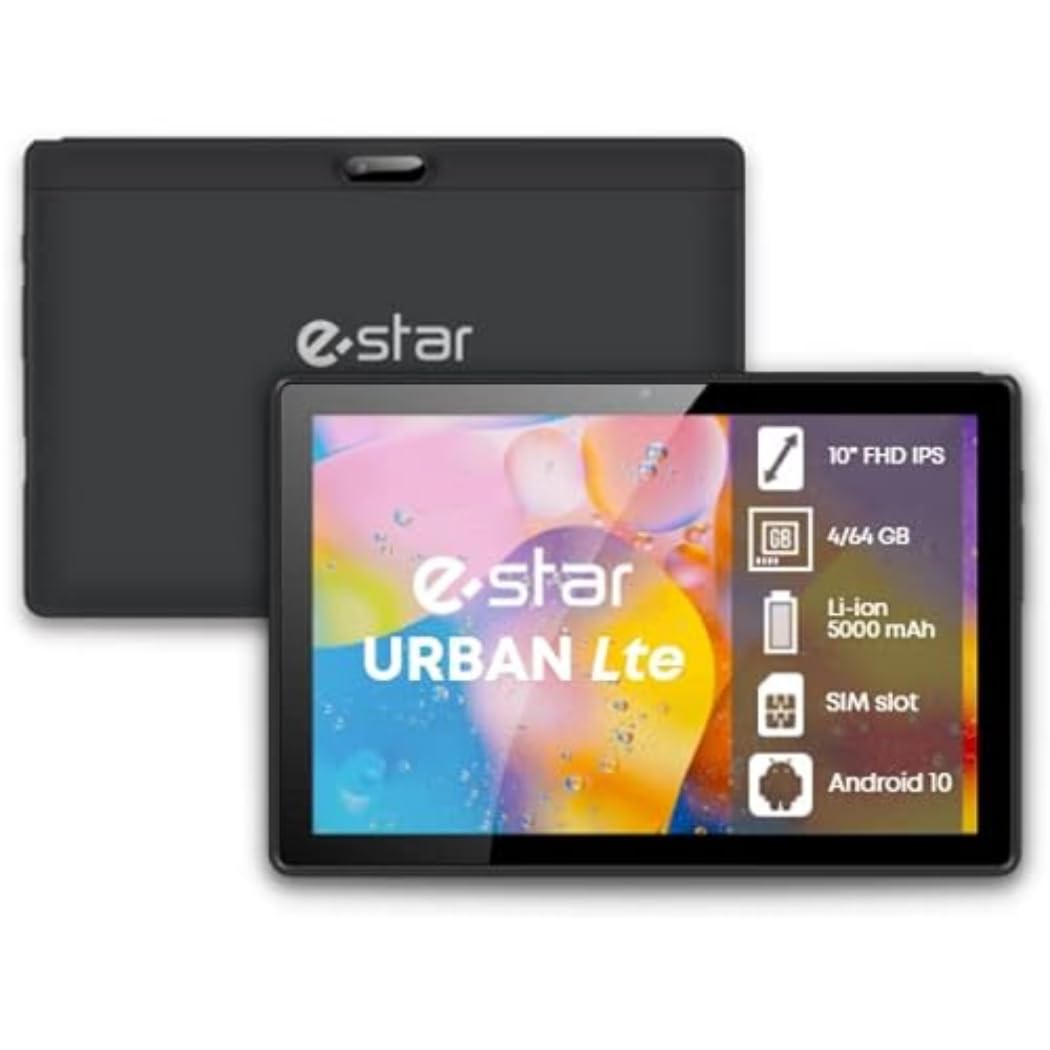
Image: Front view of the eStar Urban 1020L LTE Tablet, showing the screen and bezels.
Key Components:
- Power Button: Located on the side, used to turn the tablet on/off or put it to sleep.
- Volume Buttons: Adjust the audio volume.
- USB-C Port: For charging and data transfer.
- Headphone Jack: For connecting wired headphones.
- SIM/MicroSD Card Slot: Insert your SIM card for LTE connectivity and a MicroSD card for expanded storage.
- Front Camera: For video calls and selfies.
- Rear Camera: For taking photos and videos.
- Speakers: For audio output.
Setup
1. Initial Charging
Before first use, fully charge your tablet. Connect the USB charging cable to the tablet's USB-C port and the power adapter, then plug the adapter into a wall outlet. The charging indicator will show the charging status.
2. Powering On/Off
- To Power On: Press and hold the Power button until the eStar logo appears.
- To Power Off: Press and hold the Power button until the power options appear on the screen, then select "Power off".
- To Sleep/Wake: Briefly press the Power button.
3. SIM Card and MicroSD Card Installation
Locate the SIM/MicroSD card slot on the side of your tablet. Use the provided SIM ejector tool to open the tray. Carefully place your Nano-SIM card and/or MicroSD card into the designated slots, ensuring correct orientation. Gently push the tray back into the tablet until it clicks into place.
4. Initial Setup Wizard
Upon first power-on, the tablet will guide you through an initial setup process. Follow the on-screen instructions to select your language, connect to a Wi-Fi network, set up your Google account, and configure other basic settings.
Operating
1. Basic Navigation
- Tap: Select an item or open an app.
- Swipe: Scroll through screens or lists.
- Pinch: Zoom in or out on images and web pages.
- Long Press: Access contextual menus or move icons.
2. Wi-Fi Connectivity
Go to Settings > Network & Internet > Wi-Fi. Turn Wi-Fi on, select your desired network from the list, and enter the password if required. Tap "Connect".
3. Mobile Data (LTE)
If you have a SIM card installed, enable mobile data via Settings > Network & Internet > Mobile network. Ensure "Mobile data" is toggled on. You may need to configure APN settings provided by your mobile carrier.
4. Bluetooth Pairing
To connect Bluetooth devices (e.g., headphones, speakers), go to Settings > Connected devices > Bluetooth. Turn Bluetooth on, and your tablet will scan for available devices. Select the device you wish to pair and follow any on-screen prompts.
5. Camera Usage
Open the Camera app from your home screen or app drawer. Tap the shutter button to take a photo. Swipe left or right to switch between photo and video modes. Use the icon to switch between front and rear cameras.
6. App Management
Download apps from the Google Play Store. To uninstall an app, long-press its icon on the home screen or in the app drawer, then drag it to "Uninstall" or select the uninstall option.
Maintenance
1. Cleaning the Device
Use a soft, lint-free cloth to clean the screen and body of the tablet. For stubborn smudges, slightly dampen the cloth with water or a screen cleaner. Avoid using harsh chemicals or abrasive materials.
2. Battery Care
To prolong battery life, avoid fully discharging the battery frequently. It is recommended to keep the battery charge between 20% and 80%. Do not leave the tablet charging for extended periods after it is fully charged.
3. Software Updates
Regularly check for software updates to ensure your tablet has the latest features and security patches. Go to Settings > System > System update to check for and install available updates.
4. Storage Management
To optimize performance, periodically clear unnecessary files and apps. Go to Settings > Storage to view storage usage and manage files. Consider using a MicroSD card for additional storage.
Troubleshooting
- Tablet will not turn on: Ensure the battery is charged. Connect the charger and wait a few minutes before attempting to power on again.
- Wi-Fi connection issues: Restart your tablet and your Wi-Fi router. Ensure you are within range of the Wi-Fi signal and have entered the correct password.
- Slow performance: Close unused apps, clear cache, and free up storage space. Consider performing a factory reset as a last resort (Settings > System > Reset options > Erase all data (factory reset)).
- Apps crashing: Ensure apps are updated to their latest versions. Clear the app's cache and data (Settings > Apps & notifications > See all apps > [App Name] > Storage & cache).
- No sound: Check the volume settings and ensure the tablet is not in silent mode. Test with different headphones or speakers.
Specifications
| Feature | Specification |
|---|---|
| Brand | e star enjoy today |
| Model Name | Tablet eStar Urban 1020L Lte |
| Item Model Number | MID1020L |
| Operating System | Android 10 |
| Processor Brand | Intel |
| CPU Speed | 2 GHz |
| Processor Description | PowerVR GE8320 |
| Screen Size | 10 Inches |
| Max Display Resolution | 1200x1920 Pixels |
| Connectivity Type | Wi-Fi, Cellular (LTE) |
| Device Compatibility | IEEE 802.11 b/g/n/ac+ |
| Memory Storage Capacity | 64 GB |
| Installed RAM Size | 1 GB |
| Item Dimensions (L x W x H) | 24 x 69 x 2.5 centimeters |
| Special Features | Full HD IPS screen, IEEE 802.11 b/g/n/ac+ |
Warranty and Support
Warranty Information
The eStar Urban 1020L LTE Tablet comes with a 2-year manufacturer's warranty. This warranty covers defects in materials and workmanship under normal use. It does not cover damage caused by misuse, accidents, unauthorized modifications, or external causes.
Please retain your proof of purchase for warranty claims.
Customer Support
For technical assistance, troubleshooting, or warranty service, please contact eStar customer support. Refer to the contact information provided with your product packaging or visit the official eStar website for support resources.
Note: Spare parts availability information is currently unavailable. Guaranteed software updates information is currently unavailable.