
Introduction
Welcome to the user manual for your new eSTAR MID7399 7-inch HD Android Tablet. This manual provides detailed instructions on how to set up, operate, maintain, and troubleshoot your device. Please read this manual carefully before using your tablet to ensure proper operation and to maximize its lifespan.
Safety Information
To prevent damage to your device or injury to yourself or others, please observe the following precautions:
- Do not expose the tablet to extreme temperatures, direct sunlight, or high humidity.
- Avoid dropping or subjecting the tablet to severe impact.
- Use only manufacturer-approved chargers and accessories.
- Do not attempt to disassemble or repair the tablet yourself. Refer to qualified service personnel.
- Keep the tablet away from water and other liquids.
What's in the Box
Upon opening the package, please verify that all items are present:
- eSTAR MID7399 7-inch HD Android Tablet
- USB Charging Cable
- Power Adapter
- Quick Start Guide (not included in this manual)
Product Overview

Figure 1: Front and back view of the eSTAR MID7399 tablet. The front displays the "e-star Beauty3" branding and icons for 7" HD TFT, 2/16GB (likely referring to RAM/Storage), Li-ion 2400 mAh battery, WiFi, and Android 9. The rear shows the e-star logo and a speaker grille.
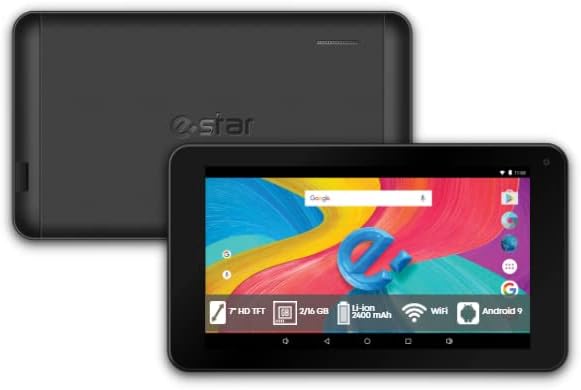
Figure 2: Front and back view of the eSTAR MID7399 tablet, showcasing the vibrant Android home screen with various app icons and a search bar. The rear panel is visible behind the tablet.
The eSTAR MID7399 tablet features a 7-inch HD display, a quad-core processor, and runs on Android 9.0 Pie. It includes Wi-Fi connectivity and a 5 MP rear camera. Key physical components include:
- Front Camera: Located above the screen, used for video calls and selfies.
- Power Button: Typically on the side, used to turn the device on/off or wake/sleep.
- Volume Buttons: Usually next to the power button, for adjusting audio levels.
- USB Port: For charging and data transfer.
- Headphone Jack: For connecting wired headphones.
- MicroSD Card Slot: For expanding storage capacity.
- Rear Camera: Located on the back, for taking photos and videos.
- Speaker: For audio output.
Setup
1. Charging the Tablet
Before first use, fully charge your tablet. Connect the USB charging cable to the tablet's USB port and the other end to the power adapter. Plug the power adapter into a wall outlet. The battery indicator on the screen will show charging progress.
2. Powering On/Off
- To Power On: Press and hold the Power button until the eSTAR logo appears.
- To Power Off: Press and hold the Power button until a power-off menu appears. Select "Power off" and confirm.
- To Sleep/Wake: Briefly press the Power button.
3. Initial Setup Wizard
The first time you power on the tablet, you will be guided through an initial setup wizard. Follow the on-screen prompts to:
- Select your language.
- Connect to a Wi-Fi network.
- Set up your Google account (or create a new one). This is essential for downloading apps from the Google Play Store.
- Set date and time.
- Configure screen lock options (PIN, pattern, password).
4. Inserting a MicroSD Card (Optional)
To expand the tablet's storage, locate the MicroSD card slot (usually on the side or under a flap). Gently insert a MicroSD card with the gold contacts facing down until it clicks into place. The tablet will recognize the new storage.
Operating
Basic Navigation
- Tap: To open an app, select an item, or press a button.
- Touch and Hold: To access contextual menus or move icons.
- Swipe: To scroll through pages, lists, or switch between home screens.
- Pinch-to-Zoom: To zoom in or out on images, maps, or web pages.
Connecting to Wi-Fi
- Go to Settings > Network & internet > Wi-Fi.
- Toggle Wi-Fi On.
- Select your desired network from the list.
- Enter the password if prompted, then tap Connect.
Managing Applications
- Downloading Apps: Open the Google Play Store app, search for your desired app, and tap Install.
- Uninstalling Apps: Go to Settings > Apps & notifications, select the app, then tap Uninstall. Alternatively, touch and hold the app icon on the home screen and drag it to "Uninstall" if available.
Using the Camera
The eSTAR MID7399 features a 5 MP rear camera. To use it:
- Open the Camera app.
- Switch between photo and video modes as needed.
- Tap the screen to focus.
- Tap the shutter button to take a photo or start/stop recording a video.
Maintenance
Cleaning Your Tablet
Use a soft, lint-free cloth to clean the screen and body of the tablet. Do not use abrasive cleaners, alcohol, or solvents, as these can damage the surface. For stubborn smudges, slightly dampen the cloth with water.
Software Updates
Periodically check for system updates to ensure your tablet has the latest features and security patches. Go to Settings > System > Advanced > System update. Connect to Wi-Fi before downloading updates.
Battery Care
- Avoid fully discharging the battery frequently.
- Do not leave the tablet charging for extended periods after it's fully charged.
- Store the tablet in a cool, dry place if not used for a long time, with the battery charged to about 50%.
Troubleshooting
| Problem | Possible Cause | Solution |
|---|---|---|
| Tablet won't turn on. | Low battery; System crash. | Charge the tablet for at least 30 minutes. If still unresponsive, press and hold the Power button for 10-15 seconds to force a restart. |
| Wi-Fi connection issues. | Incorrect password; Router issue; Tablet Wi-Fi disabled. | Check Wi-Fi password. Restart your router. Go to Settings > Wi-Fi and ensure Wi-Fi is enabled. Forget the network and reconnect. |
| Apps crashing or freezing. | App bug; Insufficient memory. | Close and reopen the app. Clear the app's cache (Settings > Apps > [App Name] > Storage > Clear cache). Restart the tablet. |
| Slow performance. | Too many apps running; Low storage; Outdated software. | Close unused apps. Uninstall unnecessary apps. Clear cache and temporary files. Check for system updates. |
Specifications
| Feature | Detail |
|---|---|
| Model Name | eSTAR MID7399-BK (BEAUTY 3 Tablet HD Quad Core) |
| Display Size | 7 Inches |
| Resolution | 1024x600 Pixels |
| Processor | Rockchip Quad Core |
| RAM | 2 GB |
| Internal Storage | 32 GB (expandable via MicroSD) |
| Operating System | Android 9.0 Pie |
| Rear Camera Resolution | 5 MP |
| Connectivity | Wi-Fi (802.11a/b/g/n), USB 2.0 |
| Battery Capacity | 2400 mAh |
| Product Dimensions | 10.95 x 1.05 x 19.15 cm |
Warranty and Support
Your eSTAR MID7399 tablet comes with a standard manufacturer's warranty. Please refer to the warranty card included in your product packaging for specific terms and conditions, including warranty duration and coverage details.
For technical support, troubleshooting assistance beyond this manual, or warranty claims, please contact eSTAR customer service. Contact information can typically be found on the eSTAR official website or on the warranty card.
For more information, visit the official eSTAR store: eSTAR enjoy today Store