
ILOKEY BC86
ILOKEY BC86 Bluetooth 5.3 FM Transmitter Car Adapter User Manual
Model: BC86 | Brand: ILOKEY
1. Introduction
This manual provides detailed instructions for the operation and maintenance of your ILOKEY BC86 Bluetooth 5.3 FM Transmitter Car Adapter. Please read this manual thoroughly before use to ensure proper functionality and safety.
2. Safety Information
- Always follow the charging instructions to avoid battery damage or related safety risks.
- Do not look directly at the 1.5-inch color screen in bright sunlight or for extended periods.
- The device may cause interference with other wireless devices; if this occurs, adjust the device's frequency or placement as needed.
3. Product Features
- Bluetooth 5.3 and FM audio transmission.
- 1.5-inch color screen display for caller ID, music lyrics, sound adjustment, and voltage information.
- Supports QC 3.0, QC2.0, PD, Huawei FCP, Samsung AFC, BC1.2, Apple 2.4A, and other fast charging protocols.
- Compatible with WMA, MP3, WAV, APE, FLAC music formats.
- Supports Bluetooth hands-free calling, voice broadcast, music, and navigation with automatic connection.
- Adjustable EQ sound for customized bass and treble.
- Supports U-Disk and TF card music playback with synchronized lyrics display.
- Real-time voltage monitoring with low voltage flashing alarm.
- Breakpoint memory function.
- High+DSP dual-core architecture with CVC intelligent noise reduction for clear calls and smooth audio.
- Built-in microphone for clear hands-free calls and voice assistant activation.
4. Package Contents
Please verify that all items are present in your package:
- ILOKEY BC86 FM Transmitter Car Adapter
- User Manual
- Auxiliary Audio Cable

5. Setup Instructions
5.1 Initial Connection
Insert the Transmitter: Plug the ILOKEY BC86 FM Transmitter into your vehicle's 12V-24V cigarette lighter socket. The device will power on automatically and display the current battery voltage.
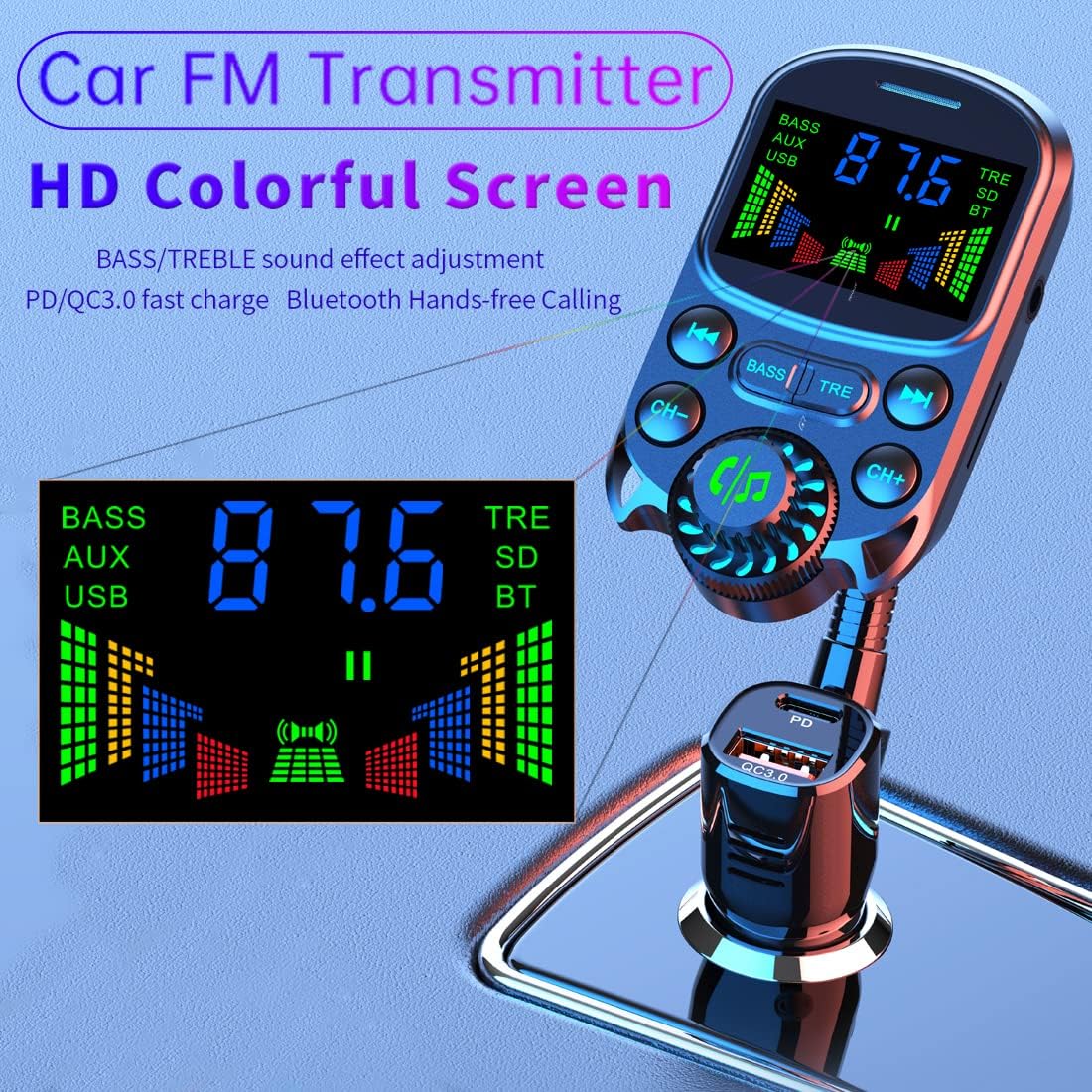
Image 2: The ILOKEY BC86 FM Transmitter inserted into a car's cigarette lighter socket, showing its flexible neck and display. Set FM Frequency: On the transmitter's display, use the "CH+" and "CH-" buttons to find an unused FM frequency (one with static or no broadcast). Then, tune your car's FM radio to the exact same frequency.

Image 3: Close-up of the ILOKEY BC86 FM Transmitter's 1.5-inch color screen displaying the FM frequency (e.g., 87.6) and audio equalizer bars.
5.2 Bluetooth Pairing
Activate Bluetooth: The transmitter will automatically enter Bluetooth pairing mode. The screen will display "Bluetooth KM18" or a similar pairing name.
Pair with your Phone: On your smartphone, go to Bluetooth settings and search for available devices. Select "KM18" (or the displayed name) to connect. Once connected, the transmitter will confirm with an audio prompt and display "Connected".
Video 1: Official product video demonstrating the Bluetooth pairing process and basic functions of the ILOKEY BC86 FM Transmitter. The video shows the device connecting to a phone and playing music through the car's FM radio.
6. Operating Instructions
6.1 Music Playback
Bluetooth Playback: After successful Bluetooth pairing, you can play music from your smartphone. Use the play/pause button on the transmitter or your phone to control playback. Use the forward/backward buttons on the transmitter to skip tracks.
U-Disk/TF Card Playback: Insert a USB flash drive (U-Disk) or a TF card (up to 32GB) containing WMA, MP3, WAV, APE, or FLAC music files into the designated port. The device will automatically detect and play music. Lyrics will be displayed on the screen if available.

Image 4: The ILOKEY BC86 FM Transmitter showing a TF card inserted into its slot, indicating direct music playback capability. AUX Audio Mode: Connect your audio device to the transmitter using the provided auxiliary audio cable. The device will switch to AUX mode for audio input.

Image 5: The ILOKEY BC86 FM Transmitter with an AUX cable connected, demonstrating its auxiliary audio input feature.
6.2 Hands-Free Calling
Answer/End Call: Press the phone button (usually a green phone icon) on the transmitter to answer an incoming call or end an ongoing call.
Reject Call: Long-press the phone button to reject an incoming call.
Voice Assistant: After Bluetooth connection, press and hold the phone button for 2 seconds to activate your smartphone's voice assistant (Siri, Google Assistant). Short press to exit.
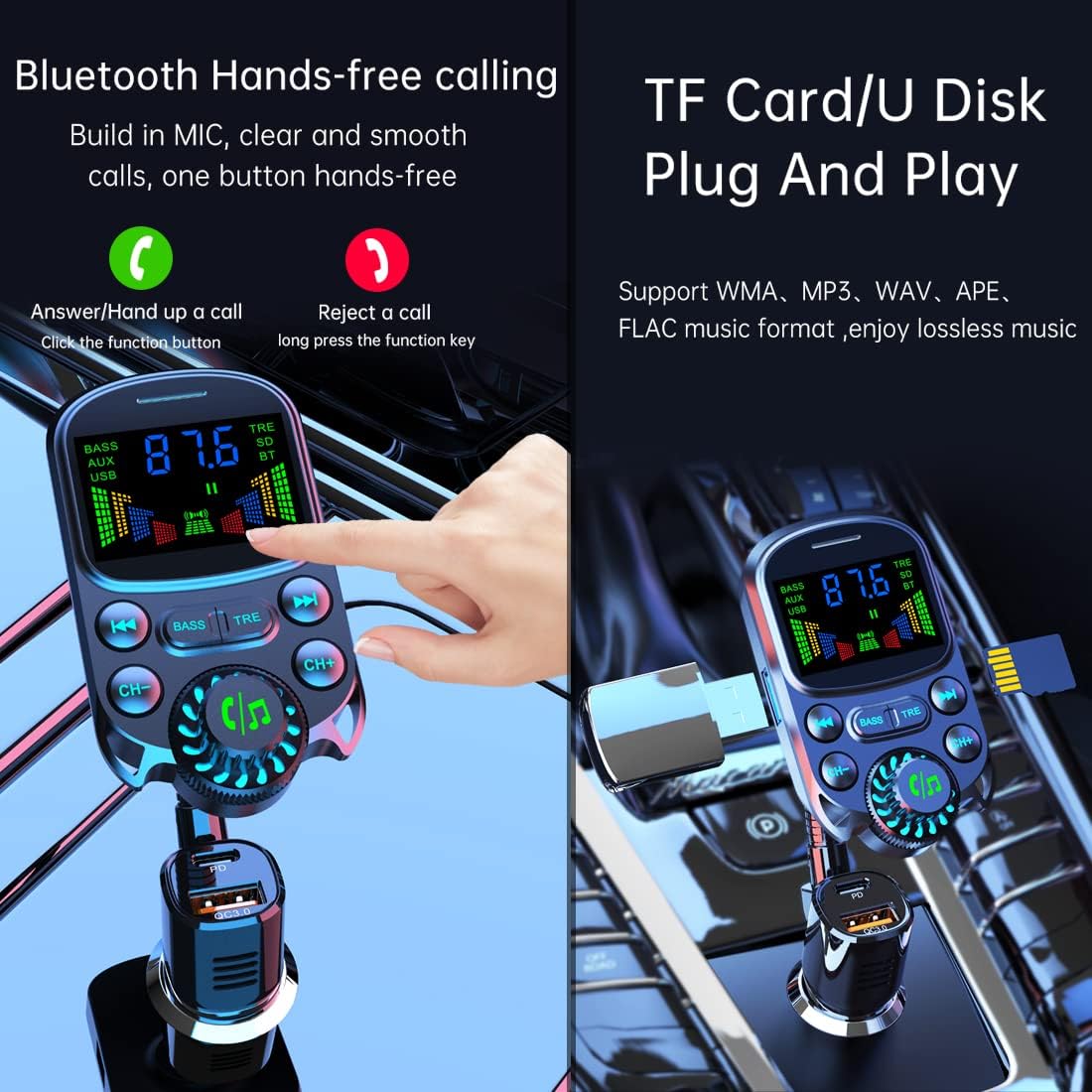
Image 6: A hand interacting with the ILOKEY BC86 FM Transmitter's control buttons, illustrating how to answer/hang up calls and activate voice assistant.
6.3 Sound Adjustment (EQ)
The transmitter features EQ sound adjustment. Use the "BASS" and "TRE" (Treble) buttons to customize your audio output. This allows for a personalized listening experience with enhanced bass and precise treble.

Image 7: The ILOKEY BC86 FM Transmitter's screen displaying the EQ sound adjustment interface with bass and treble controls.
6.4 Charging Functions
The device includes PD 30W and QC 48W smart fast charging ports. These ports support various charging protocols including QC 3.0, QC2.0, PD, Huawei FCP, Samsung AFC, BC1.2, and Apple 2.4A, allowing for rapid charging of compatible devices.
Image 8: The ILOKEY BC86 FM Transmitter's base showing the PD and QC3.0 fast charging ports.
7. Maintenance
- Keep the device dry. Moisture can damage electronic components.
- Clean the device with a soft, dry cloth. Do not use harsh chemicals or abrasive cleaners.
- Avoid extreme temperatures. Store the device in a cool, dry place when not in use.
- Ensure the cigarette lighter connection is secure to prevent power interruptions.
8. Troubleshooting
| Problem | Possible Cause | Solution |
|---|---|---|
| No power/Device not turning on | Loose connection in cigarette lighter socket; vehicle's 12V socket is not powered. | Ensure the device is firmly plugged in. Check if the vehicle's 12V socket is active (e.g., vehicle ignition is on). |
| Static or poor audio quality | FM frequency interference; low volume on phone or transmitter. | Change to a different, unused FM frequency on both the transmitter and car radio. Increase volume on both the phone and transmitter. |
| Bluetooth not connecting | Device not in pairing mode; phone's Bluetooth is off; incorrect device selected. | Ensure the transmitter is powered on and in pairing mode. Turn on Bluetooth on your phone and select "KM18". Restart both devices if necessary. |
| Fast charging not working | Device not compatible with fast charging; cable is not fast-charge compatible. | Ensure your device and charging cable support the fast charging protocols (QC3.0/PD). |
9. Specifications
| Feature | Detail |
|---|---|
| Model Number | BC86 |
| Bluetooth Version | 5.3 |
| Screen Size | 1.5 inches Color Screen |
| FM Transmit Frequency | 87.5-108MHz |
| PD Fast Charge Port | PD (Max 30W) |
| QC Fast Charge Port | QC3.0 (Max 18W) |
| Music Port | 5V/1A |
| U Disk/TF Card Capacity | ≤32GB |
| Work Voltage | 12V-24V |
| Bluetooth Effective Distance | 10M |
| Bluetooth Sound Processing | With DSP and A2DP |
| Item Weight | 4.6 ounces |
| Package Dimensions | 5.51 x 3.7 x 2.09 inches |
10. Warranty and Support
For warranty information or technical support, please refer to the contact details provided on the product packaging or visit the official ILOKEY website.
Ask a question about this manual
Ask about setup, troubleshooting, compatibility, parts, safety, or missing instructions. Manuals+ will review the question and use this page’s manual context to help answer it.