
WOTIMILON WM87
WOTIMILON WM87 Wireless Typewriter Mechanical Keyboard User Manual
Model: WM87 | Brand: WOTIMILON
1. Introduction
Thank you for choosing the WOTIMILON WM87 Wireless Typewriter Mechanical Keyboard. This manual provides essential information for setting up, operating, and maintaining your new keyboard. Designed with a retro aesthetic and modern functionality, the WM87 offers a unique typing and gaming experience.
This keyboard features triple-mode connectivity (Type-C wired, Bluetooth, 2.4Ghz) for versatile use across devices like tablets, laptops, and phones. It includes two control knobs for easy adjustment of RGB backlighting and device volume. Enjoy true RGB backlighting with 18 gorgeous lighting modes and true mechanical blue switches for tactile feedback. The DIY software allows for customization of lights, key remapping, and macro recording, with music sync capabilities (Windows only).

Figure 1.1: WOTIMILON WM87 Wireless Typewriter Mechanical Keyboard
2. What's in the Box
Please check the package contents to ensure all items are present:
- 1x WM87 Wireless Typewriter Keyboard
- 1x User Manual
- 1x Keycap Puller
- 1x 2.4Ghz Adaptor
- 1x Type-C Cable

Figure 2.1: Package Contents
3. Setup
3.1 Triple-Mode Connectivity
The WM87 keyboard supports three connection modes: Type-C wired, Bluetooth 5.0, and 2.4Ghz wireless. This ensures broad compatibility with Windows, macOS, and Android devices.

Figure 3.1: Triple-Mode Mechanical Keyboard Connectivity
3.1.1 Wired Mode
Plug the Type-C USB cable into the keyboard and your device. Press FN + Tab to switch to wired mode. The keyboard will automatically connect.
3.1.2 Bluetooth Mode
The keyboard can store up to 3 Bluetooth devices. To connect:
- Select one of the Bluetooth channels: B1, B2, or B3.
- Press and hold FN + B1/B2/B3 for 3 seconds. The indicator of the corresponding button will blink quickly, indicating pairing mode.
- On your device (tablet, laptop, phone), search for and connect to the device named "WM87 Keyboard".
- Once connected, the indicator light will stop blinking and turn solid. You can switch between paired devices by pressing FN + B1/B2/B3.
3.1.3 2.4Ghz Mode
This mode uses the included 2.4Ghz USB adapter.
- Press and hold FN + G for 3 seconds. The indicator of the button will blink quickly, indicating pairing mode.
- Plug the 2.4Ghz adapter into your device within 20 seconds.
- After successful connection, the indicator light will stay on.
Video 3.1: WOTIMILON Wireless Typewriter Keyboard Mechanical TKL - Demonstrates unboxing, wired setup, and basic functionality.
4. Operating Instructions
4.1 Control Knobs
The WM87 keyboard is equipped with two multi-function control knobs located at the top.
- Left Knob (Backlit Control):
- Turn clockwise: Increase brightness.
- Turn counter-clockwise: Decrease brightness.
- Press: Switch backlight mode (18 modes available).
- Long Press: Turn on/off the backlight.
- FN + Turn clockwise: Speed up flow effect.
- FN + Turn counter-clockwise: Slow down flow effect.
- Right Knob (Volume Control):
- Turn clockwise: Turn up volume.
- Turn counter-clockwise: Turn down volume.
- Press: Mute/Unmute audio.
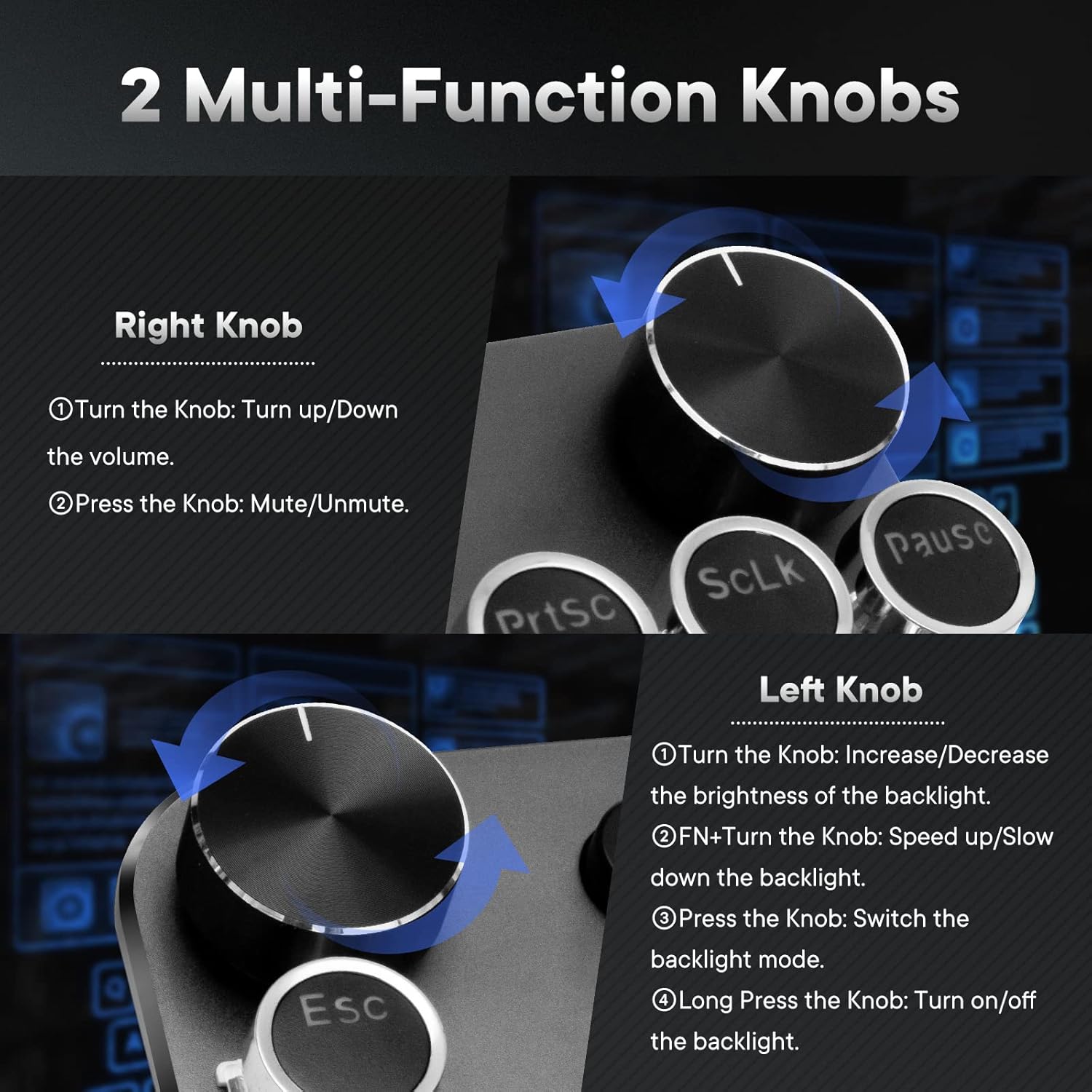
Figure 4.1: Multi-Function Knobs
4.2 True RGB Backlighting
The WM87 features true RGB backlighting with adjustable colors for each key, brightness, and flow speed. This provides a vibrant and customizable lighting experience.

Figure 4.2: True RGB Backlighting Examples
4.3 DIY Software Customization
Customize your keyboard further using the dedicated software (currently available for Windows systems only). The software allows you to:
- Set custom backlight patterns and colors.
- Customize or reset key functions.
- Record macro keys for complex commands.
- Sync backlight effects with your music.

Figure 4.3: Keyboard Driver Software Interface
5. Maintenance
5.1 Cleaning
To maintain your keyboard's appearance and functionality:
- Use a soft, dry cloth to wipe down the keycaps and keyboard surface regularly.
- For deeper cleaning, use a can of compressed air to remove dust and debris from between the keycaps.
5.2 Keycap Removal and Switch Access
The WM87 uses true mechanical blue switches. If you need to clean under the keycaps or replace them, use the included keycap puller:
- Gently place the keycap puller over the keycap you wish to remove.
- Apply even pressure and pull straight up to detach the keycap.
- To reattach, align the keycap with the switch stem and press down firmly until it clicks into place.
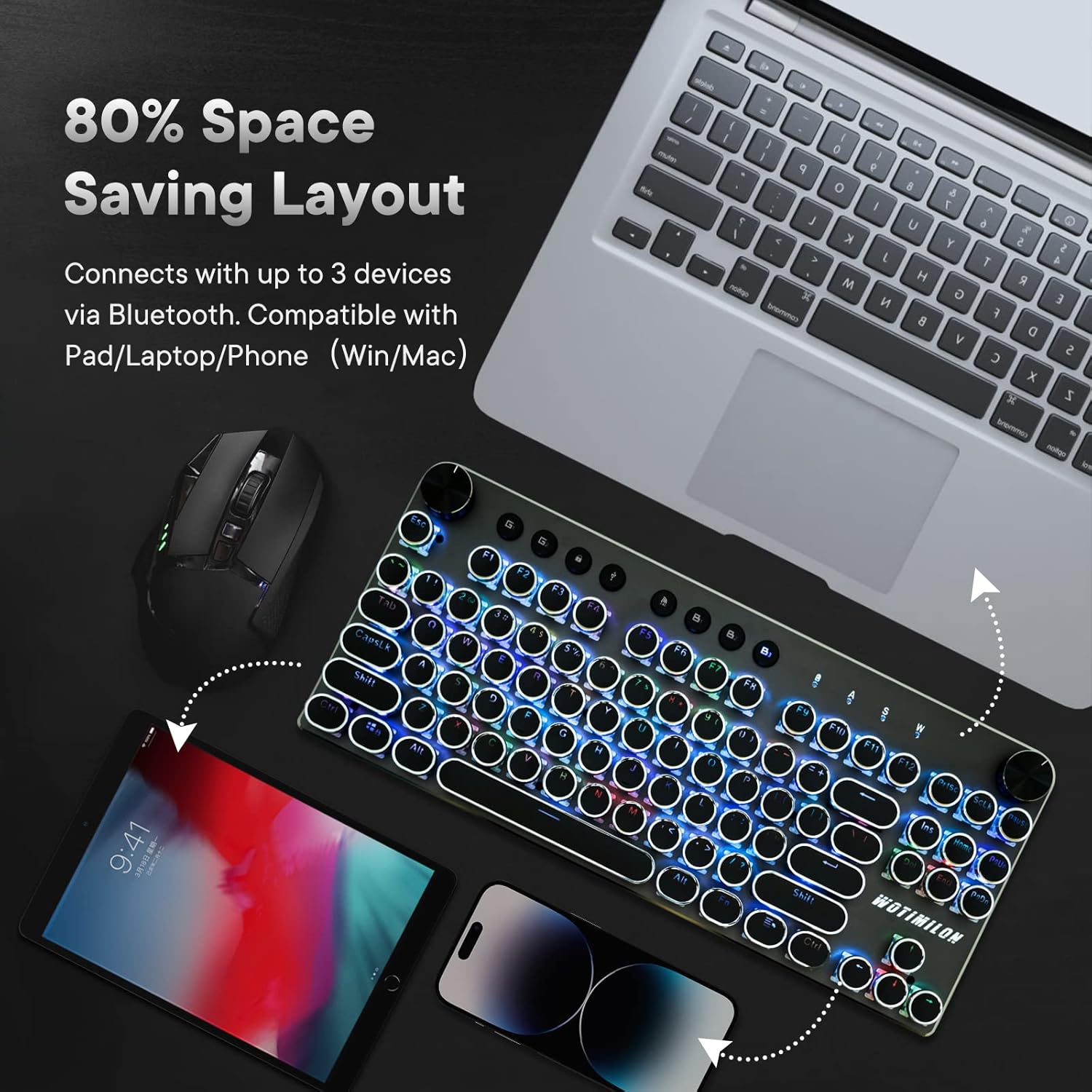
Figure 5.1: True Mechanical Blue Switches
6. Troubleshooting
If you encounter issues with your WM87 keyboard, please refer to the following common solutions:
| Issue | Possible Cause | Solution |
|---|---|---|
| Keyboard not connecting via Bluetooth/2.4Ghz | Incorrect pairing mode, low battery, interference. | Ensure correct pairing mode (FN+B1/B2/B3 or FN+G). Charge the keyboard fully. Move closer to the device or away from other wireless signals. |
| Keys not responding or intermittent response | Low battery, debris under keycap, software issue. | Charge the keyboard. Use the keycap puller to remove and clean under the affected keycap. If using Windows, ensure the DIY software is updated. |
| Backlight not working or flickering | Low battery, incorrect setting, software issue. | Charge the keyboard. Use the left knob to cycle through modes or adjust brightness. Check DIY software settings if applicable. |
| Volume knob not working | Software conflict, device settings. | Ensure the keyboard is properly connected. Check your device's audio settings. Restart your device. |
7. Specifications
| Feature | Detail |
|---|---|
| Model | WM87 |
| Connectivity | Type-C Wired / Bluetooth 5.0 / 2.4Ghz |
| Keyboard Description | Wireless Typewriter Mechanical Gaming Keyboard |
| Number of Keys | 87 |
| Switch Type | True Mechanical Blue Switch |
| Backlighting | True RGB (18 modes) |
| Control Knobs | 2 (Backlight & Volume) |
| Compatible Devices | Laptop, PC, Tablet, Smartphone (Windows / macOS / Android) |
| Product Dimensions | 12 x 6.1 x 1.29 inches |
| Item Weight | 2.2 pounds |
| Batteries | 1 Lithium Ion batteries required (included) |
8. Warranty and Support
For warranty information and customer support, please refer to the manufacturer's official website or contact their customer service directly. Details are typically provided on the product packaging or within the full user manual included in the box.
Ask a question about this manual
Ask about setup, troubleshooting, compatibility, parts, safety, or missing instructions. Manuals+ will review the question and use this page’s manual context to help answer it.