
1. Introduction
This manual provides detailed instructions for the installation, operation, and maintenance of your Podofo Wireless Carplay/Android Auto Portable Car Radio. This device features a 9.3-inch HD touchscreen, integrated dash cam with front and rear cameras, and supports wireless CarPlay and Android Auto for seamless smartphone integration. Please read this manual thoroughly before use to ensure proper functionality and safety.

Image: The Podofo 9.3-inch portable car radio unit, showing its screen interface with navigation and music, along with included accessories like the rear camera, 64GB TF card, and power cable.
2. Package Contents
Verify that all items listed below are included in your package:
- Portable Car Stereo (9.3-inch screen with built-in front camera)
- Package Box
- Power Cord
- Monitor Base
- 5.3m AUX Cable
- Rear Camera
- Bracket Fixing Sticker (2 pieces)
- 64GB TF Card
- Extension Cord
- User Manual

Image: A visual representation of all components included in the Podofo Portable Car Radio package, clearly labeled with numbers corresponding to the packing list.
3. Setup and Installation
The Podofo Portable Car Radio is designed for easy installation. Follow these steps:
- Mounting the Unit: Attach the monitor base to the desired location on your dashboard using the provided self-adhesive brackets. Ensure the surface is clean and dry for optimal adhesion. The unit should be positioned to not obstruct your view while driving.
- Power Connection: Plug the power supply cable into your car's cigarette lighter socket. The unit operates on 7-32V, making it compatible with various vehicle types including cars, campers, RVs, trailers, trucks, and vans.
- Rear Camera Installation (Optional): For rear view functionality, install the waterproof backup camera. This typically involves mounting the camera near the license plate and routing the cable to the main unit. Professional installation may be required for wiring the reverse trigger.
- Audio Output Connection:
- FM Transmission: Tune your car's FM radio to an unused frequency, then set the same frequency on the portable car radio to transmit audio wirelessly to your car's speakers.
- AUX Cable: Connect the included 5.3m AUX cable from the portable car radio's AUX output to your car's AUX input jack for a direct audio connection.
- Bluetooth: Connect your phone to the portable car radio via Bluetooth for wireless CarPlay/Android Auto, and simultaneously pair your phone to your original car's Bluetooth system to play audio through the car speakers.
- Insert TF Card: Insert the provided 64GB TF card into the designated slot. This will automatically activate the DVR loop recording function for the front and rear cameras.

Image: Demonstrates the simple plug-and-play installation by plugging the power cord into a car's cigarette lighter socket. Also shows various vehicle types compatible with the 7-32V voltage input, including cars, RVs, and trucks.
4. Operating Instructions
4.1. Wireless CarPlay / Android Auto
This device supports wireless CarPlay and Android Auto. Once powered on, the unit will attempt to automatically connect to the last paired smartphone.
- Connection: Connect your smartphone to the portable car radio via Bluetooth. This enables access to navigation, phone contacts, music, and other compatible apps.
- Dual Bluetooth: The system features dual Bluetooth technology. You can connect your phone to the portable car stereo for CarPlay/Android Auto and simultaneously pair your phone to your original car's Bluetooth for audio output through the car's speakers.
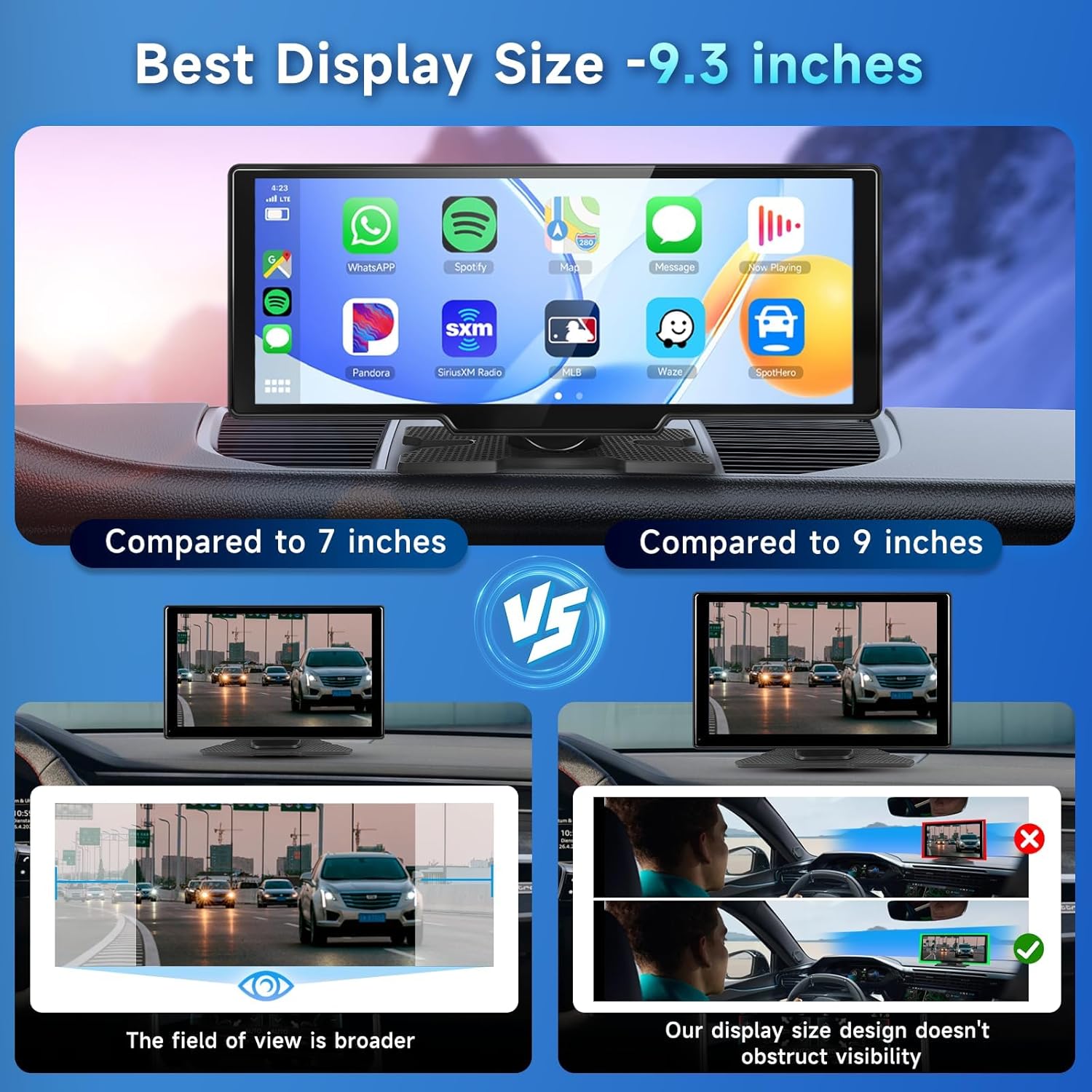
Image: Shows the 9.3-inch display with a CarPlay interface, demonstrating various app icons like WhatsApp, Spotify, Maps, and Siri. It also compares the 9.3-inch display size to 7-inch and 9-inch displays, highlighting broader field of view and non-obstructive design.
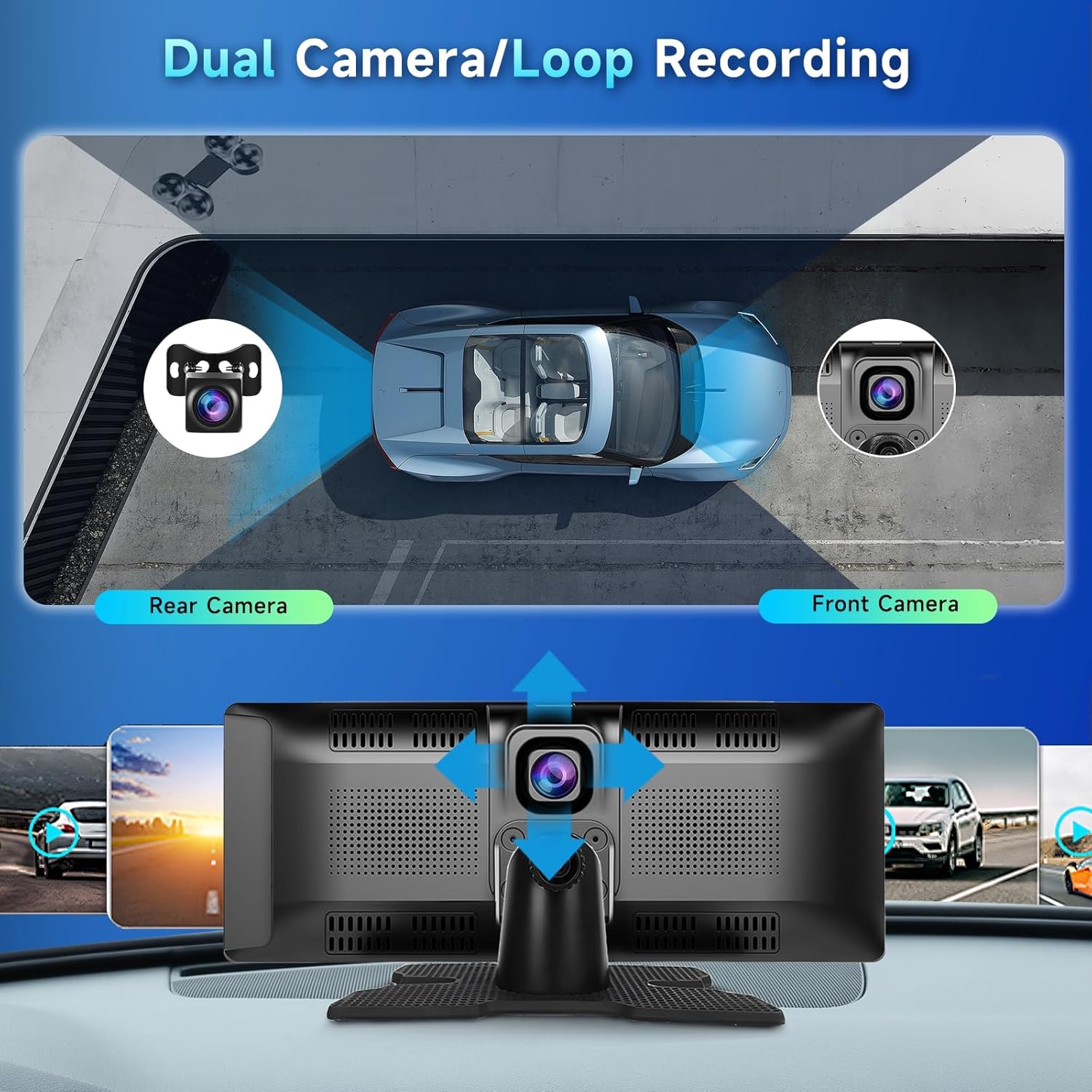
Image: Illustrates a smartphone wirelessly connected to the carplay screen via Bluetooth, displaying navigation and music. Text indicates access to phone features without hassle or cables.
4.2. Dash Cam and DVR Loop Recording
The unit is equipped with a 2.5K front camera and a 1080P waterproof backup camera. When the 64GB TF card is inserted, the system automatically activates recording mode.
- Simultaneous Display: The 9.3-inch HD IPS touchscreen can simultaneously display both front and rear camera views.
- Loop Recording: The DVR function continuously records footage, overwriting the oldest files when the TF card is full.
- WiFi Video Access: Install the "Viidure" app on your smartphone. With built-in WiFi, you can conveniently view video playback directly on your mobile device.

Image: Depicts the dual camera system with a front camera integrated into the main unit and a separate rear camera. Arrows indicate the recording and viewing capabilities of both cameras from an overhead car perspective.

Image: Shows the loop recording feature, indicating that the device continuously records video footage and stores it on the included 64GB TF card. Visuals include a car driving and a collision scenario, implying event recording.

Image: Illustrates the process of downloading the "Viidure" app, opening it, following prompts to open WiFi, finding and connecting to the host's WiFi, and returning to the app to view videos. A QR code for app download is also shown. Link: Download Viidure App
4.3. Split Screen Functionality
The 9.3-inch IPS touchscreen supports split-screen mode, allowing you to view multiple applications simultaneously.

Image: Shows the 9.3-inch screen displaying two applications side-by-side, such as CarPlay mode with navigation and music, or Android Auto with a camera view.
4.4. Audio Output Options
While the unit has built-in speakers, for louder and higher quality sound, you can transmit audio to your car's speakers using the following methods:
- FM Transmission: Sync the portable car radio's FM frequency with your car's FM radio.
- AUX Cable: Connect the provided AUX cable to your car's AUX input jack.
- Bluetooth: Utilize the dual Bluetooth feature to play audio directly through your car's original sound system.

Image: Illustrates various audio output methods: Bluetooth connection to car speakers, FM transmission, and AUX cable connection. Also shows the built-in speaker.
4.5. Mirror Link Functionality
The device supports Mirror Link for both iPhone and Android phones (Note: Samsung smartphones may not be supported).
- For iPhone:
- Use your phone to connect to the carplay screen's Bluetooth.
- Turn on your phone's Wi-Fi.
- Open the "SmartScreen" icon on your phone to initiate mirroring.
- For Android Phone:
- Choose "Android Cast" on the carplay screen.
- Scan the QR code to download the "TcLink" app.
- Connect your phone's Bluetooth to the carplay screen's Bluetooth.
- Select "WiFi Direct" mode and connect Wi-Fi.

Image: Step-by-step guide for setting up Mirror Link with an iPhone, showing Bluetooth connection, Wi-Fi activation, and selecting SmartScreen.

Image: Step-by-step guide for setting up Mirror Link with an Android phone, showing selection of Android Cast, scanning QR code for TcLink app, Bluetooth connection, and Wi-Fi Direct mode.
4.6. Voice Control
Utilize Siri or Google Voice Control for hands-free operation of navigation, music playback, and calls.

Image: Illustrates a user interacting with Siri or Google Assistant for voice commands, such as "Hi Siri, Turn on the Spotify" or "Hey, Please open map navigation."
5. Maintenance
- Cleaning: Use a soft, dry cloth to clean the touchscreen and exterior. Avoid abrasive cleaners or solvents.
- Temperature: Avoid exposing the device to extreme temperatures, especially prolonged direct sunlight in a parked car, as this may affect its longevity.
- Storage: If not in use for an extended period, it is recommended to remove the unit from the dashboard and store it in a cool, dry place.
6. Troubleshooting
| Problem | Possible Cause | Solution |
|---|---|---|
| Device does not power on. | No power connection or faulty power adapter. | Ensure the power cord is securely plugged into the car's cigarette lighter socket. Check the car's fuse for the cigarette lighter. |
| Wireless CarPlay/Android Auto not connecting. | Bluetooth not enabled on phone or device, or incorrect pairing. | Ensure Bluetooth is enabled on your smartphone and the device. Re-pair the devices if necessary. Check phone settings for CarPlay/Android Auto permissions. |
| No audio output from car speakers. | Incorrect audio output setting (FM/AUX/Bluetooth) or volume too low. | Verify the selected audio output method (FM, AUX, Bluetooth) matches your car's input. Adjust volume on both the device and car stereo. For FM, ensure the frequency is clear and matched. For AUX, ensure the cable is fully inserted. |
| Dash cam not recording. | TF card not inserted, full, or corrupted. | Ensure the 64GB TF card is properly inserted. Format the TF card through the device settings if issues persist. Replace the TF card if it is corrupted. |
| Rear camera not displaying. | Rear camera not connected or faulty wiring. | Check the connection of the rear camera cable to the main unit. Ensure the reverse trigger wire (if applicable) is correctly wired. |
7. Specifications
| Feature | Detail |
|---|---|
| Model Number | A3073W3-US |
| Display Size | 9.3 inches |
| Display Type | IPS HD Touchscreen |
| Front Camera Resolution | 2.5K |
| Rear Camera Resolution | 1080P |
| Connectivity | Wireless CarPlay, Wireless Android Auto, Dual Bluetooth, WiFi, FM Transmitter, AUX |
| Power Input | 7-32V |
| Included Storage | 64GB TF Card |
| Product Dimensions | 1.7 x 9.4 x 3.9 inches |
| Item Weight | 2.44 pounds |
8. Warranty and Support
Podofo specializes in car electronics and offers professional technical support.
- Warranty: The product comes with a 2-year warranty.
- Customer Support: For any issues or inquiries, please contact Podofo US customer service. You can typically find contact information on the seller's page on the platform where you purchased the product.

Image: Instructions on how to find Podofo technical support by clicking on "Sold by Podofo US" and then "Ask a question" on the product page.

Image: Highlights Podofo's presence in over 100 countries, a 2-year warranty, and 24/7 expert customer support.