
1. Introduction
This manual provides detailed instructions for the installation, operation, and maintenance of the TYAN FT65TB8030 EPYC GPU Server Workstation. Please read this manual thoroughly before beginning any installation or operation procedures to ensure proper functionality and safety.
2. Safety Information
Always observe the following safety precautions:
- Ensure the power supply is disconnected before performing any installation or maintenance.
- Wear an anti-static wrist strap when handling internal components to prevent electrostatic discharge (ESD) damage.
- Operate the server in a well-ventilated area to prevent overheating.
- Do not expose the server to moisture or extreme temperatures.
- Refer to component-specific manuals for additional safety guidelines.
3. Key Features
The TYAN FT65TB8030 is a high-performance EPYC GPU Server Workstation designed for demanding computational tasks. Key features include:
- 8 DIMM slots supporting DDR4 3200 memory.
- 8 x 3.5" SATA hot-swap, tool-less drive bays.
- 2 x NVMe U.2 hot-swap, tool-less drive bays.
- 2 x NVMe M.2 22110 / 2280 slots.
- 4 x FH/FL double-wide PCIe 4.0 x16 slots for GPUs.
- 1 x FH/HL PCIe 4.0 x8 slot.
- Single ATX12V Power Supply Unit.
4. Setup and Installation
This section details the steps required to set up your TYAN FT65TB8030 server workstation.
4.1. Internal Component Overview
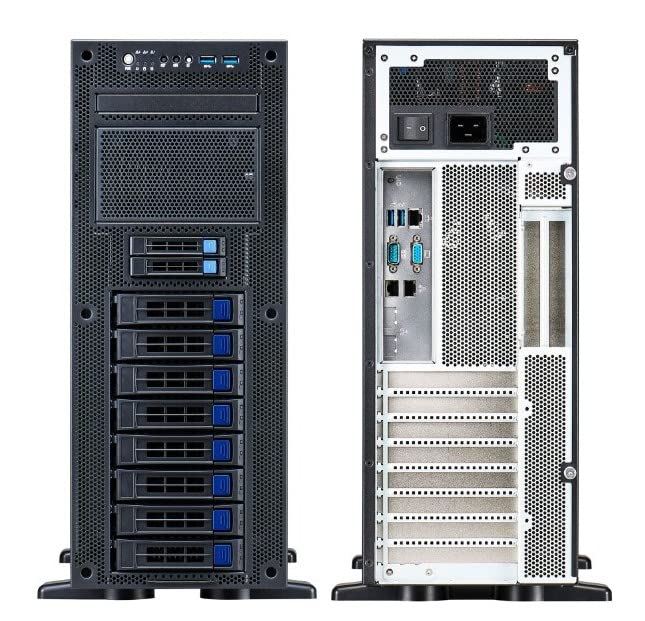
Figure 1: Internal layout of the TYAN FT65TB8030 server workstation. This image displays the main components including the motherboard, multiple drive bays, and the power supply unit, along with internal cabling.
4.2. Motherboard Installation
- Open the server chassis by removing the side panel screws.
- Align the ATX motherboard with the standoffs inside the chassis.
- Secure the motherboard with the provided screws.
4.3. Memory (DIMM) Installation
- Locate the 8 DIMM slots on the motherboard.
- Open the retention clips on each end of the DIMM slot.
- Align the memory module notch with the slot key.
- Press down firmly on both ends of the memory module until the clips snap into place.
4.4. Drive Installation (3.5" SATA / NVMe U.2 / NVMe M.2)
4.4.1. 3.5" SATA Drives
- Locate the 8 hot-swap, tool-less 3.5" drive bays.
- Slide the 3.5" SATA hard drive into an available bay until it clicks into place.
- Ensure the drive is securely seated.
4.4.2. NVMe U.2 Drives
- Locate the 2 hot-swap, tool-less NVMe U.2 drive bays.
- Insert the NVMe U.2 drive into the bay and secure it.
4.4.3. NVMe M.2 Drives
- Locate the 2 NVMe M.2 slots on the motherboard.
- Insert the M.2 SSD into the slot at a 30-degree angle.
- Push down the M.2 SSD and secure it with the retention screw.
4.5. GPU and PCIe Card Installation
- Identify the 4 FH/FL double-wide PCIe 4.0 x16 slots and 1 FH/HL PCIe 4.0 x8 slot.
- Remove the corresponding expansion slot covers from the chassis.
- Insert the GPU or PCIe card firmly into the slot until it is fully seated.
- Secure the card with the retention mechanism or screw.
- Connect any necessary PCIe power cables to the GPUs.
4.6. Power Supply Unit (PSU) Installation
- Locate the bottom mount PSU bay.
- Slide the ATX12V PSU into the bay and secure it with screws from the rear of the chassis.
- Connect the main 24-pin ATX power connector to the motherboard.
- Connect the 8-pin (or 4+4-pin) CPU power connector to the motherboard.
- Connect SATA power cables to the 3.5" drives and any other components requiring power.
- Connect PCIe power cables to GPUs as needed.
4.7. Cable Management
Route all internal cables neatly to ensure proper airflow and ease of future maintenance. Use cable ties or Velcro straps to bundle cables.
4.8. Closing the Chassis
Once all components are installed and cables are managed, reattach the side panel and secure it with the screws.
5. Operating Instructions
5.1. Initial Power On
- Connect the power cord to the PSU and a grounded electrical outlet.
- Connect a monitor, keyboard, and mouse to the server.
- Press the power button on the front panel of the server.
- Observe the POST (Power-On Self-Test) sequence on the monitor.
5.2. Operating System Installation
Install your preferred operating system (e.g., Windows Server, Linux distribution) by booting from a USB drive or optical media. Follow the on-screen instructions for installation.
5.3. Driver Installation
After OS installation, install all necessary drivers for the motherboard chipset, GPUs, network adapters, and other components. Drivers can typically be found on the TYAN website or the respective component manufacturers' websites.
6. Maintenance
6.1. Cleaning
- Regularly clean dust from the server's interior using compressed air. Ensure the server is powered off and unplugged before cleaning.
- Clean fan blades and heatsinks to maintain optimal cooling performance.
- Wipe the exterior with a soft, dry cloth.
6.2. Firmware and Software Updates
Periodically check the TYAN website and component manufacturers' websites for updated BIOS/UEFI firmware, drivers, and software. Keeping your system updated ensures optimal performance, stability, and security.
7. Troubleshooting
This section provides solutions to common issues you might encounter.
7.1. No Power
- Check Power Connections: Ensure the power cord is securely connected to the PSU and the wall outlet.
- PSU Switch: Verify the power switch on the PSU is in the 'ON' position.
- Internal Cables: Confirm all internal power cables (24-pin ATX, 8-pin CPU) are properly seated.
7.2. No Display Output
- Monitor Connection: Ensure the monitor cable is securely connected to the GPU or integrated graphics port.
- GPU Seating: Re-seat the GPU(s) in their PCIe slots.
- Memory: Re-seat memory modules. Faulty or improperly seated RAM can prevent POST.
7.3. System Instability / Crashes
- Overheating: Check CPU and GPU temperatures. Ensure fans are clean and operating correctly.
- Drivers: Update all system drivers to the latest versions.
- Memory Test: Run a memory diagnostic tool to check for RAM errors.
- Power Supply: Ensure the PSU provides sufficient wattage for all installed components, especially multiple GPUs.
8. Specifications
| Feature | Detail |
|---|---|
| Model Name | FT65TB8030 |
| Manufacturer | TYAN |
| Case Type | Full Tower |
| Motherboard Compatibility | ATX |
| DIMM Slots | 8 (DDR4 3200 support) |
| 3.5" Drive Bays | 8 (Hot-swap, Tool-less SATA) |
| NVMe U.2 Drive Bays | 2 (Hot-swap, Tool-less) |
| NVMe M.2 Slots | 2 (22110 / 2280) |
| PCIe 4.0 x16 Slots | 4 (FH/FL Double-wide) |
| PCIe 4.0 x8 Slots | 1 (FH/HL) |
| Power Supply | Single ATX12V PSU (Bottom Mount) |
| USB 3.0 Ports | 2 |
| Cooling Method | Air |
| Material | Plastic (Enclosure) |
| Compatible Devices | AMD EPYC/Intel Server/Workstation Motherboards, DDR4 Memory, NVMe M.2 SSDs, 3.5" SATA HDDs, ATX PSUs |
| Special Features | Tool-less Drive Bays & Hot-swap Capabilities |
9. Warranty Information
The TYAN FT65TB8030 EPYC GPU Server Workstation comes with a full warranty. For specific terms and conditions, please refer to the warranty card included with your product or visit the official TYAN website.
10. Technical Support
For technical assistance, troubleshooting, or further inquiries, please contact TYAN customer support through their official website or the contact information provided in your product documentation. When contacting support, please have your model number (FT65TB8030) and serial number ready.
Official TYAN Website: www.tyan.com
