
Introduction
This manual provides detailed instructions for the proper use, setup, and maintenance of your Gearlab G4555 Bluetooth Office Headset. Please read this manual thoroughly before using the device to ensure optimal performance and longevity. The G4555 headset is designed for clear communication and comfort in office environments, utilizing Bluetooth wireless technology for seamless connectivity.
What's in the Box
Carefully unpack all items and ensure the following components are present:
- Gearlab G4555 Bluetooth Office Headset
- USB Charging Cable
- User Manual (this document)
Product Overview
Familiarize yourself with the various parts of your Gearlab G4555 headset:
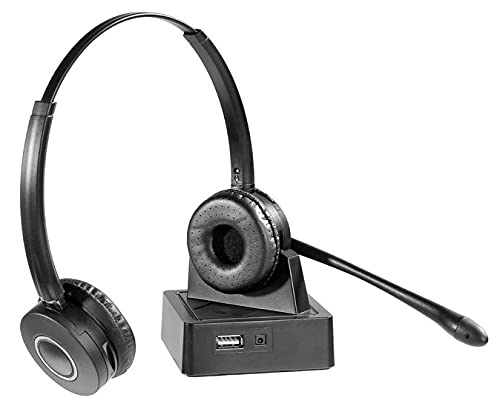
Image: The Gearlab G4555 Bluetooth Office Headset, featuring its adjustable headband, cushioned earcups, and flexible microphone boom. This image illustrates the general design and key components of the headset.
- Adjustable Headband: For a comfortable and secure fit.
- Cushioned Earcups: Designed for extended wear comfort.
- Microphone Boom: Flexible arm for optimal voice pickup.
- Power Button: To turn the headset on/off and initiate pairing.
- Volume Controls: Buttons to adjust audio output level.
- Multi-function Button (MFB): For call management and media playback.
- Charging Port: USB port for connecting the charging cable.
- LED Indicator: Displays status such as power, pairing, and charging.
Setup
1. Charging the Headset
- Connect the small end of the USB charging cable to the charging port on the headset.
- Connect the larger end of the USB charging cable to a USB power source (e.g., computer USB port, USB wall adapter).
- The LED indicator will typically show a solid red light during charging and turn off or change to blue/green when fully charged.
- Allow approximately 2-3 hours for a full charge before first use.
2. Pairing with a Bluetooth Device
- Ensure the headset is fully charged and turned off.
- Press and hold the Power Button for approximately 5-7 seconds until the LED indicator flashes red and blue alternately. This indicates the headset is in pairing mode.
- On your Bluetooth-enabled device (smartphone, computer, tablet), go to the Bluetooth settings.
- Search for available devices. You should see "G4555" or "Gearlab G4555" in the list.
- Select "G4555" to connect. If prompted for a password, enter "0000" (four zeros).
- Once successfully paired, the LED indicator will typically flash blue slowly or turn solid blue, and you may hear an audible confirmation.
- The headset will automatically attempt to reconnect to the last paired device when powered on.
Operating Instructions
Power On/Off
- Power On: Press and hold the Power Button for 3 seconds. The LED will flash blue.
- Power Off: Press and hold the Power Button for 3 seconds. The LED will flash red and then turn off.
Call Management
- Answer Call: Press the Multi-function Button (MFB) once.
- End Call: Press the MFB once during a call.
- Reject Call: Press and hold the MFB for 2 seconds.
- Redial Last Number: Double-press the MFB when not on a call.
Audio Playback
- Play/Pause: Press the MFB once.
- Next Track: Press and hold the Volume Up button.
- Previous Track: Press and hold the Volume Down button.
Volume Adjustment
- Volume Up: Press the Volume Up button.
- Volume Down: Press the Volume Down button.
Maintenance
Cleaning
- Wipe the headset with a soft, dry, lint-free cloth.
- Do not use abrasive cleaners, solvents, or aerosol sprays.
- Avoid getting moisture into any openings.
Storage
- Store the headset in a cool, dry place away from direct sunlight and extreme temperatures.
- When storing for extended periods, charge the headset at least once every three months to maintain battery health.
Troubleshooting
- Headset won't turn on: Ensure the headset is fully charged. Connect it to a power source and try again after a few minutes.
- Cannot pair with device:
- Ensure the headset is in pairing mode (LED flashing red and blue).
- Make sure Bluetooth is enabled on your device.
- Move the headset closer to your device (within 10 meters).
- Turn off and on both the headset and your device's Bluetooth.
- Clear previous Bluetooth connections on your device if too many are stored.
- No sound or poor sound quality:
- Check the volume levels on both the headset and your connected device.
- Ensure the headset is properly connected to your device. Re-pair if necessary.
- Move away from sources of strong electromagnetic interference.
- Microphone not working:
- Ensure the microphone boom is positioned correctly near your mouth.
- Check microphone settings on your connected device to ensure the G4555 is selected as the input device.
Specifications
| Model Name | G4555 |
| Model Number | GLB245550 |
| Brand | Gearlab |
| Connectivity Technology | Wireless (Bluetooth) |
| Material | Synthetic Leather |
| Weight | 2.15 Kilograms |
| Dimensions | 2.79 x 24.64 x 16.51 cm |
| Additional Features | Lightweight |
Warranty and Support
Gearlab products are designed for reliability and performance. For specific warranty information, please refer to the warranty card included with your purchase or visit the official Gearlab website. For technical support, troubleshooting assistance, or service inquiries, please contact Gearlab customer support through their official channels. Keep your purchase receipt as proof of purchase for warranty claims.