
Matrix Keyboards SYM
Matrix 65% Mechanical Keyboard User Manual
Model: SYM
Introduction
Thank you for choosing the Matrix 65% Mechanical Keyboard. This compact, high-performance keyboard is designed for gaming and esports, featuring fast switches, extensive RGB lighting options, and hot-swappable capabilities. Its durable doubleshot PBT keycaps ensure longevity and a premium typing experience. This manual provides essential information for setup, operation, maintenance, and troubleshooting to help you get the most out of your new keyboard.

Image: Top-down view of the Matrix 65% Mechanical Keyboard, featuring a compact 61-key layout with vibrant blue and white doubleshot PBT keycaps. The keyboard is designed for gaming and esports.
Package Contents
- Matrix 65% Mechanical Keyboard
- USB Cable
- Keycap Puller
Setup
- Connect the Keyboard: Insert the USB cable into the USB-C port on the keyboard and the other end into an available USB port on your computer. The keyboard is plug-and-play and does not require additional drivers for basic functionality.
- Initial Power On: The keyboard's RGB lighting will illuminate upon successful connection.
- Software Installation (Optional): For advanced customization of RGB lighting and key remapping, download the official Matrix Keyboards software from the manufacturer's website.
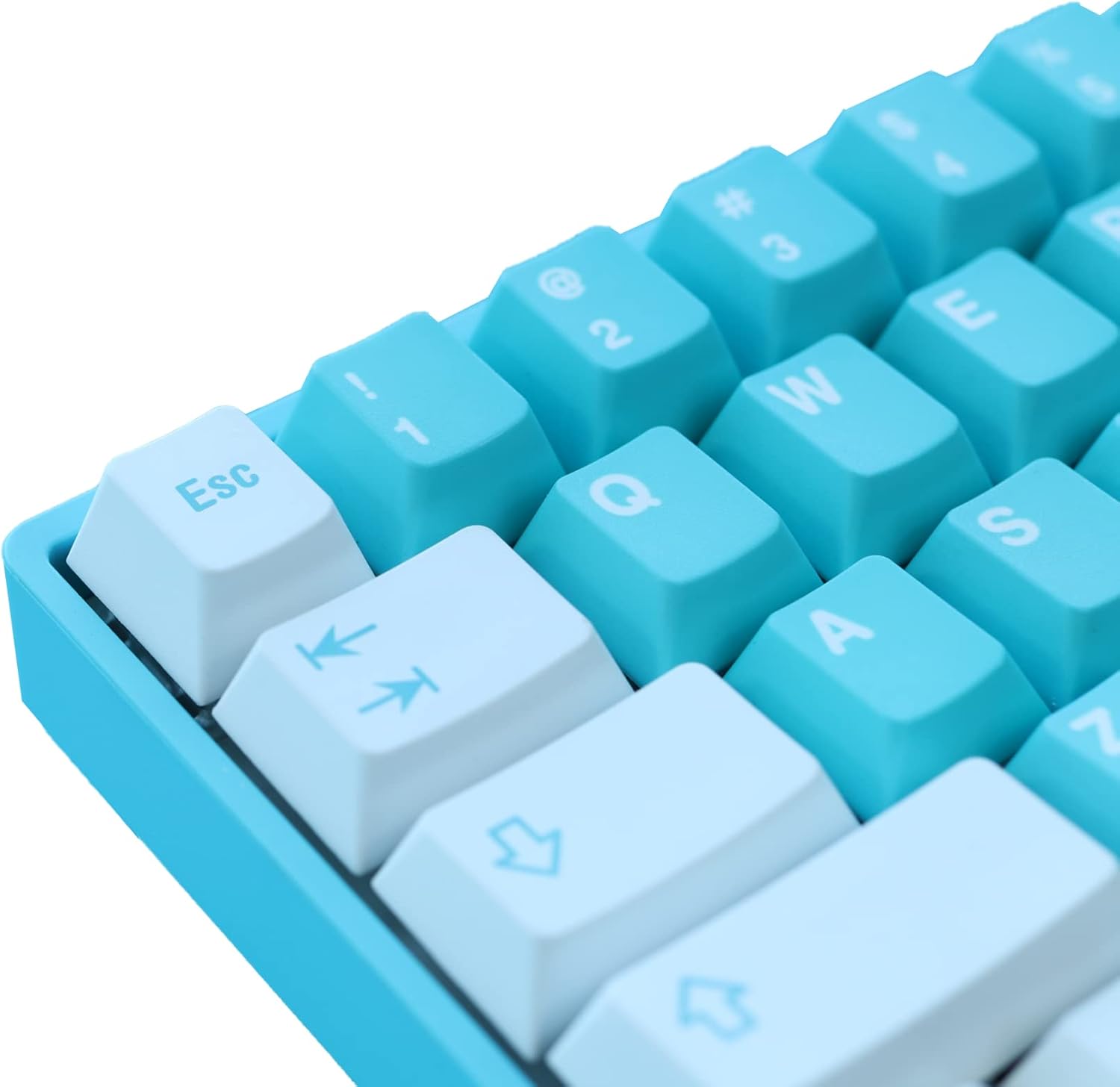
Image: A close-up view of the Matrix 65% Mechanical Keyboard's keycaps, highlighting the doubleshot PBT material and the clear legends. The 'Esc' key and arrow keys are visible.
Operating Instructions
Function Key Combinations (Fn)
The 65% layout utilizes the Fn (Function) key to access secondary functions of certain keys. Refer to the keycap legends for specific combinations.
- Fn + [Key]: Activates the secondary function printed on the keycap (e.g., media controls, volume, lighting effects).
RGB Lighting Customization
The Matrix 65% Mechanical Keyboard features extensive RGB lighting options. You can cycle through various effects and adjust brightness directly on the keyboard or through the dedicated software.
- Fn + \: Cycle through different RGB lighting modes.
- Fn + ↑/↓: Adjust brightness levels.
- Fn + ←/→: Adjust lighting effect speed or direction.
Hot-Swappable Switches
This keyboard supports hot-swappable switches, allowing you to change mechanical switches without soldering. This feature enables customization of typing feel and sound.
- To remove a switch, use a switch puller (not included) to gently pry it out.
- To install a new switch, align the pins with the sockets on the PCB and press firmly until it clicks into place. Ensure pins are straight to avoid bending.
Maintenance
Cleaning the Keyboard
- Disconnect the keyboard from your computer before cleaning.
- Use a soft brush or compressed air to remove dust and debris from between the keycaps.
- For stubborn dirt, gently wipe the keycaps with a damp cloth and mild soap solution. Ensure no liquid enters the keyboard.
- The doubleshot PBT keycaps are durable and resistant to shine, but regular cleaning helps maintain their appearance.
Keycap and Switch Care
- Use the provided keycap puller to remove keycaps. Pull straight up to avoid damaging the switch stem.
- When reattaching keycaps, align them carefully and press down gently.
- When handling switches for hot-swapping, ensure the pins are not bent. Bent pins can prevent proper connection and damage the PCB socket.
Troubleshooting
| Problem | Possible Cause | Solution |
|---|---|---|
| Keyboard not responding | Loose USB connection, faulty USB port, driver issue. | Ensure USB cable is securely connected. Try a different USB port. Restart your computer. |
| RGB lighting not working or stuck | Software conflict, incorrect settings, temporary glitch. | Try cycling through RGB modes using Fn combinations. Restart the keyboard by unplugging and replugging. Check software settings if installed. |
| Specific key not working | Dust/debris under keycap, faulty switch, bent switch pin. | Remove keycap and clean. If hot-swappable, remove and re-insert the switch, checking for bent pins. Try swapping with a known working switch. |
Specifications
| Feature | Detail |
|---|---|
| Product Dimensions | 4 x 11.5 x 1.2 inches |
| Item Model Number | SYM |
| Brand | Matrix Keyboards |
| Connectivity Technology | USB |
| Keyboard Description | Gaming |
| Recommended Uses | Office, Gaming |
| Special Features | Backlit, Water Resistant (Note: Water resistance typically refers to spill resistance, not full submersion) |
| Keyboard Backlighting | RGB |
| Style | Modern |
| Keyboard Layout | QWERTY (65% layout, 61 keys) |
| Keycap Material | Doubleshot PBT |
| Switches | Speed Silver (Hot-Swappable) |
Warranty and Support
Matrix Keyboards products are manufactured to high quality standards. For specific warranty information, please refer to the warranty card included with your product or visit the official Matrix Keyboards website. Warranty terms may vary by region and product.
For technical support, troubleshooting assistance, or inquiries about your product, please contact Matrix Keyboards customer service through their official website or the contact information provided with your purchase.

Image: The official logo for Matrix Keyboards, featuring stylized white text on a black background.