
1. Introduction
Thank you for choosing the Ordtop Smart Watch. This manual provides essential information for setting up, operating, and maintaining your new smartwatch. Please read this manual carefully before using the device to ensure proper function and longevity.

Image: The Ordtop Smart Watch, featuring a rectangular display with activity tracking data and a white silicone strap.
2. Safety Information
- Do not attempt to disassemble, repair, or modify the device.
- Keep the device away from extreme temperatures, direct sunlight, and moisture.
- Use only the provided charging cable and a compatible power source (5V, 0.1A).
- Consult a medical professional before using the watch for medical purposes, as it is not a medical device.
- If you experience skin irritation, discontinue use and consult a doctor.
3. Package Contents
Please check the box for the following items:
- Ordtop Smart Watch (Model P32E1)
- Charging Cable
- User Manual

Image: The front of the Ordtop Smart Watch packaging, showing the watch face and product name.
4. Setup
4.1 Charging the Device
Before first use, fully charge your smartwatch. Connect the magnetic charging cable to the charging contacts on the back of the watch. Plug the USB end into a 5V/1A USB power adapter or a computer USB port. The watch display will show the charging status.
4.2 App Installation and Pairing
- Scan the QR code in the manual or on the watch screen (if available) to download the companion app, or search for the app name (e.g., 'Da Fit' or similar, as per product packaging/manual) in your smartphone's app store (App Store for iOS, Google Play Store for Android).
- Install and open the app. Follow the on-screen instructions to create an account or log in.
- Ensure Bluetooth is enabled on your smartphone.
- In the app, navigate to the 'Device' or 'My Device' section and select 'Add Device'.
- Select 'P32E1' or the corresponding device name from the list of available Bluetooth devices.
- Confirm the pairing request on both your smartphone and the smartwatch.
Once paired, the watch will synchronize data with your phone, and you can customize settings through the app.
5. Operating
5.1 Basic Navigation
- Touch Screen: Swipe up, down, left, or right to navigate through menus and features. Tap to select.
- Side Button: Press to wake the screen, return to the home screen, or access the main menu.
5.2 Key Features

Image: The smartwatch screen displaying multiple customizable watch faces and a set of icons representing features like message reminder, call reminder, heart rate monitoring, music control, and various sports modes.
5.2.1 Activity Tracking
The watch tracks daily activities including steps, distance, and calories burned. Data is synchronized with the app for detailed analysis.

Image: A woman jogging outdoors, with an overlay showing the smartwatch tracking steps, calories, heart rate, and distance, linked to a smartphone displaying a GPS route.
5.2.2 Health Monitoring
- Heart Rate: Monitors your heart rate 24/7. View real-time data on the watch or historical data in the app.
- Sleep Monitoring: Tracks your sleep patterns, including deep sleep, light sleep, and awake times.

Image: A split image illustrating the 24/7 heart rate monitoring feature with a man exercising, and the sleep monitoring feature with a woman sleeping, showing deep and light sleep durations.
5.2.3 Sports Modes
The watch supports 24 different sports modes to track specific workout data. Select your activity from the sports menu to begin tracking.

Image: A collage depicting various sports such as running, cycling, swimming, and yoga, accompanied by icons representing 24 different sport modes supported by the watch.
5.2.4 Notifications
Receive call, message, and app notifications directly on your wrist when connected to your smartphone.
5.2.5 Music Control
Control music playback on your smartphone directly from the watch (play, pause, skip tracks).
5.2.6 IP68 Waterproof
The watch is IP68 rated, meaning it is resistant to dust and can withstand immersion in water up to 1.5 meters for 30 minutes. Suitable for daily use, hand washing, and swimming. Not suitable for hot showers, saunas, or diving.

Image: A man swimming, with the Ordtop Smart Watch visible on his wrist, demonstrating its IP68 waterproof capability for activities like swimming, rinsing, bathing, and sweating.
6. Maintenance
- Cleaning: Wipe the watch and strap regularly with a soft, damp cloth. Avoid using harsh chemicals or abrasive materials.
- Strap Replacement: The watch uses a standard 20mm strap. To replace, locate the quick-release pins on the underside of the strap and gently pull them inward to detach.
- Battery Care: Avoid fully discharging the battery frequently. Charge the watch when the battery level is low.
7. Troubleshooting
- Watch not turning on: Ensure the watch is fully charged. Connect it to the charger for at least 10 minutes.
- Cannot pair with phone:
- Ensure Bluetooth is enabled on your phone.
- Make sure the watch is within Bluetooth range (approx. 10 meters).
- Restart both the watch and your phone.
- Forget the device in your phone's Bluetooth settings and try pairing again through the app.
- Inaccurate step count/heart rate: Ensure the watch is worn snugly on your wrist, about one finger's width above the wrist bone. Avoid excessive movement during measurements.
- Notifications not received:
- Check app notification permissions on your phone.
- Ensure the app is running in the background.
- Verify notification settings within the smartwatch app.
8. Specifications
| Feature | Detail |
|---|---|
| Model Number | P32E1 |
| Screen Size | 1.69 Inches |
| Wireless Communication | Bluetooth |
| Battery Type | Lithium Polymer |
| Water Resistance | IP68 |
| Compatible Systems | Android 5.0 and above, iOS 9.0 and above |
| Strap Size | 20mm |
| Item Weight | 3.52 ounces |
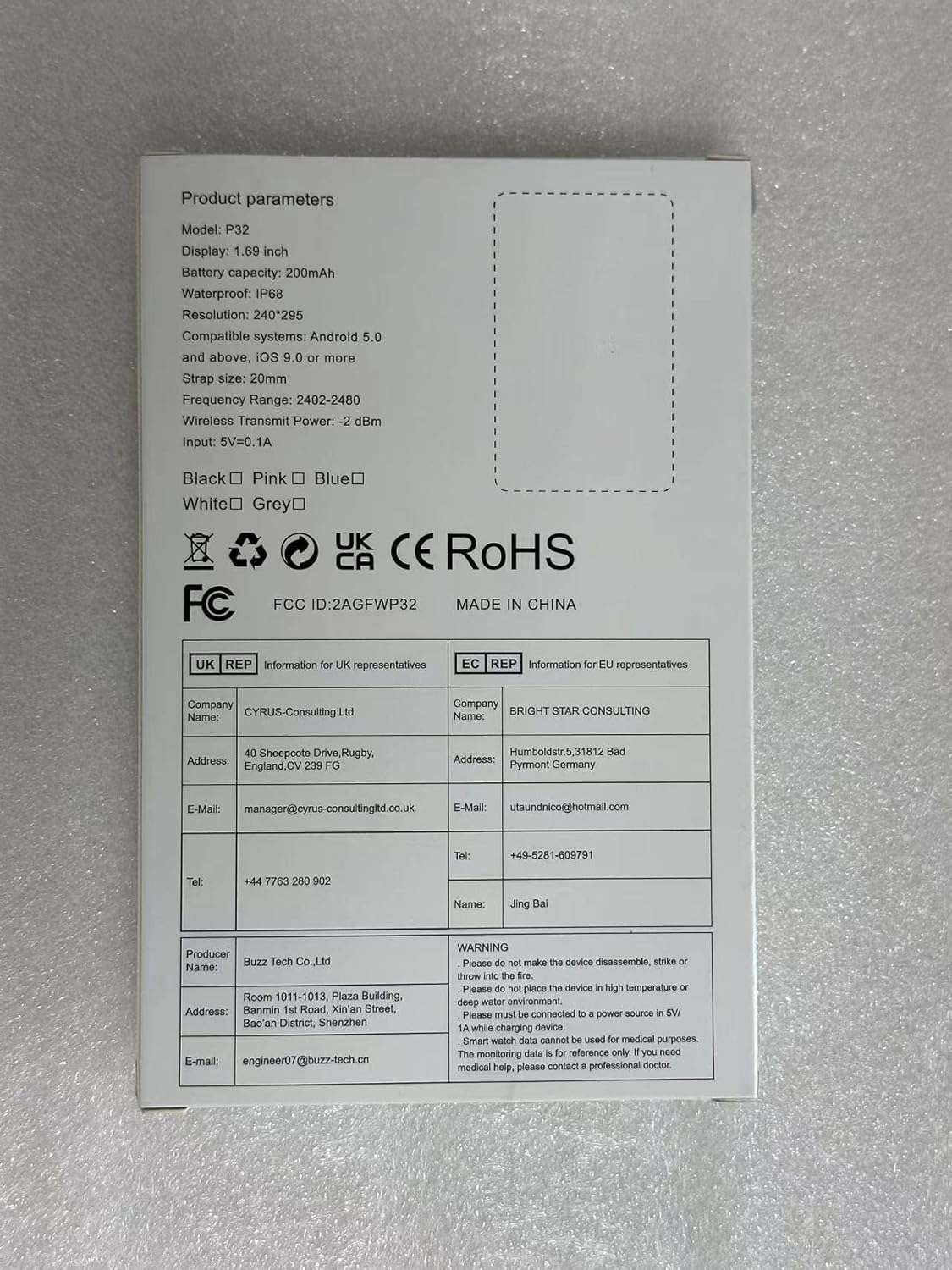
Image: The back of the Ordtop Smart Watch packaging, detailing product parameters such as model, display size, battery capacity, waterproof rating, and compatible systems.
9. Warranty and Support
Your Ordtop Smart Watch comes with a standard manufacturer's warranty. Please refer to the product packaging or the official Ordtop website for specific warranty terms and conditions.
For technical support, troubleshooting assistance, or warranty claims, please contact Ordtop customer service through the contact information provided on the official website or your purchase platform.
Manufacturer: Ordtop

