1. Introduction
Thank you for choosing the Samsung OH46B High Brightness Outdoor Display. This manual provides essential information for the safe and efficient installation, operation, and maintenance of your display. The OH46B is designed for outdoor environments, offering superior visibility with high brightness and advanced anti-reflection technology, ensuring clear content delivery 24/7.
Key features include UL-verified outdoor visibility with brightness exceeding 3,500 nits, advanced color accuracy, enhanced visibility with Magic Protection Glass, and a highly efficient cooling system with hidden fans to prevent humidity.
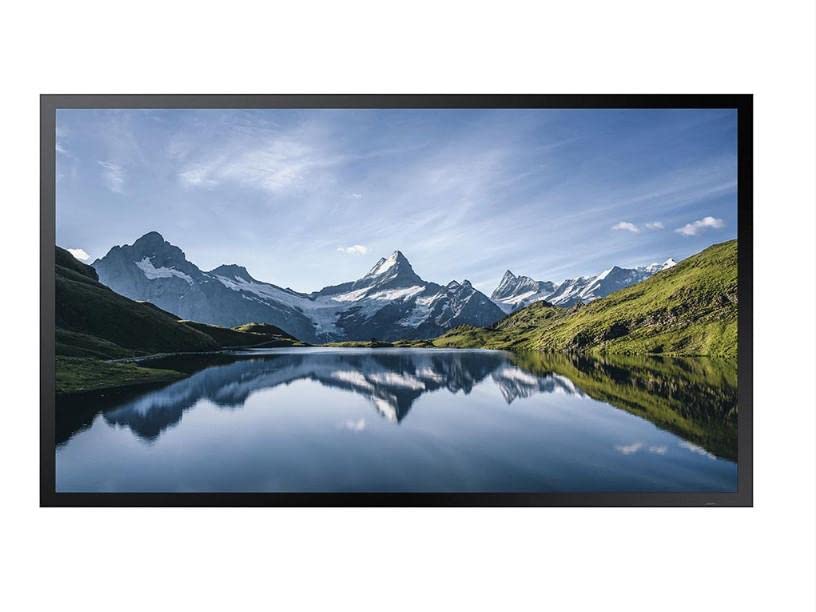
Figure 1: Front view of the Samsung OH46B Outdoor Display.
2. Safety Information
Please read all safety instructions carefully before installing and operating the display. Failure to follow these instructions may result in electric shock, fire, or serious injury.
- Power Supply: Connect the display only to a grounded power outlet with the correct voltage as specified on the product label. Do not overload power outlets.
- Installation: Ensure the display is securely mounted in a location that can support its weight. Professional installation is recommended for outdoor displays. Avoid installing in areas with excessive vibration or direct impact risk.
- Environmental Conditions: While designed for outdoor use, avoid exposing the display to extreme weather conditions beyond its specified operating range. Ensure proper ventilation around the display.
- Liquid and Foreign Objects: Do not allow liquids or foreign objects to enter the display. If this occurs, immediately disconnect power and contact qualified service personnel.
- Servicing: Do not attempt to service this product yourself. Refer all servicing to qualified service personnel. Opening covers may expose you to dangerous voltage or other hazards.
3. Setup
3.1 Unpacking
- Carefully open the packaging and remove the display.
- Check for any damage during transit. If damage is found, do not proceed with installation and contact your supplier.
- Verify that all accessories, including the remote control, are present.
3.2 Mounting
The Samsung OH46B display requires a robust mounting solution suitable for outdoor environments. Consult a professional installer to ensure proper and secure mounting. Ensure the mounting structure can safely support the display's weight of approximately 89.3 pounds (40.5 kg).
Note: Specific mounting hardware is sold separately and should be selected based on your installation environment and local regulations.
3.3 Connecting Power and Input Sources
After mounting, connect the necessary cables:
- Power Cable: Connect the power cable to the display's power input and then to a grounded electrical outlet.
- Video Input: Connect your video source (e.g., media player, PC) to the appropriate input port on the display (e.g., HDMI, DisplayPort).
- Network Connection (Optional): For remote management or content updates, connect an Ethernet cable to the display's network port.
An image showing the rear panel with various input ports would typically be included here.
3.4 Initial Power-On
Once all connections are secure, press the power button on the display or the remote control to turn on the unit. The display should power on and show the Samsung logo, followed by the input source.
4. Operating the Display
4.1 Basic Controls
Use the provided remote control to navigate the display's functions. Common buttons include:
- Power: Turns the display on or off.
- Source: Selects the input source (e.g., HDMI1, HDMI2, DP).
- Menu: Accesses the on-screen display (OSD) menu.
- Navigation Buttons (Up/Down/Left/Right): Used to navigate through menu options.
- Enter/OK: Confirms a selection.
- Exit/Return: Exits the current menu or returns to the previous screen.
An image of the remote control with button labels would typically be included here.
4.2 Menu Navigation
Press the Menu button on the remote control to access the OSD menu. Use the navigation buttons to browse through categories such as Picture, Sound, System, and Support. Select an option with the Enter/OK button to adjust settings. The OH46B offers advanced settings for brightness, contrast, color temperature, and more, optimized for outdoor visibility.
4.3 Brightness and Visibility
The OH46B display features high brightness (over 3,500 nits) and anti-reflection technology (Magic Protection Glass) to ensure content remains vivid and readable even in direct sunlight. The display automatically adjusts brightness based on ambient light conditions for optimal viewing and power efficiency.
5. Maintenance
5.1 Cleaning the Display
To clean the display screen and cabinet:
- Always turn off the display and disconnect the power cable before cleaning.
- Use a soft, lint-free cloth slightly dampened with water or a mild, non-abrasive screen cleaner.
- Do not spray cleaning solutions directly onto the screen. Apply to the cloth first.
- Avoid using harsh chemicals, solvents, or abrasive materials, as these can damage the screen surface.
5.2 Environmental Considerations
The OH46B is designed to operate reliably in various outdoor conditions. Its integrated cooling system with hidden fans helps prevent humidity buildup and maintains optimal internal temperatures. Ensure that the fan vents, located on the underside of the display, are not obstructed to allow for proper airflow.
Regularly inspect the display for any signs of wear, damage, or debris accumulation, especially around seals and vents.
6. Troubleshooting
If you encounter issues with your Samsung OH46B display, refer to the following common problems and solutions:
6.1 No Power
- Check Power Cable: Ensure the power cable is securely connected to both the display and the power outlet.
- Check Power Outlet: Verify that the power outlet is functional by plugging in another device.
- Remote Control Batteries: If using the remote, check its batteries.
6.2 No Signal / Blank Screen
- Check Input Source: Press the 'Source' button on the remote to ensure the correct input source is selected.
- Check Video Cables: Ensure all video cables (HDMI, DisplayPort) are securely connected to both the display and the source device.
- Verify Source Device: Confirm that your video source device (e.g., media player) is powered on and outputting a signal.
6.3 Display Issues (e.g., distorted image, incorrect colors)
- Check Cable Quality: Ensure you are using high-quality video cables, especially for long runs.
- Adjust Display Settings: Access the OSD menu to adjust picture settings like brightness, contrast, and color.
- Reset to Factory Defaults: If issues persist, consider resetting the display to its factory default settings via the OSD menu.
If these steps do not resolve the issue, please contact Samsung customer support for further assistance.
7. Specifications
| Feature | Specification |
|---|---|
| Brand Name | Samsung |
| Item Model Number | OH46B |
| Screen Size | 46 inches |
| Resolution | FHD 1080p |
| Aspect Ratio | 16:9 |
| Screen Surface Description | Glossy |
| Color Name | Black |
| Item Weight | 89.3 pounds (approx. 40.5 kg) |
| Package Dimensions | 45.5 x 28.1 x 28.1 inches |
| Special Features | Flat, High Brightness, Anti-reflection |
8. Warranty and Support
The Samsung OH46B display comes with a standard manufacturer's warranty. Please refer to the warranty card included with your product or visit the official Samsung website for detailed warranty terms and conditions specific to your region.
For technical support, service, or warranty claims, please contact Samsung customer service. Have your model number (OH46B) and serial number ready when contacting support.
Additional protection plans may be available from third-party providers at the time of purchase. These plans are separate from the manufacturer's warranty and offer extended coverage.


