
Introduction
Thank you for choosing the Merkury Innovations Smart Light Bulb. This manual provides essential information for the safe and efficient use of your smart bulb. Please read these instructions carefully before installation and operation.
The Merkury Innovations Smart Light Bulb is a Wi-Fi enabled A19/E26 Dimmable White LED bulb, offering 800 lumens of brightness with a 9W power consumption, equivalent to a traditional 60W incandescent bulb. It integrates with Amazon Alexa and Google Assistant for voice control and can be programmed via a dedicated app.

Image: Three Merkury Innovations Smart Light Bulbs, showcasing the product design.
Key Features
- No Hub Required: Wi-Fi connectivity is built directly into the bulb.
- Dimmable White LED: Adjust brightness to your preference.
- Voice Control: Compatible with Amazon Alexa and Google Assistant.
- App Control: Manage your lights from anywhere using the dedicated app.
- Scheduling: Set daily schedules for automatic on/off times.
- Group Control: Group multiple bulbs for simultaneous operation.
- Energy Efficient: 9W LED provides 800 lumens, equivalent to 60W incandescent.
- Standard Base: A19 bulb shape with E26 standard base.
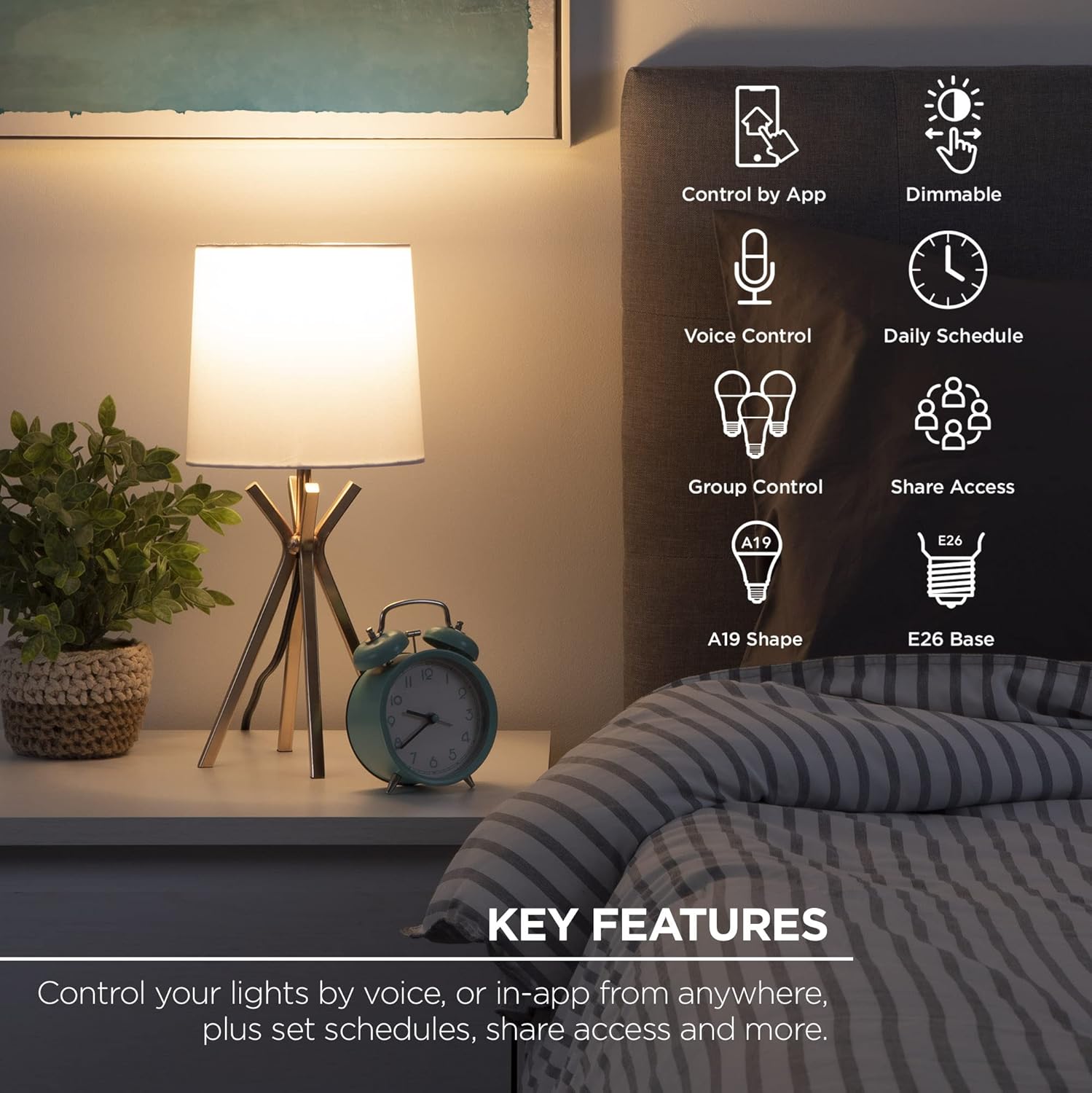
Image: An illustration highlighting the key features of the smart bulb, such as app control, dimming, voice control, scheduling, and group control.
Setup Instructions
- Download the App: Search for the 'Geeni' app in the Apple App Store or Google Play Store and install it on your smartphone or tablet.
- Install the Bulb: Screw the smart bulb into any standard E26 light socket. Ensure the power to the socket is turned off before installation.
- Power On and Connect: Turn on the power to the light socket. The bulb should begin to blink rapidly, indicating it is in pairing mode. Follow the in-app instructions to connect the bulb to your 2.4GHz Wi-Fi network.
Important Note: This smart bulb requires a 2.4GHz Wi-Fi network for connection. It is not compatible with 5GHz networks.

Image: A visual guide demonstrating the simple three-step setup process: downloading the app, installing the bulb, and connecting it via the app.
Operating Instructions
App Control
- On/Off: Tap the bulb icon in the app to turn the light on or off.
- Brightness Adjustment: Use the slider in the app to adjust the brightness level from 1% to 100%.
- Scheduling: Access the scheduling feature to set specific times for the bulb to turn on or off automatically.
- Group Control: Create groups of multiple smart bulbs within the app to control them simultaneously.
- Remote Access: Control your lights from anywhere with an internet connection.
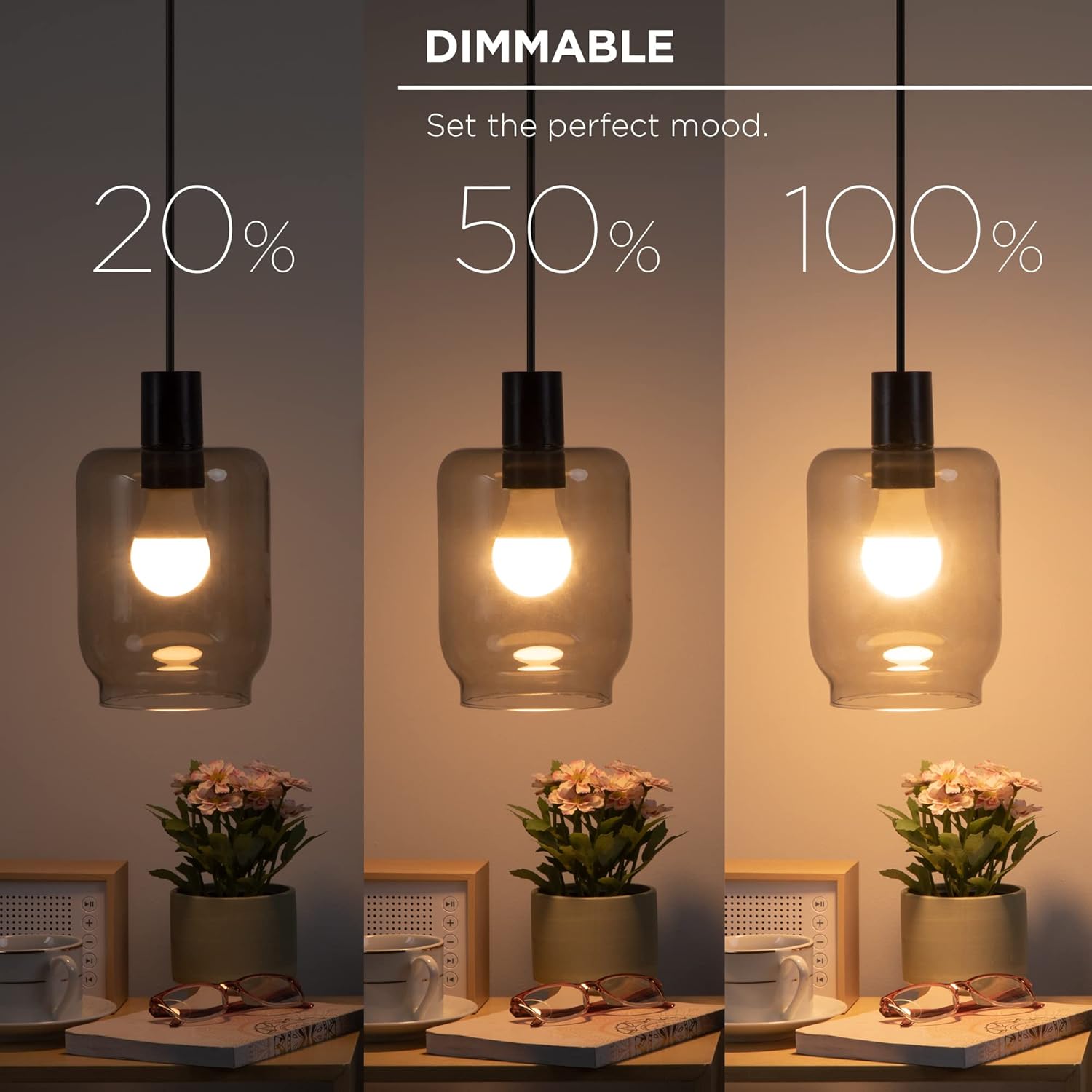
Image: A demonstration of the dimmable feature, showing the bulb at 20%, 50%, and 100% brightness.

Image: A smartphone displaying the app interface for controlling the bulb's brightness remotely.

Image: The app's scheduling feature, allowing users to set daily routines for the smart bulb.

Image: The group control function in the app, enabling simultaneous control of multiple smart bulbs.
Voice Control
Once connected to your Wi-Fi network and linked with Amazon Alexa or Google Assistant, you can control your smart bulb using voice commands. Ensure your voice assistant device is properly set up and connected to the same network.
- Example Commands (Alexa):
- "Alexa, turn on the kitchen light."
- "Alexa, dim the living room light to 50%."
- "Alexa, turn off all lights."
- Example Commands (Google Assistant):
- "Hey Google, turn on the bedroom light."
- "Hey Google, set the office light to 75% brightness."
- "Hey Google, turn off the lights."

Image: A demonstration of voice control using an Amazon Echo device, showing integration with Alexa and Google Assistant.
Maintenance
The Merkury Innovations Smart Light Bulb is designed for long-lasting performance with minimal maintenance. Follow these guidelines to ensure optimal operation:
- Cleaning: Ensure the bulb is cool and the power is off before cleaning. Wipe the bulb with a soft, dry cloth. Do not use liquid cleaners or abrasive materials.
- Storage: If storing the bulb for an extended period, keep it in a cool, dry place away from direct sunlight and extreme temperatures.
- Firmware Updates: Periodically check the Geeni app for any available firmware updates for your smart bulb to ensure you have the latest features and security enhancements.
Troubleshooting
If you encounter issues with your Merkury Innovations Smart Light Bulb, refer to the following common solutions:
- Bulb Not Connecting to Wi-Fi:
- Ensure your Wi-Fi network is 2.4GHz. The bulb does not support 5GHz networks.
- Verify your Wi-Fi password is correct.
- Move the bulb closer to your Wi-Fi router during the initial setup process.
- Try resetting the bulb by turning it off and on five times consecutively (each cycle lasting about 2 seconds) until it blinks rapidly.
- Voice Control Not Working:
- Confirm that your smart bulb is successfully linked to your Amazon Alexa or Google Assistant account within their respective apps.
- Check that your voice assistant device is online and connected to the same Wi-Fi network as the bulb.
- Ensure you are using the correct device names as configured in the Geeni app.
- Bulb Unresponsive:
- Check if the light switch is in the ON position.
- Verify that your home Wi-Fi network is active and stable.
- Restart the bulb by turning the power off and on at the light switch.
Specifications
| Feature | Specification |
|---|---|
| Brand | Merkury Innovations |
| Model | A19/E26 Smart Light Bulb |
| Light Type | Dimmable White LED |
| Wattage | 9 Watts (60W Incandescent Equivalent) |
| Brightness | 800 Lumens |
| Bulb Shape Size | A19 |
| Bulb Base | E26 |
| Connectivity | 2.4GHz Wi-Fi (IEEE 802.11n) |
| Control Method | App, Voice (Amazon Alexa, Google Assistant) |
| Unit Count | 3 Count (as per product title) |
| Item Weight | 7.4 ounces |
| Package Dimensions | 8.46 x 8.46 x 5.55 inches |
| Date First Available | August 16, 2022 |
Warranty and Support
Merkury Innovations products are designed with quality and reliability in mind. For specific warranty details, please refer to the packaging or the official Merkury Innovations website. Typically, products come with a limited warranty covering manufacturing defects.
For technical support, troubleshooting assistance, or warranty claims, please contact Merkury Innovations customer service through their official website or the contact information provided on the product packaging.
Online Resources:
- Visit the Merkury Innovations website for FAQs and support.
- Check the Geeni app for in-app support options.


