1. Introduction
Welcome to your new HP 17 Laptop. This manual provides essential information to help you set up, operate, and maintain your device. Please read this manual thoroughly to ensure proper use and to maximize the lifespan of your laptop.

Figure 1: Front view of the HP 17 Laptop, showcasing the 17.3-inch display and keyboard.
2. What's in the Box
Verify that all components are present in the packaging:
- HP 17 Laptop
- AC adapter
- Battery
- Documentation (including this manual)
- Webcam (integrated)
3. Product Overview
3.1 Key Features
- Processor: AMD Ryzen 5 5625U (6 cores, 12 threads, up to 4.3GHz) with AMD Radeon Graphics
- Memory: 16GB DDR4 RAM
- Storage: 1TB PCIe NVMe M.2 SSD + 1TB HDD
- Display: 17.3" HD+ (1600 x 900) Touchscreen, 250-Nits
- Operating System: Windows 11 Home
- Connectivity: Wi-Fi 5, Bluetooth
- Ports: 2x SuperSpeed USB Type-A, 1x SuperSpeed USB Type-C, 1x HDMI 1.4b, 1x Headphone/microphone combo, 1x AC Smart pin
- Camera: Integrated Wide Vision 720p HD Camera with Dual Array Digital Microphones
3.2 Physical Components
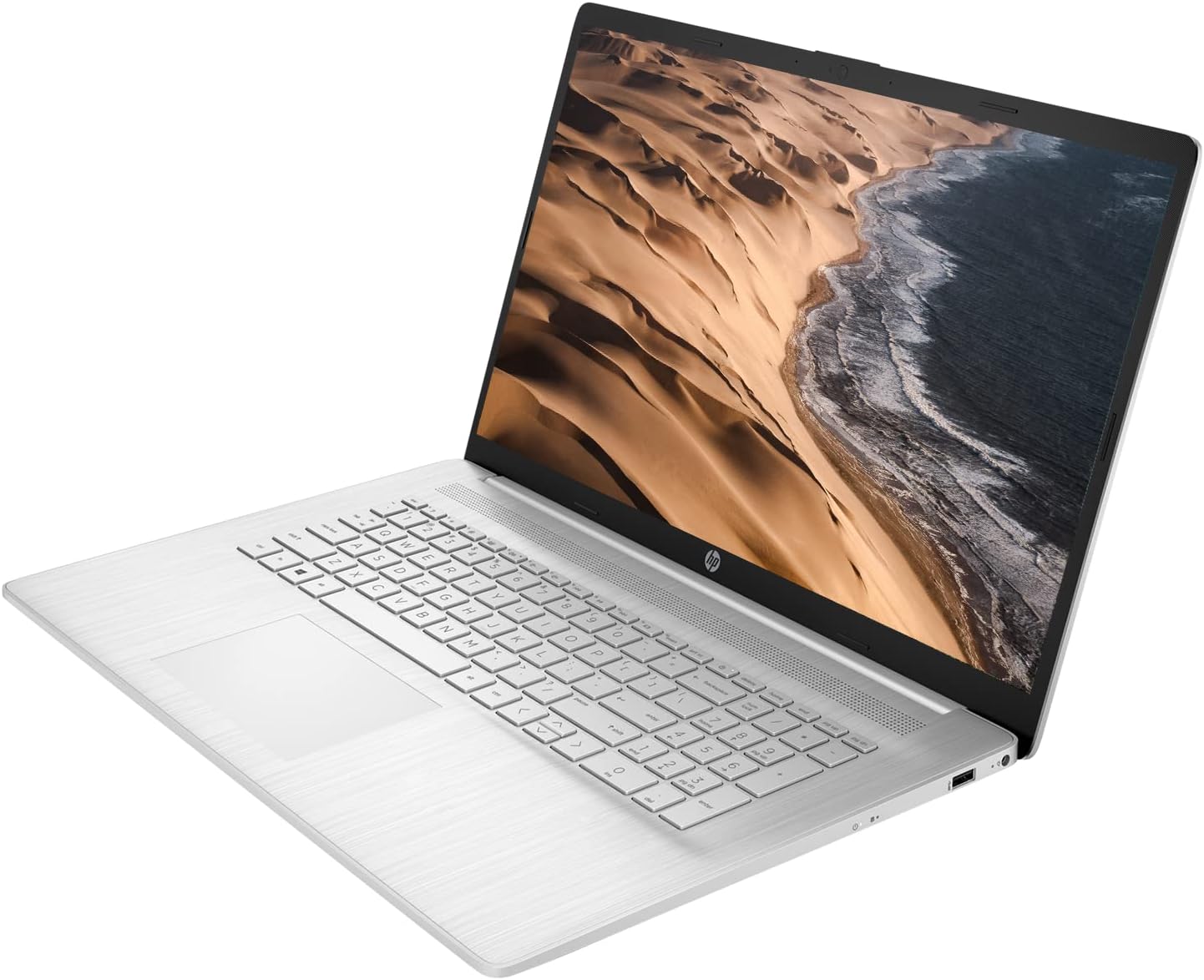
Figure 2: Angled view of the HP 17 Laptop, illustrating its slim profile.

Figure 3: Rear view of the HP 17 Laptop, displaying the HP logo on the lid.
Left Side Ports

Figure 4: Left side of the laptop, featuring (from left to right) a SuperSpeed USB Type-A port, HDMI 1.4b port, SuperSpeed USB Type-C port, and a headphone/microphone combo jack.
Right Side Ports

Figure 5: Right side of the laptop, featuring (from left to right) the AC Smart pin for power input and another SuperSpeed USB Type-A port.
4. Initial Setup
4.1 Powering On
- Connect the AC adapter to the laptop's power input port (AC Smart pin on the right side) and then to a power outlet.
- Open the laptop lid.
- Press the power button, typically located on the top right of the keyboard deck.
4.2 Operating System Configuration
Upon first boot, the Windows 11 Home setup wizard will guide you through the initial configuration process. Follow the on-screen prompts to:
- Select your region and language.
- Connect to a Wi-Fi network.
- Accept the license terms.
- Create or sign in with a Microsoft account.
- Set up security features like a PIN or password.
4.3 Connecting to Wi-Fi
During the initial setup or at any time:
- Click the Wi-Fi icon in the taskbar (bottom right of the screen).
- Select your desired network from the list of available networks.
- Enter the network security key (password) if prompted.
- Click 'Connect'.
5. Operating Your Laptop
5.1 Using the Touchscreen
Your HP 17 Laptop features a 17.3" HD+ touchscreen. You can interact with the operating system and applications directly on the screen using touch gestures. Common gestures include tapping, swiping, pinching to zoom, and stretching to zoom.
5.2 Keyboard and Touchpad
The laptop includes a full-size keyboard with a numeric keypad and a multi-touch touchpad. Use the touchpad for cursor control and gestures such as two-finger scrolling or pinching.
5.3 External Connections
- USB Type-A Ports: Connect USB devices such as external hard drives, mice, or keyboards.
- USB Type-C Port: This port supports data transfer. Note: This USB-C port does not support video output for external monitors.
- HDMI 1.4b Port: Connect an external display or projector. This laptop supports a dual monitor setup via the HDMI port.
- Headphone/Microphone Combo Jack: Connect headphones, external speakers, or a headset with a microphone.
5.4 Wireless Connectivity
- Wi-Fi 5: Provides wireless internet access. Manage connections via the network icon in the taskbar.
- Bluetooth: Pair with Bluetooth-enabled devices such as wireless headphones, speakers, or mice. Access Bluetooth settings via the Windows Settings menu.
5.5 Using the Webcam
The integrated Wide Vision 720p HD Camera with Dual Array Digital Microphones is suitable for video calls and online meetings. Access the camera through applications like Camera, Microsoft Teams, or Zoom.
6. Maintenance
6.1 Battery Care
- Avoid fully discharging the battery frequently.
- Store the laptop in a cool, dry place if not used for extended periods.
- Use only the original HP AC adapter provided with your laptop.
6.2 Cleaning Your Laptop
- Use a soft, lint-free cloth slightly dampened with water or a screen cleaner for the display.
- For the keyboard and chassis, use a soft cloth. Avoid harsh chemicals.
- Periodically clean the ventilation grilles to prevent dust buildup.
6.3 Software Updates
Regularly update your Windows operating system and drivers to ensure optimal performance and security. You can check for updates via Windows Settings > Windows Update.
7. Troubleshooting Common Issues
- Laptop does not power on: Ensure the AC adapter is securely connected to both the laptop and a working power outlet. Try a different outlet. If the battery is removable, ensure it is properly seated.
- Display issues (no image, flickering): Restart the laptop. If connected to an external monitor, try disconnecting it. Ensure display drivers are updated.
- Wi-Fi connectivity problems: Check if Wi-Fi is enabled in Windows settings. Restart your router and modem. Ensure you are within range of the Wi-Fi signal.
- Bluetooth device not pairing: Ensure the Bluetooth device is in pairing mode. Check Bluetooth settings on the laptop and ensure it is enabled.
- External monitor limitations: The laptop's USB Type-C port does not support video output. External monitors can only be connected via the HDMI 1.4b port, supporting a dual monitor setup (laptop screen + one external monitor).
- Slow performance: Close unnecessary applications. Check for background processes. Ensure sufficient free storage space. Run a virus scan.
8. Technical Specifications
| Feature | Specification |
|---|---|
| Model Name | 17 (Model 1035) |
| Processor | AMD Ryzen 5 5625U (6 cores, 12 threads, 2.3 GHz base, up to 4.3 GHz max boost) |
| Graphics | AMD Radeon Graphics (Integrated) |
| RAM | 16 GB DDR4 |
| Storage | 1 TB PCIe NVMe M.2 SSD + 1 TB HDD |
| Operating System | Windows 11 Home |
| Display | 17.3 inches HD+ (1600 x 900) Touchscreen, 250 Nits |
| Wireless Connectivity | Wi-Fi 5 (802.11ac), Bluetooth |
| Ports | 2x SuperSpeed USB Type-A, 1x SuperSpeed USB Type-C (data only), 1x HDMI 1.4b, 1x Headphone/microphone combo, 1x AC Smart pin |
| Webcam | Integrated Wide Vision 720p HD Camera with Dual Array Digital Microphones |
| Power Supply | 45W Smart AC power adapter |
| Dimensions (LxWxH) | 15.78 x 10.15 x 0.78 inches |
| Weight | 4.56 pounds |
| Color | Silver |
9. Warranty and Support Information
Your HP 17 Laptop is covered by a standard manufacturer's warranty. For specific warranty terms and conditions, please refer to the warranty documentation included with your product or visit the official HP support website.
For technical assistance, driver downloads, or further support, please visit the official HP support portal or contact HP customer service. You can find more information and support resources at the HP Store on Amazon or the main HP website.