
ZUMKUNM ZUMKUNM 4K Media Player
ZUMKUNM 4K Ultra HD Digital Media Player User Manual
Model: ZUMKUNM 4K Media Player
1. Product Overview
The ZUMKUNM 4K Media Player is a compact and powerful device designed to play videos, photos, and music from USB drives and microSD cards on any TV, new or old, up to 4K 30fps Ultra HD quality. It offers a simple and intuitive user experience without complex settings.
Key features include:
- HDMI 4K/30fps Ultra HD Quality: Supports up to 2160p/60Hz resolution with H.265/HEVC video formats and digital surround sound.
- Analog AV Output: For connection to older CRT TVs or external stereo systems.
- Extensive Storage Support: Reads USB drives up to 8TB and microSD cards up to 1TB, supporting FAT32, exFAT, and NTFS file systems.
- Automatic Playback & Looping: Ideal for digital signage applications, with auto-start, auto-play, auto-loop, and auto-resume functions.
- Wide Media Format Compatibility: Supports various video, photo, and music formats.

Image 1.1: The ZUMKUNM 4K Media Player unit alongside its remote control. The player is a compact black box with "4K Media player" printed on top, featuring ventilation grilles. The remote control is black with various function buttons for navigation, playback, and settings.
2. Setup Guide
Follow these steps to set up your ZUMKUNM 4K Media Player:
- Unpack Contents: Ensure all included items are present:
- ZUMKUNM 4K Media Player unit
- Remote Control (requires 2 x AAA batteries, not included)
- Power Adapter (EU version)
- HDMI Cable
- AV Cable
- User Manual
- Connect to TV/Display:
- For 4K Ultra HD quality, connect the included HDMI cable from the player's HDMI OUT port to an HDMI input on your TV or monitor.
- For older TVs (CRT) or audio systems, connect the included AV cable from the player's AV OUT port to the corresponding AV input (Red, White, Yellow RCA jacks) on your TV or audio receiver.

Image 2.1: A detailed view of the ZUMKUNM 4K Media Player's connectivity options. It shows the AV output, two USB ports, HDMI output, DC 5V power input, and a microSD card slot. The image highlights the various cables and devices that can be connected, such as USB drives, external hard drives, and an external IR receiver.
- Connect Power: Plug the power adapter into the DC 5V port on the media player, then plug the adapter into a wall outlet. The player will power on automatically.
- Insert Batteries into Remote: Open the battery compartment on the back of the remote control and insert 2 x AAA batteries (not included), ensuring correct polarity.
- Select Input on TV: Use your TV's remote control to select the correct HDMI or AV input source that the media player is connected to.
3. Operating Instructions
The ZUMKUNM 4K Media Player is designed for straightforward operation.
3.1. Playing Media Files
- Insert Storage Device: Insert your USB flash drive, USB hard drive (up to 8TB), or microSD card (up to 1TB) containing your media files into the corresponding port on the player.
- Navigate Menu: Use the remote control's navigation buttons (up, down, left, right) and the "OK" button to select between "MOVIE", "MUSIC", "PHOTO", or "FILE" options on the main menu.
- Select File: Browse through your files and folders. Highlight the desired media file and press "OK" to start playback.
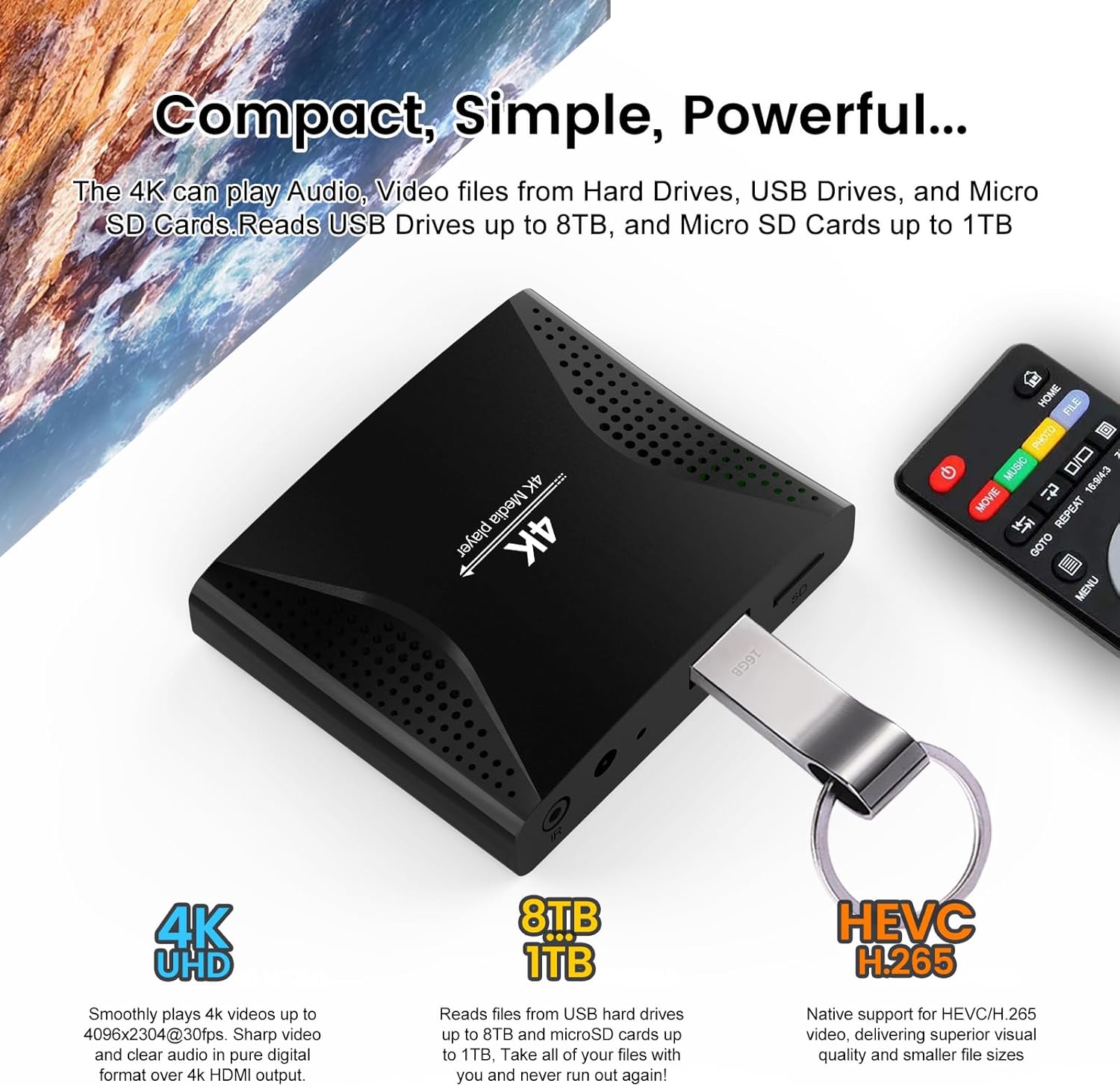
Image 3.1: The ZUMKUNM 4K Media Player shown with a USB flash drive inserted into one of its USB ports. This illustrates the compact design and ease of connecting external storage for media playback.
3.2. Automatic Playback and Looping (Digital Signage)
The player supports automatic playback features, making it suitable for digital signage applications:
- Auto Start/Play: The player can be configured to automatically start playing media files upon power-on without user intervention.
- Auto Loop: Media files can be set to loop continuously, ideal for displays in public spaces.
- Auto Resume: The player remembers the last playback position and can resume from that point.
- Video Rotation: Supports 90/180/270 degree video output rotation for both landscape and portrait displays.
To enable these features, navigate to the "SETUP" menu using the remote control and adjust the playback settings as needed.

Image 3.2: An example of the ZUMKUNM 4K Media Player being used for simple digital signage in a retail environment. The image shows screens displaying promotional content, highlighting the player's capability for continuous playback and looping in commercial settings.
3.3. Remote Control Functions
The remote control provides full functionality for navigating the player's interface and controlling media playback. Key buttons include:
- Power: Turns the player on/off.
- HOME: Returns to the main menu.
- MOVIE/MUSIC/PHOTO/FILE: Direct access to media categories.
- Navigation (Arrows & OK): For menu navigation and selection.
- MENU/RETURN: Accesses context menus or goes back.
- GOTO/REPEAT/ZOOM: Playback control options.
- SUBTITLE/AUDIO: Adjust subtitle and audio tracks.
- Playback Controls: Play/Pause, Stop, Fast Forward, Rewind, Next/Previous.
- SETUP: Accesses system settings.
- AV/HDMI: Switches video output mode (if applicable).
4. Supported Media Formats
The ZUMKUNM 4K Media Player supports a wide range of media formats:
- Video Formats: MP4, MKV, AVI, TS/TP, MOV, VOB, M2TS, WMV, MPEG1/2/4.
- Video Codecs: H.265/HEVC, H.264/AVC, VC1, MPEG2/4.
- Video Resolution: Up to 4096x2304p @30fps, 10-bit color, and 200 Mbps bitrate.Note: Video resolutions higher than 4096x2304 @30fps or bitrates higher than 200 Mbps are not supported.
- Subtitle Formats: SRT, PGS, IDX+SUB.
- Photo Formats: JPG, JPEG, BMP, GIF (non-animated), PNG, TIF.
- Music Formats: MP3, WMA, OGG, FLAC, APE, AAC, WAV.
- Music Bitrate: 32 kbps to 320 kbps.

Image 4.1: An illustration showcasing the wide array of media file formats supported by the ZUMKUNM 4K Media Player, including various video, audio, and image file types such as MKV, MP4, JPG, PNG, and MP3.

Image 4.2: This image demonstrates the ZUMKUNM 4K Media Player's support for H.265/HEVC codecs, capable of playing video up to 4096x2304 at 30 frames per second. It visually compares 4K UHD resolution to 2K 1080P, emphasizing the superior visual quality.

Image 4.3: An illustration depicting the immersive 4K audio-visual experience provided by the ZUMKUNM 4K Media Player. It highlights support for Ultra High Definition video formats like MKV and MP4, along with digital surround sound, promising a cinema-like viewing experience.
5. Specifications
| Feature | Detail |
|---|---|
| Brand | ZUMKUNM |
| Model Name | ZUMKUNM 4K Media Player |
| Manufacturer | JIA YI SHI |
| Connectivity Technology | HDMI, IR, Micro-SD, USB |
| Connector Type | HDMI, RCA |
| Resolution | 4K (4096x2304p @30fps max) |
| Compatible Devices | Television, Monitor, Projector |
| Memory Storage Capacity | Supports USB drives up to 8TB, Micro SD cards up to 1TB |
| Special Features | HDMI Output, USB Port, Remote Control, Automatic Playback, Looping, Video Rotation |
| Included Components | 1x Media Player, 1x Remote Control, 1x Power Adapter, 1x HDMI Cable, 1x AV Cable, 1x User Manual |
| Product Dimensions | 7 x 6 x 2 cm; 60 g |
6. Troubleshooting
If you encounter issues with your ZUMKUNM 4K Media Player, please refer to the following common problems and solutions:
- No Power:
- Ensure the power adapter is securely connected to the player and a working power outlet.
- Check if the power outlet is functional by plugging in another device.
- No Picture/Sound:
- Verify that the HDMI or AV cable is securely connected to both the player and the TV/display.
- Ensure your TV/display is set to the correct input source (e.g., HDMI 1, AV).
- Check the volume level on your TV and the media player.
- If using AV, ensure the correct color-coded cables are matched (Yellow for video, Red/White for audio).
- Remote Control Not Working:
- Check if the batteries are inserted correctly and are not depleted. Replace with new AAA batteries if necessary.
- Ensure there are no obstructions between the remote control and the player's IR receiver.
- Point the remote directly at the player.
- Cannot Read USB Drive/MicroSD Card:
- Ensure the storage device is properly inserted into the correct port.
- Verify that the storage device is formatted with a supported file system (FAT32, exFAT, NTFS).
- Check if the storage device capacity exceeds the supported limits (8TB for USB, 1TB for microSD).
- Try another USB port or a different storage device to rule out a faulty device.
- Video Playback Issues (Stuttering, No Audio, etc.):
- Ensure the video file format and codec are supported (refer to Section 4).
- Check if the video resolution or bitrate exceeds the player's maximum supported specifications (4096x2304 @30fps, 200 Mbps).
- Try playing a different file to determine if the issue is specific to one file.
If the problem persists after trying these steps, please contact customer support for further assistance.
7. Maintenance
To ensure the longevity and optimal performance of your ZUMKUNM 4K Media Player, follow these maintenance guidelines:
- Cleaning: Use a soft, dry cloth to clean the exterior of the player. Do not use liquid cleaners or abrasive chemicals.
- Ventilation: Ensure the player is placed in a well-ventilated area. Do not block the ventilation holes.
- Environment: Keep the player away from direct sunlight, heat sources, and excessive moisture.
- Power Off: When not in use for extended periods, it is recommended to unplug the power adapter.
8. Warranty and Support
This ZUMKUNM 4K Media Player comes with a standard return policy. For specific details regarding warranty coverage and duration, please refer to your purchase documentation or the retailer's policy.
- Return Policy: The product is eligible for a refund/replacement within 30 days of purchase, as per the retailer's policy.
- Software Updates: Information regarding guaranteed software updates is currently unknown.
- Customer Support: For technical assistance, troubleshooting beyond this manual, or warranty claims, please contact the seller or the manufacturer, JIA YI SHI, through the platform where the product was purchased.
Related Documents - ZUMKUNM 4K Media Player
 |
Sanwa Supply 400-MEDI023 4K Media Player Instruction Manual Official instruction manual for the Sanwa Supply 400-MEDI023 4K Media Player. Learn how to set up, operate, and troubleshoot your device, including specifications, connections, and playback features. |
 |
Zidoo Media Players Tutorials and Guides Comprehensive list of tutorials, guides, and setup instructions for Zidoo media players, covering general settings, configuration, customization, and flashing procedures. Find setup instructions, troubleshooting tips, and advanced feature guides for Zidoo devices. |
 |
HUIDU TECHNOLOGY HD-A4L Multimedia Player Product Specification Comprehensive product specification document for the HUIDU TECHNOLOGY HD-A4L LED display multimedia player. Details features, input/output interfaces, system functions, hardware specifications, image and video decoding capabilities, and application scenarios for digital signage and LED display control. |
 |
Android Media Player X99 User Guide and Specifications Comprehensive guide for the Android Media Player X99 by Shenzhen Hugsun Technology Co., Ltd., detailing port functions, setup instructions, and FCC compliance. |
 |
Tokemisc S7 Music Player User Manual Comprehensive user manual for the Tokemisc S7 Music Player, detailing its features, operation, and specifications. Covers introduction, getting started, charging, audio functions, music control, FM radio, Bluetooth, recording, e-book functionality, settings, and technical specifications. |
 |
SanDisk Sansa e200R Rhapsody User Guide Comprehensive user guide for the SanDisk Sansa e200R Rhapsody MP3 player, covering setup, basic usage, music playback, photo and video management, FM radio, recording, settings, troubleshooting, and warranty information. |