1. Introduction
The Samsung Galaxy A03 is an unlocked Android smartphone designed for reliable performance and ease of use. This manual provides essential information for setting up, operating, and maintaining your device.
The device features a 6.5-inch Infinity-V Display, an 8 MP main camera, a 5 MP front camera, an octa-core processor, 2GB RAM, 32GB internal storage (expandable), and a 5000 mAh battery.
2. Device Overview
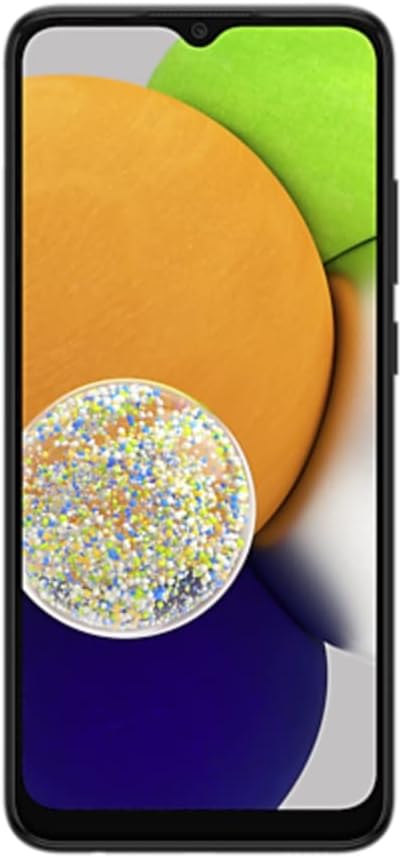
Figure 1: Front view of the Samsung Galaxy A03, showcasing its 6.5-inch Infinity-V display.
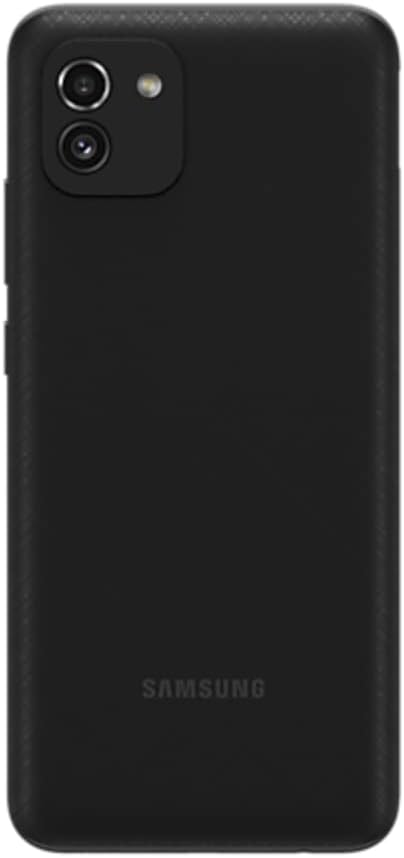
Figure 2: Back view of the Samsung Galaxy A03, highlighting the main 8 MP camera and textured finish.

Figure 3: Side view of the Samsung Galaxy A03, illustrating the placement of the power and volume buttons.
Key Features:
- Display: 6.5-inch PLS TFT LCD, 720 x 1600 pixels (HD+)
- Processor: Octa-core Unisoc SC9863A
- Memory: 32GB Internal Storage, 2GB RAM, MicroSD support up to 512GB
- Cameras: Rear 8 MP (f/2.0, AF), Front 5 MP (f/2.2)
- Battery: 5000 mAh Li-Ion (non-removable)
- Operating System: Android 10.0
- Connectivity: GSM Unlocked, Wi-Fi, GPS
3. Setup
3.1 Inserting SIM Card and MicroSD Card
- Locate the SIM card tray on the side of your device.
- Insert the ejection pin (not included) into the hole on the SIM card tray to open it.
- Place your Nano-SIM card into the SIM card slot. If using a MicroSD card (up to 512GB), place it into the designated MicroSD card slot.
- Gently push the tray back into the slot until it is flush with the device.
3.2 Powering On/Off
- To power on: Press and hold the Power/Side key until the Samsung logo appears.
- To power off: Press and hold the Power/Side key, then tap Power off on the screen.
3.3 Initial Configuration
Follow the on-screen prompts to complete the initial setup, including language selection, Wi-Fi connection, Google account setup, and security settings.
4. Operating Your Device
4.1 Navigating the Display
- Touchscreen: Tap, swipe, pinch, and spread to interact with apps and content.
- Home Screen: Access your favorite apps and widgets. Swipe left or right to view additional home screens.
- Notification Panel: Swipe down from the top of the screen to access quick settings and notifications.
4.2 Basic Functions
- Making Calls: Tap the Phone icon, enter the number, and tap the Call button.
- Sending Messages: Tap the Messages icon, tap the New Message icon, enter the recipient and message, then tap Send.
- Internet Browsing: Use the pre-installed browser or download your preferred browser from the Play Store.
5. Camera Features
The Galaxy A03 is equipped with an 8 MP main camera and a 5 MP front camera for capturing photos and videos.
5.1 Taking Photos and Videos
- Open the Camera app.
- Tap the Shutter button to take a photo.
- Switch between photo and video modes by swiping left or right on the mode selector.
- Tap the Switch Camera icon to toggle between the rear and front cameras.
Video 1: A brief review of the Samsung Galaxy A03s, demonstrating its features and design. Note: This video is for a similar model (A03s) and provides a general overview.
6. Battery Management
The Galaxy A03 is equipped with a large 5000 mAh battery, providing extended usage time.
6.1 Charging Your Device
- Connect the provided USB cable to the USB Type C port on your phone and to a compatible power adapter.
- Plug the power adapter into a wall outlet.
- The battery indicator on the screen will show the charging status.
Note: Use only Samsung-approved chargers and cables to prevent damage to your device.
7. Connectivity
7.1 GSM Network Compatibility
This device is GSM Unlocked and compatible with most GSM carriers. It is not compatible with NEW AT&T or Cricket activations or with CDMA Networks like Verizon, Sprint, and Boost Mobile.
7.2 Wi-Fi and Bluetooth
- To enable Wi-Fi: Swipe down from the top of the screen to open the Notification Panel, then tap the Wi-Fi icon. Select your desired network and enter the password if required.
- To enable Bluetooth: Swipe down from the top of the screen, then tap the Bluetooth icon. Pair with compatible devices.
8. Storage
The Galaxy A03 comes with 32GB of internal storage, with approximately 2GB of RAM for efficient performance.
8.1 Expanding Storage
You can expand the device's storage capacity by inserting a MicroSD card (up to 512GB) into the dedicated slot in the SIM card tray.
9. Maintenance
9.1 General Care
- Keep your device dry and away from extreme temperatures.
- Clean the screen and body with a soft, dry cloth. Avoid harsh chemicals.
- Avoid dropping the device or subjecting it to strong impacts.
9.2 Software Updates
Regularly check for and install software updates to ensure optimal performance and security. Go to Settings > Software update to check for available updates.
10. Troubleshooting
10.1 Device Not Powering On
- Ensure the battery is charged. Connect the device to a charger for at least 10 minutes.
- Press and hold the Power/Side key for 10-15 seconds to perform a forced restart.
10.2 Network Issues
- Verify that your SIM card is correctly inserted and activated with a compatible GSM carrier.
- Restart the device.
- Check network settings: Go to Settings > Connections > Mobile networks > Network operators and select your carrier.
10.3 Slow Performance
- Close unused applications.
- Clear cache data from apps (Settings > Apps > [App Name] > Storage > Clear cache).
- Ensure sufficient free storage space.
11. Specifications
| Feature | Specification |
|---|---|
| Model Name | Galaxy A03 |
| Display Size | 6.5 inches |
| Display Resolution | 720 x 1600 pixels (HD+) |
| Operating System | Android 10.0 |
| RAM | 2 GB |
| Internal Storage | 32 GB |
| Expandable Storage | MicroSD up to 512 GB |
| Main Camera | 8 MP, f/2.0, AF |
| Selfie Camera | 5 MP, f/2.2 |
| Battery Capacity | 5000 mAh |
| Processor | Unisoc SC9863A (Octa-core) |
| Connectivity | GSM, Wi-Fi, GPS |
| Dimensions | 6.46 x 2.99 x 0.36 inches |
| Weight | 6.9 ounces (196 grams) |
| Color | Black |
12. Warranty and Support
This renewed product typically comes with a 90-day return policy for refunds or replacements. For specific warranty details and support, please refer to the seller's terms or contact Samsung customer service.
Manufacturer: Samsung


