
1. Introduction
This manual provides detailed instructions for the installation, operation, and maintenance of your Yunseity 1080P Full Smart Dash Camera. Please read this manual thoroughly before using the device to ensure proper function and to maximize its lifespan. Keep this manual for future reference.
2. Product Overview and Package Contents
The Yunseity 1080P Full Smart Dash Camera is designed to record video footage while driving, providing security and evidence in case of incidents. It features a compact design and essential functions for vehicle surveillance.
2.1 Package Contents
Verify that all items are present in your package:
- Dash Camera Unit
- Car Charger
- Mounting Bracket (Suction Cup Mount)
- Instruction Manual
- Memory Card (may be pre-installed or included separately)

3. Key Features
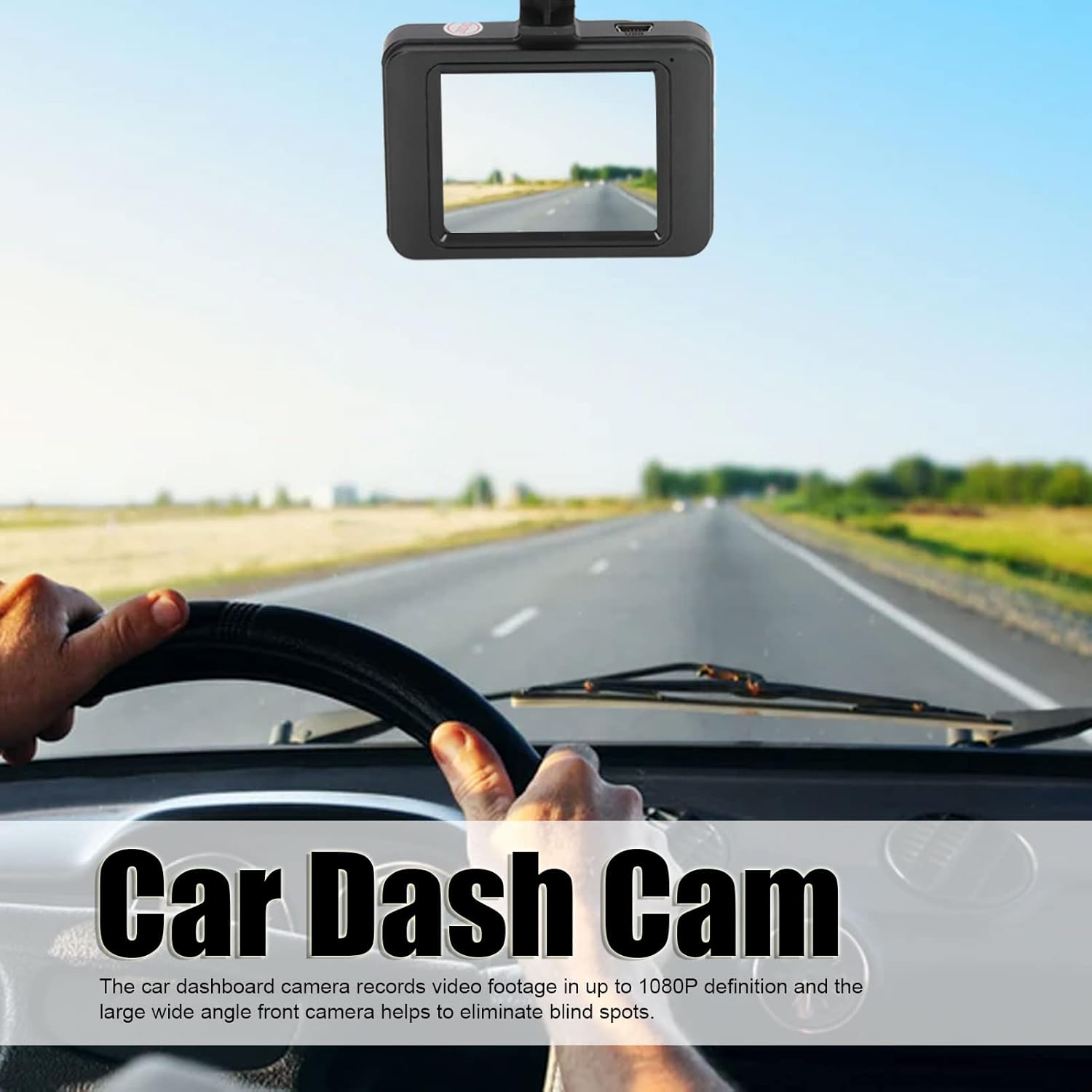
- 1080P Full HD Recording: Records high-definition video footage at 1080P resolution, capturing clear details on the road. The wide-angle front camera helps cover a broad view.
- Loop Recording: Ensures continuous recording by automatically overwriting the oldest unlocked video files when the memory card is full. This prevents recording from stopping due to a full card.
- G-Sensor (Gravity Sensor): Automatically detects sudden shakes or collisions and locks the current video footage to prevent it from being overwritten, securing critical evidence.
- Parking Mode: Monitors your vehicle when parked. If motion or impact is detected, the camera will automatically start recording to capture potential incidents.
- Motion Detection: The camera can detect movement in its field of view and begin recording, useful for both driving and parking surveillance.
- Automatic Start/Stop Recording: The camera powers on and begins recording automatically when the car engine starts, and powers off when the engine is turned off.
- Playback View: Allows users to view and play back recorded videos directly on the LCD screen, enabling quick review of incidents.


4. Setup and Installation
4.1 Inserting the Memory Card
- Ensure the dash camera is powered off.
- Locate the memory card slot on the side of the camera.
- Insert a compatible MicroSD card (Class 10 or higher, up to 32GB recommended) into the slot until it clicks into place.
- To remove, gently push the card in until it springs out.
4.2 Mounting the Dash Camera
The dash camera uses a double-sided adhesive mounting base or a suction cup mount for easy installation.
- Clean the windshield area where you intend to mount the camera. Ensure it is free of dust and grease.
- Attach the suction cup mount to the camera.
- Press the suction cup firmly against the windshield, ideally behind the rearview mirror to avoid obstructing your view. Flip the lever on the suction cup to secure it.
- Adjust the camera angle to ensure a clear view of the road ahead.
4.3 Connecting Power
- Connect the car charger to the camera's power input port.
- Plug the other end of the car charger into your vehicle's 12V power outlet (cigarette lighter socket).
- Route the power cable neatly along the windshield trim to avoid interference with driving.
5. Operating Instructions
5.1 Power On/Off
- Automatic: The camera will power on and start recording automatically when the car engine starts and power is supplied. It will power off automatically when the engine is turned off.
- Manual: Press and hold the Power button to manually turn the camera on or off.
5.2 Recording Modes
- Normal Recording: Once powered on, the camera automatically begins continuous loop recording.
- Emergency Recording (G-Sensor): In case of a sudden impact, the G-Sensor will trigger, and the current video segment will be locked and saved to a separate folder, preventing it from being overwritten.
- Parking Monitoring: When the vehicle is parked and the camera is connected to a continuous power source (or has sufficient internal battery), it will activate parking mode. If motion or impact is detected, it will record a short video.
5.3 Menu Navigation
Use the buttons on the camera (usually labeled Menu, Up, Down, OK) to navigate through settings:
- Press the Menu button to enter the settings interface.
- Use the Up/Down buttons to scroll through options.
- Press the OK button to select an option or confirm a setting.
- Press the Menu button again to exit the settings.
5.4 Playback
- Stop recording if currently active.
- Enter playback mode via the menu or a dedicated button (if available).
- Use the Up/Down buttons to select the desired video file.
- Press OK to play the video.
6. Maintenance
- Cleaning: Use a soft, dry cloth to clean the camera lens and screen. Avoid abrasive cleaners or solvents.
- Memory Card: Format the memory card regularly (e.g., once a month) through the camera's settings to ensure optimal performance and prevent data corruption. Back up any important files before formatting.
- Temperature: Avoid exposing the camera to extreme temperatures (very hot or very cold) for extended periods, as this can affect battery life and component integrity.
- Firmware Updates: Check the manufacturer's website periodically for any available firmware updates to improve performance or add new features.
7. Troubleshooting
| Problem | Possible Cause | Solution |
|---|---|---|
| Camera does not power on. | No power supply; faulty car charger; depleted internal battery. | Check car charger connection and vehicle's 12V outlet. Ensure the car engine is running. Charge the internal battery. |
| Recording stops or fails. | Memory card full; incompatible or faulty memory card; card not formatted. | Format the memory card. Replace with a Class 10 or higher MicroSD card (up to 32GB). |
| Video quality is poor. | Dirty lens; protective film still on lens; low light conditions. | Clean the lens. Remove any protective film. Ensure adequate lighting. |
| Camera keeps falling from windshield. | Suction cup not properly secured; dirty windshield surface. | Clean windshield and suction cup thoroughly. Ensure suction cup lever is fully engaged. |
| Battery does not hold charge. | Normal battery degradation; faulty battery. | The internal battery is primarily for parking mode and saving files, not extended operation. Keep connected to power for continuous use. If issues persist, contact support. |
8. Product Specifications
- Model: Yunseitys90gxha4rc
- Video Capture Resolution: 1080p
- Screen Size: 3 inches
- Field of View: 170 Degrees
- Connectivity Technology: USB
- Special Features: G-Sensor, Loop Recording, Motion Sensing, Parking Mode
- Mounting Type: Adhesive Mount / Suction Cup Mount
- Supported Memory Card: MicroSD (up to 32GB, Class 10 recommended)
- Battery Type: Built-in Lithium Battery
- Frame Rate: 30 FPS
- Display Type: LCD
- Manufacturer: Yunseity
9. Warranty and Support
9.1 Warranty Information
Your Yunseity Dash Camera is covered by a limited warranty against defects in materials and workmanship. The specific warranty period may vary by region and retailer. Please retain your proof of purchase for warranty claims.
9.2 Customer Support
For technical assistance, troubleshooting, or warranty inquiries, please contact Yunseity customer support through the retailer where the product was purchased or visit the official Yunseity website for contact information.
Online Resources: For additional support and frequently asked questions, please visit the Yunseity Store on Amazon.