Introduction
This manual provides comprehensive instructions for the HXSJ J900 USB Wired Gaming Mouse. Designed for desktop and laptop use, this ergonomic gaming mouse features adjustable DPI settings and vibrant RGB lighting, enhancing your gaming and computing experience.
Key Features:
- Super Lightweight Design: Weighing approximately 96g, the honeycomb hollow shell ensures comfortable extended use.
- Programmable Buttons: Six customizable buttons allow for enhanced functionality and personalized control.
- Dynamic RGB Rainbow Backlit: Features 6 distinct light modes, adjustable via a dedicated button.
- High-Performance Gaming Chip: Provides fast and stable performance with a maximum DPI of 6400.
- Wide Compatibility: Supports Windows 2000 / XP / win7 / win8 / win10, Vista 32bit, and later operating systems.
Product Overview
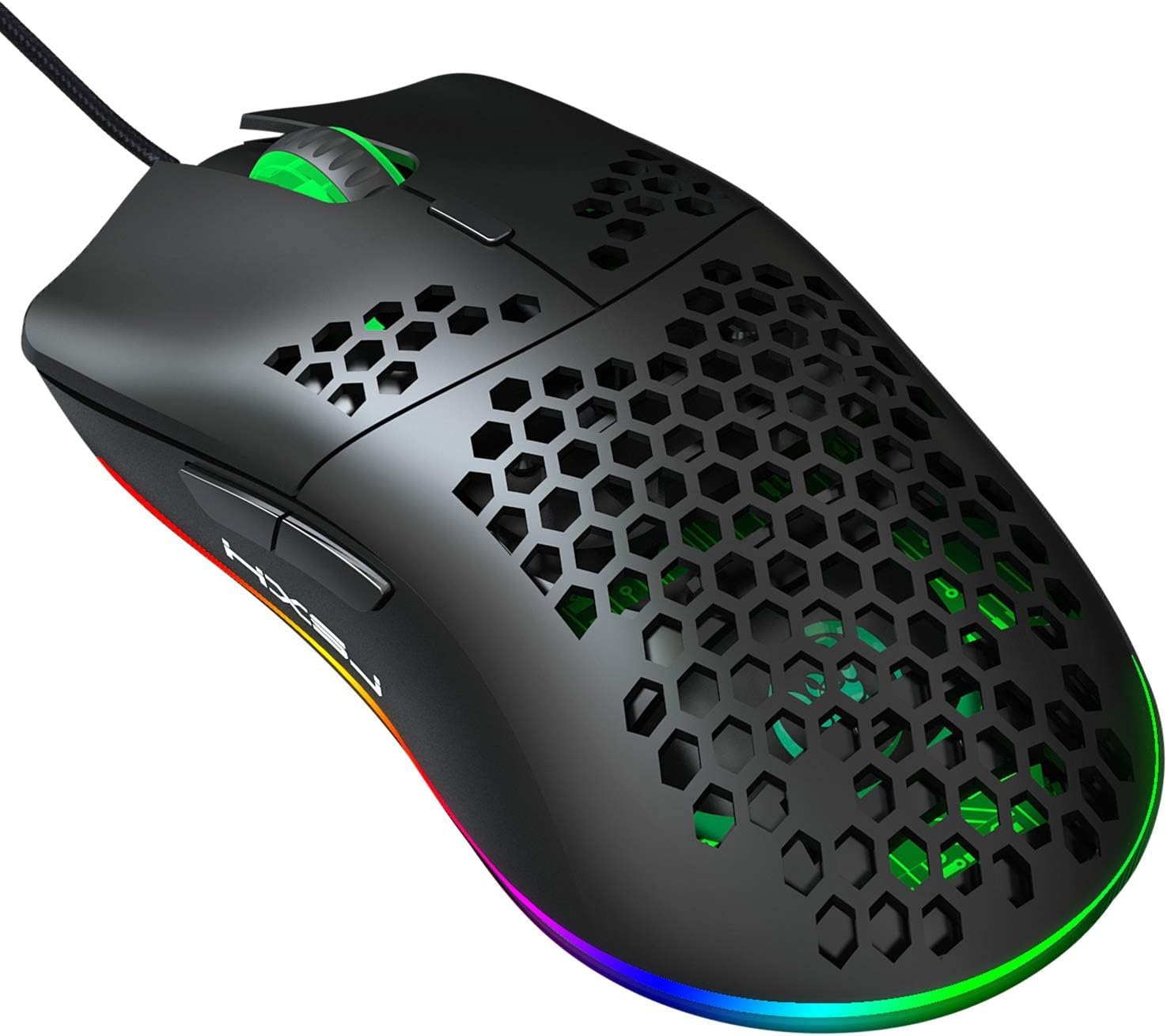
Figure 1: Top-down view of the HXSJ J900 Gaming Mouse, highlighting its lightweight honeycomb shell and vibrant RGB lighting along the base.

Figure 2: Side view of the HXSJ J900 Gaming Mouse, illustrating key features such as comfortable grip, 6400 DPI, RGB marquee lighting, 5G laser sensor, and 1000Hz polling rate.

Figure 3: Exploded diagram of the J900 mouse, detailing internal components including the left button, hollow hole hand board, Gundam 6400DPI sensor, midframe, transparent roller, ten-million-life microswitch, tail LOGO, PCP circuit board, RGB marquee, glow ring, hollow base, and UPE foot sticker.

Figure 4: Diagram showing the button layout of the HXSJ J900 Gaming Mouse, identifying the left button, right button, DPI key, forward key, back button, and light mode key.

Figure 5: Dimensions of the HXSJ J900 Gaming Mouse: Length 130mm, Width 67mm, Height 38mm.
Setup Guide
- Unpack the Mouse: Carefully remove the HXSJ J900 Gaming Mouse from its packaging.
- Connect to Computer: Locate an available USB port on your desktop or laptop. Insert the USB connector of the mouse firmly into the USB port.
- Driver Installation (Automatic): The operating system (Windows 2000 / XP / win7 / win8 / win10, Vista 32bit, or later) will automatically detect and install the necessary drivers. This process usually takes a few seconds.
- Verify Functionality: Once the drivers are installed, move the mouse to confirm cursor movement on your screen. The RGB lighting should also illuminate.
No additional software installation is typically required for basic functionality. For advanced customization of programmable buttons, refer to the manufacturer's website for any dedicated software.
Operating Instructions
DPI Adjustment:
The HXSJ J900 mouse features six adjustable DPI (Dots Per Inch) levels, allowing you to customize cursor sensitivity to your preference. To change the DPI, press the DPI key (refer to Figure 4 for location) located behind the scroll wheel. Each press cycles through the following DPI settings:
- 800 DPI
- 1600 DPI
- 2400 DPI
- 3200 DPI
- 4800 DPI
- 6400 DPI (Maximum)
The RGB lighting may change color to indicate the current DPI level, as shown in Figure 6.

Figure 6: Illustration of light modes and DPI value settings, showing how different DPI levels can be associated with distinct lighting colors.
RGB Lighting Modes:
The mouse features 6 different RGB lighting modes. To cycle through these modes, press the Light mode key (refer to Figure 4 for location), typically located on the underside of the mouse or near the DPI button.
- Rainbow Mode
- DPI Color Breath Mode
- Random Leisure Mode
- Random Sleep Mode
- Random Sport Mode
- Keep Light On Mode
- Close Light Mode
Programmable Buttons:
The HXSJ J900 mouse is equipped with 6 programmable buttons (Left, Right, Scroll Wheel Click, Forward, Back, DPI). While basic functionality is plug-and-play, advanced customization of these buttons may require specific software from the manufacturer. Please visit the official HXSJ website for information on any available software for button remapping and macro creation.
Maintenance
- Cleaning: Use a soft, dry cloth to wipe the surface of the mouse. For stubborn dirt, a slightly damp cloth can be used, but ensure no liquid enters the mouse. Avoid using harsh chemicals or abrasive cleaners.
- Sensor Care: Keep the optical sensor on the underside of the mouse clean and free from dust or debris to ensure accurate tracking.
- Cable Management: Avoid sharp bends or excessive pulling on the USB cable to prevent damage. Store the cable neatly when not in use.
- Storage: When not in use for extended periods, store the mouse in a clean, dry environment away from extreme temperatures.
Troubleshooting
- Mouse is not responding:
- Ensure the USB cable is securely plugged into a working USB port on your computer.
- Try plugging the mouse into a different USB port.
- Restart your computer.
- Test the mouse on another computer to determine if the issue is with the mouse or your system.
- DPI setting is not changing:
- Ensure you are pressing the correct DPI key (refer to Figure 4).
- Press the DPI key firmly.
- RGB lighting is not working or stuck:
- Press the Light mode key to cycle through different lighting modes.
- Ensure the mouse is properly connected to your computer.
- Restart your computer.
- Mouse movement is erratic or inaccurate:
- Clean the optical sensor on the underside of the mouse.
- Ensure you are using the mouse on a clean, non-reflective, and uniform surface.
- Adjust the DPI setting to a lower value if the cursor is too sensitive.
Specifications
| Feature | Detail |
|---|---|
| Brand | HXSJ |
| Model | J900 |
| Color | Black |
| DPI Levels | 800-1600-2400-3200-4800-6400 |
| Interface | USB |
| Switch Life | 20 million cycles |
| Item Size (L*W*H) | 13 x 6.7 x 3.8 cm |
| Item Weight | Approx. 95.4g |
| Product Dimensions (Package) | 15 x 10 x 5 cm |
| Package Weight | 146g |
| Operating System Compatibility | Windows 2000 / XP / win7 / win8 / win10, Vista 32bit, IOS or latest |
| Hardware Platform | PC |
| Compatible Devices | Laptop, Personal Computer |
| Special Features | Ergonomic Design, RGB Backlit, Honeycomb Hollow Shell |
| Power Source | Corded Electric |
| Movement Detection Technology | Optical |
| Material | Plastic |
| Hand Orientation | Right |
| Country of Origin | USA (as per specifications, though manufacturer is China) |
Warranty Information
HXSJ products are manufactured to high quality standards. For detailed warranty terms and conditions, including coverage period and claim procedures, please refer to the warranty card included with your product packaging or visit the official HXSJ website. Please retain your proof of purchase for warranty claims.
Support
For technical support, troubleshooting assistance, or any inquiries regarding your HXSJ J900 Gaming Mouse, please contact HXSJ customer support through their official website. You may find FAQs, driver downloads, and contact information on their support page.
Online Resources:
- Official HXSJ Website: www.hx-sj.com (Please note: This is a placeholder URL as no official support URL was provided in the data. Users should verify the correct URL.)
- Product Support Page: Check the official website for a dedicated support section for the J900 model.