
Newgoal NG8000003mk
Newgoal Zigbee Tuya Smart 4 Channel Smart Relay Module User Manual
Model: NG8000003mk
1. Introduction
This user manual provides comprehensive instructions for the Newgoal Zigbee Tuya Smart 4 Channel Smart Relay Module. This device is designed to integrate with your smart home ecosystem, offering remote control and automation capabilities for various electrical appliances. Please read this manual thoroughly before installation and operation.
2. Product Overview
The Newgoal Zigbee Tuya Smart 4 Channel Smart Relay Module is a versatile smart switch supporting the Zigbee 3.0 protocol. It allows for intelligent control of devices when connected to a compatible Zigbee gateway hub. The module also includes a 433MHz RF receiver and comes with a remote control, providing multiple control options. It is compatible with popular smart home platforms such as Tuya Smart Life, Amazon Alexa, Google Home, Philips Hue Bridge, and Samsung SmartThings Hub.

Figure 2.1: Newgoal Zigbee Tuya Smart 4 Channel Smart Relay Module, 433MHz RF Remote Control, and Smart Life App Interface.
3. Features
- Zigbee 3.0 Protocol: This smart switch needs to be used with a ZigBee hub (not included). Through ZigBee3.0 protocol, one key pairing, you can quickly add smart switch to ZigBee gateway hub.
- Voice Control: Works with the Tuya Smart Life app as well as Philips Hue Bridge and SmartThings Hub. Works with Amazon Alexa and Google Home devices for full voice control, remote control and intelligent timing, free your hands. Built-in 433MHz RF receiver, supports learning 433MHz RF fixed codes.
- Multiple Working Modes: Can be used for DIY garage door opener and other home appliances. Working voltage USB 5V or AC/DC 7-32V, can be used as a wireless switch in self-locking mode, can be used as a smart button in jog mode, open any channel in interlock mode, other channels will be closed automatically (only 2 channels and 4 channels are supported).
- Timers and Schedules: Each device supports setting up to 8 countdown/cycle timer schedules, and you can also use the included 433MHz RF remote control to turn household electrical appliances on or off at close range. Such as electric lights, water heaters, rice cookers, electric curtains, access control, etc. to bring you a comfortable and happy life.
- Device Sharing: Share control with family members for convenience.
- Group Management: Organize and control multiple devices simultaneously.

Figure 3.1: Voice Control Capabilities with Amazon Alexa and Google Home.

Figure 3.2: Device Sharing for Collaborative Control.
4. Specifications
| Parameter | Value |
|---|---|
| Input Voltage | USB 5V or AC/DC 7V-32V |
| Maximum Current | 2000W/10A (single channel) |
| Wireless Standard | Zigbee 3.0 |
| Remote Control Frequency | 433MHz |
| Working Temperature | -20°C to 70°C |
| Dimensions (L*W*H) | 74mm * 74mm * 20mm |
| Model Number | NG8000003mk |

Figure 4.1: Component Layout and Dimensions of the Smart Relay Module.
5. Setup and Installation
5.1 Power Connection
The module can be powered via two methods:
- USB 5V: Connect a standard Micro USB cable to the "Power input 2" port.
- AC/DC 7-32V: Connect your power source to the "Power input 1" terminals (AC/DC 7-32V). Ensure correct polarity if using DC.
Important: The relay is a switch with no output; the power input (AC/DC) is for the PCBA only. Ensure all connections are secure before powering on.
5.2 Pairing with a Zigbee Hub
This device requires a Zigbee hub (e.g., Tuya Smart Bridge, Amazon Hub, Samsung SmartThings Hub, Philips Hue Hub) to function within your smart home network. Follow these steps to pair the module:
- Ensure your Zigbee hub is powered on and in pairing mode. Refer to your hub's specific instructions for enabling pairing mode.
- Power on the Newgoal Zigbee Smart Relay Module.
- Locate the "Manual button" on the module (refer to Figure 4.1). For the 4-channel version, there are four manual buttons.
- To initiate pairing, press and hold the "Manual button" for approximately 5-10 seconds until the "Network indicator" LED begins to flash rapidly. For some units, it may be necessary to press and hold the "Manual button" and the 4th switch button simultaneously to initiate flashing.
- Once the network indicator is flashing, the module is in pairing mode. Your Zigbee hub should detect the device.
- Confirm the pairing on your Zigbee hub's application. The device should appear in your device list.
- Once successfully paired, the "Network indicator" LED will stop flashing and remain solid.
For Amazon Echo Plus (2nd Gen), Echo Plus, Echo Show (2nd Gen), and Echo Studio, you can simply plug in the device and ask "Alexa, find devices."
5.3 Pairing the 433MHz RF Remote Control
The module includes a built-in 433MHz RF receiver. To pair the included RF remote control:
- Locate the "RF pairing button" for the desired channel on the module (refer to Figure 4.1). There are four RF pairing buttons, one for each channel.
- Press and hold the specific "RF pairing button" for the channel you wish to control with the remote.
- While holding the RF pairing button, press the corresponding button on your 433MHz RF remote control.
- The module's "RF pairing indicator" LED will flash to confirm successful pairing.
- Repeat for other channels if desired.
6. Operating Modes
The Newgoal Smart Relay Module supports three distinct working modes, which can be configured via the connected Zigbee hub's application (e.g., Tuya Smart Life app).
6.1 Jog Mode (Momentary)
- In Jog mode, when a channel is activated, it will automatically turn off after a preset duration.
- The default duration is 1 second, but this can typically be adjusted within the app from 1 second up to 1 hour.
- This mode is ideal for applications like garage door openers, where a brief signal is needed to trigger an action.
6.2 Self-locking Mode (Toggle)
- In Self-locking mode, each channel operates independently as a toggle switch.
- You can manually turn each channel on or off individually via the app or the physical manual buttons on the module.
- All channels can also be turned on or off simultaneously if supported by your app's group control features.
- This mode is suitable for controlling lights, fans, or other devices that require a persistent ON/OFF state.
6.3 Interlock Mode
- In Interlock mode, activating one channel will automatically turn off all other channels.
- This ensures that only one channel is active at any given time.
- This mode is typically supported for 2-channel and 4-channel versions of the module.
- It is useful for applications where only one of several options should be active, such as controlling different speeds of a motor or selecting between multiple inputs.
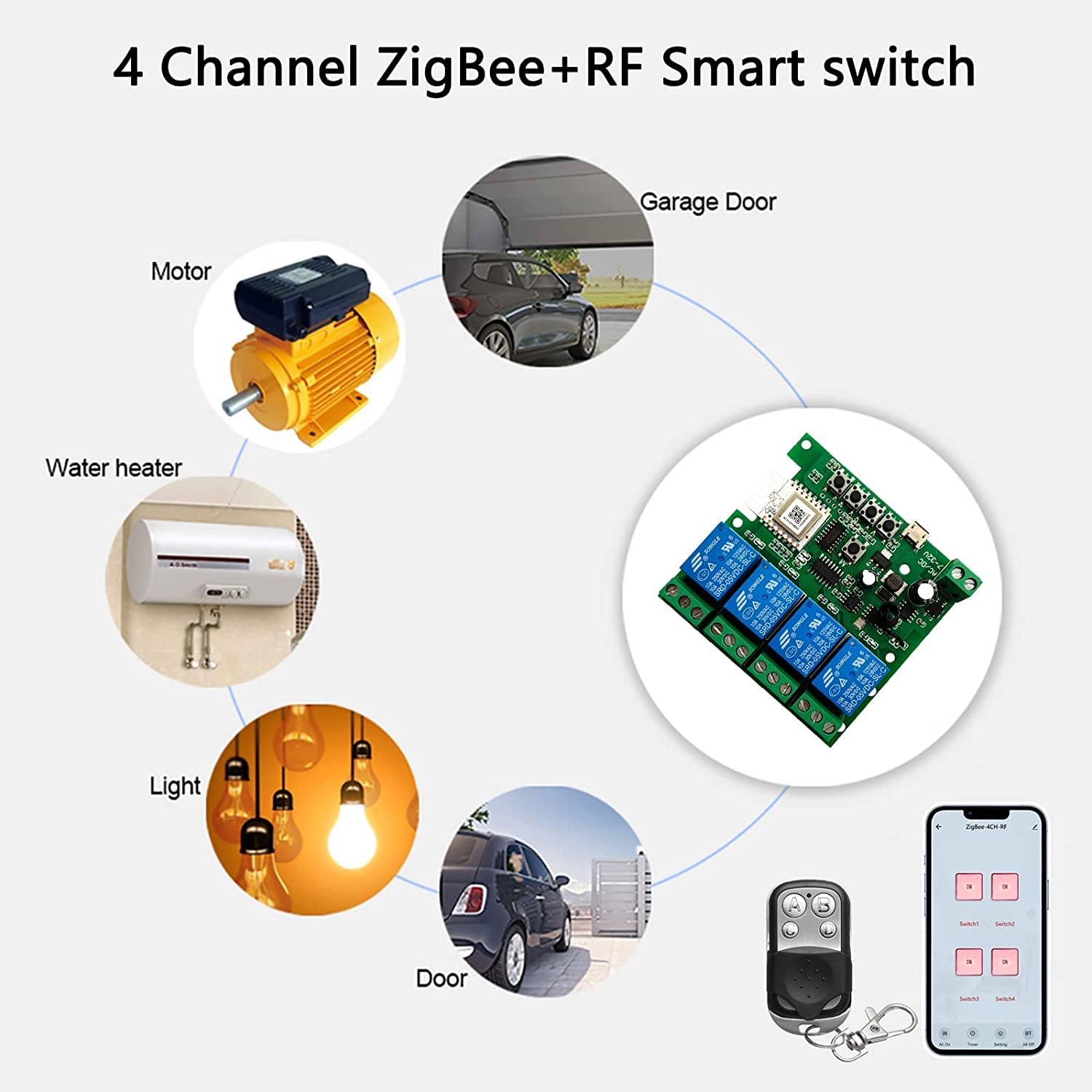
Figure 6.1: Example Applications of the Smart Relay Module.
7. Advanced Control
7.1 Voice Control Integration
Once paired with a compatible Zigbee hub and linked to your Amazon Alexa or Google Home account, you can control the relay module using voice commands. Ensure your devices are named appropriately in the smart home app for easy voice recognition.
- Example Alexa Commands:
- "Alexa, turn on [Device Name]."
- "Alexa, turn off [Device Name]."
- Example Google Home Commands:
- "Hey Google, turn on [Device Name]."
- "Hey Google, turn off [Device Name]."
7.2 Timers and Schedules
Utilize the features within your Zigbee hub's application (e.g., Tuya Smart Life app) to set up automated schedules and timers for the relay module. Each device supports up to 8 countdown or cycle timer schedules.
- Countdown Timers: Set a device to turn off after a specific duration.
- Cycle Timers: Program a device to turn on and off repeatedly at set intervals.
- Schedules: Automate devices to turn on or off at specific times of the day or week.
8. Maintenance
To ensure optimal performance and longevity of your Newgoal Zigbee Smart Relay Module:
- Keep the module in a dry environment, away from moisture and extreme temperatures.
- Avoid exposing the device to direct sunlight or corrosive substances.
- Do not attempt to disassemble or modify the module, as this will void the warranty and may cause damage.
- Clean the exterior with a soft, dry cloth. Do not use liquid cleaners.
- Ensure proper ventilation if enclosing the module in a case or box.
9. Troubleshooting
9.1 Device Not Pairing with Hub
- Check Hub Pairing Mode: Ensure your Zigbee hub is actively in pairing mode.
- Power Cycle: Disconnect and reconnect power to the relay module, then try pairing again.
- Correct Button Press: Ensure you are pressing and holding the "Manual button" for the required duration (5-10 seconds) until the "Network indicator" flashes. For some 4-channel units, try pressing and holding the "Manual button" and the 4th switch button simultaneously.
- Hub Compatibility: Verify that your Zigbee hub is compatible with Tuya Zigbee 3.0 devices.
- Distance: Ensure the module is within range of your Zigbee hub.
9.2 RF Remote Control Not Working
- Battery Check: Ensure the remote control has a working battery.
- Pairing Process: Re-attempt the RF remote pairing process as described in Section 5.3. Ensure you are pressing the correct "RF pairing button" on the module for the desired channel.
- Obstructions: Ensure there are no significant obstructions between the remote and the module.
9.3 Device Unresponsive After Pairing
- Network Stability: Check the stability of your Zigbee network. A weak signal can cause unresponsiveness.
- App Status: Verify the device status in your smart home application.
- Power Supply: Confirm the module is receiving stable power (USB 5V or AC/DC 7-32V).
10. Warranty and Support
Newgoal is committed to providing high-quality products and customer satisfaction. If you encounter any issues with your Zigbee Tuya Smart 4 Channel Smart Relay Module or have questions regarding its operation, please do not hesitate to contact our customer service team.
You can reach us by email. We will patiently address your concerns and strive to provide you with satisfactory customer service.
Ask a question about this manual
Ask about setup, troubleshooting, compatibility, parts, safety, or missing instructions. Manuals+ will review the question and use this page’s manual context to help answer it.