
Product Overview
The Motorola Moto G Stylus 5G is a versatile smartphone designed for enhanced productivity and creativity. It features a built-in stylus for precise interactions, a large 6.8-inch FHD+ Max Vision display, and a powerful 48MP quad-camera system. This device is equipped with 5G connectivity for ultra-fast speeds and comes with 128GB of internal storage.
Key features include:
- 6.8" FHD+ Max Vision Display (1080x2400 resolution, 386ppi)
- Qualcomm Snapdragon 480 5G (8 nm) Octa-core Processor
- 128GB Internal Storage, 4GB RAM
- 48MP Quad Rear Camera System (48MP main, 8MP ultra-wide, 5MP macro, 2MP depth)
- 16MP Front Camera
- 5000mAh Battery with up to 14 hours talk time
- Built-in Stylus for notes, drawing, and navigation
- Android 11 Operating System
- AT&T Locked Device
Product Images
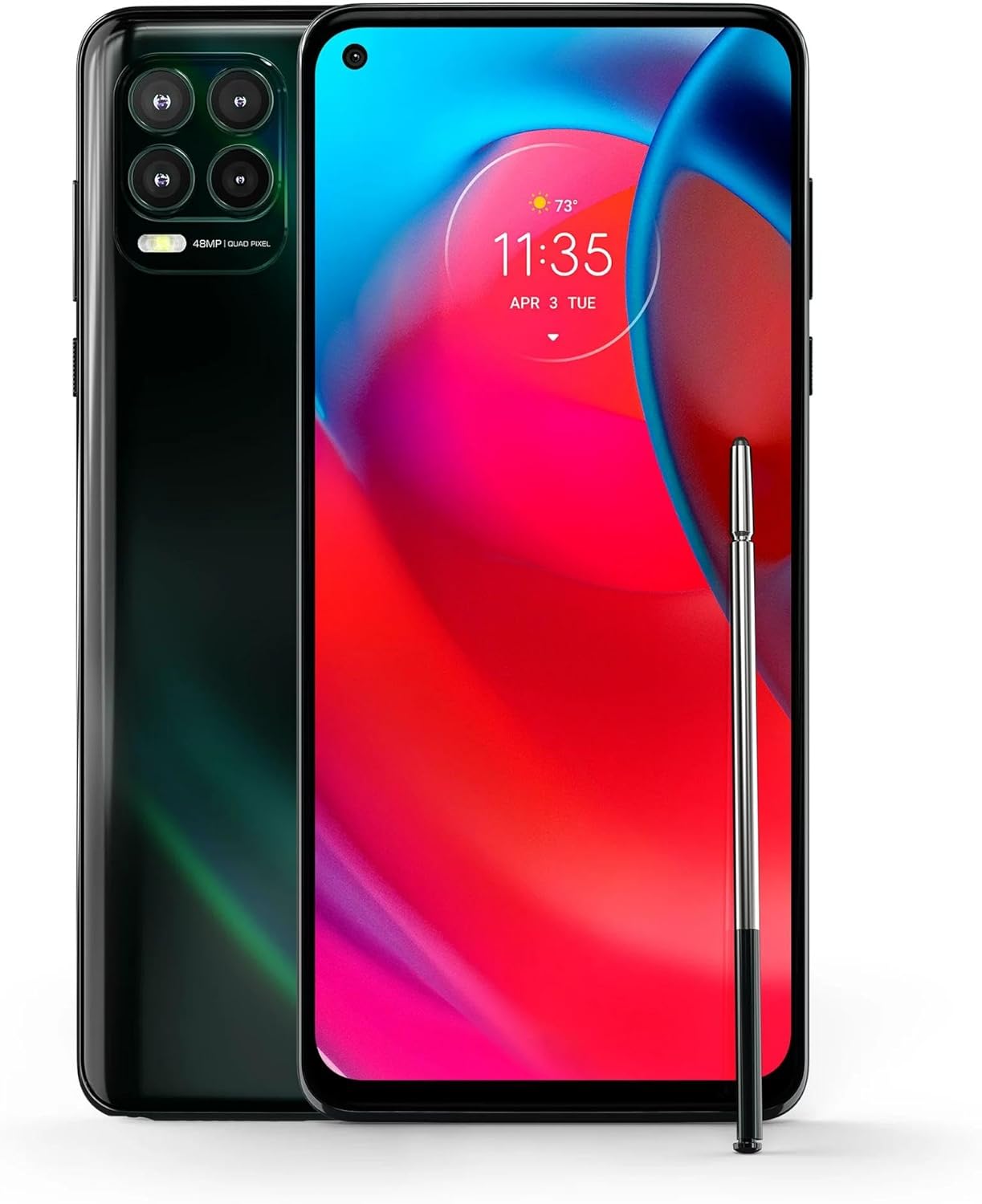
Front and back view of the Motorola Moto G Stylus 5G in Cosmic Emerald, showcasing the display, quad-camera module, and the integrated stylus.

Angled view of the Motorola Moto G Stylus 5G, highlighting its slim profile and the design of the rear camera array.
Setup
1. Initial Charging
Before first use, it is recommended to fully charge your Moto G Stylus 5G. Connect the provided charger to the USB-C port at the bottom of the device. The battery indicator on the screen will show charging progress. The device is equipped with a 5000mAh battery.
2. SIM Card Insertion
The Moto G Stylus 5G uses a single SIM card. Locate the SIM tray on the side of the device. Use the SIM ejector tool (if provided) to open the tray. Carefully place your nano-SIM card into the tray with the gold contacts facing down, ensuring it is correctly aligned. Reinsert the tray firmly into the device.
3. Powering On/Off
To power on, press and hold the Power button (located on the side) until the Motorola logo appears. To power off, press and hold the Power button until the power options menu appears, then select 'Power off'.
4. Initial Setup Wizard
Upon first power-on, the device will guide you through an initial setup wizard. Follow the on-screen prompts to select your language, connect to a Wi-Fi network, sign in with your Google account, set up security features (fingerprint, PIN, pattern), and transfer data from a previous device if desired. The device runs on Android 11.
5. Stylus Removal and Insertion
The stylus is integrated into the bottom right corner of the phone. To remove, gently pull it out. To reinsert, push it back into its slot until it clicks securely into place.
Operating Your Device
Display and Navigation
The 6.8-inch FHD+ Max Vision display offers a large canvas for all your activities. Navigate the interface using touch gestures: tap to select, swipe to scroll, pinch to zoom. The display resolution is 1080 x 2400 pixels.
Stylus Usage
The built-in stylus provides enhanced precision for various tasks. Use it to:
- Jot down notes quickly using the pre-installed note-taking app.
- Edit photos with fine detail.
- Sketch drawings and unleash your creativity.
- Navigate menus and select small items with pinpoint accuracy.
Camera System
The Moto G Stylus 5G features a versatile 48MP Quad Camera system on the rear and a 16MP front camera. The rear camera setup includes:
- 48MP Main Camera (f/1.7): For high-resolution photos in various lighting conditions.
- 8MP Ultra-wide Camera (f/2.2): To capture broader landscapes and group shots.
- 5MP Macro Camera (f/2.2): For extreme close-up photography.
- 2MP Depth Sensor (f/2.4): To assist with portrait mode effects.
Access the camera app from the home screen or lock screen to switch between modes like Photo, Video, Portrait, Night Vision, and more.
Connectivity
Your device supports 5G and 4G LTE cellular networks. As an AT&T Locked device, it is compatible only with AT&T services. It also supports Wi-Fi for internet access, Bluetooth for connecting wireless accessories, and USB for data transfer and charging. GPS functionality is included for location services.
Storage and Battery
The device comes with 128GB of internal storage for your apps, photos, videos, and documents. The 5000mAh battery provides ample power for extended use, with a talk time of up to 14 hours.
Audio
The Moto G Stylus 5G includes a 3.5 mm audio jack for wired headphones, in addition to Bluetooth audio capabilities.
Maintenance
Cleaning Your Device
To clean your phone, use a soft, lint-free cloth. Avoid abrasive materials or harsh chemicals. For the screen, a screen cleaner specifically designed for electronics can be used. Ensure all ports are free of dust and debris.
Software Updates
Regularly check for and install software updates to ensure your device has the latest features, security patches, and performance improvements. You can typically find this option in the device's Settings menu under 'System' or 'About phone'.
Battery Care
To prolong battery life, avoid exposing the device to extreme temperatures. It is generally recommended to keep the battery charge between 20% and 80% for optimal long-term health. Use only Motorola-approved chargers and cables.
Physical Care
Protect your device from drops and impacts by using a protective case. Avoid placing heavy objects on the phone. Keep the stylus clean and ensure it is properly inserted into its slot when not in use to prevent loss or damage.
Troubleshooting
Device Not Powering On
Ensure the battery is sufficiently charged. Connect the charger and wait a few minutes before attempting to power on again. If the issue persists, try a forced restart by holding the Power button for an extended period (e.g., 10-15 seconds).
Network Connectivity Issues
If you experience issues with cellular network connectivity (calls, data), ensure your SIM card is correctly inserted. Try restarting the device. Verify that Airplane Mode is not enabled. As this is an AT&T Locked device, ensure your AT&T service is active and in good standing. Some users have reported success with unlocking the device by navigating to 'About phone' settings, if applicable to their specific model and carrier terms.
App Crashes or Freezing
If an app is crashing or freezing, try force-closing the app from the recent apps menu or through Settings > Apps. Clear the app's cache and data if the problem continues. As a last resort, uninstall and reinstall the app. Ensure your device's software is up to date.
Factory Reset
If persistent software issues occur, a factory reset may be necessary. Warning: A factory reset will erase all data on your device. Back up all important data before proceeding. This option is typically found in Settings > System > Reset options.
Specifications
| Feature | Detail |
|---|---|
| Product Dimensions | 6 x 4 x 2 inches |
| Item Weight | 12 ounces |
| ASIN | B0B95VDQB5 |
| Item Model Number | XT2075-2 |
| Batteries | 1 Lithium Polymer battery required (included) |
| Operating System | Android 11 |
| RAM | 4 GB |
| Wireless Communication Technologies | Cellular |
| Connectivity Technologies | USB |
| GPS | True |
| Special Features | 3G/4G Data Capable, Accelerometer, Bluetooth Enabled, Internet Browser, Music Player, Single SIM, Speakerphone, Touchscreen |
| Human Interface Input | Touchscreen |
| Scanner Resolution | 1080 x 2400 |
| Other Camera Features | Front, Rear |
| Audio Jack | 3.5 mm |
| Form Factor | Slider |
| Color | Cosmic Emerald |
| Battery Power Rating | 5000 Milliamp Hours |
| Phone Talk Time | 14 Hours |
| What's in the Box | accessories |
| Manufacturer | Motorola |
| Date First Available | August 10, 2022 |
| Memory Storage Capacity | 128 GB |
| Standing Screen Display Size | 6.8 inches |
| CPU Model | Snapdragon |
| Screen Size | 6.8 inches |
| Resolution | 1080 x 2400 |
| Model Name | Moto G Stylus 5G |
| Wireless Carrier | AT&T |
| Cellular Technology | 5G |
Warranty and Support
Amazon Renewed Return Policy
This product is a renewed item and is typically covered by the Amazon Renewed Guarantee, which offers a refund or replacement within 90 days of receipt if the product does not work as expected. Please refer to the specific terms and conditions of the Amazon Renewed program for full details.
Manufacturer Support
For technical assistance, software updates, or further product information, please visit the official Motorola support website or contact their customer service. Keep your device's serial number or IMEI handy when seeking support.


