
PHILIPS TAFW1/37
PHILIPS Fidelio FW1 Wireless Subwoofer User Manual
Model: TAFW1/37
Product Overview
The PHILIPS Fidelio FW1 Wireless Subwoofer is designed to deliver deep, impactful bass, enhancing your audio experience for movies, music, and television. With a powerful 420W maximum output, an 8-inch down-firing woofer, and dual passive-radiator technology, it ensures rich and precise low-frequency reproduction. This subwoofer offers versatile connectivity options, including wireless DTS Play-Fi for seamless integration into a multi-room audio system and a wired RCA connection for broader compatibility.

Front-angled view of the PHILIPS Fidelio FW1 Wireless Subwoofer, showcasing its sleek black design and prominent woofer.
Setup and Installation
Before beginning installation, ensure all components are present: the FW1 Wireless Subwoofer, AC Power cord, Quick Start Guide, and Warranty Card.
Placement
Position the subwoofer on a stable, flat surface, ideally on the floor, to allow for optimal bass dispersion. Consider placing it near a wall or in a corner to enhance bass response, but experiment with different locations to find the best sound for your room.
Power Connection
- Connect the supplied AC power cord to the subwoofer's power input.
- Plug the other end of the power cord into a suitable wall outlet.
Wireless Setup (DTS Play-Fi)
For wireless integration with a Philips soundbar, speakers, or TV, the FW1 subwoofer utilizes DTS Play-Fi technology. This allows for a flexible, multi-room audio system.
- Ensure your primary Philips audio device (e.g., soundbar) is already set up with DTS Play-Fi.
- Power on the FW1 subwoofer. It will automatically enter pairing mode or can be manually set to pairing mode via its controls.
- Use the Philips Sound App (or your primary device's Play-Fi interface) to discover and add the FW1 subwoofer to your existing Play-Fi group. Follow the on-screen instructions within the app for seamless pairing.

The rear panel of the subwoofer, highlighting the RCA and power connections, along with control knobs for wired operation.
Wired Setup (RCA Connection)
The FW1 subwoofer can also be connected via RCA for compatibility with home cinema setups, multi-channel amplifiers, or select non-Play-Fi-compatible TVs.
- Connect an RCA cable (not included) from the audio output of your source device (e.g., receiver, TV) to the 'Sub In' RCA port on the FW1 subwoofer.
- When using a wired connection, ensure the source switch on the subwoofer's rear panel is set to 'Sub In' position.
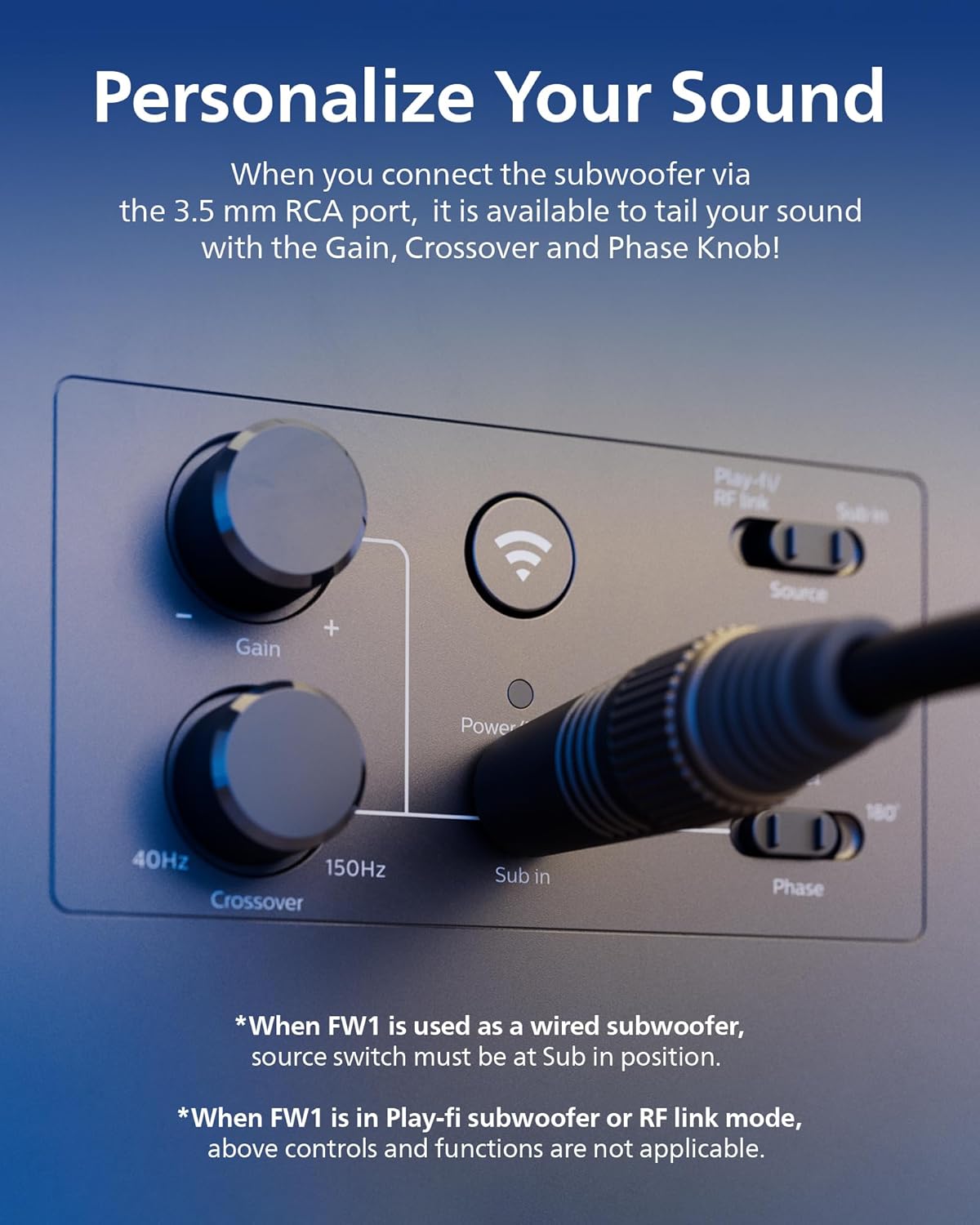
Detailed view of the Gain, Crossover, and Phase knobs on the subwoofer, used for sound personalization in wired mode.
Official Product Video: Fidelio Home Wireless System
This video provides an overview of the Fidelio Home Wireless system, demonstrating how the subwoofer integrates with other Philips audio components for an immersive sound experience.
Operating the Subwoofer
Intelligent Bass Feature
When paired wirelessly with a compatible Philips soundbar, speakers, or TV, the FW1 subwoofer automatically manages the lowest frequencies. This allows the paired components to focus on mid-range and high frequencies, resulting in a richer and more detailed overall sound profile.

A user interacting with the PHILIPS Entertainment App on a smartphone, demonstrating control over the subwoofer's settings.
Personalizing Your Sound (Wired Connection)
When connected via the 3.5mm RCA port, you can fine-tune the subwoofer's output using the dedicated knobs:
- Gain: Adjusts the overall volume level of the subwoofer.
- Crossover: Sets the frequency at which the subwoofer takes over from your main speakers. Frequencies below this point will be handled by the subwoofer.
- Phase: Adjusts the phase of the subwoofer's output relative to your main speakers, ensuring bass waves align correctly for optimal impact and clarity.
Note: When the FW1 is used as a Play-Fi subwoofer or in RF link mode, these controls and functions are not applicable as settings are managed via the app.
Multi-Room Audio System
The DTS Play-Fi compatibility allows you to expand your home theater setup. You can add additional Fidelio soundbars and satellite speakers to create a true surround sound experience. Devices can be grouped and synced to stream audio throughout multiple rooms.

An illustration of a multi-room audio system featuring the PHILIPS Fidelio soundbar, subwoofer, and additional satellite speakers, creating an immersive sound environment.
Maintenance
To ensure the longevity and optimal performance of your PHILIPS Fidelio FW1 Wireless Subwoofer, follow these simple maintenance guidelines:
- Cleaning: Use a soft, dry cloth to wipe down the exterior surfaces. Avoid using abrasive cleaners, waxes, or solvents as they may damage the finish.
- Ventilation: Ensure the subwoofer has adequate ventilation. Do not block any ventilation openings.
- Environment: Keep the subwoofer away from direct sunlight, heat sources, excessive dust, moisture, and strong magnetic fields.
- Handling: Handle the subwoofer with care. Avoid dropping it or subjecting it to strong impacts.
Troubleshooting
If you encounter issues with your PHILIPS Fidelio FW1 Wireless Subwoofer, refer to the following common problems and solutions:
| Problem | Possible Cause | Solution |
|---|---|---|
| No sound from subwoofer | Power not connected; Volume too low; Incorrect input selected (wired mode); Not paired (wireless mode); Source device issue. | Check power connection and outlet. Increase subwoofer volume. Ensure 'Sub In' is selected for wired. Re-pair with Play-Fi device. Verify audio output from source device. |
| Subwoofer not connecting wirelessly | Out of range; Interference; Incorrect pairing procedure; Network issues. | Move subwoofer closer to the main Play-Fi device. Reduce interference from other wireless devices. Follow the pairing steps in the Philips Sound App carefully. Check your Wi-Fi network stability. |
| Distorted or poor bass quality | Improper placement; Gain/Crossover/Phase settings incorrect (wired mode); Overdriving the subwoofer. | Adjust subwoofer placement. Fine-tune Gain, Crossover, and Phase settings (if wired). Reduce the volume level from the source or subwoofer. |
| Subwoofer frequently disconnects (wireless) | Weak Wi-Fi signal; Network congestion; Firmware outdated. | Ensure strong Wi-Fi signal. Reduce network traffic. Check for and install any available firmware updates via the Philips Sound App. |
If the problem persists after trying these solutions, please consult the comprehensive online user manual or contact PHILIPS customer support.
Specifications
The following table outlines the key technical specifications for the PHILIPS Fidelio FW1 Wireless Subwoofer:

Diagram showing the dimensions of the PHILIPS Fidelio FW1 Wireless Subwoofer: 12.6"D x 20.66"W x 22.05"H.
| Feature | Detail |
|---|---|
| Model Name | Fidelio Wireless Surround System |
| Model Number | TAFW1/37 |
| Speaker Type | Subwoofer |
| Speaker Maximum Output Power | 420 Watts |
| Woofer Diameter | 8 Inches |
| Frequency Response | 25 Hz |
| Connectivity Technology | Bluetooth, RCA |
| Wireless Communication Technology | Bluetooth, Wi-Fi (DTS Play-Fi) |
| Product Dimensions (D x W x H) | 12.6" x 20.66" x 22.05" |
| Item Weight | 33.4 pounds |
| Material | Metal |
| Color | Black |
| Included Components | AC Power cord, Quick Start Guide, Warranty Card |
Warranty and Support
Your PHILIPS Fidelio FW1 Wireless Subwoofer comes with a limited warranty. Please refer to the included Warranty Card for specific terms and conditions, including coverage duration and what is covered. For technical support, troubleshooting assistance beyond this manual, or warranty claims, please visit the official PHILIPS support website or contact their customer service department. Keep your proof of purchase for warranty validation.
Related documentsTAFW1/37


Ask a question about this manual
Ask about setup, troubleshooting, compatibility, parts, safety, or missing instructions. Manuals+ will review the question and use this page’s manual context to help answer it.