
1. Product Overview
The inShareplus 2-inch Smart Recessed LED Downlight is a versatile lighting solution featuring Wi-Fi control, RGBCW color changing capabilities (2700-6500K), and dimmable functionality. It is compatible with popular voice assistants like Alexa and Google Assistant, allowing for convenient control of color and brightness. These lights are designed for easy installation, replacing standard 2 1/8-2 3/8 inch recessed lamps without requiring extra cans or accessories.
- Wi-Fi Control: Manage color and brightness via a smartphone app or voice commands.
- RGBCW Color Changing: Offers 16 million color options and adjustable white light from 2700K (warm white) to 6500K (daylight white).
- Easy Installation: Designed for simple replacement of existing recessed lighting with integrated LED drivers.
- Durable Design: Constructed from aviation aluminum and ABS plastic for efficient heat dissipation and long lifespan (over 40,000 hours).

Figure 1: inShareplus 2-inch Smart Recessed LED Downlight (10-pack shown).
2. Installation Guide
2.1 Safety Precautions
- Always turn off power at the circuit breaker before installation.
- Consult a qualified electrician if you are unsure about wiring.
- Ensure the input voltage is within the specified range (120V for US, 220V for UK).
- Do not modify the product.
2.2 Physical Installation
- Prepare the Opening: Ensure the ceiling opening is between 2 1/8 and 2 3/8 inches (approximately 54-60mm) in diameter.
- Connect Wiring: Use the quick connectors provided to connect the downlight's wiring to your existing electrical wiring. The color of the cable does not matter; the driver handles the connection.

Figure 2: Installation diagram showing dimensions (51mm/2in diameter, 41mm/1.6in height) and quick connectors for wiring.
- Secure the Light: Gently push the spring clips on the sides of the downlight upwards and insert the light into the ceiling opening. The clips will automatically secure the light in place.
- Power On: Restore power at the circuit breaker.
3. App Setup and Operation
3.1 Downloading the App
Scan the QR code provided in the product packaging or search for "Smart Life" or "Tuya Smart" in your mobile app store (App Store for iOS, Google Play for Android) to download the control application.
3.2 Device Pairing
- Ensure Wi-Fi and Bluetooth: Make sure your phone is connected to a 2.4GHz Wi-Fi network (5GHz networks are not supported) and Bluetooth is enabled.
- Enter Pairing Mode: Turn the light switch ON-OFF-ON-OFF-ON (3 times continuously) until the downlight flashes rapidly, indicating it is in pairing mode.
- Add Device in App: Open the Smart Life app, navigate to "Home Management" to create or select a home, then tap "Add Device" or the "+" icon. The app should automatically discover the new device. Follow the on-screen prompts to complete the pairing process.
- Troubleshooting Pairing: If the device fails to connect automatically or displays "Timeout" or "Weak signal", ensure your Wi-Fi is 2.4GHz and try turning off devices that successfully paired, then re-pair the failed devices. You can also try adding manually by selecting "Lighting" -> "Light Source (Wi-Fi)" and following the reset steps.
Video 1: Step-by-step guide on how to set up and pair the inShareplus Smart Recessed LED Downlight with the Smart Life app, including Wi-Fi and Bluetooth checks, entering pairing mode, and adding devices.
3.3 Basic Controls
- On/Off: Tap the power icon in the app to turn the light on or off.
- Brightness Adjustment: Use the slider in the app to adjust the brightness from 10% to 100%.
- Color Temperature: Adjust the white light from warm white (2700K) to daylight white (6500K).
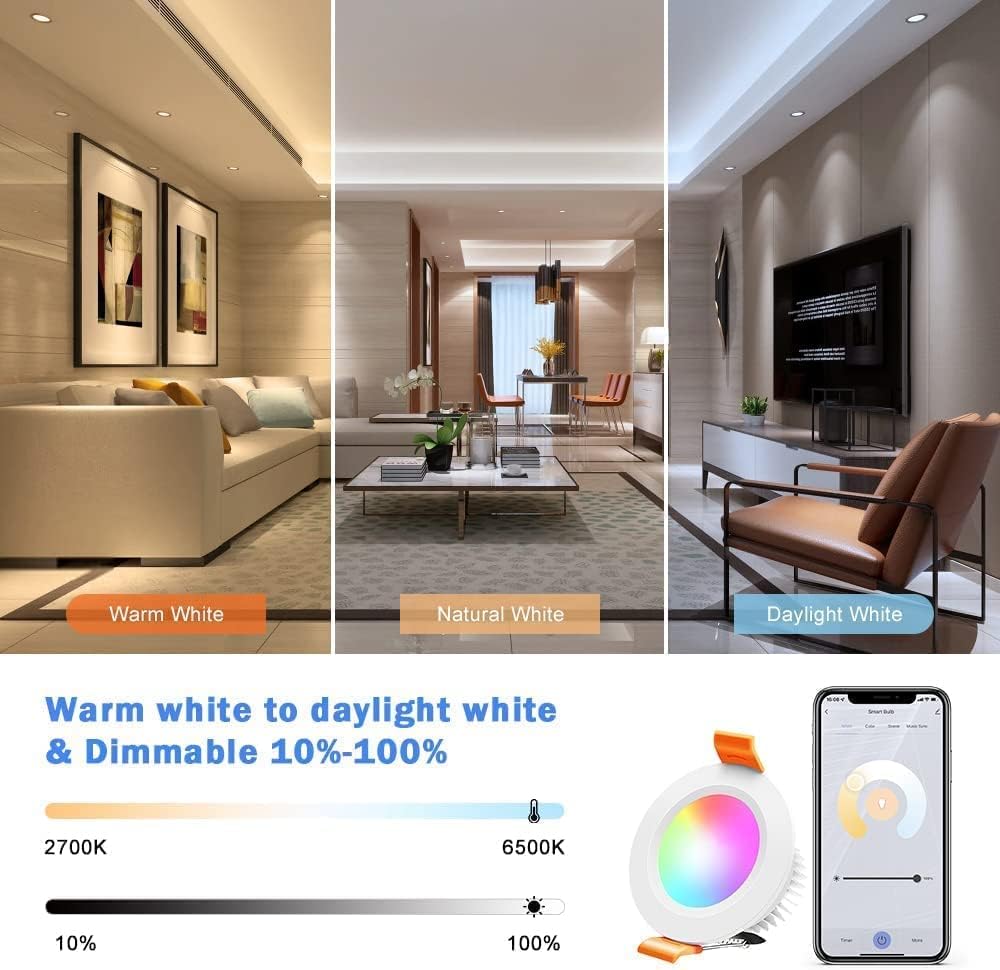
Figure 3: App interface demonstrating the adjustment of color temperature from 2700K to 6500K and brightness levels.
- Color Selection: Choose from 16 million colors using the color wheel in the app.

Figure 4: The Smart Life app displaying the color selection interface with 16 million color choices for the downlight.
3.4 Advanced Features
- Timer & Schedule: Set specific times for lights to turn on or off automatically.
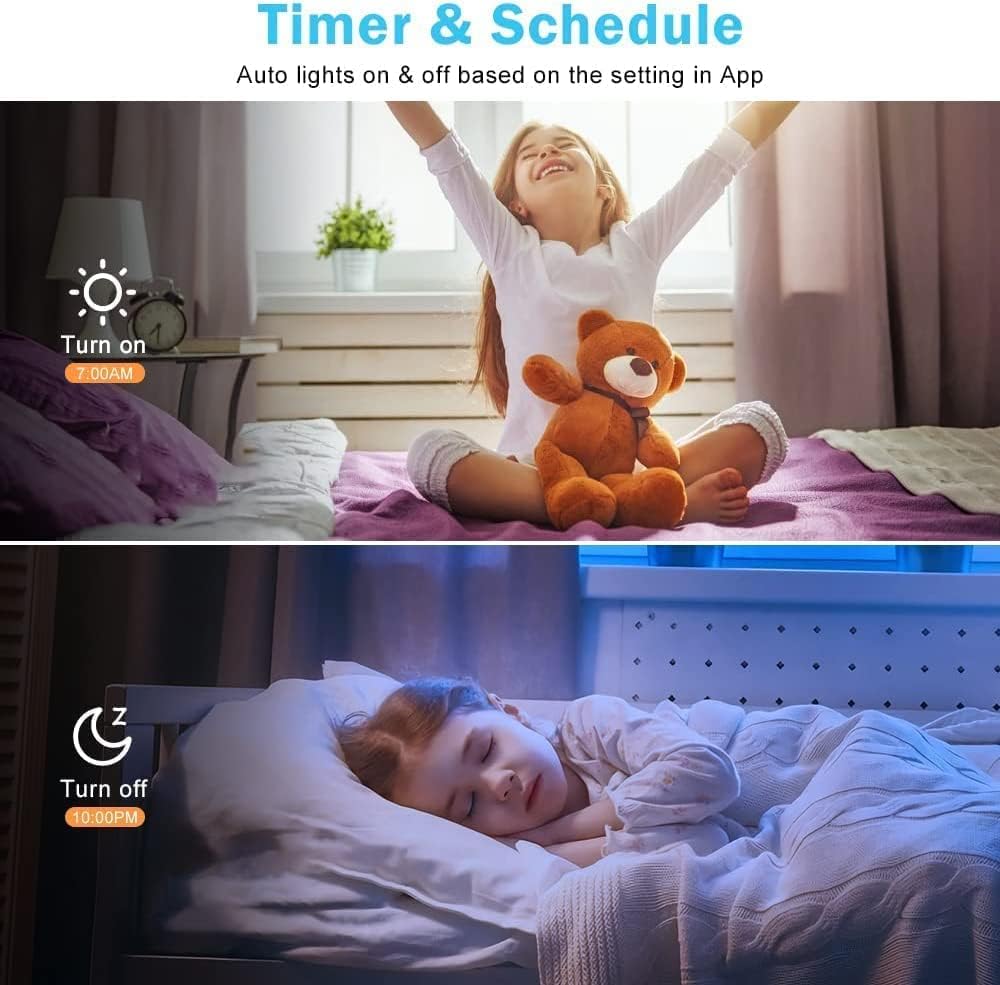
Figure 5: The app's timer and schedule function, allowing users to automate light operation based on set times.
- Preset Scenarios: Select from various pre-configured lighting scenes (e.g., Night, Working, Leisure, Soft, Read, Gorgeous, Dazzling, Colorful).

Figure 6: A selection of preset lighting scenarios available in the app, such as "Night," "Working," and "Colorful."
- Music Sync: Synchronize light effects with music.
- Voice Control: Integrate with Alexa or Google Assistant for hands-free control.
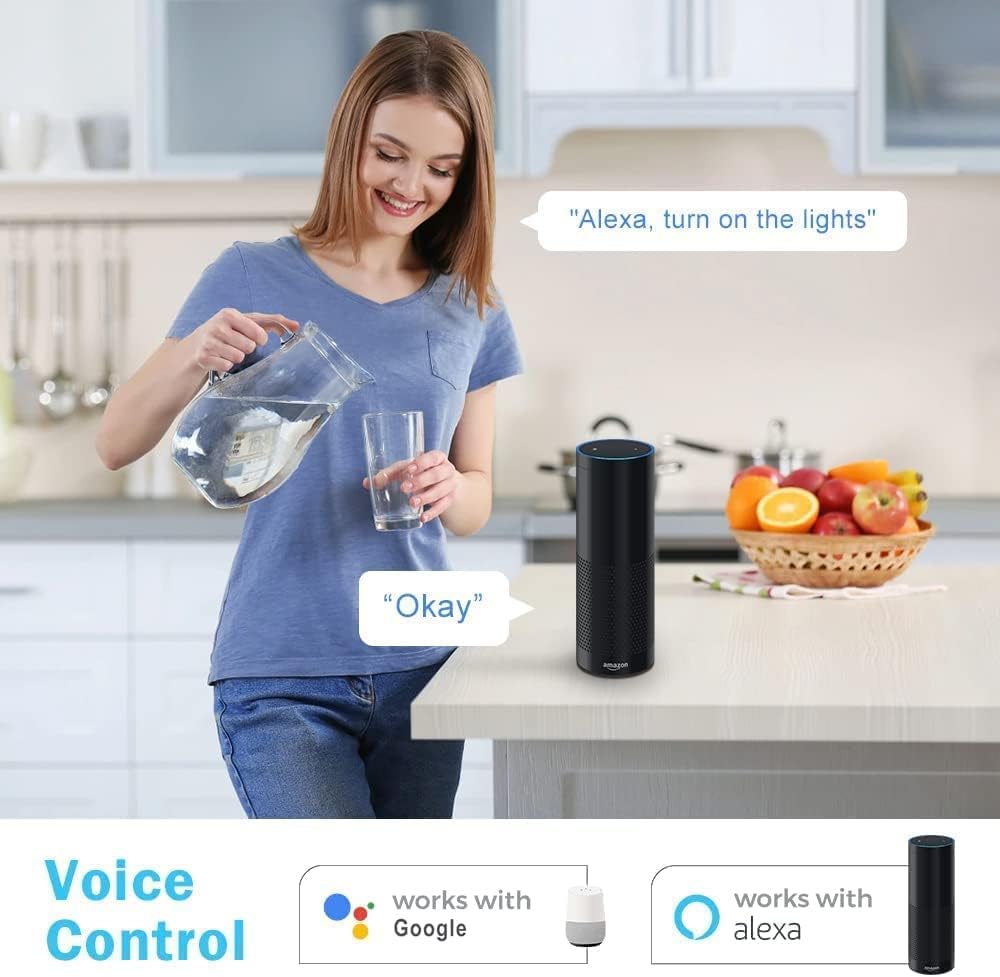
Figure 7: Example of voice control integration, demonstrating how to use Alexa to operate the smart lights.
- Group Control: Create groups of multiple lights to control them simultaneously.
The app allows you to create "Tap-to-Run" automations to control multiple devices with a single tap or voice command. For example, you can set up a scene to turn on/off all paired lights at once.
4. Specifications
| Feature | Detail |
|---|---|
| Brand | inShareplus |
| Color | RGBCW (Colorful) |
| Material | Aluminum |
| Style | Modern |
| Light Fixture Form | Recessed |
| Power | 5W |
| Voltage | 120V |
| Color Temperature | 2700K-6500K |
| Lifespan | > 40,000 hours |
| Driver Size | 2.48 x 1.18 x 0.78 inches |
5. Troubleshooting
- Light not turning on:
- Check if the power is supplied to the fixture.
- Ensure wiring connections are secure.
- Verify the light is properly seated in the ceiling.
- Cannot connect to Wi-Fi:
- Confirm your Wi-Fi network is 2.4GHz. 5GHz networks are not compatible.
- Ensure your phone's Bluetooth is enabled during pairing.
- Try resetting the device by cycling the power switch 3 times (ON-OFF-ON-OFF-ON) until it flashes rapidly.
- Move closer to your Wi-Fi router.
- If the app displays "Timeout" or "Weak signal", try pairing again after ensuring other devices are off or re-pairing individually.
- Voice control not working:
- Ensure the Smart Life app is linked correctly with your Alexa or Google Assistant account.
- Check your internet connection.
- Verify the device name in the Smart Life app matches the name used for voice commands.
- Light flickers or changes color unexpectedly:
- Check for loose wiring connections.
- Ensure the power supply is stable.
- Perform a device reset and re-pair if issues persist.
For further assistance, refer to the "FAQ & Feedback" section within the Smart Life app.
Video 2: The Smart Life app's FAQ & Feedback section, providing resources for common issues and support.
6. Warranty and Support
The inShareplus Smart Recessed Lighting is designed for durability and performance, with a lifespan exceeding 40,000 hours. For any questions or concerns regarding your product, please contact inShareplus customer support. You can typically find contact information within the Smart Life app's "FAQ & Feedback" section or on the manufacturer's official website.
Additional protection plans may be available for purchase, offering extended coverage beyond the standard warranty. Please refer to your purchase documentation for details on available protection plans and their terms.