
easeking AE-XXKTY-TMM4
easeking Star Projector Galaxy Light Projector User Manual
Model: AE-XXKTY-TMM4
Introduction
This manual provides detailed instructions for the setup, operation, and maintenance of your easeking Star Projector Galaxy Light Projector. Please read this manual thoroughly before using the product to ensure proper function and longevity.

Figure 1: The easeking Star Projector Galaxy Light Projector, showcasing its projection capabilities in a bedroom environment.
Package Contents
Upon unpacking, please verify that all the following items are included:
- 1 x easeking Star Projector Galaxy Light Projector
- 1 x Remote Control (Note: 2 Pcs of 3A batteries required for the remote control are not included.)
- 1 x Mini USB Cable (Note: Power adapter/plug is not included.)
- 1 x User Manual (This document)

Figure 2: Illustration of the items included in the product package.
Setup
- Power Connection: Connect the Mini USB Cable to the projector's DC 5V/2A input port and plug the other end into a compatible USB power adapter (not included) or a USB port on a computer/power bank.
- Remote Control Battery Installation: Open the battery compartment on the back of the remote control and insert 2 x AAA batteries (not included), ensuring correct polarity.
- Placement: Place the projector on a stable, flat surface. For optimal projection, position it in the center of the room or at a desired angle to cover the ceiling and walls. The projector covers up to 500 sq. ft.
Operating Instructions
The projector can be operated using the buttons on the unit or the included remote control. For best experience, use the remote control.
1. Power On/Off
- Press the ON/OFF button on the projector or the remote control to turn the unit on or off.
2. Light Projection Control
The projector offers 16 light colors, 4 speeds, and 3 brightness levels, allowing for over 1000 different lighting effects.
- LED Light Control: Use the LED button on the remote to cycle through different color combinations (Red, Green, Blue, White, and mixed colors).
- Laser Light Control: Press the LASER button to turn the green laser stars on or off. The laser stars fade in and out slowly.
- Brightness Adjustment: Use the B+ and B- buttons on the remote to adjust the brightness (0%, 40%, 70%, 100%).
- Rotation Speed Adjustment: Use the S+ and S- buttons to adjust the rotation speed of the projection.
- Fade Modes:
- FADE 1: Cycles through multiple colors with a fading effect.
- FADE 2: Cycles through individual colors with a fading effect.

Figure 3: Examples of the diverse light colors and dynamic projection effects available.
3. Bluetooth Speaker Function
The projector features a built-in HiFi Bluetooth 5.0 speaker.
- Bluetooth Pairing: Press the MUSIC button on the remote to activate Bluetooth mode. Search for "AE-XXKTY-TMM4" on your device's Bluetooth settings and pair.
- Music Playback: Once paired, you can play music from your device through the projector's speaker. Use the remote control for play/pause, next/previous track, and volume adjustment.
- Sound Activated Mode: In music mode, the lights can synchronize and spark rhythmically to the beat of the music, creating a dynamic atmosphere.
- USB Drive Play: Insert a USB drive into the designated port on the projector to play music directly.

Figure 4: The projector's integrated HiFi Music Speaker, capable of syncing lighting with music rhythm.
4. Timer Settings
The projector includes a timer function for automatic shutdown.
- Default Auto-off: The projector is set to automatically shut down after 4 hours by default to conserve energy.
- Set Timer: Use the 1H or 2H buttons on the remote to set a specific auto-off timer for 1 or 2 hours.
- Cancel Timer: To cancel the timer and keep the projector on continuously, press the Time off button.
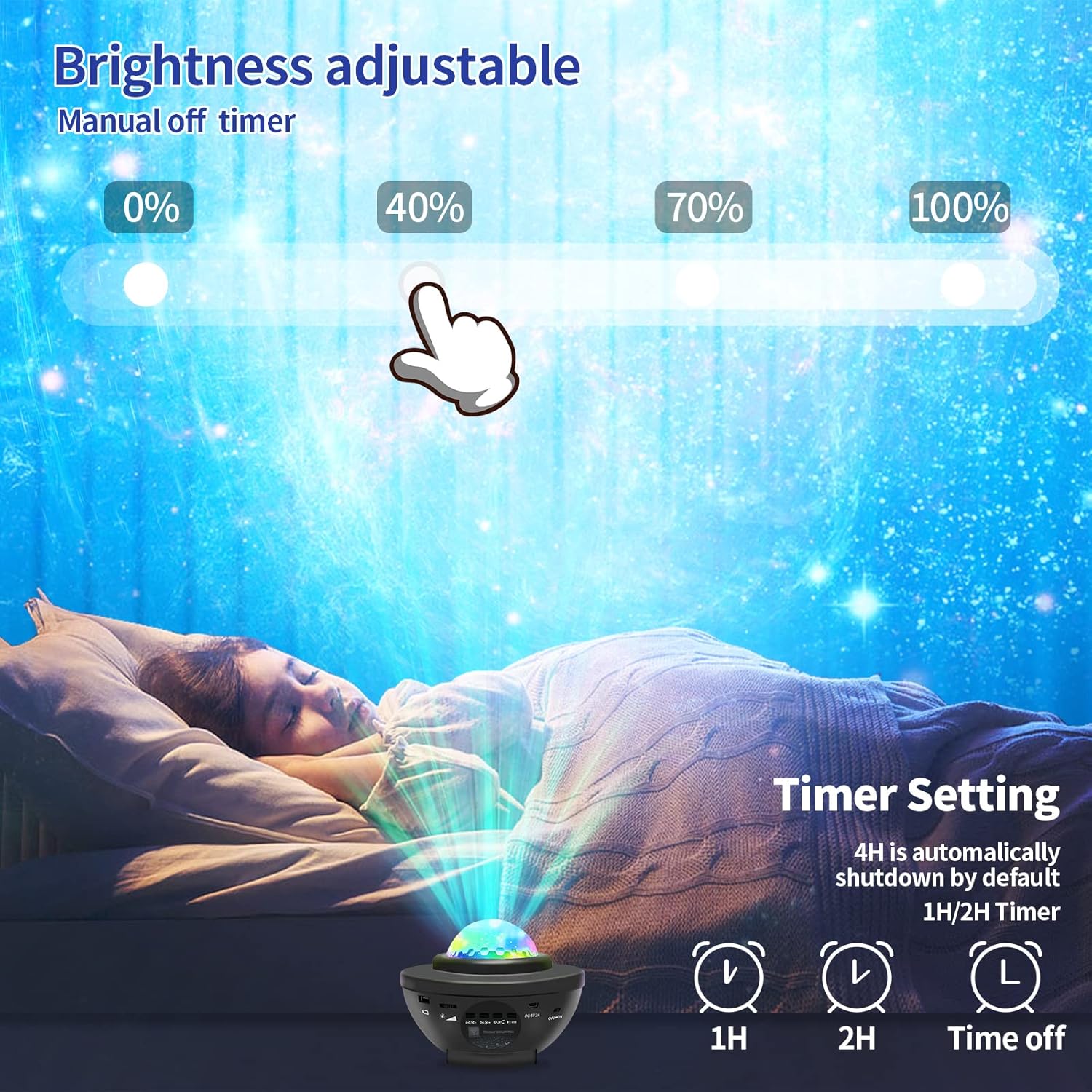
Figure 5: Visual representation of the timer and brightness adjustment features.
Maintenance
- Cleaning: Use a soft, dry cloth to clean the surface of the projector. Do not use abrasive cleaners or solvents.
- Storage: When not in use, store the projector in a cool, dry place away from direct sunlight and moisture.
- Lens Care: Avoid touching the projection lens directly. If cleaning is necessary, use a lens cleaning cloth.
Troubleshooting
| Problem | Possible Cause | Solution |
|---|---|---|
| Projector does not turn on. | No power connection or faulty cable. | Ensure the USB cable is securely connected to both the projector and a working power source. Try a different USB cable or power adapter. |
| Remote control is not working. | Batteries are dead or incorrectly inserted; remote not aimed correctly. | Replace batteries (2x AAA). Ensure correct polarity. Point the remote directly at the signal receiver on the projector. |
| Green laser stars are not visible or working. | Laser function is off or a malfunction. | Press the LASER button on the remote to activate. If still not working, contact customer support. |
| Bluetooth connection issues. | Bluetooth not activated or device too far. | Ensure the MUSIC button is pressed. Keep your device within Bluetooth range. Restart both the projector and your device. |
| Projector turns off unexpectedly. | Timer function is active. | Check timer settings. Press the Time off button on the remote to disable the timer. |

Figure 6: Proper remote control usage, aiming directly at the signal receiver.
Specifications
| Feature | Detail |
|---|---|
| Model Number | AE-XXKTY-TMM4 |
| Color | Black |
| Shape | Round |
| Material | Aluminum, Plastic |
| Light Source Type | LED |
| Power Source | Corded Electric |
| Voltage | 5 Volts (DC) |
| Brightness | 900 Lumen |
| Wattage | 9 Watts |
| Bluetooth Version | 5.0 |
| Product Dimensions | 4.69"L x 5.31"W x 4.69"H |
| Item Weight | 1.09 pounds (495 Grams) |
| Timer Settings | 1H, 2H, 4H (default auto-off) |
Warranty and Support
easeking is committed to providing high-quality products and outstanding customer service.
- Warranty: Specific warranty details are not provided in the product information. Please retain your purchase receipt for any potential warranty claims.
- Customer Support: For any questions, issues, or support needs, please contact easeking customer service. Your inquiries will receive a reply within 24 hours.
- Contact Information: Please refer to the product packaging or the official easeking website for the most current customer support contact details.
Ask a question about this manual
Ask about setup, troubleshooting, compatibility, parts, safety, or missing instructions. Manuals+ will review the question and use this page’s manual context to help answer it.