
CASAFUNY P11, P11 Plus, TB-J606, TB-J607, TB-J616
CASAFUNY Tablet Case User Manual
For Lenovo Tab P11 / P11 Plus (Models TB-J606, TB-J607, TB-J616)
1. Product Overview
The CASAFUNY Tablet Case is designed to provide comprehensive protection and enhanced functionality for your Lenovo Tab P11 or P11 Plus tablet. Crafted from premium synthetic leather with a soft microfiber lining and a flexible TPU back shell, this case safeguards your device against daily wear, scratches, bumps, and drops. Its thoughtful design includes multiple features to improve your tablet experience.
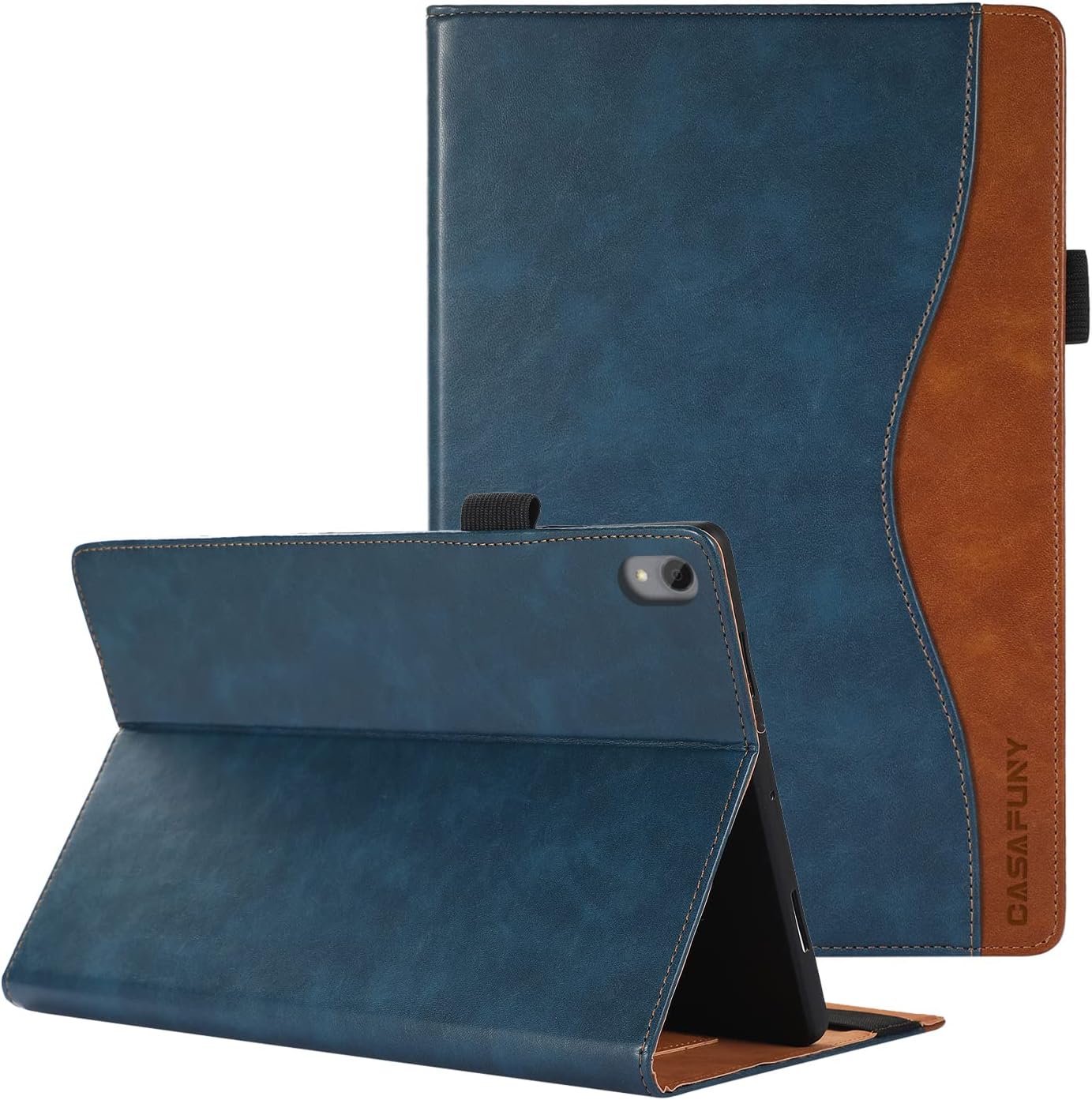
Figure 1.1: The CASAFUNY tablet case in blue, demonstrating its closed form and its ability to function as a stand for the tablet.
2. Compatibility
This case is specifically designed for the following Lenovo tablet models:
- Lenovo Tab P11 (Models: TB-J606F, TB-J606L)
- Lenovo Tab P11 Plus (Models: TB-J616F, TB-J616X, TB-J607)
It is important to verify your tablet's model number to ensure a perfect fit and full access to all ports and buttons.
3. Key Features
3.1 Premium Material and Protection
The case is constructed from high-quality synthetic leather, offering a sophisticated look and feel. The interior features a soft microfiber lining to prevent scratches on your tablet's screen. A flexible TPU back shell securely holds your tablet and provides robust protection against impacts and drops.

Figure 3.1: Illustration of the soft plastic frame designed for enhanced drop protection.
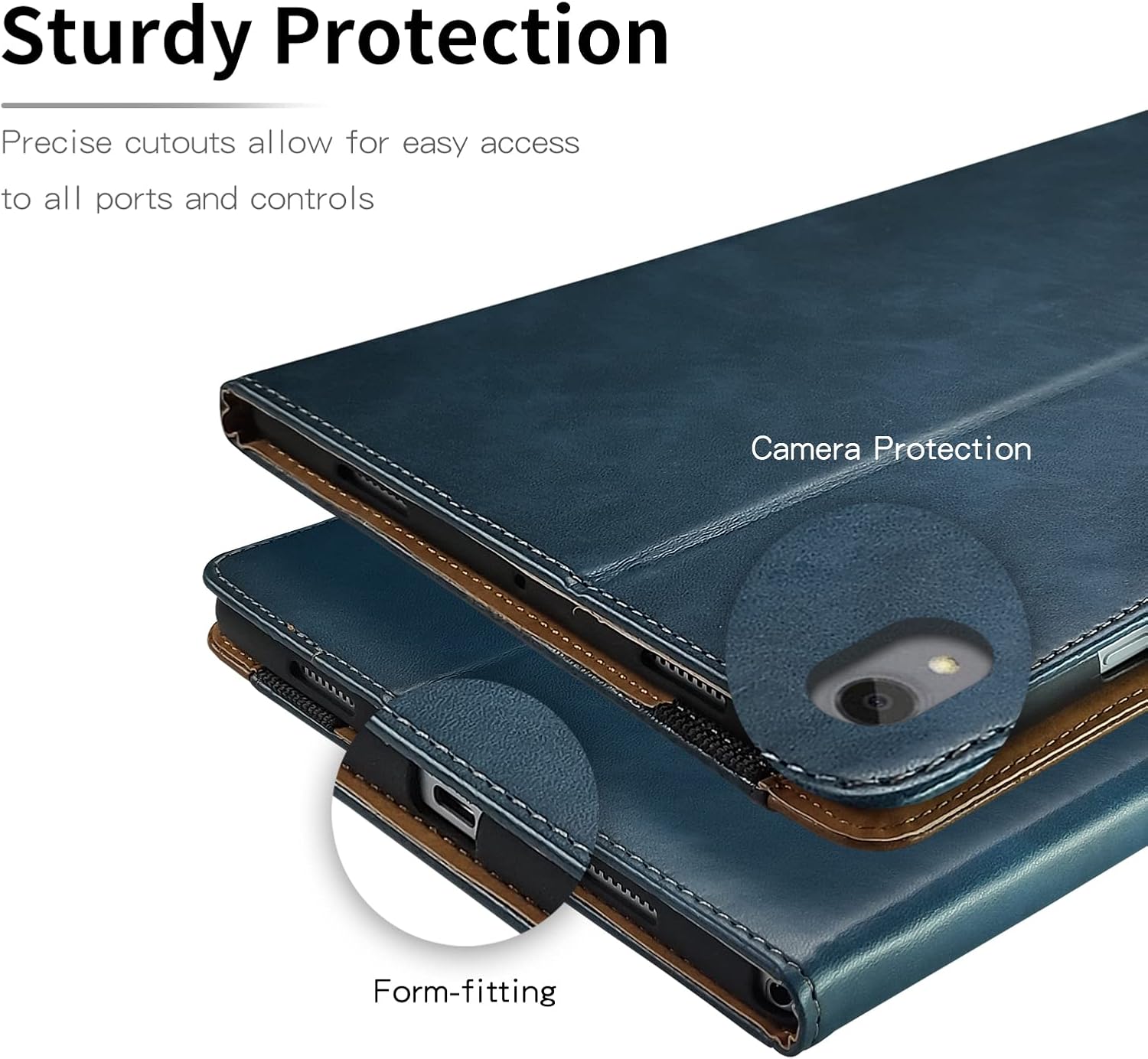
Figure 3.2: Detailed view of the precise cutouts for the camera and ports, ensuring a form-fitting and protective design.
3.2 Multi-Angle Stand Function
The integrated stand function allows you to adjust your tablet to multiple horizontal viewing angles. This is ideal for watching videos, typing, or video conferencing, providing a comfortable and ergonomic experience.

Figure 3.3: The case's adjustable stand feature, showing how the tablet can be positioned at various angles for optimal viewing or typing.

Figure 3.4: The tablet case in use, supporting the tablet for a video conference, highlighting its multi-angle adjustment capability.
3.3 Multifunctional Storage
The case features multiple card slots and pockets, allowing you to conveniently store credit cards, ID cards, cash, or sticky notes. A dedicated pen loop ensures your stylus is always within reach.
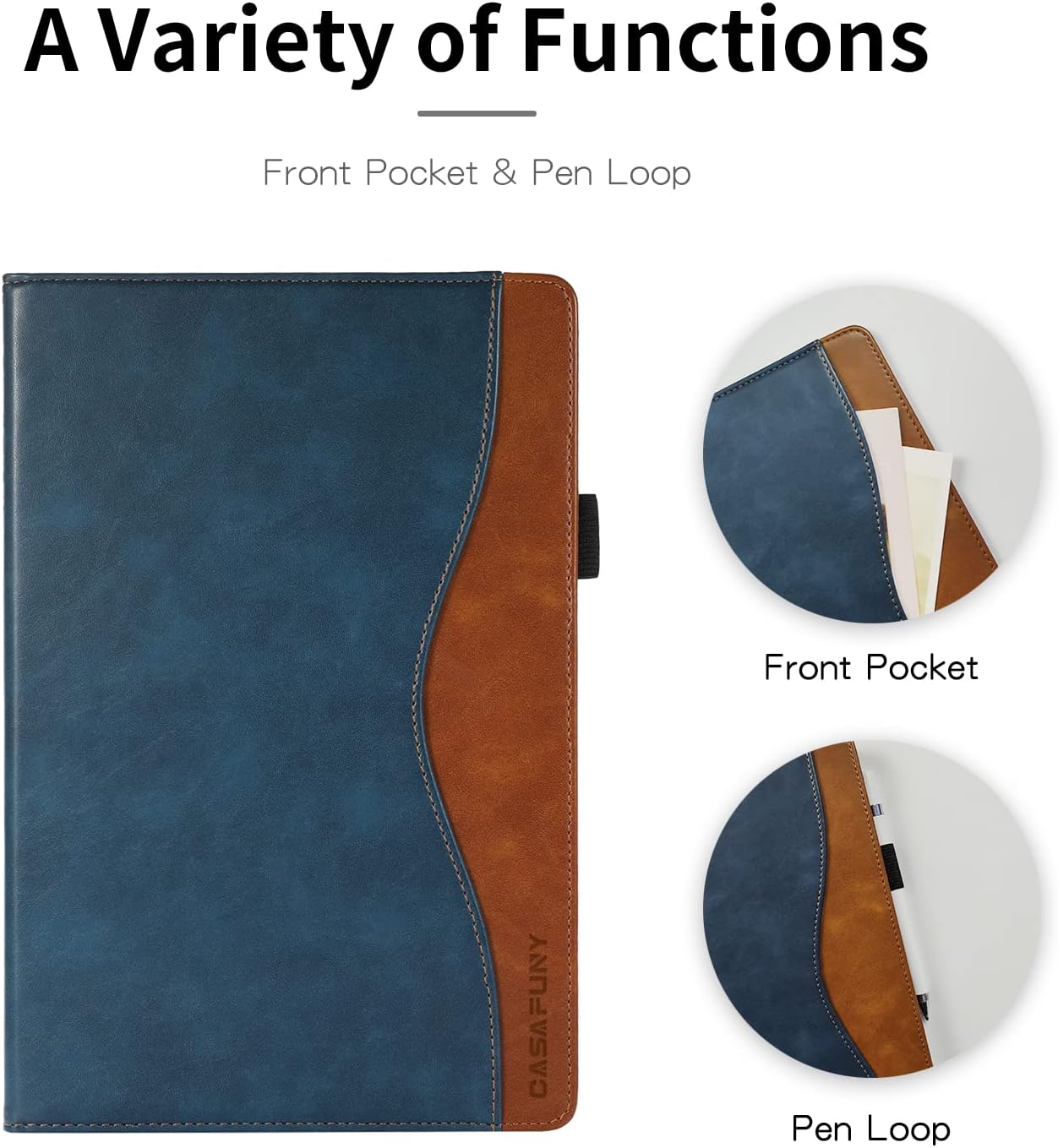
Figure 3.5: Close-up view of the case's front pocket and integrated pen loop for convenient storage.

Figure 3.6: An internal view of the case, illustrating the card slots and additional pocket for organizing essentials.
3.4 Functional Elastic Band
An elastic band is included to secure the case in a closed state, preventing accidental opening and providing extra protection for your tablet when not in use.
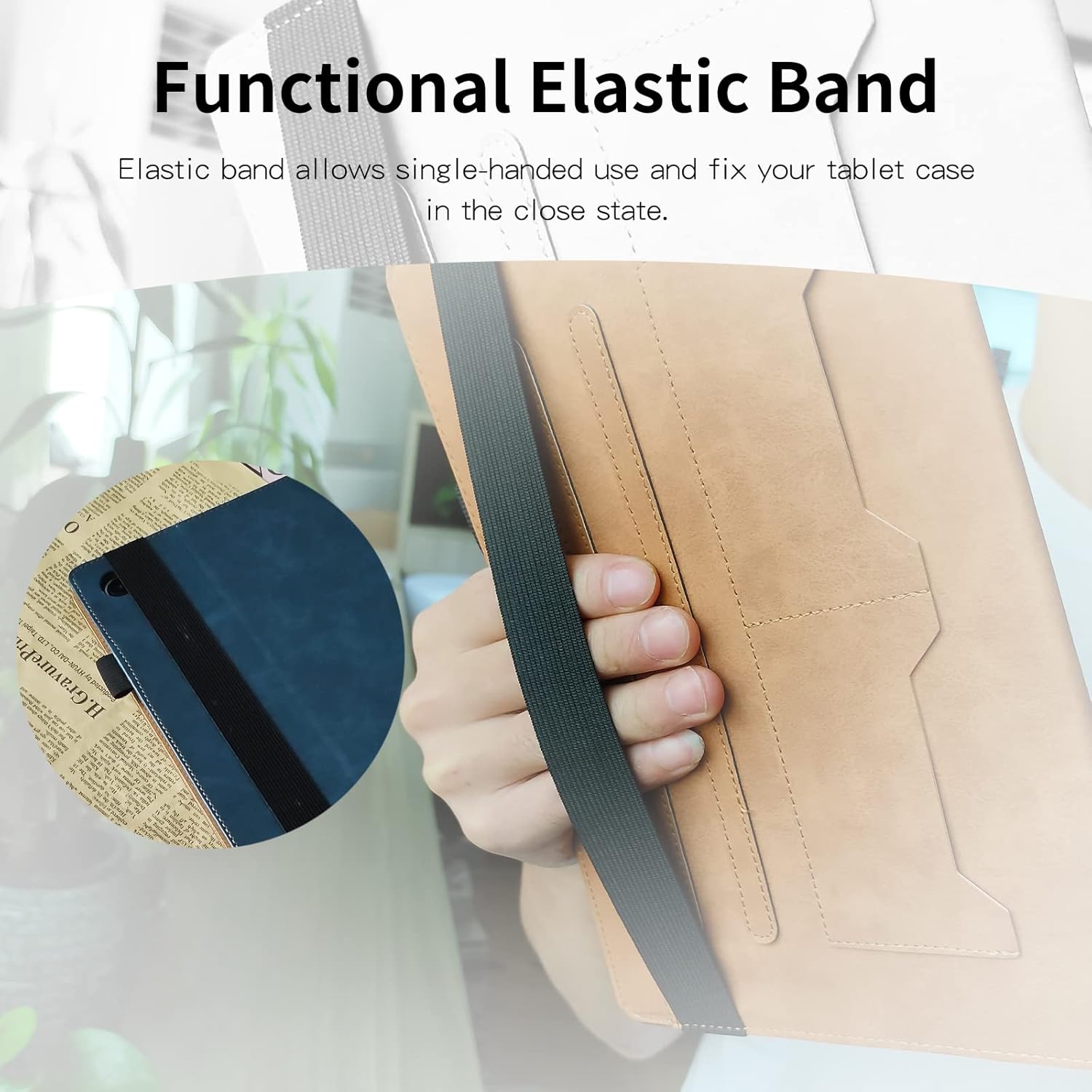
Figure 3.7: The elastic band in action, securing the case closed for single-handed use or transport.
4. Setup and Installation
- Prepare Your Tablet: Ensure your Lenovo Tab P11 or P11 Plus is clean and free of dust or debris before installation.
- Insert the Tablet: Gently align your tablet with the soft TPU back shell of the case. Press firmly but carefully around the edges until the tablet snaps securely into place. Ensure all corners are properly seated.
- Check Fit: Verify that all ports, buttons, and the camera are accessible through the precise cutouts.
- Close the Case: Fold the front cover over the tablet screen. Use the elastic band to secure the case if desired.
5. Operating Instructions
5.1 Using the Stand Function
To use the stand function, open the front cover and fold it back. Locate the grooves on the inside of the cover. Place the edge of your tablet into one of these grooves to achieve your desired viewing angle. The grooves provide stability for both viewing and typing positions.
5.2 Utilizing Storage Pockets
The card slots and larger pocket are located on the inside of the front cover. Insert cards, cash, or small documents into the designated slots. The pen loop is typically located on the side or inside flap, designed to hold a stylus or pen securely.
5.3 Securing the Case
When transporting your tablet or to ensure the case remains closed, stretch the elastic band around the case to hold the front cover firmly against the tablet.
6. Maintenance and Care
To ensure the longevity and appearance of your CASAFUNY tablet case, follow these care instructions:
- Cleaning: Wipe the synthetic leather exterior with a soft, damp cloth. For stubborn stains, use a mild soap solution and wipe gently. Avoid harsh chemicals or abrasive cleaners.
- Drying: Allow the case to air dry completely. Do not use direct heat sources like hair dryers.
- Storage: Store the case in a cool, dry place away from direct sunlight and extreme temperatures when not in use.
- Avoid Sharp Objects: Keep the case away from sharp objects to prevent scratches or punctures.
7. Troubleshooting
| Issue | Possible Cause | Solution |
|---|---|---|
| Tablet does not fit securely. | Incorrect tablet model or improper installation. | Verify your tablet model number against the compatibility list. Ensure the tablet is pressed firmly into all corners of the TPU shell. |
| Case stand is unstable. | Tablet not properly seated in the grooves or on an uneven surface. | Ensure the tablet's edge is fully seated in one of the stand grooves. Use the case on a flat, stable surface. |
| Ports/buttons are obstructed. | Tablet not fully inserted or misaligned. | Remove the tablet and re-insert it, ensuring it is perfectly aligned with all cutouts. |
8. Specifications
| Brand: | CASAFUNY |
| Compatible Devices: | Lenovo Tab P11 (TB-J606F/TB-J606L), Lenovo Tab P11 Plus (TB-J616F/TB-J616X/TB-J607) |
| Material: | Synthetic Leather (Exterior), Microfiber (Lining), Soft TPU (Back Shell) |
| Color: | Blue |
| Special Features: | Multi-angle stand, Card slots, Document pocket, Pen loop, Elastic closure band, Precise cutouts |
| Form Factor: | Folio Case |
| Maximum Compatible Device Size: | 11 Inches |
9. Warranty and Support
For warranty information or product support, please refer to the seller's policy on the purchase platform or contact CASAFUNY customer service directly through their official channels. Keep your purchase receipt as proof of purchase.
Seller: Wonderful Europe
Ask a question about this manual
Ask about setup, troubleshooting, compatibility, parts, safety, or missing instructions. Manuals+ will review the question and use this page’s manual context to help answer it.