
GEVO B0B8ZNFT4M
GEVO Bluetooth Remote Control Page Turner User Manual
Model: B0B8ZNFT4M
1. Introduction
The GEVO Bluetooth Remote Control Page Turner is a versatile device designed to enhance your mobile experience. It allows for hands-free control of various functions on your smartphone or tablet, including scrolling through TikTok videos, turning pages in e-books, and remotely triggering your camera shutter for selfies and video recording. Its compact and comfortable design makes it easy to carry and use.
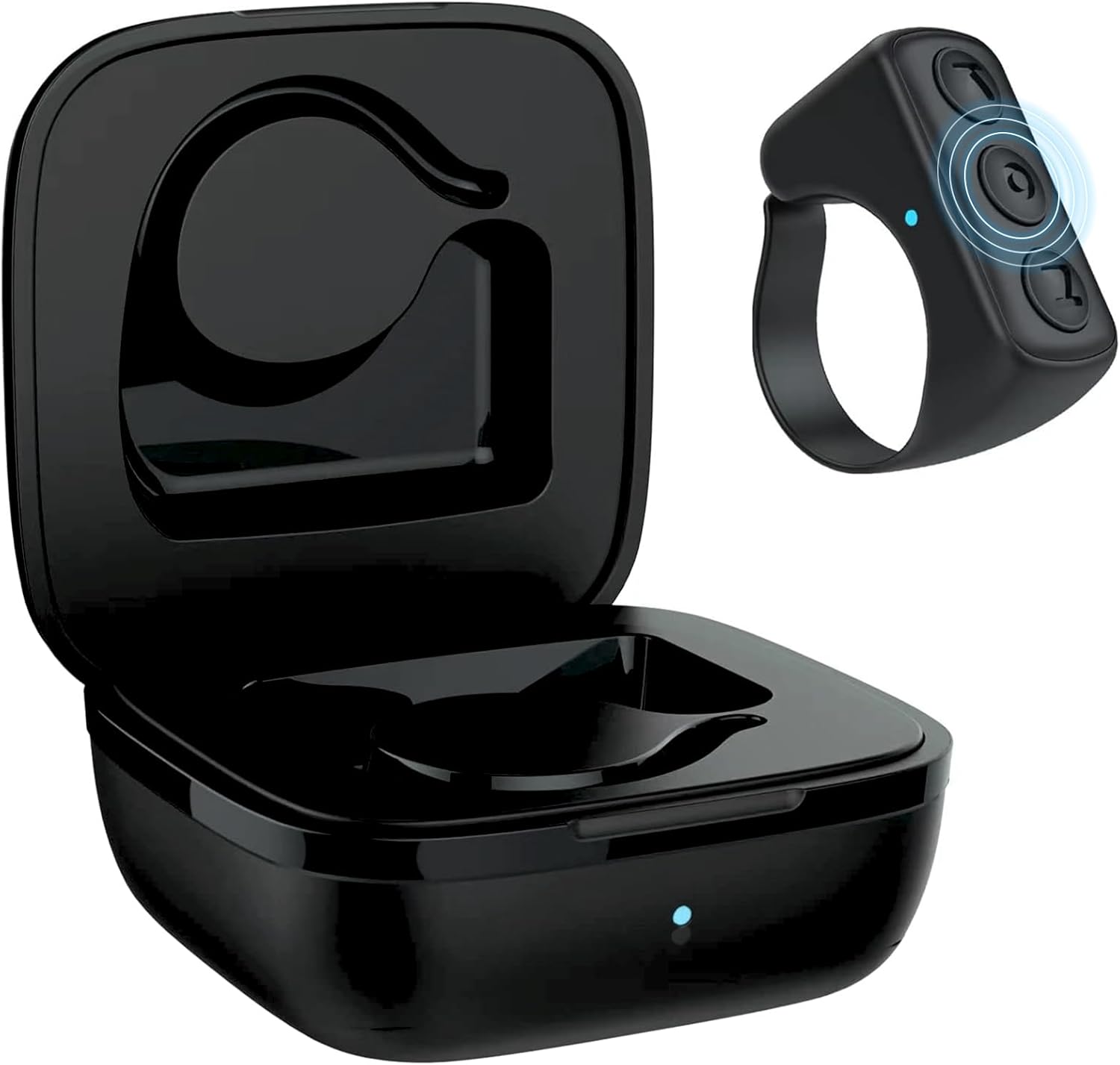
Image: The GEVO Bluetooth Remote Control Page Turner, a black ring-shaped device, shown alongside its matching black magnetic charging case. The ring has three control buttons on its surface.
2. Safety Information
- Keep the device away from water and excessive moisture.
- Avoid exposing the device to extreme temperatures (hot or cold).
- Do not attempt to disassemble or repair the device yourself. Refer to qualified service personnel.
- Keep out of reach of small children to prevent accidental ingestion of small parts.
- Dispose of the device and its battery responsibly according to local regulations.
3. Setup Guide
3.1 Charging the Device
The GEVO Bluetooth Remote Control Ring comes with a magnetic charging case. To charge the ring, simply place it inside the charging case. The case itself can be charged using the provided Type-C cable.
- Charging Time: Approximately 1.5 hours for the ring.
- Battery Life: Up to 14 hours on a single charge, and a total of 86 hours with the charging case.

Image: A diagram illustrating the magnetic charging box, showing the ring inside and a Type-C cable connected to the case. Icons indicate features like charging, photography, page turning, Bluetooth, like button, and screen lock.
3.2 Bluetooth Pairing
- Remove the ring from its charging case.
- Press and hold the middle button on the ring for one second. The red and blue lights on the ring will alternate flashes, indicating it's in pairing mode.
- On your smartphone or tablet, turn on Bluetooth.
- Search for "D01" or "D01 Pro" in the list of available Bluetooth devices and select it to connect.
Video: A demonstration of how to connect the GEVO Bluetooth Remote Control. It shows removing the ring from the case, holding the middle button to activate pairing mode (indicated by flashing lights), and then connecting via Bluetooth settings on a smartphone.
3.3 Important Note for iOS Devices
For iPhone and iPad users, it is essential to enable "Assistive Touch" for the remote to function correctly. Additionally, ensure your iOS version is higher than 14.8.
Steps to enable Assistive Touch:
- Go to Settings.
- Select Accessibility.
- Tap on Touch.
- Turn on Assistive Touch.

Image: A sequence of screenshots demonstrating how to enable Assistive Touch on an iPhone, showing the path from Settings to Accessibility, then Touch, and finally toggling Assistive Touch on.
4. Operating Instructions
The GEVO Bluetooth Remote Control offers intuitive control over various applications. The three buttons on the ring provide different functionalities depending on the context.
4.1 TikTok and Video Control
- Swipe Up/Down: Use the top or bottom button for vertical scrolling in TikTok videos.
- Swipe Left/Right: Double-click the top or bottom button for horizontal video swiping.
- Like Button: Press a specific button (refer to the button diagram below) to "like" a video.
- Volume Control: Hold down the top or bottom button to adjust the volume.
- Play/Pause: Single-click the middle button to play or pause videos.
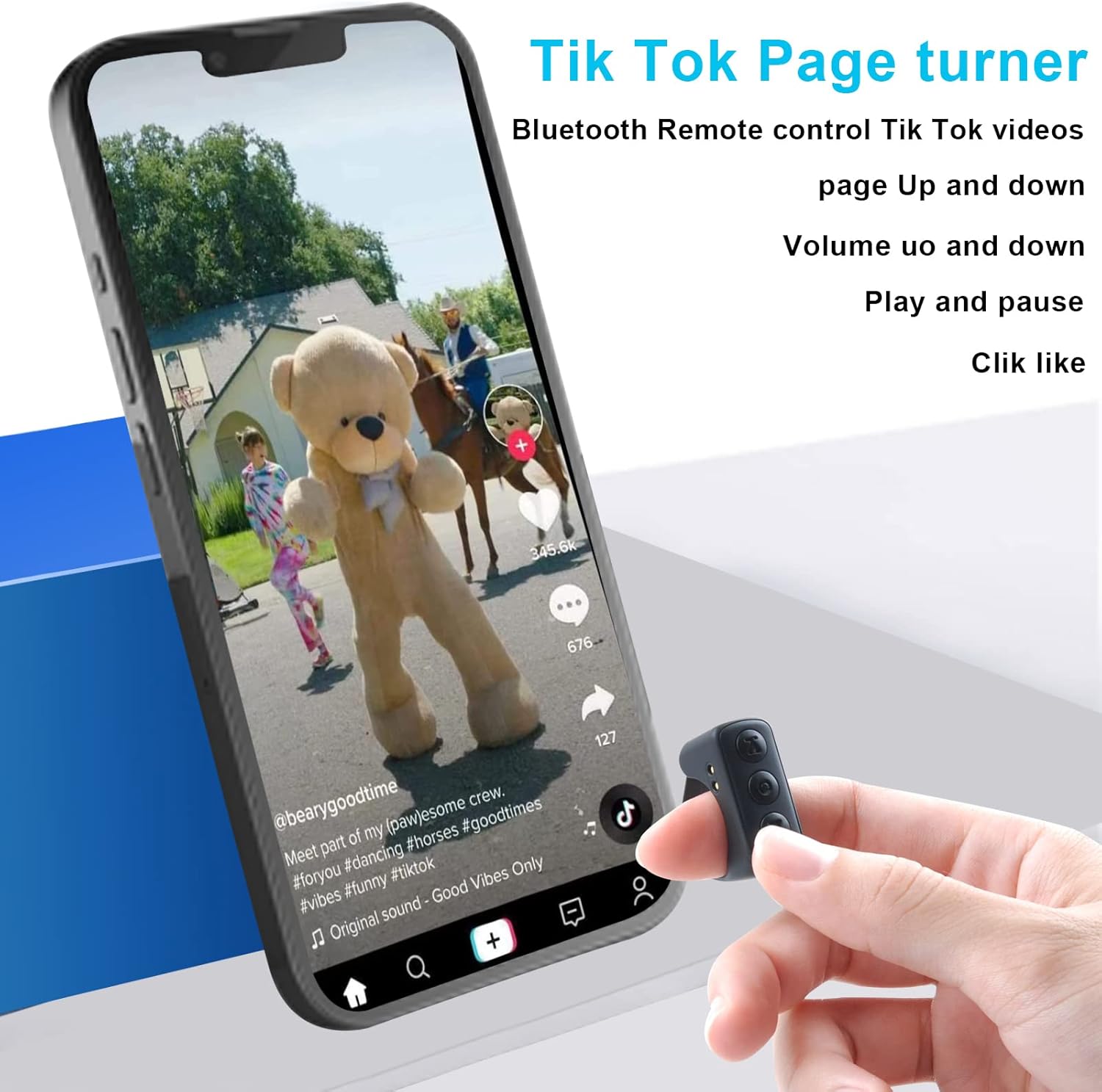
Image: A hand holding the remote ring next to a smartphone displaying a TikTok video, illustrating the remote's ability to control page up/down, volume, play/pause, and liking videos.

Image: A person comfortably lying in bed, using the remote control to scroll through TikTok videos on a tablet mounted on an adjustable arm, demonstrating hands-free usage.
4.2 E-book Page Turning
The remote is compatible with the Kindle app on your phone or tablet (note: not compatible with Kindle e-reader devices). Use the designated buttons to turn pages forward or backward.

Image: A visual representation showing that the remote supports the Kindle app on smartphones/tablets (indicated by a green checkmark) but explicitly states it is NOT for Kindle devices (indicated by a red X over a Kindle e-reader).
4.3 Camera Remote Shutter
Control your phone's camera shutter from up to 33 feet (10 meters) away. This feature is ideal for taking selfies or group photos without needing to hold your phone.
- Trigger Shutter: Press a button (typically the middle button) to take a photo or start/stop video recording.
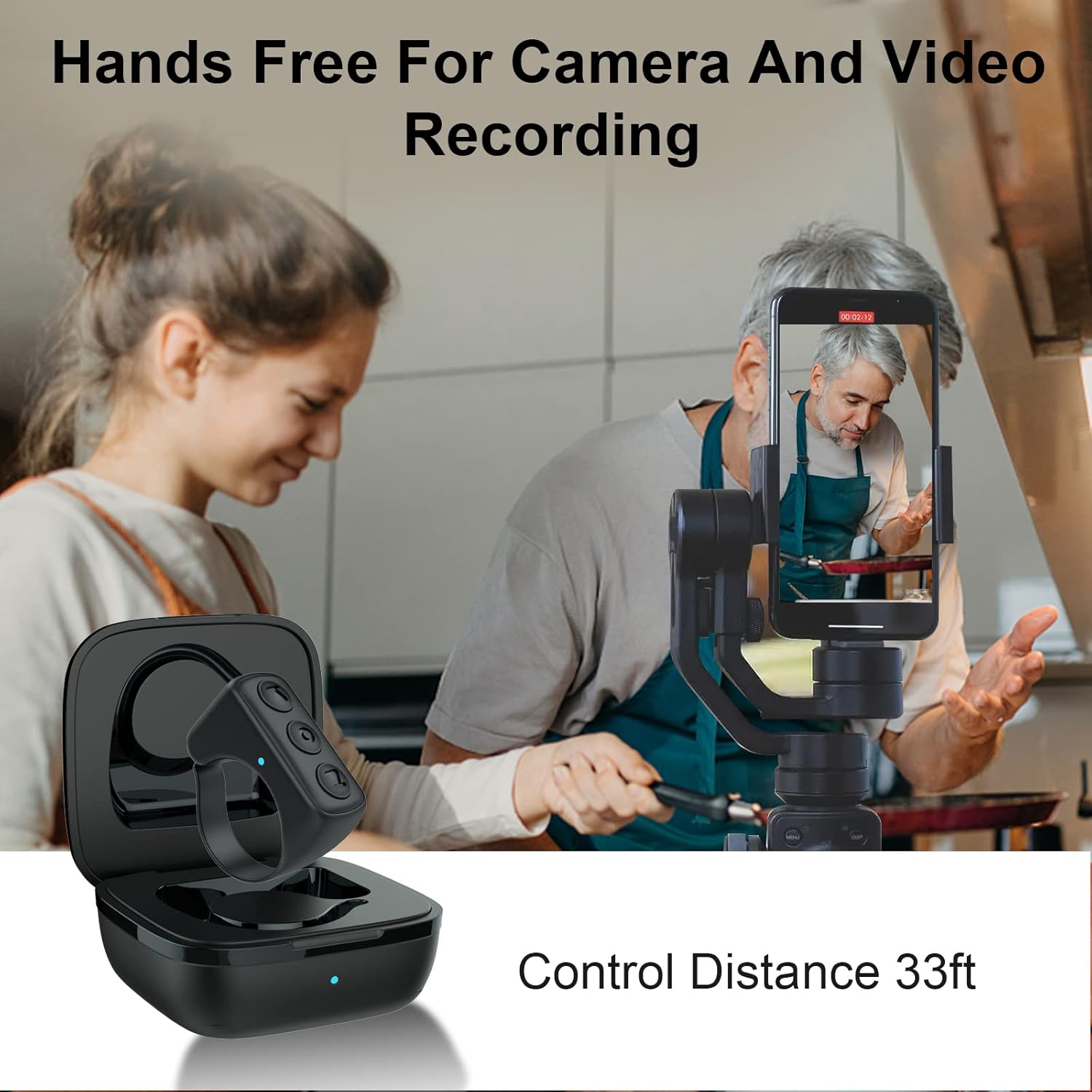
Image: A scene depicting two people in a kitchen, with a smartphone on a tripod recording them. The GEVO remote and its charging case are in the foreground, emphasizing hands-free camera and video recording from a control distance of 33 feet.
4.4 Screen Lock Function
- Lock Screen: Hold and press the middle button for one second to lock your device's screen.
4.5 Button Functions Overview

Image: A detailed diagram of the GEVO Bluetooth Remote Control ring, labeling each button and its corresponding functions: Like (2 clicks), Pause and Play (1 click), Power Off (hold 5 sec), Power On (hold 1 sec), Next Video/Page (1 click), Volume + (Hold on), Page Left (2 clicks), Previous Video/Page (1 click), Volume - (Hold on), Page Right (2 clicks).
5. Maintenance
- Clean the device regularly with a soft, dry cloth.
- Avoid using harsh chemicals or abrasive materials for cleaning.
- Store the device in its charging case when not in use to protect it and keep it charged.
- Ensure the charging port is free from dust and debris.
6. Troubleshooting
6.1 Device Not Connecting via Bluetooth
- Ensure the remote control is fully charged.
- Make sure Bluetooth is enabled on your phone/tablet.
- Confirm the remote is in pairing mode (alternating red and blue lights).
- Try turning off and on your phone's Bluetooth, then attempt to pair again.
- If issues persist, restart your phone/tablet.
6.2 Swiping/Scrolling Not Working Properly (iOS)
- Verify that "Assistive Touch" is enabled in your iOS settings (Settings > Accessibility > Touch > Assistive Touch).
- Ensure your iOS version is 14.8 or higher.
- If the video does not swipe up and down properly, please restart your phone once.
6.3 Remote Not Responding
- Check the battery level of the remote.
- Try turning the remote off (hold middle button for 5 seconds) and then on again (hold middle button for 1 second).
- Re-pair the device with your phone/tablet.
7. Specifications
| Feature | Detail |
|---|---|
| Brand | GEVO |
| Model | B0B8ZNFT4M |
| Product Dimensions | 0.98 x 0.98 x 0.47 inches |
| Item Weight | 0.187 ounces |
| Batteries | 1 Lithium Polymer battery (included) |
| Special Feature | Rechargeable |
| Color | Black |
| Max Number of Supported Devices | 1 |
| Compatible Devices | IOS / Android, iPad, iPhone, APP Tik Tok |
| Control Distance | Up to 33 feet (10 meters) |
8. Warranty and Support
For warranty information or technical support, please refer to the product packaging or contact GEVO customer service directly. Contact details can typically be found on the manufacturer's official website or through your point of purchase.
You can visit the GEVO Store on Amazon for more information: GEVO Store