
Anpviz U Series (ASIN: B0B8Z3SCDW)
Anpviz UltraHD 4K (8MP) Security IP PoE Dome Camera Instruction Manual
Model: U Series (ASIN: B0B8Z3SCDW)
1. Introduction
This manual provides comprehensive instructions for the installation, operation, and maintenance of your Anpviz UltraHD 4K (8MP) Security IP PoE Dome Camera. This camera is designed for outdoor surveillance, offering high-resolution video, advanced detection capabilities, and robust weather resistance.

Figure 1: Anpviz UltraHD 4K (8MP) Security IP PoE Dome Camera. This image shows the front view of the white dome camera with its lens and IR LEDs visible.
2. Key Features
- 4K HD Resolution & IR Night Vision: Captures 8 Megapixels (3840x2160) video at 20 frames per second, with infrared night vision extending up to 98 feet (30 meters).
- Power over Ethernet (PoE): Simplifies installation by providing both power and data connectivity through a single Ethernet cable.
- Smart Human & Vehicle Detection: Utilizes advanced AI analysis to distinguish between human and vehicle movements, minimizing false alarms from environmental factors like bugs or falling leaves.
- Built-in Microphone: Features a one-way audio microphone for recording sound within the camera's vicinity.
- Wide Angle Lens: Equipped with a 2.8mm fixed lens, providing a 108° field of view for extensive coverage.
- Durable & Weatherproof Design: Constructed with a metal housing and rated IP66 for water and dust resistance, ensuring reliable operation in various outdoor conditions. It is also IK10 vandal-proof.
- Broad Compatibility: Compatible with Anpviz PoE NVRs, most On-vif NVRs, and third-party software such as Blue-Iris, ISpy, and Milestone. Supports DHCP for easy integration and NAS (NFS).
- Efficient Video Compression: Supports H.265/H.264 video compression to optimize storage space.

Figure 2: Comparison of 8MP Day and Night Vision. The top half shows a clear, color image of a driveway during the day, while the bottom half shows the same scene in black and white with infrared illumination at night.

Figure 3: Human and Vehicle Detection. This image illustrates the camera's ability to identify and highlight persons and vehicles within its field of view, with red boxes indicating detected objects.
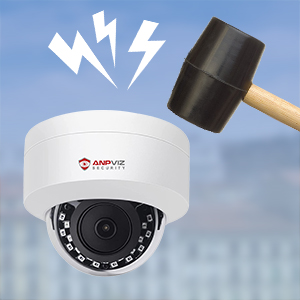
Figure 4: Wide Angle Lens Comparison. This image compares the field of view of a 2.8mm lens versus a 3.6mm lens, demonstrating the broader coverage provided by the 2.8mm lens.
3. Installation and Setup
3.1 Package Contents
Verify that all components are present before beginning installation. The package typically includes the Anpviz 4K PoE Dome Camera and mounting hardware. Please note that a power adapter is not included as the camera is designed for Power over Ethernet (PoE).
3.2 Mounting the Camera
The camera is designed for ceiling mount installation. Choose a location that provides the desired field of view and is within range of your PoE network cabling. Ensure the mounting surface is stable and can support the camera's weight.
- Mark the drilling points using the provided mounting template (if applicable).
- Drill pilot holes and insert wall anchors if mounting on drywall or masonry.
- Secure the camera base to the mounting surface using the screws.
- Adjust the camera's angle for optimal coverage.
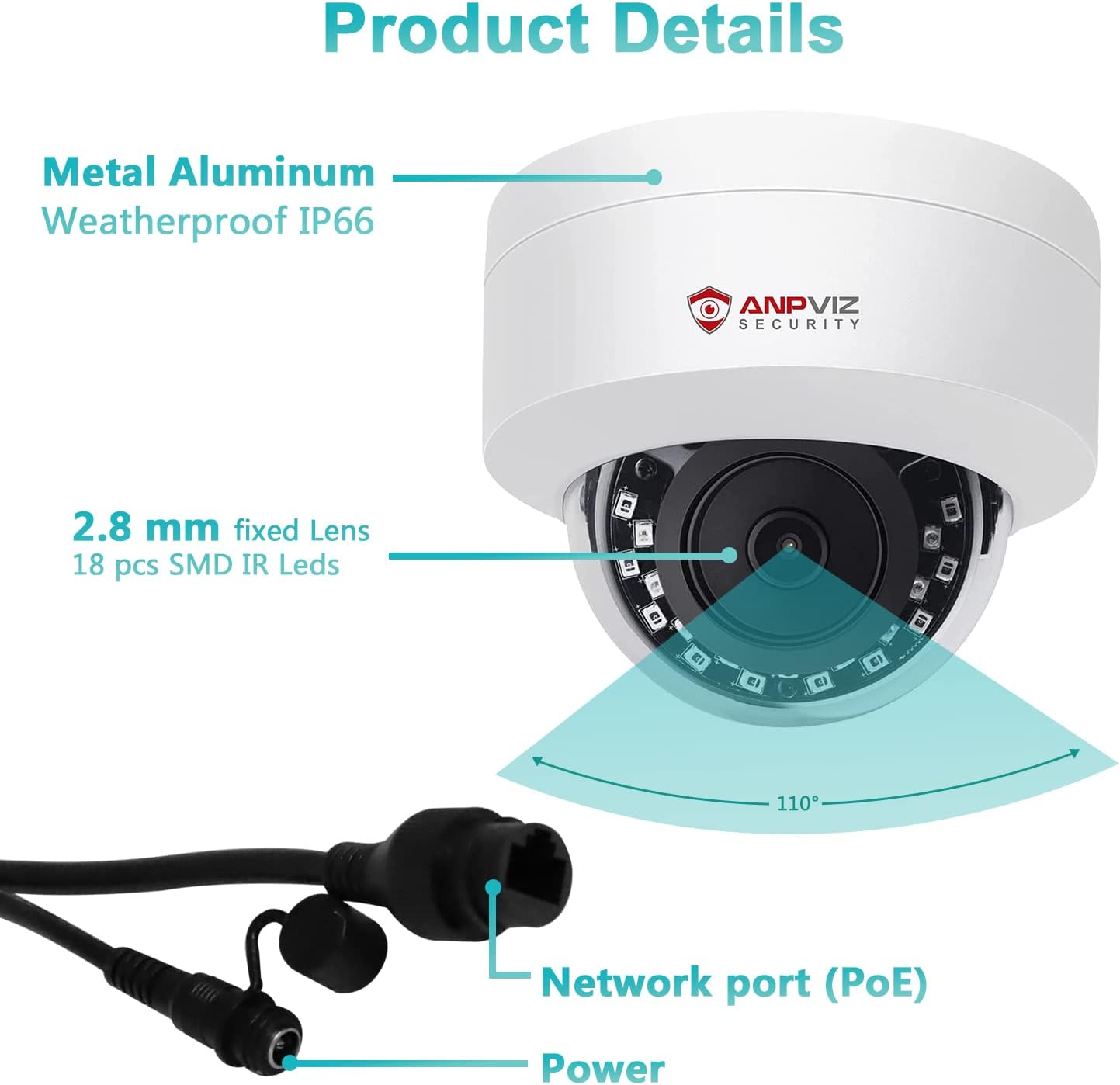
Figure 5: Product Details and Connections. This diagram highlights the camera's metal aluminum housing, IP66 weatherproof rating, 2.8mm fixed lens, 18 pcs SMD IR LEDs, and the network port (PoE) and optional power input.
3.3 Network Connection
Connect the camera to your network using an Ethernet cable. For PoE functionality, connect the camera to a PoE-enabled NVR or a PoE switch. This single cable will provide both power and data transmission.
- Anpviz PoE NVR: For seamless integration, connect directly to an Anpviz PoE NVR. The camera should be automatically detected.
- Other On-vif NVRs / Third-Party Software: The camera supports On-vif protocol and DHCP, allowing it to work with most On-vif compliant NVRs and software like Blue-Iris, ISpy, and Milestone. Refer to your NVR or software manual for adding new IP cameras.
- Web Browser Access: You can access the camera directly via a web browser (Edge, Firefox, Google Chrome) by entering its IP address.
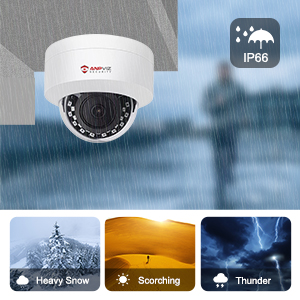
Figure 6: NVR Connection Diagram. This image shows a simplified setup where the Anpviz camera is connected via an Ethernet cable to an NVR, which is then connected to a monitor for live viewing.
4. Operation
4.1 Remote Access and Monitoring
Access your camera feed and settings remotely using the dedicated mobile application or compatible desktop software.
- Mobile App: Download the "VideoLink App" (or other recommended Anpviz app) from your smartphone's app store. Follow the in-app instructions to add and configure your camera.
- Desktop Software: Utilize compatible software like Blue-Iris, ISpy, Milestone, or Anpviz's own client software for multi-camera management and advanced features on your PC or laptop.
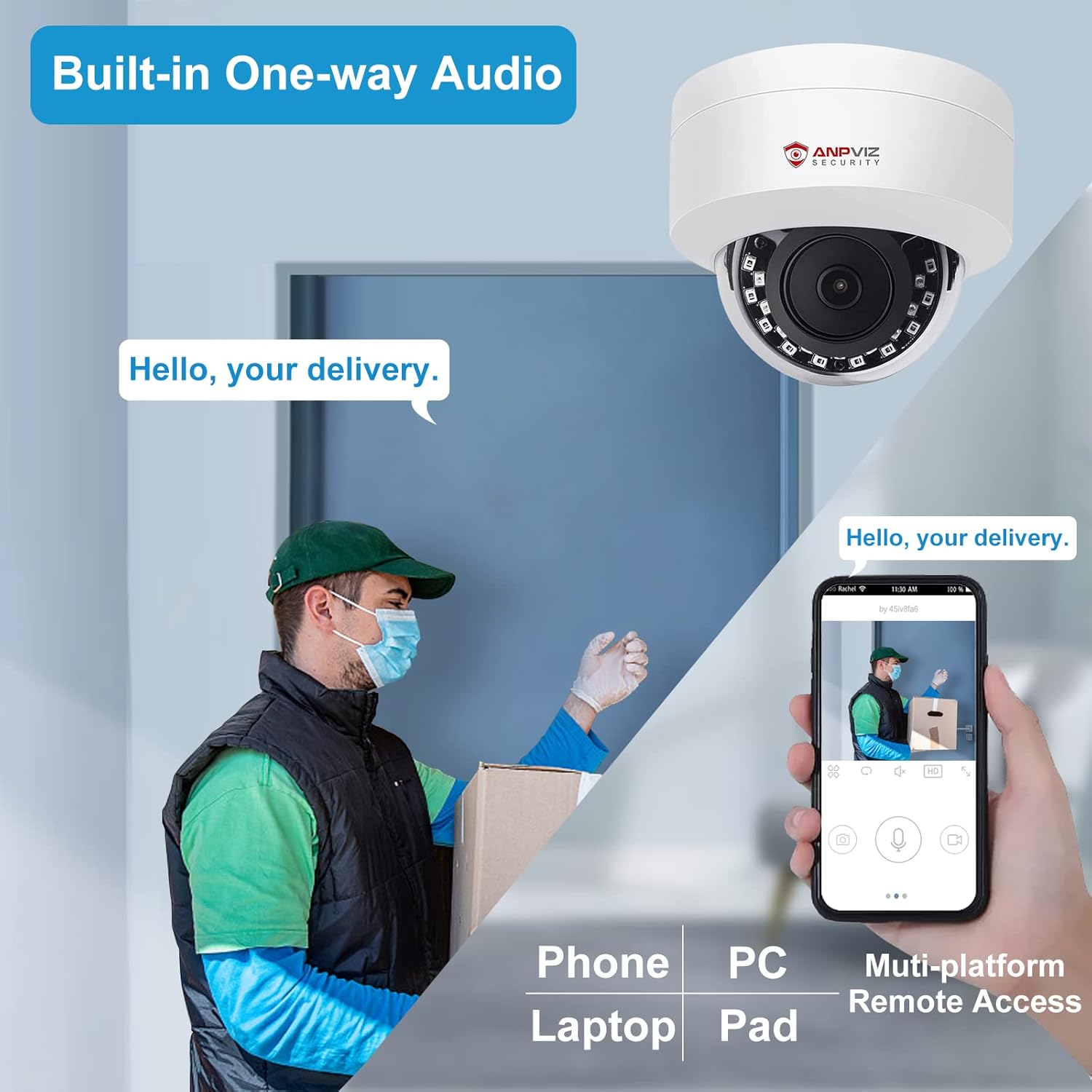
Figure 7: Multi-platform Remote Access. This image demonstrates the ability to view the camera feed and interact with the camera via a smartphone, PC, laptop, or tablet. It also highlights the built-in one-way audio feature.

Figure 8: App Download and Multi-View Interface. This image displays icons for downloading the app from the App Store and Google Play, along with examples of the multi-view interface on a smartphone, desktop, and laptop.
4.2 Smart Detection and Alerts
The camera's intelligent detection features provide timely notifications for significant events.
- Human & Vehicle Detection: Configure detection zones and sensitivity settings within the camera's interface or app. When a person or vehicle is detected, the camera will trigger an alert.
- Alert Notifications: Receive instant email notifications and push notifications to your smart device when a detection event occurs.
- Minimizing False Alarms: The AI analysis helps reduce unnecessary alerts caused by environmental factors, focusing only on relevant human and vehicle activity.
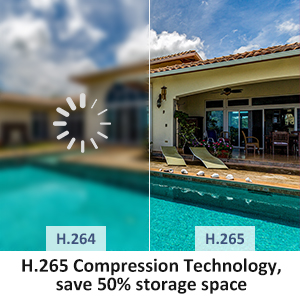
Figure 9: Human/Vehicle Detection Alert Notification. This image shows a smartphone screen displaying a push notification indicating that the device has detected vehicles.
4.3 Audio Functionality
The built-in microphone allows for one-way audio recording, capturing sound from the camera's surroundings.
- Audio Recording: The camera records audio along with video, providing additional context to surveillance footage.
- Playback: Recorded audio can be played back through your NVR or monitoring software.
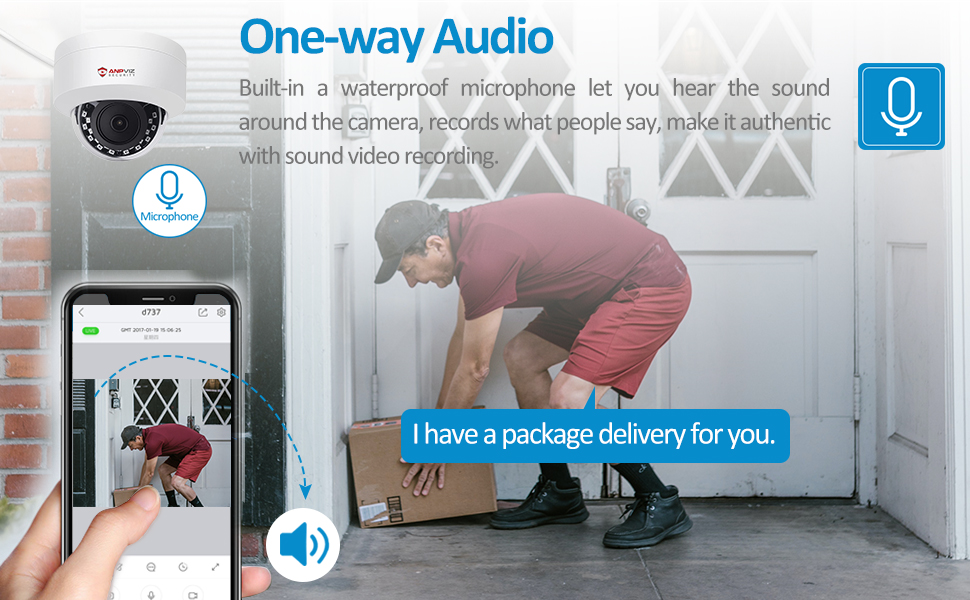
Figure 10: One-way Audio Feature. This image depicts a delivery person at a door, with a speech bubble indicating "I have a package delivery for you," and a smartphone screen showing the live camera feed with an audio icon, illustrating the camera's one-way audio capability.
5. Maintenance
Regular maintenance ensures optimal performance and longevity of your Anpviz camera.
- Cleaning: Periodically clean the camera lens and housing with a soft, damp cloth. Avoid abrasive cleaners or solvents that could damage the surface.
- Firmware Updates: Check the Anpviz official website or your NVR/software provider for available firmware updates. Keeping the firmware updated can improve performance, add features, and enhance security.
- Cable Inspection: Periodically inspect the Ethernet cable for any signs of wear, damage, or corrosion, especially in outdoor environments.
- Environmental Protection: While the camera is IP66 weatherproof, ensure it is not submerged in water and that its mounting location does not allow water to pool around the cable connections.

Figure 11: Weather Resistance Features. This image shows the camera mounted outdoors in rainy conditions, with icons indicating its heat resistance (up to 140°F/60°C), cold resistance (down to -22°F/-30°C), weatherproof, and dustproof capabilities.
6. Troubleshooting
This section addresses common issues you might encounter with your Anpviz camera.
| Problem | Possible Cause | Solution |
|---|---|---|
| No video feed / Camera offline | No power (PoE issue), Network cable disconnected/damaged, Incorrect IP address, NVR/software configuration issue. | Verify PoE connection and power source. Check Ethernet cable integrity. Ensure camera's IP address is correct and accessible on the network. Reconfigure camera on NVR/software. |
| Poor image quality / Blurry video | Dirty lens, Insufficient lighting, Network bandwidth issues, Incorrect resolution settings. | Clean the camera lens. Ensure adequate lighting for the scene. Check network connection speed. Verify camera resolution settings are optimal. |
| Frequent false alarms | Detection sensitivity too high, Detection zone includes irrelevant areas (e.g., trees, busy roads). | Adjust detection sensitivity settings. Refine detection zones to exclude areas with frequent non-human/vehicle movement. |
| No audio recording | Audio recording disabled in settings, Microphone obstructed/damaged. | Ensure audio recording is enabled in camera settings. Check for any physical obstructions to the microphone. |
| Cannot access via Mac Safari | Incompatibility with Mac Safari browser. | Use a compatible web browser such as Google Chrome, Mozilla Firefox, or Microsoft Edge for accessing the camera's web interface. |
If you encounter issues not listed here or require further assistance, please contact Anpviz customer support.
7. Technical Specifications
| Feature | Detail |
|---|---|
| Model | U Series (ASIN: B0B8Z3SCDW) |
| Resolution | 8 Megapixels (3840x2160) @ 20fps |
| Lens | 2.8mm Fixed Lens |
| Field of View | 108° Wide Angle |
| Night Vision Range | Up to 100 feet (30 meters) IR Night Vision |
| Audio | Built-in One-way Microphone |
| Detection | Human & Vehicle Detection, Motion Detection |
| Video Compression | H.265/H.264 |
| Connectivity | PoE (Power over Ethernet), Wired Network Cable |
| Power Source | Corded Electric (via PoE or optional adapter) |
| Ingress Protection (IP) Rating | IP66 Waterproof |
| Vandal Resistance | IK10 Vandal Proof |
| Housing Material | Metal Aluminum |
| Mounting Type | Ceiling Mount |
| Dimensions (L x W x H) | 5.31 x 5.31 x 5.11 inches (13.5 x 13.5 x 13 cm) |
| Item Weight | 1.34 pounds (0.61 kg) |
| Operating Temperature | Resistant to -22°F (-30°C) to 140°F (60°C) |
| Compatible Devices | Smartphone, NVR (Anpviz, On-vif), PC |
| Notes | Not PTZ, No SD Card Slot, No Speaker, Not Compatible with Mac Safari. |
8. Warranty and Support
Anpviz is committed to providing reliable security solutions and customer satisfaction. For specific warranty details, please refer to the warranty card included with your product or visit the official Anpviz website.
Anpviz has been established since 2014 and serves millions of customers across over 110 countries, demonstrating a decade of experience in the security camera industry.
Customer Support
If you require technical assistance, have questions about your product, or need to report an issue, please contact Anpviz customer support through their official channels. You can often find contact information on the Anpviz website or within the product packaging.

Figure 12: Anpviz Security Logo. This image displays the official logo for Anpviz Security, featuring a shield icon with an eye and the brand name.
For more information, visit the Anpviz Store on Amazon.