
1. Introduction
This manual provides comprehensive instructions for the proper use and maintenance of your Anviz N.5 USB Key. This device is designed to facilitate data transfer, specifically time stamps, from compatible Anviz time and attendance terminals to the CrossChex software.
2. Product Overview
The Anviz N.5 USB Key is a compact and durable storage device engineered for seamless integration with Anviz time and attendance systems. It serves as a crucial tool for collecting employee presence data from various Anviz terminals for subsequent processing and reporting using the CrossChex software.

Figure 1: The Anviz N.5 USB Key. This image shows the USB key with its swivel metal casing, designed for portability and protection of the USB connector.
Key Features:
- Data Transfer: Enables efficient downloading of time stamps from Anviz presence detection devices.
- CrossChex Software Compatibility: Specifically designed to interface with CrossChex software for data processing.
- Durability: Features a shock-resistant design for enhanced longevity.
3. Compatibility
The Anviz N.5 USB Key is compatible with the following Anviz presence detection and access control devices:
- OC500, OC180, A300ID
- TC530, TC550, TC580
- FACEPASS 7 Pro, FACEDEEP 3, FACEPASS7 Pro
- C5, C2C-Pro, C5C, C2 Pro
- OA1000PRO, OA1000 Pro
- A350, EP300
- W1, W2
- T60 Pro

Figure 2: Anviz N.5 USB Key from a different perspective, highlighting its compact form factor.
4. Setup
To set up your Anviz N.5 USB Key for data transfer, follow these steps:
- Prepare the USB Key: Ensure the USB key is free from physical damage and clean.
- Connect to Anviz Device: Insert the Anviz N.5 USB Key into the designated USB port on your compatible Anviz time and attendance terminal. The device should recognize the USB key automatically.
- Prepare CrossChex Software: Install the CrossChex presence detection software on your computer. The software is available in English and Italian.
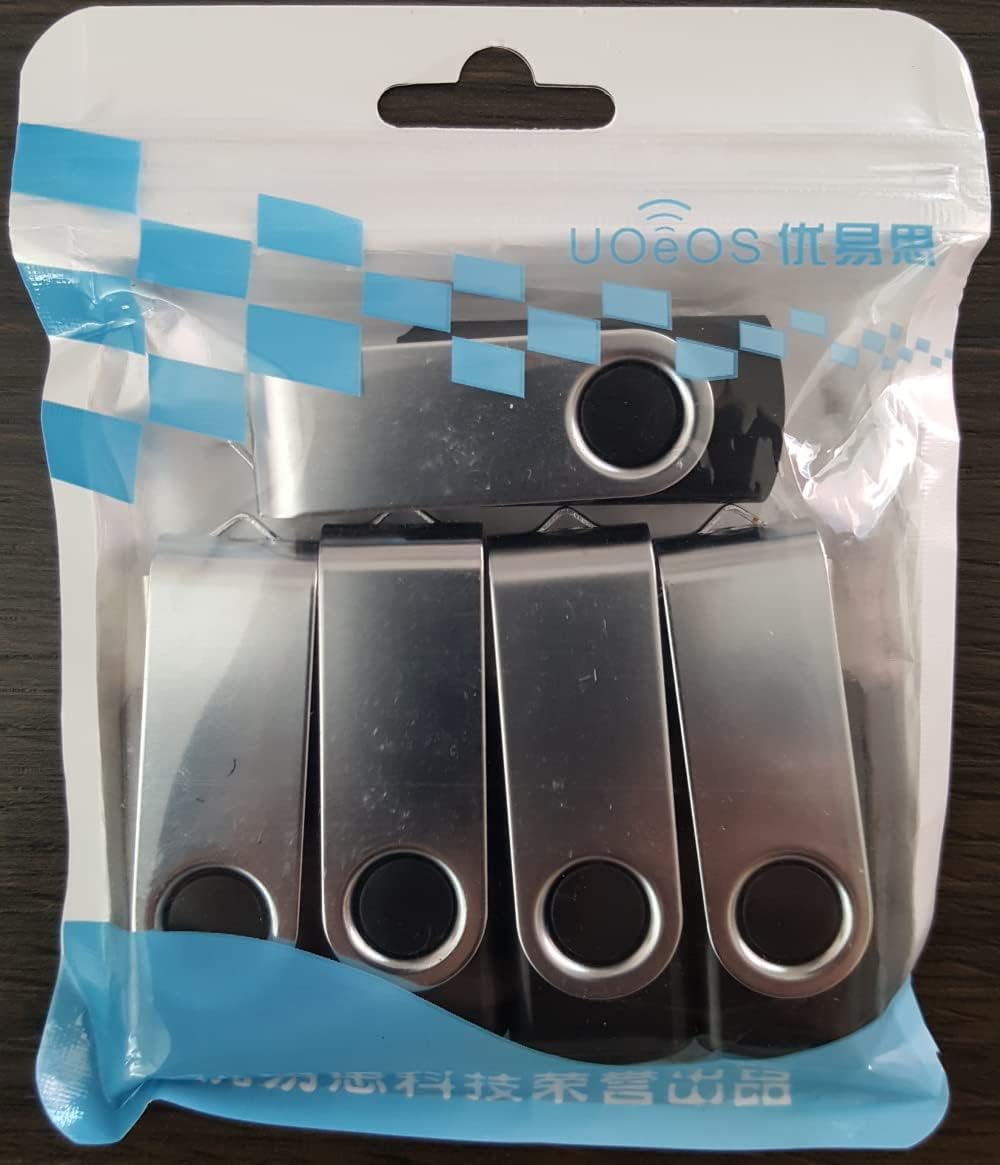
Figure 3: Multiple Anviz N.5 USB Keys shown in their retail packaging, indicating a typical product presentation.
5. Operating Instructions
The primary function of the Anviz N.5 USB Key is to transfer time stamp data from your Anviz device to the CrossChex software. Follow these general steps:
- Download Time Stamps from Device: On your Anviz time and attendance terminal, navigate to the data management menu. Select the option to download or export time stamps to the USB key. Confirm the transfer.
- Remove USB Key: Safely remove the USB key from the Anviz device after the data transfer is complete.
- Connect to Computer: Insert the USB key into a USB port on the computer running the CrossChex software.
- Import Data with CrossChex: Open the CrossChex software. Use the software's import function to load the time stamp data from the USB key. The software allows for:
- Displaying time stamp cards.
- Calculating worked hours.
- Manual time stamp entry.
- Printing present reports, monthly reports, and statistical reports.
- Exporting data to TXT and Excel formats.
6. Maintenance
Proper maintenance ensures the longevity and reliable performance of your Anviz N.5 USB Key:
- Safe Removal: Always use the "Safely Remove Hardware" option on your computer before unplugging the USB key to prevent data corruption.
- Physical Protection: Keep the USB key in a clean, dry environment. Utilize the swivel metal casing to protect the USB connector when not in use.
- Avoid Extreme Conditions: Do not expose the USB key to extreme temperatures, direct sunlight, or strong magnetic fields.
- Data Backup: Regularly back up important data from the USB key to another storage medium.
7. Troubleshooting
If you encounter issues with your Anviz N.5 USB Key, consider the following:
- USB Key Not Recognized:
- Ensure the USB key is fully inserted into the port.
- Try a different USB port on the Anviz device or computer.
- Restart the Anviz device or computer.
- Data Transfer Failure:
- Verify that the USB key has sufficient free space (30 MB capacity).
- Ensure the Anviz device is compatible with the N.5 USB Key.
- Check for any error messages on the Anviz device screen during transfer.
- CrossChex Software Issues:
- Ensure the CrossChex software is up-to-date.
- Consult the CrossChex software manual or support for specific import issues.
8. Specifications
| Specification | Detail |
|---|---|
| Brand | ANVIZ.EU |
| Model Name | USB30C-5 |
| Memory Storage Capacity | 30 MB |
| Hardware Interface | USB |
| Connectivity Technology | USB |
| Special Feature | Shock resistant |
| Color | Black |
| Dimensions | 57.18 x 17.28 x 10.00 mm |
| Manufacturer | ANVIZ.EU |
| Date First Available | August 6, 2022 |
| Spare Parts Availability | Information not available |
| Software Updates Guaranteed Until | Information not available |
9. Warranty and Support
For warranty information and technical support regarding your Anviz N.5 USB Key, please refer to the official ANVIZ.EU website or contact their customer service directly. Specific warranty details and support contacts are not provided in this manual.