
WellToBe S36D-B
WellToBe Smart Cat Feeder Instruction Manual
Model: S36D-B | Brand: WellToBe
Product Overview
The WellToBe Smart Cat Feeder is an automatic pet food dispenser designed to provide convenient and consistent feeding for your cats and small dogs. Featuring Wi-Fi connectivity, app control, and dual power supply options, it ensures your pets are fed on schedule, even when you're away. Its thoughtful design includes a two-way splitter for multiple pets, a voice recorder for personalized meal calls, and a large capacity food tank.

Image: The WellToBe Smart Cat Feeder in black, shown with its dual food bowls and a smartphone displaying the companion app interface.
Important Safety Instructions
- Use only dry pet food with this feeder. Do not use wet, canned, or moist food.
- Keep the feeder indoors and away from direct sunlight or moisture.
- Ensure the power adapter cable is not chewed by pets. Use batteries as a backup power source.
- Do not immerse the main unit in water. Only detachable parts are washable.
- Keep out of reach of children and pets when not in use or during cleaning.
- Regularly check the food level and ensure the dispenser is not clogged.
What's Included
Please check the package contents to ensure all items are present:
- Smart Pet Feeder Main Unit
- Stainless Steel Food Bowls (x2)
- Food Bowl Holders (x2)
- Two-Way Food Splitter
- Power Adapter
- User Manual

Image: The main feeder unit with icons illustrating its features: APP Control, Detachable & Washable, WiFi Connection, Voice Recording, Feeding Schedule, Battery & Plug-in Power.
Initial Setup
1. Power Supply
The feeder supports dual power supply: a power adapter and 4 D-size batteries (not included). It is recommended to use both for uninterrupted feeding in case of power outages.
- Connect the power adapter to the feeder's power port and plug it into a wall outlet.
- For battery backup, open the battery compartment at the bottom of the feeder and insert 4 D-size batteries. Ensure correct polarity.
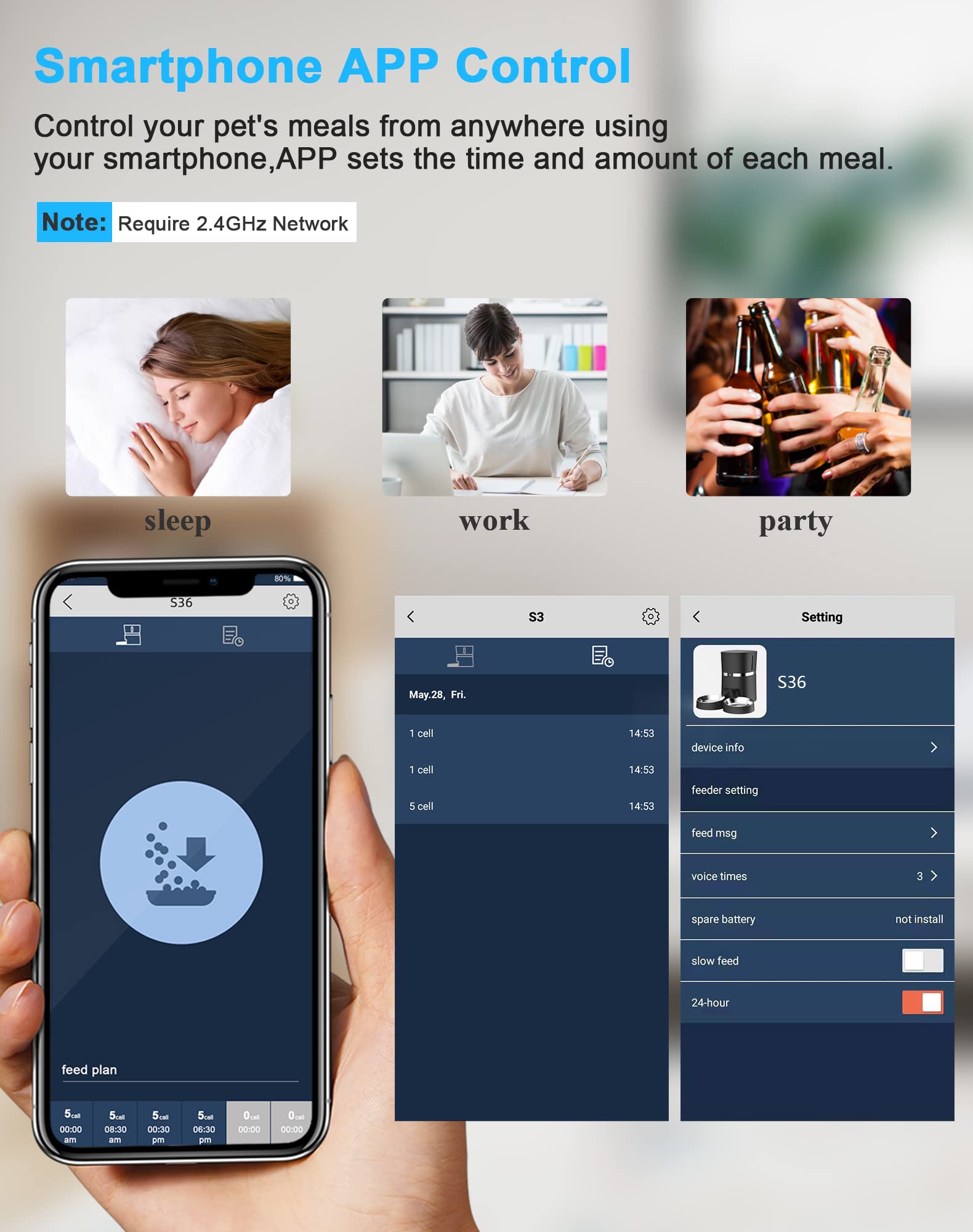
Image: Diagram showing the power adapter connection point and the battery compartment at the base of the feeder, highlighting its dual power supply capability.
2. Assembly
Assemble the food bowls and splitter before filling the food tank.
- Attach the two food bowl holders to the base of the feeder.
- Insert the stainless steel bowls into the holders.
- Slide the two-way food splitter into the dispensing opening at the bottom of the feeder. Ensure it is securely in place to direct food into both bowls.

Image: The feeder unit demonstrating its ability to be configured with either a single bowl or a dual bowl setup using the detachable 2-way splitter.
3. Filling the Food Tank
The 4L capacity tank can hold approximately 1.6kg of dry pet food, sufficient for 15-20 days for cats and small dogs.
- Open the lid of the food tank by pressing the release button.
- Pour dry pet food into the tank. Ensure the food size is between 5-12mm to prevent clogging.
- Close the lid securely to maintain food freshness.

Image: The main feeder unit with icons illustrating its features: APP Control, Detachable & Washable, WiFi Connection, Voice Recording, Feeding Schedule, Battery & Plug-in Power.

Image: The feeder displaying a flexible meal schedule (up to 6 meals per day) and highlighting its 4L food tank capacity, recommended kibble size, and infrared detection technology to prevent food jams.
4. App Connection (2.4G WiFi)
Control your feeder remotely using the Smart Life APP (available for iOS and Android).
- Download the 'Smart Life' app from your app store.
- Register or log in to your account.
- Ensure your phone is connected to a 2.4GHz Wi-Fi network. (5GHz networks are not supported).
- On the feeder, long press the reset button until the Wi-Fi indicator light flashes.
- In the app, tap 'Add Device' or the '+' icon. The app should automatically discover the feeder. If not, select 'Add Manually' and choose 'Pet Feeder'.
- Follow the on-screen prompts to connect the feeder to your Wi-Fi network by entering your Wi-Fi password.
Video: A demonstration of how to connect the WellToBe Smart Pet Feeder to your phone using the Smart Life app, including steps for Wi-Fi pairing and device discovery.

Image: Screenshots of the Smart Life app interface demonstrating how to control the pet feeder, including setting feeding plans and accessing device settings.
Operating Instructions
1. Setting a Feeding Schedule
Program up to 6 meals per day with customizable portions (1 to 48 portions, 0.28 oz per portion).
- Open the Smart Life app and select your WellToBe Smart Feeder.
- Navigate to the 'Feeding Plan' or 'Schedule' section.
- Add new feeding times and specify the number of portions for each meal.
- Save your settings. The feeder will automatically dispense food at the scheduled times.
Video: A video showcasing the WellToBe Pet Feeder in action, demonstrating how it dispenses food into two bowls, suitable for multiple cats.
2. Manual Feeding
You can manually dispense food at any time using the app or the physical button on the feeder.
- Via App: In the Smart Life app, select your feeder and tap the 'Feed' button to dispense a single portion immediately. You can also choose the number of portions to dispense.
- Via Feeder: Press the 'Manual Feed' button on the feeder's control panel to dispense one portion.
3. Voice Recording
Record a 10-second personalized voice message to call your pets for meals.
- On the feeder's control panel, long press the 'Record' button (microphone icon).
- Speak your message clearly into the microphone. The recording will automatically save after 10 seconds or when you release the button.
- The recorded message will play automatically before each scheduled meal. You can also turn off the sound if desired.
Image: The feeder unit demonstrating its ability to be configured with either a single bowl or a dual bowl setup using the detachable 2-way splitter. This image also shows the voice recording feature.
Maintenance
Cleaning and Care
Regular cleaning ensures hygiene and proper functioning of the feeder.
- Food Bowls & Holders: The stainless steel bowls and plastic holders are detachable and washable. Clean them regularly with mild soap and water, then dry thoroughly.
- Food Tank & Dispenser: The food tank and dispenser components can be detached for cleaning. Wipe them with a damp cloth and mild detergent. Ensure all parts are completely dry before reassembly to prevent mold or bacterial growth.
- Main Unit: Wipe the exterior of the main unit with a soft, dry cloth. Do not immerse the main unit in water.
- Desiccant Bag: Replace the desiccant bag every 15-30 days to keep food fresh and prevent moisture.

Image: A visual representation of the feeder's internal anti-blocking design, the low food warning light, and the desiccant compartment to keep food fresh.
Troubleshooting
| Problem | Possible Cause | Solution |
|---|---|---|
| Feeder not dispensing food. | Food tank empty; dispenser clogged; power issue. | Refill food tank; clear any blockages; check power connection/batteries. |
| Wi-Fi connection unstable or disconnected. | Incorrect Wi-Fi password; 5GHz network used; router too far. | Ensure correct 2.4GHz Wi-Fi; move feeder closer to router; reset Wi-Fi on feeder. |
| Food portions are inconsistent. | Kibble size too large/small; food stuck in dispenser. | Use recommended kibble size (5-12mm); clean dispenser regularly. |
| Voice recording not playing. | Recording not saved; volume too low; sound turned off. | Re-record message; check volume settings in app/feeder. |
| Low food alarm is on. | Food level is low. | Refill the food tank. |
Product Specifications
| Feature | Detail |
|---|---|
| Model Number | S36D-B |
| Food Capacity | 4 Liters (approx. 1.6 kg dry food) |
| Material | ABS Plastic, Stainless Steel |
| Dimensions (LxWxH) | 10.04 x 7.8 x 14.17 inches |
| Weight | 5.29 Pounds (2.4 kg) |
| Power Supply | Power Adapter (included), 4 x D-size Batteries (not included) |
| Wi-Fi Connectivity | 2.4GHz only |
| Feeding Schedule | Up to 6 meals/day, 1-48 portions/meal |
| Voice Recording | 10 seconds personalized message |
Warranty and Support
WellToBe products come with a standard manufacturer's warranty. Please refer to the specific warranty terms provided with your purchase for details on coverage and duration.
Customer Support
For further assistance, technical support, or warranty claims, please refer to the official user manual PDF or contact WellToBe customer service through their official website or the Smart Life app support section.
Official User Manual (PDF): https://manuals.plus/m/3a7349e476caec753129f288342071a710a2c0ceda9bdf9251fb0b710abac3d5
Related Documents - S36D-B
 |
A36 Automatic Pet Feeder User Manual Comprehensive user manual for the A36 Automatic Pet Feeder, detailing setup, feeding, recording, and maintenance instructions for optimal pet care. |
 |
WellToBe A36X Automatic Pet Feeder User Manual - Setup, Operation & Troubleshooting Comprehensive user manual for the WellToBe A36X Automatic Pet Feeder. Learn how to set up, operate, clean, and troubleshoot your automatic pet feeder for optimal performance. |
 |
S36 Smart Pet Feeder User Manual User manual for the S36 Smart Pet Feeder, detailing setup, operation, app integration, feeding plans, settings, and troubleshooting for automatic pet food dispensing. |
 |
Frienhund ACF100W-B Smart Pet Feeder with Camera - User Manual User manual for the Frienhund ACF100W-B Smart Pet Feeder. Features 1080P camera, 5G/2.4G WiFi, 7L capacity, and night vision. Includes setup, operation, safety, and troubleshooting guides. |
Ask a question about this manual
Ask about setup, troubleshooting, compatibility, parts, safety, or missing instructions. Manuals+ will review the question and use this page’s manual context to help answer it.