
1. Introduction
This manual provides comprehensive instructions for the installation, operation, maintenance, and troubleshooting of your Active Pixel AUTO-Pair Wireless 8-Channel NVR Kit with 8x 3MP IP Security Cameras. Please read this manual carefully before using the product to ensure proper functionality and safety. Keep this manual for future reference.
2. Safety Information
- Ensure all power connections are secure and use only the provided power adapters.
- Do not expose the NVR or cameras to extreme temperatures, humidity, or corrosive environments.
- Avoid placing the NVR in direct sunlight or near heat sources.
- Do not attempt to disassemble or modify the product. This will void the warranty.
- Keep cables organized to prevent tripping hazards and damage.
- The cameras are IP66 weatherproof, suitable for outdoor use, but avoid submerging them in water.
3. Package Contents
Verify that all items are present in your package:
- 1x NVR (Network Video Recorder)
- 8x 3MP Wireless IP Security Cameras
- Power Adapters for NVR and Cameras
- USB Mouse
- Ethernet Cable
- User Manual (this document)
4. Setup Instructions
4.1 Initial Connection (Plug and Play)
The Active Pixel Wireless System is designed for easy setup. Follow these steps for initial configuration:
- Power Connection: Connect the provided power adapters to the NVR and each of the 8 cameras. Ensure all devices receive power.
- Mouse Connection: Connect the USB mouse to a USB port on the NVR.
- Monitor Connection: Connect a PC monitor or TV to the NVR using either a VGA or HDMI cable.
- Network Connection (Optional for Remote Viewing): Connect the NVR's WAN port to your router's LAN port using the provided Ethernet cable. This step is necessary for remote viewing via the mobile app.
- System Boot-up: The NVR and cameras will automatically power on and establish a connection. Video feeds should appear on your connected monitor within minutes.
This system does not include a pre-installed hard drive. It supports up to 4TB hard disk for local recording.
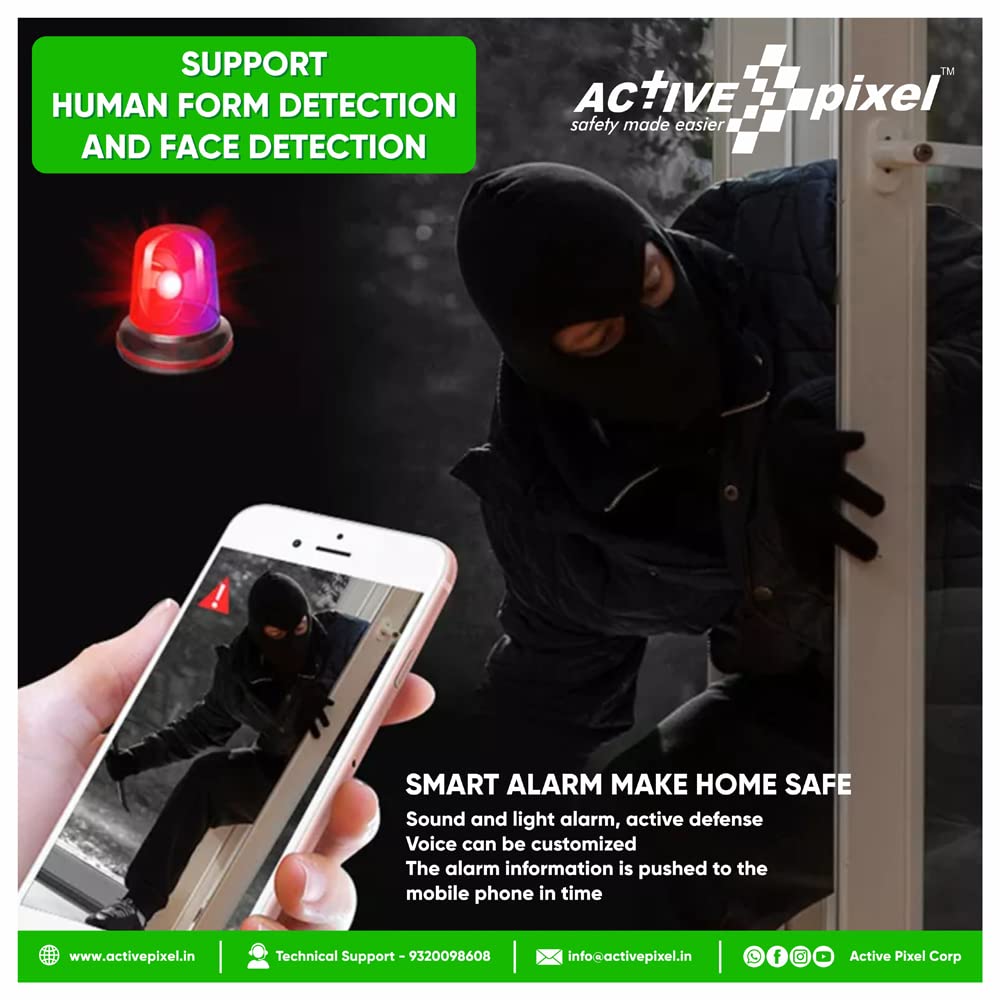
Figure 4.1: Simple Plug & Play Installation. Connect power to NVR and cameras, then connect NVR to a monitor.

Figure 4.2: Active Pixel 8-Channel Wireless NVR Kit components.
5. Operating Instructions
5.1 Live View and Playback
- Local Viewing: Once connected to a monitor, use the USB mouse to navigate the NVR interface for live viewing, playback of recorded footage, and system settings.
- Remote Viewing: Download the dedicated mobile application (available for iPhone and Android) to view your cameras from anywhere with an internet connection (Wi-Fi, 2G/3G/4G). Follow the app's instructions to add your NVR device.

Figure 5.1: One-Click Video Sharing and Multi-Platform Viewing.

Figure 5.2: Multi-Player and Multi-Platform Viewing via mobile application.
5.2 Motion Detection and Smart Alarms
The system features customizable advanced motion detection. When unexpected movements are detected, smart notifications with an image can be pushed to your smartphone via the app.
- Configuration: Access the NVR settings via the local monitor or mobile app to configure motion detection zones, sensitivity, and notification preferences.
- Smart Alarm: The system supports sound and light alarms for active defense. The alarm information is pushed to your mobile phone in real-time.

Figure 5.3: Smart Alarm System with Motion Detection and Mobile Notifications.
5.3 Recording and Storage
The NVR supports various storage methods to ensure your data is safely recorded:
- Hard Disk Storage: Install a hard disk (up to 4TB, not included) into the NVR for continuous or motion-activated recording.
- TF Card Storage: Some camera models may support TF card storage for localized recording.
- Cloud Storage: Refer to the mobile application for available cloud storage options and subscription details.
The NVR ensures synchronous records, meaning data will not be lost after a power failure.

Figure 5.4: Synchronous Records Safe Storage Options.
5.4 Camera Features
- 3MP Resolution: Each camera provides a sharp and clear image day or night.
- Automatic IR-Cut Filter: Ensures optimal image quality in varying light conditions, providing clear night vision up to 25 meters.
- IP66 Weatherproof: The cameras are designed with IP66 weatherproof housing, making them suitable for both indoor and outdoor use.
- Long-Distance Transmission: The system supports stable signal connection up to 450 meters in open air, with excellent wall penetration performance due to its WiFi chip and strong anti-interference capabilities. The default transmission is 100 meters.

Figure 5.5: Long-Distance Transmission for stable signal connection.
6. Maintenance
Regular maintenance ensures optimal performance and longevity of your security system:
- Cleaning: Gently wipe camera lenses and NVR surfaces with a soft, dry cloth. Avoid abrasive cleaners or solvents.
- Cable Management: Periodically check all cables for wear or damage. Ensure connections are secure.
- Software Updates: Check the Active Pixel website or mobile app for any available firmware updates for the NVR or cameras.
- Hard Drive Health: If using a hard drive, monitor its health through the NVR interface to prevent data loss.
7. Troubleshooting
If you encounter issues with your Active Pixel security system, refer to the following common troubleshooting steps:
- No Video Display:
- Check if the NVR and all cameras are powered on.
- Ensure the monitor is correctly connected to the NVR via HDMI or VGA.
- Verify that the input source on your monitor is set correctly.
- Cameras Not Connecting:
- Ensure cameras are within range of the NVR and have clear line of sight if possible.
- Restart both the NVR and the cameras.
- Check for any physical obstructions or strong interference sources.
- Remote Viewing Not Working:
- Confirm the NVR is connected to your router via Ethernet cable.
- Check your internet connection.
- Ensure the mobile app is updated to the latest version and the NVR is correctly added to the app.
- Recording Issues:
- Verify that a hard drive is installed and properly initialized in the NVR settings.
- Check the recording schedule and motion detection settings.
- Ensure the hard drive has sufficient free space.
- Poor Image Quality:
- Clean the camera lenses.
- Ensure cameras are securely mounted and not vibrating.
- Check for strong light sources directly facing the camera.
For further assistance, please contact Active Pixel customer support.
8. Specifications
| Brand | Active Pixel |
| Model Number | Nvr Kit Series |
| Connectivity Technology | Wireless |
| Video Capture Resolution | 3MP |
| Special Features | Waterproof, Wireless |
| Number of Channels | 8 |
| Color | Black, White |
| Power Source | DC |
| Item Dimensions (LxWxH) | 38 x 35 x 18 Centimeters |
| Compatible Devices | Cameras |
| Night Vision Range | 25 Metres |
| Frame Rate | 25 |
| Recording Mode | Motion |
| Lens Type | Fixed |
| Viewing Angle | 110 Degrees |
9. Warranty and Support
Your Active Pixel NVR Kit comes with a 1-year quality warranty. Active Pixel also provides lifetime technical support for this product.
For technical assistance, warranty claims, or any other inquiries, please contact Active Pixel support:
- Website: www.activepixel.in
- Email: info@activepixel.in
- Technical Support Phone: 9320098608
Important Note: The wireless system requires power adapters for both the cameras and the NVR. It is not battery-powered.


