
CUSP CV-1013
CUSP 10.1 Inch Car Stereo Radio Android Multimedia Player User Manual
Model: CV-1013
1. Introduction
This manual provides detailed instructions for the installation, operation, and maintenance of your CUSP 10.1 Inch Car Stereo Radio. This device features an Android operating system, 8GB RAM, 128GB ROM, wireless Apple CarPlay, Android Auto, GPS navigation, Bluetooth connectivity, and multimedia playback capabilities. Please read this manual thoroughly before use to ensure proper installation and optimal performance.
2. Package Contents
Verify that all items listed below are included in your package:
- Radio Unit (1)
- Power Cable (1)
- A/V Cable (1)
- Rear Camera Cable (1)
- USB Cables (2)
- GPS Antenna (1)
- 4G Antenna (1)
- External Microphone (1)
- Rear Camera (1)
- Mounting Brackets (2)
- Screws (6)

3. Specifications
| Feature | Detail |
|---|---|
| Model Name | CV-1013 |
| Display Size | 10.1 Inches |
| Operating System | Android |
| RAM | 8GB |
| ROM | 128GB |
| Screen Resolution | 1280x720 Pixel QLED |
| Connectivity | Bluetooth, Cellular, Wi-Fi |
| Special Features | Wireless Apple CarPlay, Android Auto, GPS Navigation, Touchscreen |
| Audio Output Mode | AUX, Speaker, Stereo |
| Mounting Type | Dashboard Mount (Double Din Universal) |
| Product Dimensions | 10.1 x 5.8 x 10.1 inches |
| Item Weight | 3.8 pounds |

4. Setup and Installation
Professional installation is recommended. Ensure the vehicle's power is disconnected before beginning installation. Refer to your vehicle's specific wiring diagram for proper connections.
4.1 Wiring Connections
Connect the provided cables to the corresponding ports on the head unit and your vehicle's wiring harness. Key connections include:
- Power Cable: Connect to vehicle's power, ground, and accessory wires.
- A/V Cable: For external audio/video input/output.
- Rear Camera Cable: Connect the included rear camera for reversing functionality.
- USB Cables: For connecting USB devices or charging.
- GPS Antenna: Mount in a location with a clear view of the sky for optimal signal reception.
- 4G Antenna: For cellular data connectivity.
- External Microphone: For improved call quality during Bluetooth hands-free operation.

4.2 Mounting the Unit
Secure the head unit into the double din slot using the provided mounting brackets and screws. Ensure the unit is firmly in place to prevent movement during vehicle operation.

5. Operating Instructions
5.1 Initial Power On and System Setup
After installation, turn on your vehicle's ignition. The unit will boot up. Follow any on-screen prompts for initial setup, such as language selection and time zone.

5.2 GPS Navigation
The unit supports both online and offline navigation maps. Connect to Wi-Fi or a mobile hotspot to download maps or use online navigation services like Google Maps or Waze. The GPS dual zone function allows you to enjoy music or radio while navigating.

5.3 Bluetooth Connectivity
Pair your mobile phone via Bluetooth for hands-free calling and audio streaming. Access your phonebook, view call history, and play music directly from your device.

5.4 Apple CarPlay & Android Auto
The unit supports both wireless Apple CarPlay and wired/wireless Android Auto. Connect your smartphone to access navigation, music, messages, and other compatible apps directly on the stereo display.

5.5 Radio Functionality
Tune into FM/AM radio stations. The unit allows you to save preset stations for quick access. Adjust sound settings using the built-in equalizer.

5.6 Multimedia Playback
Play various audio and video formats from USB drives or streaming apps. The unit supports formats such as MKV, MP4, 3GP, and AVI.
5.7 Steering Wheel Control (SWC)
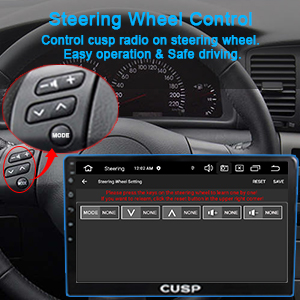
The unit supports steering wheel controls. Manual learning is required to map your vehicle's steering wheel buttons to the stereo's functions. Refer to the "Steering Learn" option in the settings menu.

5.8 Reversing Function
When the vehicle is shifted into reverse gear, the stereo automatically displays the video feed from the connected rear camera. The included camera features night vision and a wide viewing angle.

5.9 Split Screen Functionality
Utilize the split-screen feature to display two applications simultaneously, such as navigation on one side and a video player on the other.
6. Maintenance
- Screen Cleaning: Use a soft, lint-free cloth to clean the touchscreen. Avoid abrasive cleaners or solvents.
- Software Updates: Periodically check for software updates to ensure optimal performance and access to new features. Updates can typically be found on the manufacturer's website or through the unit's system settings.
- Temperature: Avoid exposing the unit to extreme temperatures, as this may affect performance and longevity.
7. Troubleshooting
| Problem | Possible Cause / Solution |
|---|---|
| Unit does not power on. | Check power cable connections (ACC, B+, GND). Verify vehicle's fuse. |
| No sound. | Check speaker wiring. Ensure volume is not muted or set too low. Verify audio output settings. |
| GPS signal weak or inaccurate. | Ensure GPS antenna is mounted in a clear, unobstructed location. Check antenna connection. |
| Bluetooth connection issues. | Ensure Bluetooth is enabled on both devices. Delete previous pairings and re-pair. Restart both devices. |
| Steering Wheel Controls not working. | Perform the "Steering Learn" function in settings. Verify SWC wiring connections. |
| Screen unresponsive or freezing. | Perform a soft reset (refer to device settings for reset option). If persistent, contact support. |
8. Warranty and Support
The CUSP 10.1 Inch Car Stereo Radio comes with a 1-Year Warranty from the date of purchase. This warranty covers manufacturing defects under normal use.
For technical support, warranty claims, or further assistance, please contact CUSP customer service. Contact information can typically be found on the official CUSP website or through your purchase platform.
When contacting support, please have your model number (CV-1013) and purchase details ready.
Ask a question about this manual
Ask about setup, troubleshooting, compatibility, parts, safety, or missing instructions. Manuals+ will review the question and use this page’s manual context to help answer it.