1. Introduction
The eagletop Smart Lock offers advanced keyless entry solutions for your home, apartment, hotel, or office. This smart deadbolt provides multiple access methods including fingerprint, anti-peep password, IC card, Bluetooth app control, and traditional mechanical keys, ensuring both security and convenience. Its rapid response time and user-friendly management features make it an ideal choice for modern security needs.

Figure 1: Six convenient ways to unlock your eagletop Smart Lock.
2. Safety Information
Please read all instructions carefully before installation and use. Keep this manual for future reference. Ensure all components are handled with care. Do not attempt to disassemble or repair the lock yourself, as this may void the warranty and compromise security. Use only recommended batteries and avoid exposing the lock to extreme temperatures or moisture beyond its specified operating range.
3. Package Contents
Verify that all items listed below are included in your package:
- Deadbolt x 1
- Front Body x 1
- Back Body x 1
- Back Panel x 1
- Standard Key x 2
- IC Card x 2
- Mounting Kit x 1
- User Manual x 1 (This document)

Figure 2: Contents of the eagletop Smart Lock package.
4. Setup and Installation
The eagletop Smart Lock is designed for easy installation on most standard doors (1-3/8" to 2-1/6" thickness). It can be adjusted for both left and right-handed doors. A screwdriver is typically the only tool required.

Figure 3: Door compatibility and adjustable latch details.
4.1. Pre-Installation Check
- Verify your door's thickness and backset measurement to ensure compatibility.
- Ensure the door frame is clear of obstructions.
4.2. Physical Installation
Follow the detailed steps provided in the included user manual for precise physical installation. This typically involves:
- Installing the deadbolt into the door edge.
- Mounting the exterior keypad assembly.
- Connecting the interior assembly and securing it to the door.
- Installing batteries (4 x AA batteries, not included).
4.3. App Setup (Bluetooth Connection)
The eagletop Smart Lock utilizes a dedicated app for comprehensive control and management. This model connects via Bluetooth and does not support a gateway for remote Wi-Fi access.
- Download the official eagletop app from your device's app store (iOS and Android compatible).
- Create an account and log in.
- Ensure Bluetooth is enabled on your smartphone and you are within close proximity to the lock.
- Follow the in-app instructions to add your new smart lock. This usually involves pressing a button on the lock to initiate pairing.
- Once paired, you can manage users, view operation logs, and configure settings.

Figure 4: Smart APP Control features.

Figure 5: App functionalities for quick unlock, temporary access, and record viewing.
5. Operating Instructions
5.1. Unlocking Methods
- Fingerprint: Place your registered finger on the fingerprint sensor. The lock will unlock in approximately 1.3 seconds upon successful recognition.
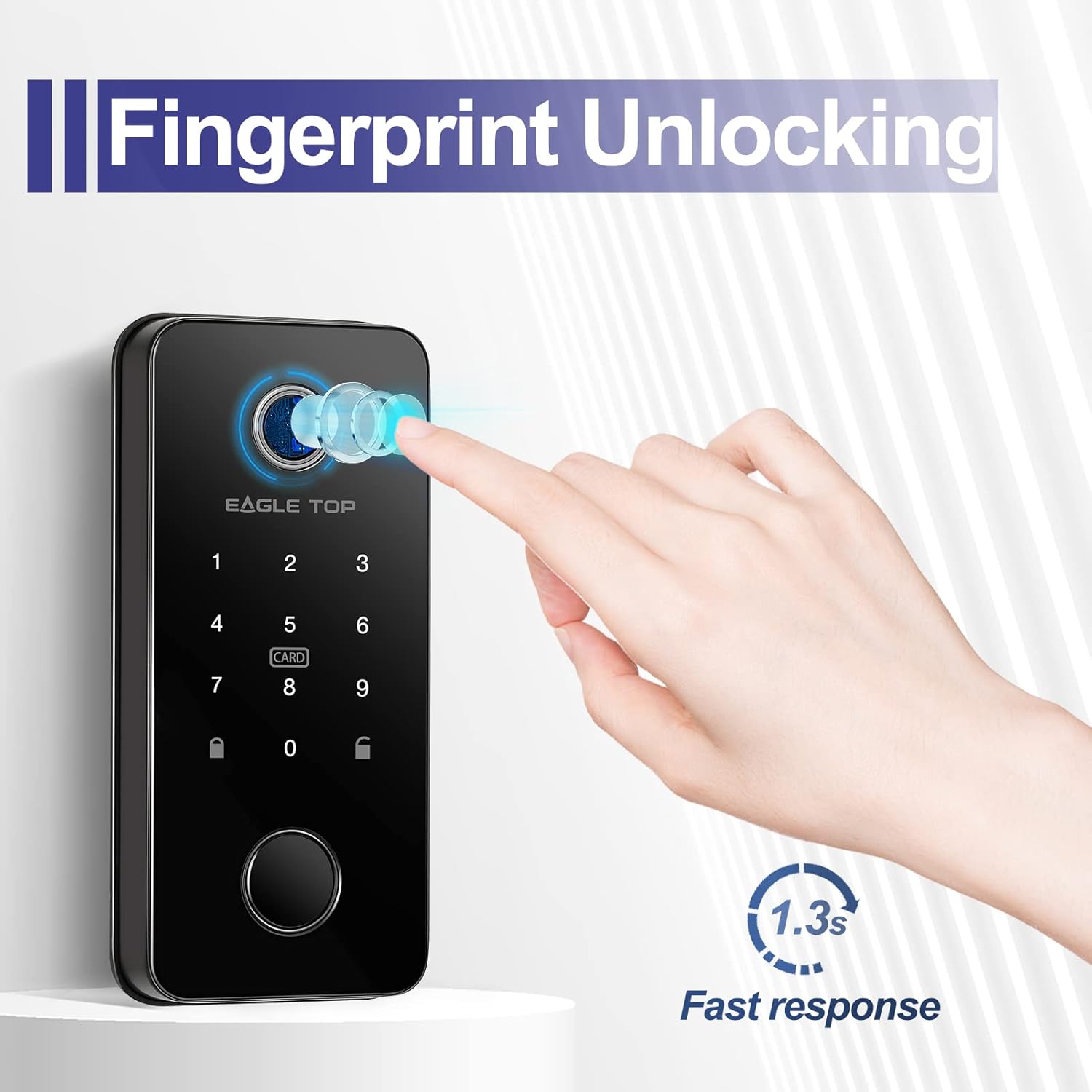
Figure 6: Fingerprint unlocking in action.
- Anti-Peep Password: Enter your 6-digit (or longer) password. You can input random digits before or after your actual code to prevent others from guessing your password. Press '#' after entering the code.

Figure 7: Anti-Peeping Password explanation.
- IC Card: Tap your registered IC card on the designated card reader area of the lock.
- App Control: Open the eagletop app on your smartphone and tap the unlock button. Ensure your phone is within Bluetooth range of the lock.
- Mechanical Key: In case of emergency or battery depletion, use the provided mechanical keys to unlock the deadbolt. The keyhole is discreetly located.
5.2. Auto-Lock Function
The smart lock features an automatic locking function, which can be enabled via the app. With the included sensor, the lock will automatically engage the deadbolt a few seconds after the door is closed, providing added security and peace of mind.
5.3. Safe Mode
Activate Safe Mode through the app to restrict access for all guests, allowing only administrator users to unlock the door. This feature is useful for enhanced security when needed.
5.4. User Management
The app allows for comprehensive user management:
- Administrator User: The primary user with full control over all lock settings and user permissions.
- Regular Users: Can be granted access via fingerprint, passcode, or IC card.
- Temporary Passwords/Offline Codes: Generate time-limited, one-time, or dynamic codes for guests or service providers. These codes can be generated remotely via the app (requires internet connection for generation, but not for lock to accept) and do not require the guest to download the app.
- Operation Log: View a detailed history of lock activity, including who unlocked the door and when, directly from the app.
6. Maintenance
6.1. Battery Replacement
The lock operates on 4 AA batteries (not included). The app will display the battery percentage, and the lock will provide a verbal warning when the battery is low. Even after the low battery warning, the lock can typically be opened approximately 200 more times. If batteries completely deplete, use the mechanical key or connect a USB-C power bank to the emergency power port for temporary power.
6.2. Cleaning
Wipe the lock's surface with a soft, dry cloth. Avoid using abrasive cleaners or solvents that could damage the finish or electronic components.
7. Troubleshooting
- Lock not responding: Check battery levels. If low, replace batteries or use emergency USB-C power.
- Fingerprint not recognized: Ensure your finger is clean and dry. Try re-registering your fingerprint in the app, ensuring multiple angles are captured for better accuracy.
- App connectivity issues: Ensure Bluetooth is enabled on your phone and you are within close range of the lock. Restart the app or your phone if necessary.
- Auto-lock not engaging: Verify the door sensor is correctly installed and aligned. Check app settings to ensure auto-lock is enabled.
- Mechanical key not working: Ensure the key is fully inserted and turned correctly. Do not force the key.
8. Specifications
| Feature | Detail |
|---|---|
| Brand | eagletop |
| Model Number | Eagletop |
| Lock Type | Deadbolt |
| Access Methods | Fingerprint, Anti-peep Password, IC Card, App (Bluetooth), Mechanical Key |
| Material | Metal alloy (e.g., aluminum, steel, or stainless steel) |
| Color | Black |
| Product Dimensions (L x W x H) | 7.5 x 5.5 x 3.9 inches |
| Item Weight | 2.88 pounds |
| Door Thickness Compatibility | 1-3/8" to 2-1/6" |
| Operating Temperature | -4°F to 158°F |
| Connectivity | Bluetooth (No remote function/gateway support for this model) |
| Certifications | ANSI Grade 1 Certified |

Figure 8: Key specifications and features.
9. Warranty and Support
eagletop offers a 30-day free return service and lifetime technical support for this smart lock. If you encounter any issues or have questions regarding the product, please do not hesitate to contact eagletop customer service for assistance.
For further support, please refer to the contact information provided on the product packaging or the official eagletop website.
