
1. Introduction
The H!Fiber 2.5Gbase-T PCIe Network Interface Card (NIC) is a high-performance Ethernet adapter designed to provide 2.5 Gigabit network connectivity for your desktop computer or server. Featuring the reliable Realtek RTL8125 chip, this card offers significantly faster data transfer rates than standard Gigabit Ethernet, making it ideal for demanding network environments, large file transfers, and high-speed internet connections. It is compatible with a wide range of operating systems and PCIe slots, ensuring broad usability.
2. Key Features
- 2.5Gbase-T Connectivity: Single RJ45 port supporting 2.5Gbps, 1Gbps, and 100Mbps speeds, providing up to 2.5 times faster performance than traditional 1G NICs.
- PCIe v2.1 (5GT/s) x1 Lane: Compatible with various PCIe slots including X1, X4, X8, and X16, ensuring flexible installation.
- Realtek RTL8125 Chipset: Equipped with the original Realtek RTL8125 controller for stable and high-speed network performance, supporting advanced features like PXE, WOL (Wake-on-LAN), DPDK, Jumbo Frames, and VLAN.
- Dual Brackets Included: Comes with both a full-height bracket for standard computer cases and a low-profile bracket for slim or small form-factor systems.
3. Setup and Installation
3.1 Physical Installation
- Power Off: Ensure your computer is completely powered off and unplugged from the power source.
- Open Case: Open your computer's side panel to access the internal components.
- Select Slot: Locate an available PCIe x1, x4, x8, or x16 slot on your motherboard.
- Bracket Adjustment (if needed): If your computer case requires a low-profile bracket, carefully remove the pre-installed full-height bracket from the NIC and attach the included low-profile bracket using the provided screws.
- Insert NIC: Align the NIC with the chosen PCIe slot and gently press it down until it is firmly seated. Ensure the gold contacts are fully inserted into the slot.
- Secure Card: Secure the NIC to the computer case using the retention clip or screw.
- Close Case: Close the computer case and reconnect all power and peripheral cables.
- Power On: Power on your computer.

Image: H!Fiber 2.5Gbase-T PCIe NIC with both full-height and low-profile brackets. The main card features a red heatsink and a single RJ45 port.

Image: Diagram illustrating the use of both the 12cm full-height bracket for standard 4U computer cases and the 8cm low-profile bracket for mini size 2U computer cases/servers.
4. Driver Installation
While some operating systems may provide a generic driver upon installation, it is highly recommended to install the latest official Realtek driver for optimal performance, stability, and access to all features of the H!Fiber 2.5Gbase-T PCIe NIC.
- Download Driver: Scan the QR code printed on the network card or visit the official Realtek website for the RTL8125 driver download. The direct link for Realtek RTL8125 drivers is: Realtek RTL8125 Driver Download Page.
- Select OS: Choose the correct driver package for your specific operating system (e.g., Windows 10/11, Linux distribution).
- Install: Follow the on-screen instructions provided by the driver installer.
- Restart: Restart your computer if prompted to ensure the driver installation is complete and effective.

Image: Top view of the H!Fiber 2.5Gbase-T PCIe NIC, showing the driver download QR code and the RJ45 port.

Image: Close-up of the QR code for driver download, as seen on the network card.
5. Operating Instructions
Once the H!Fiber 2.5Gbase-T PCIe NIC is physically installed and the necessary drivers are loaded, you can begin using it for network connectivity.
- Connect Ethernet Cable: Plug a Cat 5E, Cat 6, or Cat 6A Ethernet cable into the RJ45 port on the NIC.
- Connect to Network: Connect the other end of the Ethernet cable to your network device, such as a router, switch, or modem.
- Verify Connection: Your operating system should automatically detect the network connection. You can verify the connection status and speed through your operating system's network settings (e.g., Network and Sharing Center in Windows, Network Settings in Linux). The card will automatically negotiate the highest possible speed supported by your network infrastructure, up to 2.5Gbps.
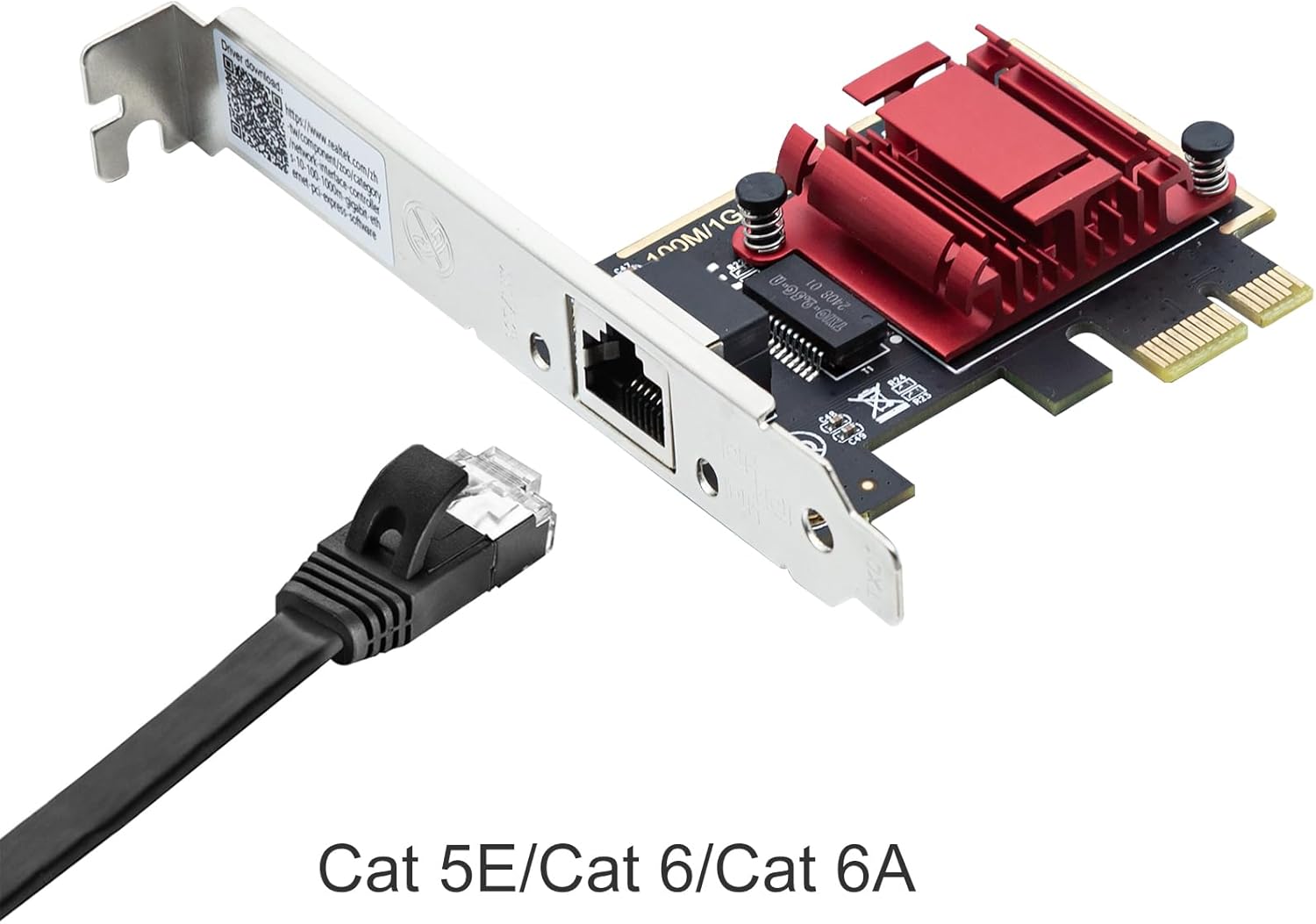
Image: The H!Fiber 2.5Gbase-T PCIe NIC connected to a black Ethernet cable, indicating compatibility with Cat 5E, Cat 6, and Cat 6A cables.

Image: A close-up view of the single RJ45 port on the H!Fiber 2.5Gbase-T PCIe NIC.
6. Compatibility
- Operating Systems: Windows 7/8/10/11, Centos/RHEL 6/7/8, Ubuntu 16/18/19/20, Debian 9/10/11, and other Linux distributions.
- PCIe Slots: PCIe X1, X4, X8, X16.
- Ethernet Cables: Cat 5E, Cat 6, Cat 6A.

Image: Visual representation of the H!Fiber 2.5Gbase-T PCIe NIC alongside logos for compatible operating systems: Windows 10/11, Windows Server, Windows 8.1/8/7, and Linux (Tux penguin).
7. Maintenance
To ensure the longevity and optimal performance of your H!Fiber 2.5Gbase-T PCIe NIC, consider the following maintenance tips:
- Keep Clean: Ensure your computer case is clean and free of dust, which can accumulate on components and lead to overheating.
- Proper Airflow: Maintain good airflow within your computer case to prevent the NIC and other components from overheating.
- Driver Updates: Periodically check the official Realtek website for updated drivers. Keeping your drivers current can improve performance, stability, and security.
- Physical Protection: Avoid physical shock or damage to the card. Ensure cables are connected and disconnected carefully.
8. Troubleshooting
8.1 No Network Connection
- Reseat NIC: Power off your computer and ensure the NIC is properly seated in its PCIe slot.
- Check Cables: Verify that the Ethernet cable is securely connected to both the NIC and your network device (router/switch). Try a different Ethernet cable to rule out cable issues.
- Driver Status: Confirm that the correct drivers are installed and enabled in your operating system's Device Manager (Windows) or network settings (Linux). Reinstall drivers if necessary.
- Router/Switch Status: Ensure your router or switch is powered on and functioning correctly.
8.2 Slow Network Speeds
- Check Network Device: Ensure your router, switch, or modem supports 2.5Gbps speeds. If not, the NIC will operate at the highest supported speed of your network (e.g., 1Gbps).
- Cable Type: Use Cat 5E, Cat 6, or Cat 6A Ethernet cables for optimal performance. Older or lower-category cables may limit speeds.
- Update Drivers: Ensure you have the latest official Realtek RTL8125 drivers installed. Generic drivers may not provide full performance.
- Network Congestion: Check for other devices on your network that might be consuming significant bandwidth.
8.3 Driver Not Installing / Not Recognized
- Download Source: Always download drivers from the official Realtek website (refer to Section 4). Avoid third-party driver sites.
- Operating System Version: Ensure you download the driver specifically for your operating system version (e.g., Windows 11 64-bit).
- Disable Antivirus (Temporarily): In rare cases, antivirus software might interfere with driver installation. Temporarily disable it during installation if issues persist.
9. Specifications
| Feature | Description |
|---|---|
| Model | 2.5G RTL8125 1 RJ45 |
| Chipset | Realtek RTL8125 |
| Hardware Interface | Ethernet |
| Data Link Protocol | 2.5 Gigabit Ethernet, Gigabit Ethernet, Fast Ethernet |
| Data Transfer Rate | 2.5 Gigabits Per Second (also supports 1Gbps, 100Mbps) |
| PCIe Interface | PCIe v2.1 (5GT/s) x1 Lane |
| Compatible PCIe Slots | X1, X4, X8, X16 |
| Port Type | Single RJ45 |
| Supported Operating Systems | Windows 7/8/10/11, Centos/RHEL 6/7/8, Ubuntu 16/18/19/20, Debian 9/10/11, etc. |
| Dimensions (Card) | 71.5 mm (Length) x 54.5 mm (Width) |
| Height (with Full-height Bracket) | 120 mm |
| Item Weight | 3.52 ounces |

Image: Diagram showing the product dimensions: 120 mm height (with full bracket), 71.5 mm length, and 54.5 mm width for the card itself.

Image: An artistic rendering of the Realtek RTL8125 chipset, highlighting its role in enabling faster and more stable network speeds.
10. Warranty and Support
H!Fiber.com is committed to providing high-quality products and excellent customer service. This H!Fiber 2.5Gbase-T PCIe NIC comes with the following support:
- Warranty: A 3-year free warranty is provided for this product.
- Returns: Enjoy a 30-day free return policy.
- Technical Support: Lifetime technology support is available for any technical queries or assistance you may require.
- Customer Service: 24/7 customer service is available to assist you. For support, please contact H!Fiber.com customer service through their official channels.