
1. Introduction
Thank you for purchasing the Yoidesu Portable ATSC HD TFT LED Digital TV. This compact and versatile television is designed for portable entertainment, offering access to analog TV, digital TV (ATSC standard), and ATV broadcasts. It features a 5-inch screen, a built-in rechargeable battery, and supports multimedia playback via USB and TF card. This manual provides essential information for setting up, operating, and maintaining your device to ensure optimal performance and longevity.

Image 1.1: The Yoidesu 5-inch Portable Digital TV with its remote control.
2. Safety Information
Please read and understand all safety instructions before using this product. Keep this manual for future reference.
- Do not expose the device to rain, moisture, or extreme temperatures.
- Avoid placing the device near heat sources or in direct sunlight for extended periods.
- Use only the provided power adapter and accessories.
- Do not attempt to disassemble or modify the device. Refer all servicing to qualified personnel.
- Keep the device away from strong magnetic fields.
- Ensure proper ventilation to prevent overheating.
- Dispose of the battery and electronic components responsibly according to local regulations.
3. Package Contents
Verify that all items are present in the package:
- Yoidesu 5-inch Portable Digital TV
- Remote Control (batteries not included)
- Power Adapter/Charger
- Telescopic Antenna
- User Manual (this document)
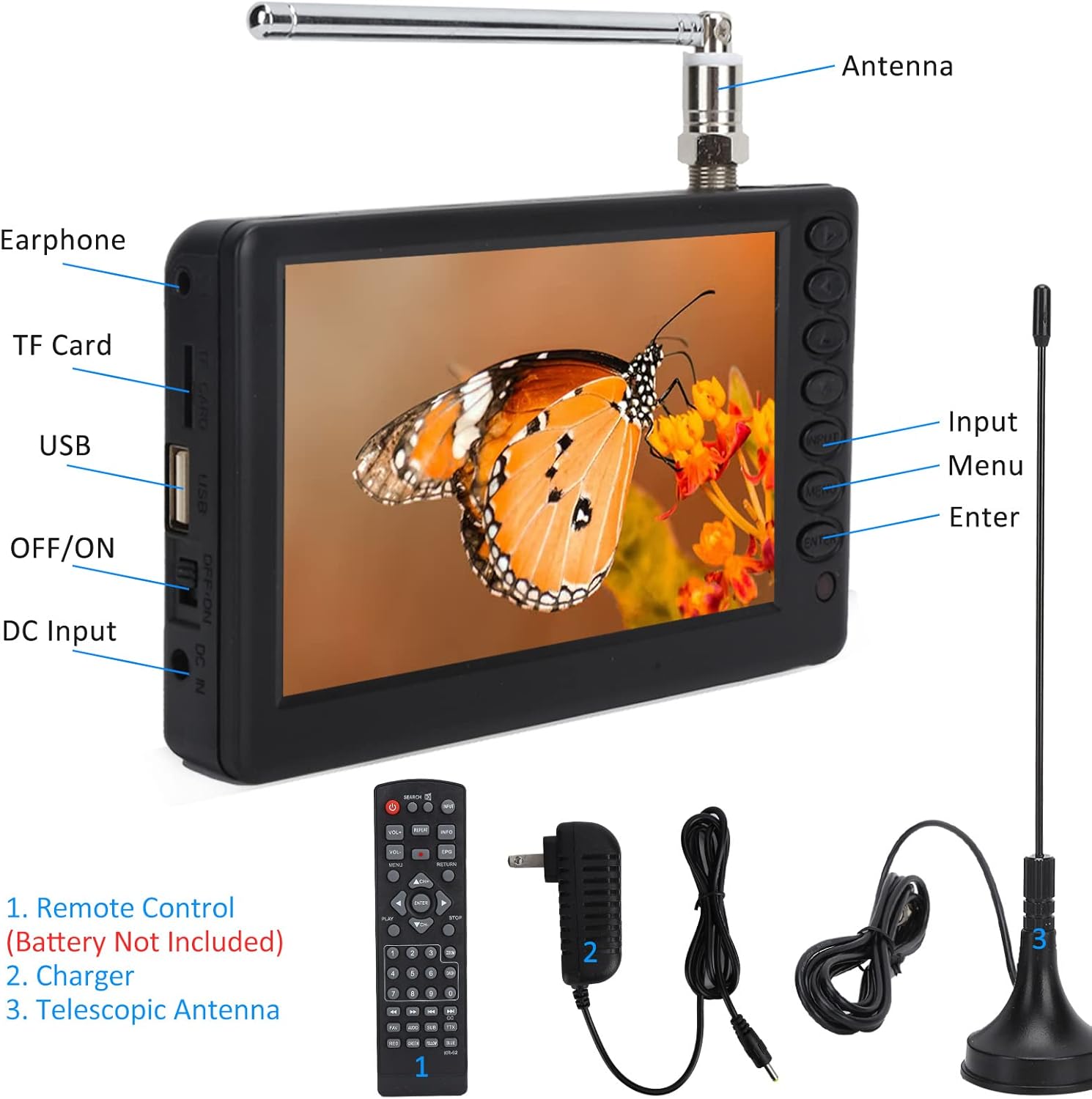
Image 3.1: Included accessories: Remote Control, Charger, and Telescopic Antenna, alongside the TV with labeled ports.
4. Product Overview
Familiarize yourself with the various parts and controls of your portable TV.
4.1 Front and Side View
Image 4.1: Front and side view highlighting key components and controls.
- Antenna Port: Connect the telescopic antenna for TV signal reception.
- Earphone Jack: For private listening with headphones.
- TF Card Slot: Insert a TF (MicroSD) card for multimedia playback.
- USB Port: Connect a USB flash drive for multimedia playback.
- OFF/ON Switch: Power switch for the device.
- DC IN: Power input for charging and operating the TV.
- Input Button: Cycles through available input sources (ATSC, Analog, USB, TF Card).
- Menu Button: Accesses the on-screen menu for settings adjustments.
- Enter Button: Confirms selections in the menu.
- Volume/Channel Buttons: Adjust volume and change channels.
4.2 Rear View

Image 4.2: Rear view showing the built-in speakers and integrated kickstand.
- Built-in Speakers: Provide audio output.
- Integrated Kickstand: Allows the TV to stand upright on a flat surface.
5. Setup
5.1 Charging the Battery
- Connect the provided power adapter to the DC IN port on the side of the TV.
- Plug the adapter into a standard wall outlet.
- The TV has a 1500mAh rechargeable lithium battery. A red flashing indicator typically signifies that the unit is charging. The indicator will change or turn off when fully charged.
- For first-time use, fully charge the battery before operation.
5.2 Connecting the Antenna
- Screw the telescopic antenna into the antenna port on the top of the TV.
- Extend the antenna fully for optimal signal reception.
- For improved reception, especially in areas with weaker signals, consider using a larger external antenna.
5.3 Initial Power On and Channel Scan
- Ensure the battery is charged or the TV is connected to power.
- Slide the OFF/ON switch to the ON position.
- Upon first power-on, the TV may prompt you to perform an automatic channel scan. Follow the on-screen instructions.
- If not prompted, press the MENU button on the TV or remote, navigate to the "Channel" or "Setup" menu, and select "Auto Scan" or "Auto Tuning."
- The TV will search for available digital (ATSC) and analog channels. This process may take several minutes.
- Once the scan is complete, the TV will display the first available channel.
6. Operating Instructions
6.1 Basic TV Functions
- Power On/Off: Use the OFF/ON switch on the side or the power button on the remote control.
- Volume Adjustment: Use the VOL+ and VOL- buttons on the TV or remote.
- Channel Change: Use the CH+ and CH- buttons on the TV or remote to cycle through channels. You can also use the number buttons on the remote for direct channel entry.
- Input Selection: Press the INPUT button on the TV or remote to switch between TV (ATSC/Analog), USB, and TF Card modes.
6.2 Using the Remote Control
The remote control provides full functionality for your TV. Insert two AAA batteries (not included) into the remote before use.
Image 6.1: The remote control for the Yoidesu Portable Digital TV.
- Power: Turns the TV on or off.
- Mute: Mutes or unmutes the sound.
- Input: Selects the input source.
- Menu: Opens the main menu.
- Navigation Buttons (Up/Down/Left/Right/Enter): Navigate through menus and confirm selections.
- Volume +/-: Adjusts the volume level.
- Channel +/-: Changes the channel.
- Number Buttons: Directly enter channel numbers.
- Play/Pause/Stop/Rewind/Fast Forward: Control media playback in USB/TF card mode.
- INFO: Displays channel or media information.
- RETURN: Returns to the previous menu or screen.
6.3 Multimedia Playback (USB & TF Card)
The TV supports playing various audio and video formats from USB flash drives and TF cards.
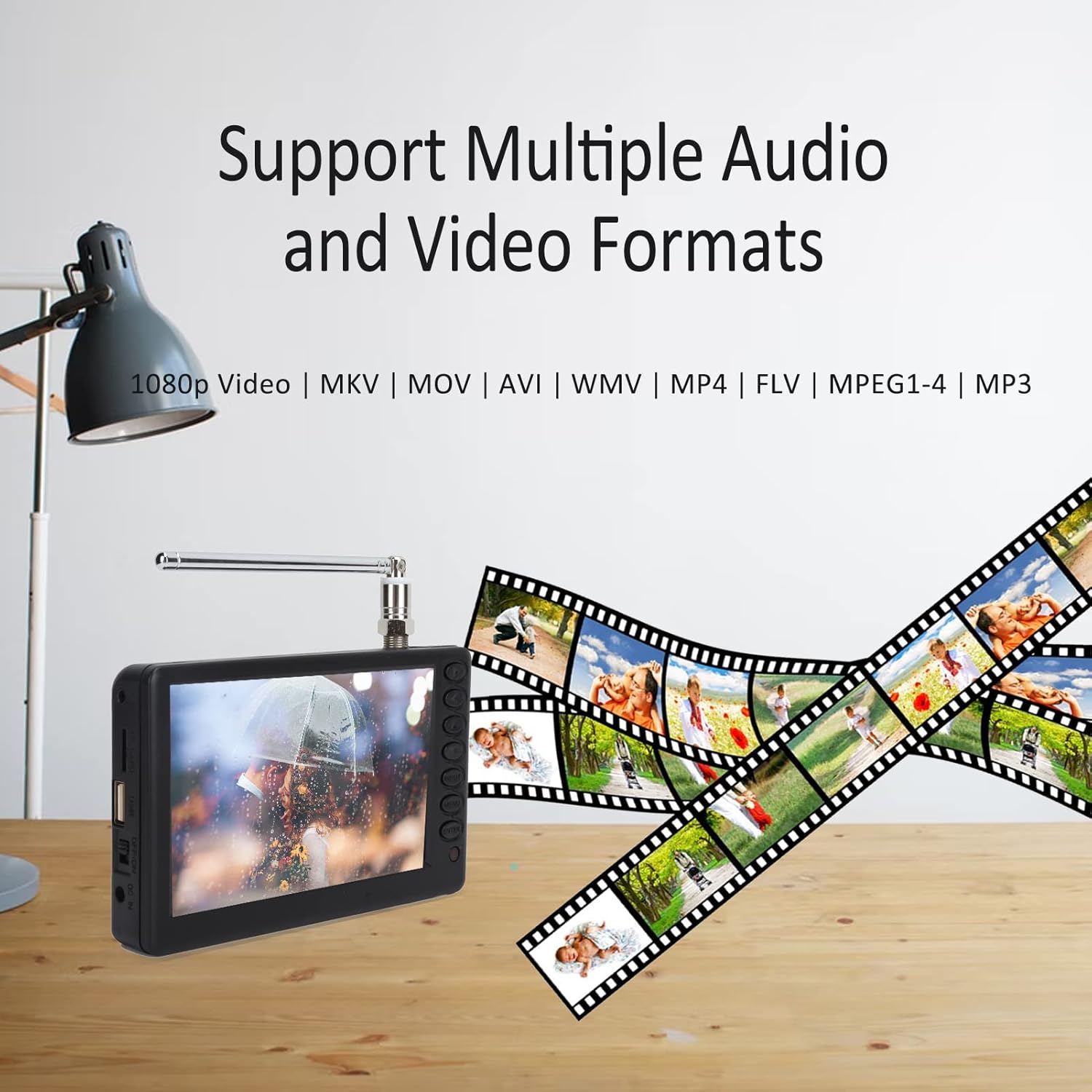
Image 6.2: The TV supports various multimedia formats for playback.
- Insert your USB flash drive into the USB port or your TF card into the TF card slot.
- Press the INPUT button to select "USB" or "TF Card" mode.
- The TV will display a file browser. Use the navigation buttons on the remote or TV to browse your files.
- Select a file and press ENTER to play.
- Supported formats include 1080p video, MKV, MOV, AVI, WMV, MP4, FLV, MPEG1-4, and MP3.
- Note: For video playback, ensure files use constant frame-rate encoding. Variable frame-rate encoding may not be supported.
7. Maintenance
7.1 Cleaning
- Before cleaning, ensure the TV is powered off and unplugged.
- Use a soft, dry, lint-free cloth to wipe the screen and exterior surfaces.
- For stubborn marks, lightly dampen the cloth with water or a mild, non-abrasive screen cleaner. Do not spray liquids directly onto the screen or device.
- Avoid using harsh chemicals, solvents, or abrasive cleaning materials.
7.2 Battery Care
- To prolong battery life, avoid fully discharging the battery frequently.
- If storing the TV for an extended period, charge the battery to approximately 50-70% and recharge every few months.
- Do not expose the battery to extreme heat or cold.
7.3 Storage
- Store the TV in a cool, dry place, away from direct sunlight and excessive dust.
- If possible, keep the original packaging for storage and transport.
8. Troubleshooting
Refer to this section for solutions to common issues.
| Problem | Possible Cause | Solution |
|---|---|---|
| No power | Battery discharged; Power adapter not connected; Power switch OFF. | Charge the battery; Connect the power adapter; Slide the OFF/ON switch to ON. |
| No signal/Poor reception | Antenna not connected or extended; Weak signal area; No channel scan performed. | Ensure antenna is connected and fully extended. Try repositioning the antenna or the TV. Perform an auto channel scan. Consider a larger external antenna for better reception. |
| No sound | Volume too low; Mute function active; Earphones connected. | Increase volume; Press the Mute button on the remote; Disconnect earphones if using speakers. |
| USB/TF card not playing media | Incorrect input selected; Unsupported file format; Corrupted file; USB/TF card not properly inserted. | Select correct input (USB/TF Card). Ensure files are in supported formats (e.g., 1080p video, MKV, MOV, AVI, WMV, MP4, FLV, MPEG1-4, MP3). For videos, ensure constant frame-rate encoding. Reinsert USB/TF card. Try another USB/TF card or file. |
| Remote control not working | Batteries dead or incorrectly inserted; Obstruction between remote and TV; Remote sensor blocked. | Replace batteries; Ensure correct battery polarity; Remove any obstructions; Clean the remote sensor on the TV. |
| Battery charging status unclear | No specific battery level indicator on screen. | A red flashing light typically indicates charging. The light will usually change or turn off when fully charged. Monitor usage time to estimate remaining battery life. |
9. Specifications
| Feature | Detail |
|---|---|
| Brand | Yoidesu |
| Model Number | Yoidesuwy96r0d7qf8080 |
| Screen Size | 5 Inches |
| Display Technology | TFT LED |
| Resolution | 1080p (supported video playback) |
| Aspect Ratio | 16:9 |
| Tuner Type | ATSC Digital, Analog TV, ATV |
| Connectivity Technology | USB, TF Card |
| Special Features | Wide Viewing Angle, Built-in Speakers, Integrated Kickstand |
| Battery | 1500mAh Rechargeable Lithium Battery |
| Item Weight | 1.12 pounds |
| Product Dimensions | 11.81"D x 3.94"W x 9.84"H |
| Included Components | Remote Control, Power Adapter, Telescopic Antenna |
10. Warranty and Support
Yoidesu products are manufactured to high quality standards. For information regarding warranty coverage, technical support, or service inquiries, please refer to the warranty card included with your product or visit the official Yoidesu website. Please retain your proof of purchase for warranty claims.
For further assistance, you may contact customer support through the retailer where the product was purchased or refer to the contact information provided on the manufacturer's website.
