
Introduction
This manual provides comprehensive instructions for the SURKOS WiFi Hidden Camera USB Charger. This device is designed for discreet indoor surveillance, offering 1080p video recording, motion detection, and remote viewing capabilities. Please read this manual thoroughly before operating the device to ensure proper use and optimal performance.

Image: The SURKOS WiFi Hidden Camera USB Charger, appearing as a standard USB wall charger. Its design ensures it is completely undetectable as a camera, with no recording lights or sounds during operation.
Product Components and Features
Familiarize yourself with the key components and features of your SURKOS WiFi Hidden Camera USB Charger.
- USB Charger Port: Functions as a standard USB charger for your devices.
- Hidden Camera Lens: Discreetly integrated, records without emitting light.
- WiFi Indicator: Can be deactivated via the app for complete discretion.
- Reset Button: Used to reset the device (press and hold for 10 seconds).
- Micro SD Card Slot: Supports up to 128GB Micro SD cards for local storage. A 32GB Micro SD card is included.

Image: A detailed diagram highlighting the various components of the USB charger camera, including the USB charging port, the hidden camera lens, the WiFi indicator light, the reset button, and the Micro SD card slot. It also shows the included 32GB Micro SD card.
Setup Instructions
1. Initial Preparation
- Remove Lens Protective Film: Before first use, carefully remove the protective film from the camera lens to ensure optimal image quality.
- Insert Micro SD Card: Insert the included 32GB Micro SD card into the designated slot. Ensure it is inserted correctly.
- Power On: Plug the USB charger camera into a standard wall outlet. The device will power on automatically.
2. App Download and Installation
The camera operates with the LOOKCAM application. Download it from your mobile device's app store (iOS or Android).
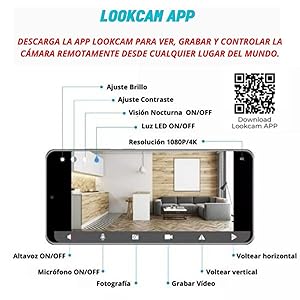
Image: A visual representation of the LOOKCAM application interface on a smartphone, displaying options for brightness, contrast, night vision, LED light control, and resolution settings (1080P/4K). A QR code for app download is also visible.
3. Connection Methods
There are three primary ways to connect and use your camera:
- Remote Viewing via Router WiFi:
- Connect the USB charger camera to your home or office WiFi router.
- Once connected, you can view live footage and record remotely from anywhere in the world using the LOOKCAM app on your mobile device.
- Direct Connection (Hotspot Mode):
- Connect your mobile phone directly to the WiFi network broadcast by the camera itself (hotspot mode).
- This method allows for local viewing and control when you are within range of the camera's WiFi signal.
- Local Recording (Micro SD Card):
- Insert the Micro SD card into the camera.
- The camera will automatically begin loop recording. When the memory card is full, the oldest files will be overwritten by new recordings.
- No WiFi connection is required for this method.

Image: A flowchart demonstrating the three simple connection methods: 1) Camera to Router WiFi to Internet to Mobile Device, 2) Camera Hotspot to Mobile Device, and 3) Camera to Micro SD Card for local recording.
Operating Instructions
1. Live Viewing and Recording
- Open the LOOKCAM app on your mobile device.
- Select your camera from the device list to access the live feed.
- From the live view interface, you can initiate manual recording, take snapshots, and adjust video settings.
- The camera records audio and video in 1920 x 1080p resolution.
2. Motion Detection and Alerts
- Enable motion detection in the LOOKCAM app settings.
- When motion is detected, the camera will automatically begin recording and send an alert notification to your mobile device.
- This feature is ideal for monitoring your home, office, or other indoor spaces during your absence.
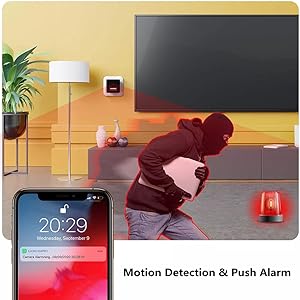
Image: A smartphone displaying a push notification for a motion detection alarm, indicating activity detected by the camera. This illustrates the camera's ability to alert users to movement in its field of view.
3. Loop Recording
- When recording to the Micro SD card, the camera utilizes loop recording.
- This means that once the storage capacity is full, the camera will automatically overwrite the oldest video files with new recordings, ensuring continuous surveillance without manual intervention.
4. Multi-functional Use
- The device functions as both a hidden camera and a working USB charger, allowing you to charge other devices simultaneously.
- The 120-degree viewing angle provides broad coverage of the monitored area.

Image: A collage depicting various practical applications for the hidden camera, such as monitoring an office during absence, checking on children or pets, or general indoor security. This highlights the versatility of the device for different surveillance needs.
Maintenance
- Cleaning: Use a soft, dry cloth to clean the exterior of the device. Do not use liquid cleaners or abrasive materials.
- Lens Care: Gently wipe the camera lens with a microfiber cloth if it becomes dirty to maintain clear image quality.
- Storage: When not in use for extended periods, unplug the device and store it in a cool, dry place.
- Micro SD Card Management: Regularly back up important recordings from the Micro SD card to prevent data loss. Format the card periodically to maintain optimal performance.
Troubleshooting
| Problem | Possible Cause | Solution |
|---|---|---|
| Camera not powering on. | Not properly plugged into an outlet. | Ensure the charger is securely plugged into a live wall outlet. Try a different outlet. |
| Cannot connect to WiFi. | Incorrect WiFi password; camera too far from router; router settings issue. | Verify WiFi password. Move camera closer to the router. Ensure your router is on a 2.4GHz network (5GHz is not supported). Reset the camera by holding the reset button for 10 seconds. |
| Poor video quality. | Protective film still on lens; dirty lens; insufficient lighting. | Remove any protective film from the lens. Clean the lens with a soft cloth. Ensure adequate lighting in the monitored area. |
| Micro SD card not recording or recognized. | Card not inserted correctly; card is full or corrupted; incompatible card. | Reinsert the Micro SD card. Format the card via the app or on a computer. Ensure the card is a genuine Class 10 or higher Micro SD card (up to 128GB). |
| Motion detection alerts not received. | Motion detection not enabled in app; app notifications disabled on phone; poor internet connection. | Enable motion detection in the LOOKCAM app. Check your phone's notification settings for the LOOKCAM app. Ensure a stable internet connection for both the camera and your phone. |
Specifications
| Feature | Detail |
|---|---|
| Brand | SURKOS |
| Model Number | B0B75LT9GQ |
| Video Resolution | 1080p (1920 x 1080 Pixels) |
| Video Recording Format | AVI |
| Field of View | 120 Degrees |
| Connectivity Technology | Wired, Wireless (Wi-Fi) |
| Connectivity Protocol | Wi-Fi (2.4GHz only) |
| Special Features | Motion Sensor, Loop Recording, Remote Viewing |
| Indoor/Outdoor Use | Indoor |
| Compatible Devices | Smartphone (iOS, Android) |
| Power Source | Battery powered (internal, for camera operation when unplugged, but primarily wall-powered) |
| Voltage | 5 Volt |
| Wattage | 1.2 watts |
| Material | Plastic |
| Item Dimensions (LxWxH) | 25 x 37 x 75 millimeters |
| Included Components | USB Charger Camera, Micro SD Card (32GB) |
Warranty Information
The SURKOS WiFi Hidden Camera USB Charger comes with a one-year warranty from the date of purchase. This warranty covers manufacturing defects and ensures product quality in materials, video, and audio performance. In case of any issues covered by the warranty, customers are eligible for a full refund or product exchange at no additional cost.
Please retain your proof of purchase for warranty claims.
Customer Support
If you encounter any problems or have questions not addressed in this manual, please contact SURKOS customer support. Refer to your product packaging or the retailer's website for specific contact details.
For the quickest resolution, please have your product model number (B0B75LT9GQ) and a description of the issue ready when contacting support.