
1. Introduction
This user manual provides comprehensive instructions for the installation, operation, and maintenance of the WEBN 63A 220V Smart Energy Meter and Single-Phase Voltage Protection DIN Rail Counter. This intelligent device is designed to monitor household energy consumption and provide essential voltage protection, enhancing energy efficiency and safety.
2. Safety Information
WARNING: Electrical shock hazard. Installation and maintenance should only be performed by qualified personnel.
- Ensure power is disconnected before installation or maintenance.
- Verify correct wiring connections according to the provided diagrams.
- Do not expose the device to moisture or extreme temperatures.
- Use appropriate personal protective equipment (PPE) when working with electrical systems.
- This device is designed for single-phase 220V, 63A systems. Do not exceed specified ratings.
3. Product Overview
3.1 Key Features
- Monitor household energy consumption (daily, monthly, yearly) via the Smart Life APP.
- Remote control (ON/OFF) of connected loads via the APP.
- LCD display for real-time voltage, current, and total energy consumption.
- Compact 2-module design for 35mm DIN rail mounting.
- Adjustable residual current circuit breaker (10-100mA).
- Timer function for scheduled operations.
- Overvoltage, undervoltage, overcurrent, and current earth leakage protection.
- Prepayment function for energy management.
3.2 Components and Interface

Figure 3.2.1: Front view of the WEBN Smart Energy Meter, showing the LCD display and control buttons.

Figure 3.2.2: Detailed view of the meter's interface, highlighting the Wi-Fi indicator light, Impulse, Setting Key, Increase/Wi-Fi Connect Key, Reduce Key, ON/OFF button, and display areas for Voltage, Current, and Leakage.
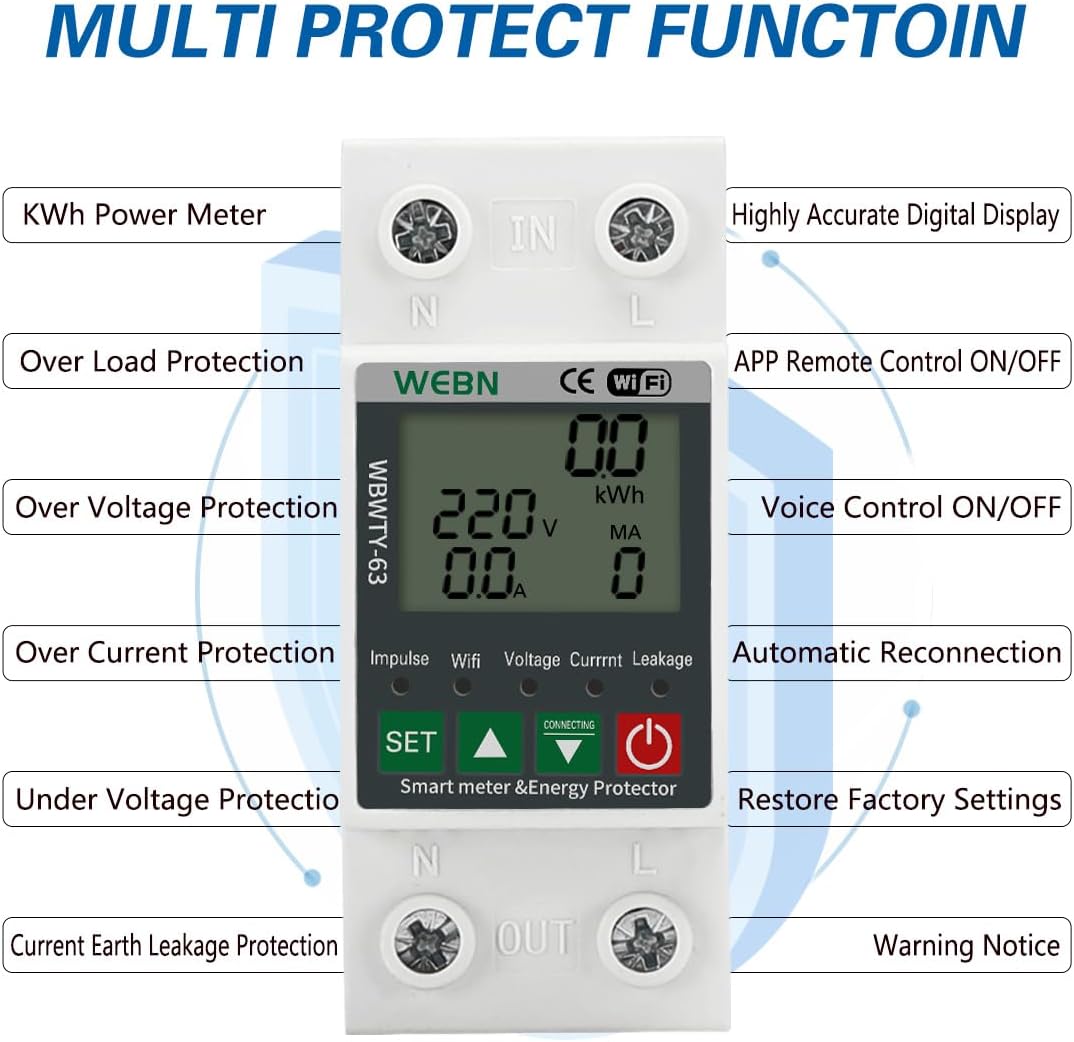
Figure 3.2.3: Diagram illustrating the various protection functions including KWh Power Meter, Over Load Protection, Over Voltage Protection, Over Current Protection, Under Voltage Protection, Current Earth Leakage Protection, APP Remote Control ON/OFF, Voice Control ON/OFF, Automatic Reconnection, Restore Factory Settings, and Warning Notice.

Figure 3.2.4: Product dimensions showing the compact size of the device (85mm height, 36mm width, 63mm depth).
4. Setup and Installation
The WEBN Smart Energy Meter is designed for DIN rail mounting within an electrical panel. Ensure all local electrical codes and regulations are followed during installation.
4.1 Physical Installation
Mount the device on a standard 35mm DIN rail. Connect the input (IN) and output (OUT) terminals according to your electrical system's single-phase wiring diagram. The device is typically installed in series with the main circuit breaker.

Figure 4.1.1: Example of the Smart Energy Meter installed in an electrical distribution box, demonstrating its integration for electricity statistics and real-time monitoring via a mobile app.
4.2 App Setup and Wi-Fi Connection
To utilize the smart features, download the "Smart Life" or "Tuya Smart" app from your mobile app store. Follow these steps to connect the device to your Wi-Fi network:
- Ensure your mobile device is connected to a 2.4GHz Wi-Fi network. 5GHz networks are not supported for initial pairing.
- Open the Smart Life/Tuya Smart app and tap "Add Device".
- On the meter, press and hold the "SET" button (or the Wi-Fi Connect Key, typically the green up arrow) for 5-10 seconds until the Wi-Fi indicator light starts flashing rapidly.
- In the app, select "Electrical" then "Breaker" or "Smart Meter".
- Confirm the indicator light is blinking rapidly in the app.
- Enter your 2.4GHz Wi-Fi network password.
- The app will search for and add the device. Once added, you can rename it.

Figure 4.2.1: Instructions for setting reset/start delay and initiating Wi-Fi connection mode by pressing the green up arrow button.

Figure 4.2.2: Step-by-step guide on how to add and delete the device within the Smart Life mobile application.
Video: Product Setting and Wi-Fi Connection
This video demonstrates the process of setting up the device and connecting it to the mobile application via Wi-Fi, including the steps for initiating pairing mode on the meter and adding it in the app.
5. Operating Instructions
5.1 Manual Operation
- ON/OFF Button (Red Power Icon): Press to manually switch the power on or off.
- SET Button (Green "SET"): Press to cycle through display modes or enter settings.
- Up/Down Arrows (Green Triangles): Use to adjust values when in settings mode. The Up arrow also functions as the Wi-Fi Connect Key.
Video: Manual Operation and Demonstration
This video demonstrates the basic manual operation of the device, including switching power on/off and navigating through the display modes using the physical buttons.
5.2 App Control and Monitoring
Once connected to the Smart Life/Tuya Smart app, you can access various functions:
- Power Consumption Statistics: View daily, monthly, and yearly energy usage.
- Real-time Data: Monitor current voltage, current, and active power.
- Remote ON/OFF: Control the power supply remotely from anywhere.
- Prepaid Functionality: Manage energy credit and automatic shutdown when credit runs out.
- Timer Function: Set schedules for automatic power on/off (Timing Mode, Countdown Mode, Cycle Timing).
- Protection Settings: Adjust thresholds for overvoltage, undervoltage, overcurrent, and leakage protection.
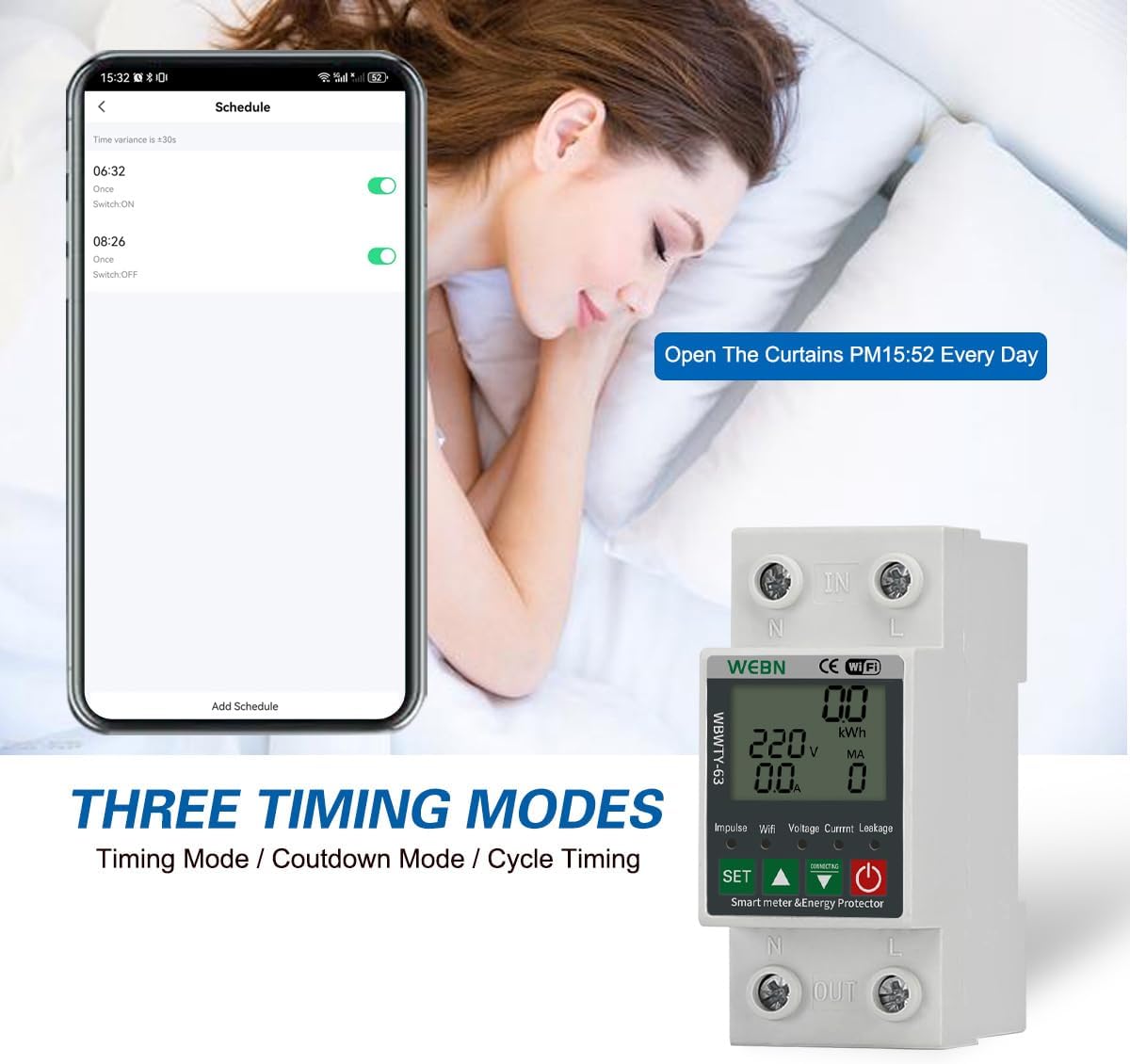
Figure 5.2.1: Screenshot showing the "Three Timing Modes" feature in the app, allowing users to set schedules for power on/off.

Figure 5.2.2: Example of automated appliance control, demonstrating how the app can be used to schedule devices like a toaster to turn on at a specific time.

Figure 5.2.3: Overview of the Smart Life app interface, showing sections for power consumption statistics, prepaid functionality, timer settings, and protection configurations.
5.3 Setting Protection Values via App
You can customize the protection thresholds directly from the Smart Life app:
- Overvoltage Protection: Set the maximum voltage threshold (e.g., 250V-300V).
- Undervoltage Protection: Set the minimum voltage threshold (e.g., 150V-190V).
- Overcurrent Protection: Set the maximum current threshold (e.g., 1A-63A).
- Leakage Protection: Set the leakage current threshold (e.g., 10mA-100mA).
- Power-up Protection Delay: Configure the delay before power is restored after a trip.

Figure 5.3.1: App interface showing how to set overvoltage and undervoltage protection values.

Figure 5.3.2: App interface showing how to set overcurrent and leakage protection values.
Video: Product Testing and App Settings
This video demonstrates the product's testing procedures and how to adjust various protection settings (e.g., leakage protection) through the mobile application.
6. Maintenance
The WEBN Smart Energy Meter requires minimal maintenance. Regular checks can ensure optimal performance:
- Periodically inspect wiring connections to ensure they are secure.
- Keep the device clean and free from dust and debris. Use a dry, soft cloth for cleaning.
- Ensure adequate ventilation around the device if installed in an enclosed space.
- Check for any visible damage to the casing or display.
7. Troubleshooting
| Problem | Possible Cause | Solution |
|---|---|---|
| Device is offline in the app. |
|
|
| Device not turning on/off remotely. |
|
|
| Device trips frequently. |
|
|
8. Specifications
| Parameter | Value |
|---|---|
| Manufacturer | WEBN |
| Model Number | OPWTY-63 |
| Voltage | 220 Volt (AC) |
| Dimensions | 8.5 x 3.6 x 6.3 cm |
| Item Weight | 180 g |
| Max Current | 63A |
| DIN Rail Size | 35mm |
9. Warranty and Support
For warranty information and technical support, please refer to the contact details provided with your purchase or visit the official WEBN website. Keep your purchase receipt as proof of purchase.