
1. Product Overview
The ECOWITT WH57 Wireless Lightning Detection Sensor is designed to detect lightning bolts and storms within a 25-mile (40-kilometer) radius. This sensor is an accessory and requires a compatible gateway (such as the GW1100, sold separately) for operation and data transmission. Once connected, data can be viewed via the WS View Plus or Ecowitt App, and historical records are available on the Ecowitt Weather Server.

Image 1.1: The ECOWITT WH57 Wireless Lightning Detection Sensor, including the main sensor unit, solar radiation shield, and mounting arm.
Key Features:
- Detects lightning bolts and storms within 25 miles (40 kilometers).
- Requires a GW1100 WiFi gateway (sold separately) for connectivity.
- Live data viewing on WS View Plus or Ecowitt App.
- Graph and history records available on the Ecowitt Weather Server (ecowitt.net).
- Email alert functionality from the Ecowitt Weather Server.
- Includes a solar radiation shield and mounting arm.
2. Setup and Installation
2.1 Unpacking and Battery Installation
Carefully unpack all components. The WH57 sensor requires 2x AA batteries (not included). To install batteries:
- Open the battery compartment cover on the back of the sensor.
- Insert 2x AA batteries, ensuring correct polarity (+/-).
- Close the battery compartment cover securely.
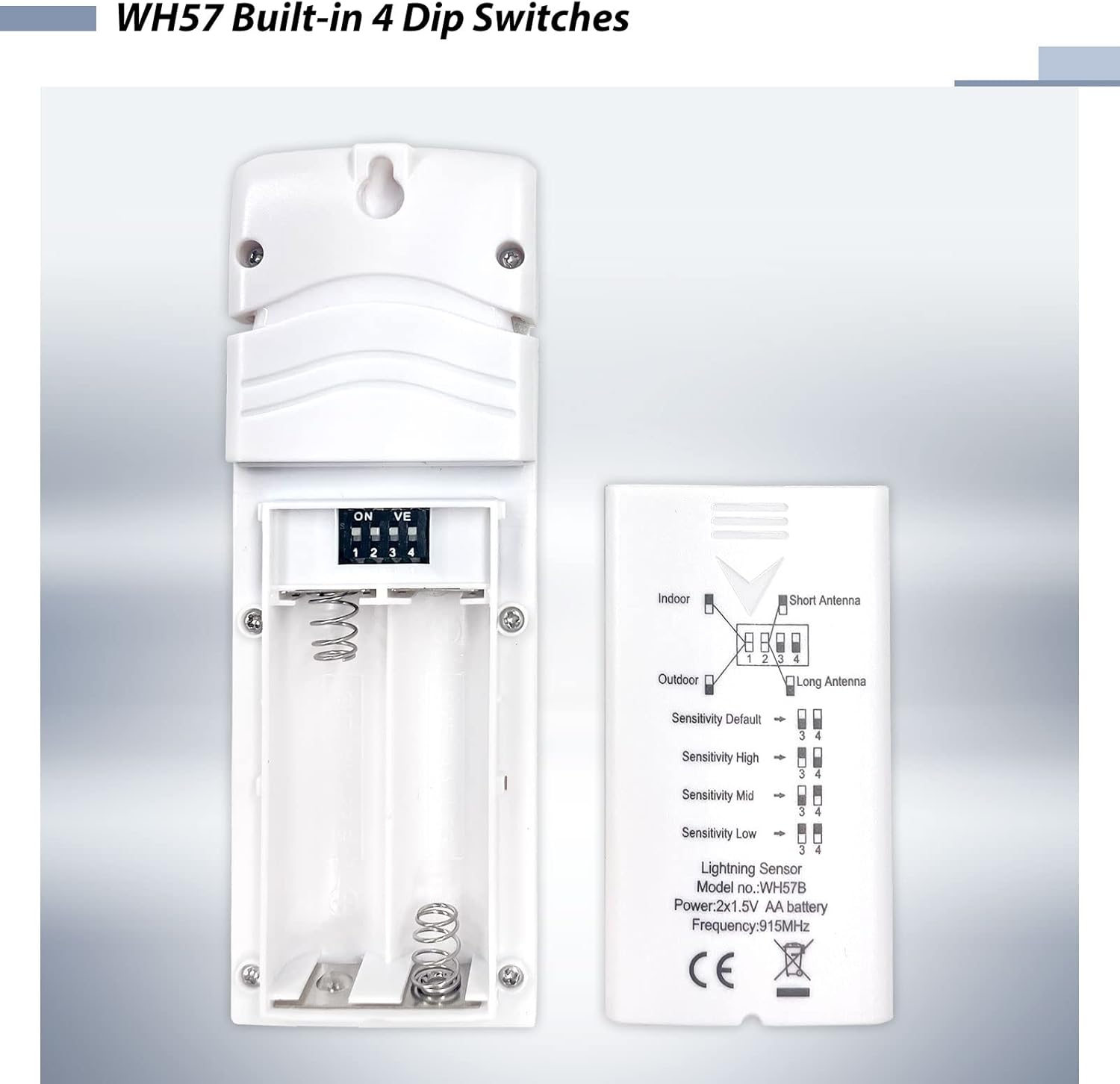
Image 2.1: View of the WH57 sensor with the battery compartment open, showing where to insert AA batteries.
2.2 Dip Switch Configuration
The WH57 sensor features four dip switches inside the battery compartment for configuration. These switches control the sensor's operating mode, antenna type, and sensitivity.

Image 2.2: Detailed diagram of the WH57 dip switches and their corresponding settings for indoor/outdoor use, antenna type, and sensitivity levels.
Refer to the diagram above and the table below for proper configuration:
| Switch No. | Function |
|---|---|
| 1 | Indoor / Outdoor Mode: Up: Indoor Down: Outdoor |
| 2 | Antenna Type: Up: Short Antenna Down: Long Antenna |
| 3 & 4 | Sensitivity: Up (3) & Up (4): High Up (3) & Down (4): Mid (Default) Down (3) & Up (4): Low Down (3) & Down (4): Very Low |
Note: Ensure the dip switches are set according to your intended use and desired sensitivity before closing the battery compartment.
2.3 Mounting the Sensor
The WH57 sensor comes with a solar radiation shield and a mounting arm for pole installation. Choose an outdoor location that provides clear exposure to the environment and is away from large metal objects that could interfere with detection.
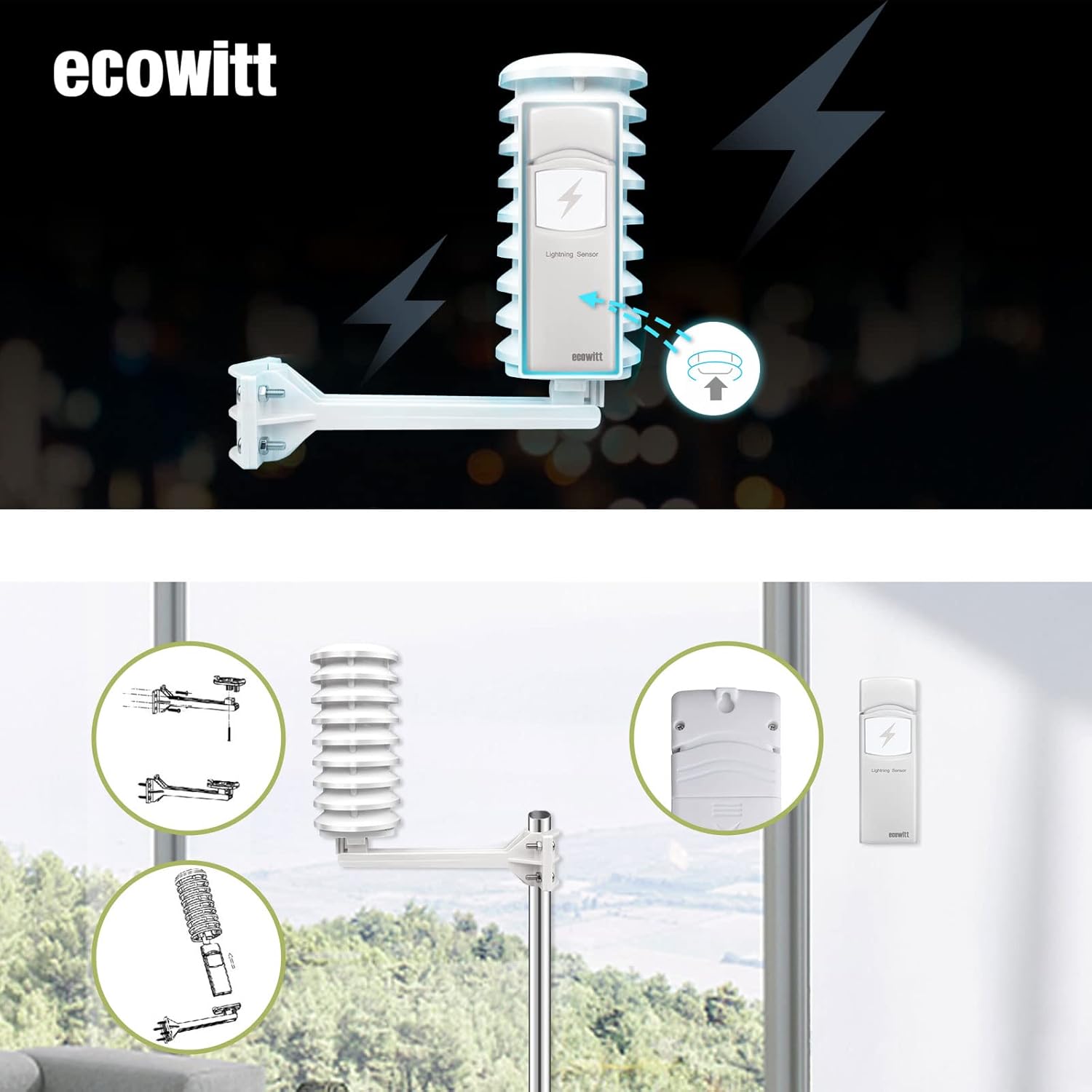
Image 2.3: Diagram illustrating the assembly of the solar radiation shield and mounting arm, and how the sensor attaches for pole mounting.
Mounting Steps:
- Assemble the solar radiation shield and mounting arm as shown in the diagram.
- Attach the WH57 sensor securely to the assembled unit.
- Mount the entire assembly onto a pole using the provided hardware. Ensure it is stable and level.
2.4 Pairing with a Gateway
The WH57 sensor cannot operate independently. It must be paired with a compatible ECOWITT WiFi gateway (e.g., GW1100, GW2000) or a display console (e.g., HP2551, HP2553, HP3500, WN1900, WN1910 weather station) to transmit data.

Image 2.4: System diagram showing the WH57 sensor connecting wirelessly to a GW1100 or GW2000 gateway, which then connects to the internet and the Ecowitt App or Ecowitt Weather Server.
Pairing Process:
- Ensure your gateway is powered on and connected to your Wi-Fi network.
- The WH57 sensor will automatically attempt to connect to the nearest compatible gateway upon battery installation.
- Verify successful connection through your gateway's interface or the WS View Plus/Ecowitt App.
For detailed gateway setup and Wi-Fi configuration, please refer to your specific gateway's instruction manual.
3. Operation
Once successfully set up and paired, the WH57 sensor will continuously monitor for lightning activity. Data is transmitted wirelessly to your gateway and then uploaded to the Ecowitt Weather Server.
3.1 Viewing Live Data
Live lightning strike data, including the number of strikes daily and the time and distance of the last strike, can be viewed on the WS View Plus or Ecowitt App. Ensure your phone is connected to the same Wi-Fi network as your gateway for live data access.
3.2 Accessing History and Graphs
For historical records and graphical representations of lightning activity, visit the Ecowitt Weather Server at ecowitt.net. You can log in to your account to view detailed data and download records. It is recommended to create a shortcut to the website on your phone or computer for quick access.

Image 3.1: Screenshots showing lightning data displayed on a mobile phone via the Ecowitt App and on a computer via the Ecowitt Weather Server, including current data, history, graphs, and email alert options.
3.3 Email Alerts
Configure email alerts through the Ecowitt Weather Server to receive notifications when lightning activity is detected. This feature allows for remote monitoring and timely awareness of storm conditions.
4. Maintenance
4.1 Battery Replacement
The WH57 sensor is battery-powered. Monitor the battery level display on the WS View Plus App or the Ecowitt Weather Server. Replace batteries promptly when the low battery alert is triggered to ensure continuous operation. Refer to Section 2.1 for battery installation instructions.
4.2 Cleaning
Periodically inspect the sensor and solar radiation shield for dirt, dust, or debris. Gently clean the exterior surfaces with a soft, damp cloth. Avoid using abrasive cleaners or solvents that could damage the unit.
4.3 Environmental Considerations
While the sensor is designed for outdoor use and is IP44 waterproof, extreme weather conditions (e.g., heavy snow, ice, prolonged direct sunlight in very hot climates) may affect its performance or lifespan. Ensure the mounting location is secure and stable, especially during high winds.
5. Troubleshooting
- No Lightning Data Displayed:
- Ensure the WH57 sensor has fresh batteries and is powered on.
- Verify that the sensor is successfully paired with your ECOWITT gateway. Check the gateway's status or app for sensor connectivity.
- Confirm your gateway is connected to your Wi-Fi network and has internet access.
- Check the distance between the sensor and the gateway; ensure it is within the effective wireless range (up to 100m/300ft line of sight).
- Inaccurate or Unexpected Readings:
- Review the dip switch settings (Section 2.2) to ensure they match your installation (Indoor/Outdoor, Antenna type) and desired sensitivity.
- Ensure the sensor is mounted in an optimal location, away from large metal structures or electrical interference.
- Adjust the sensitivity settings via the dip switches if you are experiencing too many false positives or missed detections.
- Sensor Not Connecting to App/Server:
- Confirm your gateway is online and registered with the Ecowitt Weather Server.
- For live data on the app, ensure your mobile device is on the same local Wi-Fi network as the gateway.
- For remote access, ensure your gateway has a stable internet connection.
6. Specifications
| Feature | Specification |
|---|---|
| Model | WH57 (also referred to as WH57C, WH57B) |
| Brand | ECOWITT |
| Lightning Detection Range | 25 miles (40 kilometers) |
| Wireless Frequency | 915 MHz (frequency may vary by region) |
| Power Source | 2x AA Batteries (not included) |
| Mounting Type | Pole Mount |
| Waterproof Rating | IP44 |
| Compatible Devices | GW1100 WIFI gateway, Ecowitt App, WS View Plus, GW2000, HP2551, HP2553, HP3500, WN1900, WN1910 |
| Item Weight | 10.5 ounces |
| Package Dimensions | 7.56 x 4.96 x 1.65 inches |
7. Warranty and Support
7.1 Warranty Information
For detailed warranty information, please refer to the official ECOWITT website or contact your point of purchase. Warranty terms and conditions may vary by region and retailer.
7.2 Customer Support
If you encounter any issues or have questions regarding your ECOWITT WH57 sensor, please utilize the following resources:
- ECOWITT Website: Visit www.ecowitt.com for product information, FAQs, and support contact details.
- Ecowitt Weather Server: Access ecowitt.net for data monitoring and additional resources.
- WS View Plus / Ecowitt App: Check the app for device status and basic troubleshooting.

Image 7.1: Visual representation of platforms supported by Ecowitt, including ecowitt.net, Weather Underground, Met Office, and Weathercloud.


