
1. Introduction
This manual provides detailed instructions for the installation, operation, and maintenance of your Podofo 7-inch Android Car Stereo GPS. This unit is designed to enhance your driving experience with features such as GPS navigation, WiFi connectivity, Bluetooth, FM/RDS radio, and smartphone mirror link functionality. Please read this manual thoroughly before use to ensure proper operation and to maximize the product's capabilities.
The system is compatible with various Opel models, including Corsa, Astra, and Zafira, and includes a rear camera and Canbus decoder for integrated vehicle functions.
2. Safety Information
- Professional Installation Recommended: Due to the complexity of car electrical systems, professional installation is highly recommended to prevent damage to the unit or your vehicle.
- Power Supply: Ensure the unit is connected to a 12V DC power supply with negative grounding. Incorrect voltage can cause damage.
- Wiring: Carefully follow the wiring diagram. Incorrect wiring can lead to malfunctions or electrical hazards.
- Driving Safety: Do not operate the unit in a manner that distracts you from driving. Always prioritize road safety.
- Temperature: Avoid exposing the unit to extreme temperatures or direct sunlight for prolonged periods.
- Moisture: Keep the unit dry. Exposure to moisture can cause damage.
3. Package Contents
Verify that all items listed below are present in your package:
- Podofo 7-inch Android Car Stereo Unit
- Power Cable
- RCA Cable
- Radio Cable (Antenna Adapter)
- 12LED Rear View Camera
- USB Cables (x2)
- Camera Input Cable
- GPS Antenna
- Canbus Box

Image: Overview of the rear connections of the car stereo and the various cables and accessories included in the package, such as power cable, RCA cable, radio cable, 12LED camera, USB cables, camera input, GPS antenna, and Canbus box.

Image: Visual representation of the car stereo's dimensions (21.4cm top width, 19.8cm bottom width, 12cm height, 7.4cm depth) and a list of included accessories.
4. Product Overview
The Podofo Android Car Stereo features a 7-inch touchscreen display and physical buttons for essential functions. The front panel includes volume knobs, menu, navigation, Bluetooth, equalizer, band selection, and back buttons. The rear panel provides various ports for power, USB, RCA, GPS antenna, and camera input.

Image: Front view of the Podofo 7-inch Android car stereo, showcasing its touchscreen interface with various app icons, physical control knobs, and buttons. A rear camera and Canbus decoder are also shown.

Image: Side view of the car stereo illustrating its dimensions (21.4cm top width, 19.8cm bottom width, 12cm height, 7.4cm depth) and a table listing compatible Opel models and years (Antara, Astra, Combo, Corsa, Meriva, Signum, Tigra Twin Top, Vectra, Vivara, Vivaro, Zafira).
5. Installation
Before beginning installation, ensure the vehicle's battery is disconnected to prevent electrical shorts. Refer to the wiring diagram and your vehicle's specific wiring instructions.
5.1. Wiring Connections
- Power Cable: Connect the main power harness to the vehicle's power supply. Ensure correct positive (yellow/red) and negative (black) connections.
- RCA Cables: Connect for audio output (speakers, subwoofer) and video input/output as needed.
- Radio Cable: Connect the antenna adapter for FM/AM radio reception.
- USB Cables: Route the USB extension cables to a convenient location for connecting USB devices.
- Camera Input: Connect the rear view camera cable to the designated input. Ensure the camera's power is connected to the reverse light circuit for automatic activation.
- GPS Antenna: Mount the GPS antenna in a location with a clear view of the sky, typically on the dashboard or under the windshield.
- Canbus Box: Connect the Canbus decoder to the vehicle's wiring harness. This enables integration with steering wheel controls and other vehicle data.
5.2. Unit Mounting
Carefully insert the head unit into the dashboard opening. Secure it using the provided mounting brackets and screws. Ensure all cables are properly routed and not pinched.
6. Operating Instructions
6.1. Initial Setup
- Power On: After installation, reconnect the vehicle battery. The unit should power on automatically with the ignition, or by pressing the power button.
- Language & Time: Navigate to "Settings" to set your preferred language, time zone, and date.
- WiFi Connection: Go to "Settings" > "Network & Internet" > "Wi-Fi" to connect to an available Wi-Fi network or mobile hotspot for online features and app downloads.
6.2. Main User Interface
The home screen displays various applications and widgets. Swipe left or right to access additional screens. Tap an icon to launch an application.

Image: A collection of user interface screenshots showing the home screen, app drawer, mirror link interface, FM radio, split screen view, Bluetooth music player, equalizer settings, music player, and WiFi settings.

Image: Multiple screenshots displaying various main user interfaces of the car stereo, including different homepages, settings menus (steering wheel control, Bluetooth, GPS), video playback, and split-screen functionality.
6.3. GPS Navigation
The unit supports online and offline navigation. Ensure the GPS antenna is properly connected and positioned. For online navigation, connect to Wi-Fi or a mobile hotspot. Pre-installed maps or downloadable map applications can be used.
- Tap the "Navi" or "Maps" icon on the home screen.
- Enter your destination using the on-screen keyboard.
- Follow the voice prompts and visual directions.
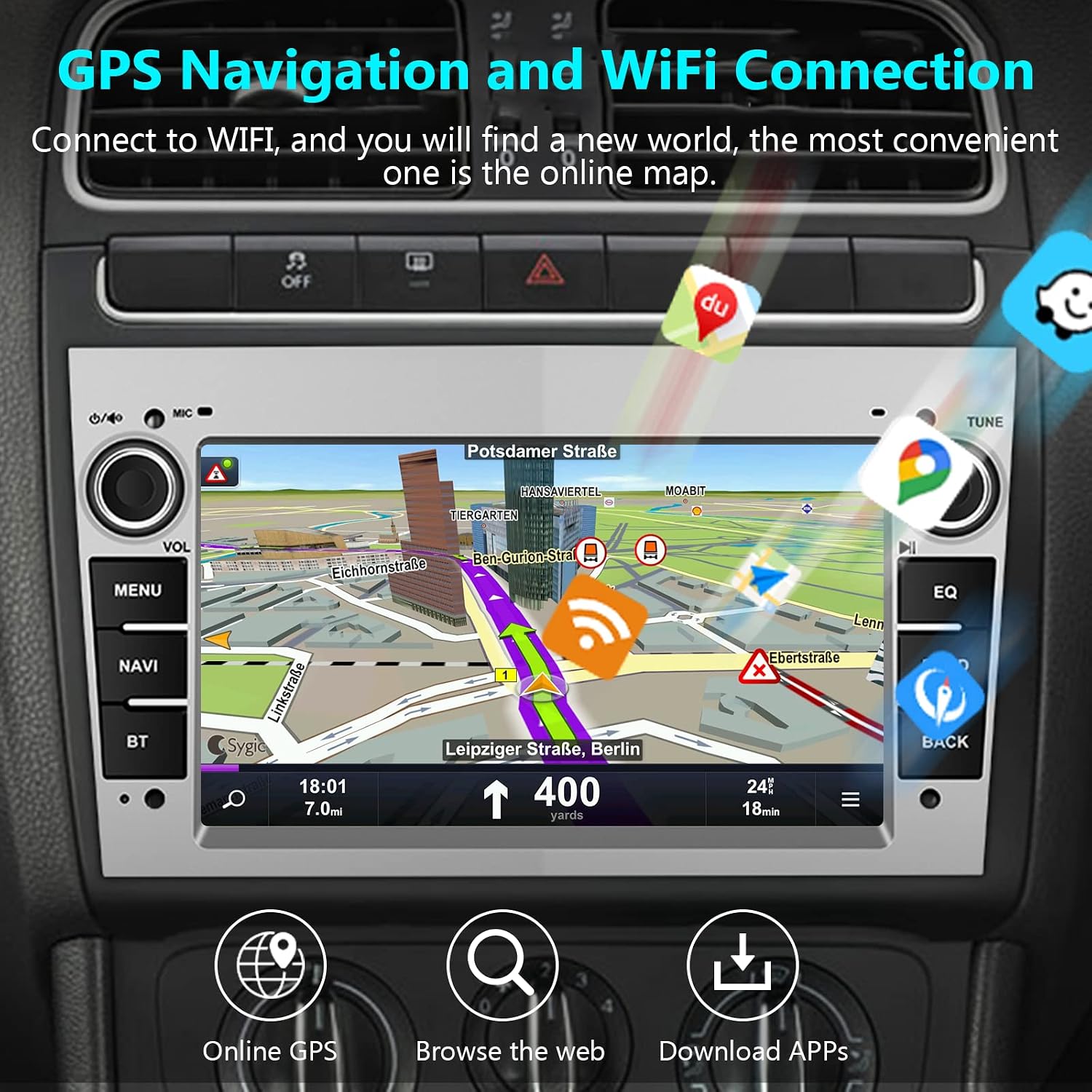
Image: The car stereo displaying a GPS navigation map with route information. Icons for online GPS, web browsing, and app downloads are shown below the screen, indicating WiFi connectivity.

Image: A car stereo displaying a GPS map with various app icons floating above it, illustrating online/offline navigation, WiFi or mobile phone hotspot connection, and the ability to download more applications.
6.4. Bluetooth Functionality
Connect your smartphone via Bluetooth for hands-free calling and audio streaming.
- Pairing:
- Enable Bluetooth on your smartphone.
- On the car stereo, tap the "BT" or "Bluetooth" icon.
- Search for available devices on your phone and select "Car BT" or a similar name.
- Confirm the pairing code on both devices.
- Hands-Free Calling: Once paired, you can dial numbers, answer, or end calls directly from the stereo's screen.
- Bluetooth Music: Play audio from your phone through the car stereo speakers.

Image: The car stereo displaying a hands-free calling interface with a dial pad. Text indicates Bluetooth and FM/RDS radio features, allowing users to listen to traffic, news, and weather.

Image: Four distinct user interface screenshots: Bluetooth phone dialer, Bluetooth music player, FM RDS radio tuner, and equalizer settings.
6.5. FM/RDS Radio
Access local radio stations and receive RDS (Radio Data System) information.
- Tap the "Radio" or "FM" icon.
- Use the scan function to find available stations or manually tune using the frequency display.
- Save your favorite stations to presets for quick access.
6.6. Mirror Link
Mirror Link allows you to display your smartphone's screen on the car stereo. This feature supports iPhones under iOS 15 and Android devices from version 4.0 to 11.0. Compatibility with higher Android versions may vary.
- Tap the "Mirror Link" icon on the home screen.
- Follow the on-screen instructions to connect your iOS or Android device via USB or Wi-Fi.
- Once connected, your phone's screen will be displayed on the car stereo.

Image: The car stereo displaying a mirrored smartphone screen, showing a video playing. Illustrations indicate support for iPhone (under iOS 15) and Android (4.0-11.0) devices, with a note about potential instability for higher Android versions and non-support for some Samsung models.

Image: A visual representation of the Mirror Link function, showing an Android phone and an iPhone mirroring their screens to the car stereo. It highlights support for both Android and iOS devices via WiFi/USB connection.
6.7. Rear View Camera
When the vehicle is shifted into reverse gear, the car stereo will automatically display the feed from the connected rear view camera, assisting with parking and maneuvering.
6.8. Canbus Integration
The included Canbus box allows the car stereo to communicate with your vehicle's onboard computer. This typically enables features such as steering wheel control integration, displaying vehicle information, and automatic ignition power control.
7. Maintenance
- Screen Cleaning: Use a soft, lint-free cloth to gently wipe the touchscreen. Do not use abrasive cleaners or solvents.
- General Cleaning: Keep the unit free from dust and debris. Use a dry cloth for cleaning the exterior.
- Software Updates: Periodically check for software updates through the system settings or the manufacturer's website to ensure optimal performance and access to new features.
8. Troubleshooting
| Problem | Possible Cause | Solution |
|---|---|---|
| Unit does not power on. | Incorrect power wiring, blown fuse, vehicle battery disconnected. | Check power cable connections. Inspect vehicle fuses. Ensure battery is connected. |
| No sound. | Volume too low, incorrect speaker wiring, mute activated. | Increase volume. Check speaker connections. Deactivate mute function. |
| GPS signal lost or inaccurate. | GPS antenna improperly connected or obstructed. | Ensure GPS antenna is securely connected and mounted in a clear location. |
| Bluetooth connection issues. | Device not in pairing mode, incorrect pairing code, interference. | Ensure both devices are in pairing mode. Re-enter pairing code. Try pairing in a different location. |
| Touchscreen unresponsive. | System freeze, temporary software glitch. | Restart the unit (turn vehicle ignition off and on). If issue persists, perform a factory reset (refer to settings). |
| Mirror Link not working. | Incompatible phone OS version, incorrect connection method, app issues. | Verify phone OS compatibility. Ensure correct USB/Wi-Fi connection. Try reinstalling Mirror Link app on phone if applicable. |
9. Specifications
- Brand: podofo
- Screen Size: 7 Inches
- Special Features: DAB, RDS, Touchscreen
- Audio Output Mode: Stereo
- Compatible Devices: Smartphone
- Batteries Included: No
- Model: B0B6CDH213
10. Warranty and Support
For warranty information and technical support, please refer to the documentation provided with your purchase or contact Podofo customer service through their official website. Keep your purchase receipt as proof of purchase for warranty claims.