
1. Introduction
Thank you for purchasing the Generic AL-G7 Bluetooth Smartphone Controller. This wireless gamepad is designed to enhance your mobile gaming experience on both Android and iOS smartphones. Please read this manual carefully to ensure proper use and optimal performance of your device.
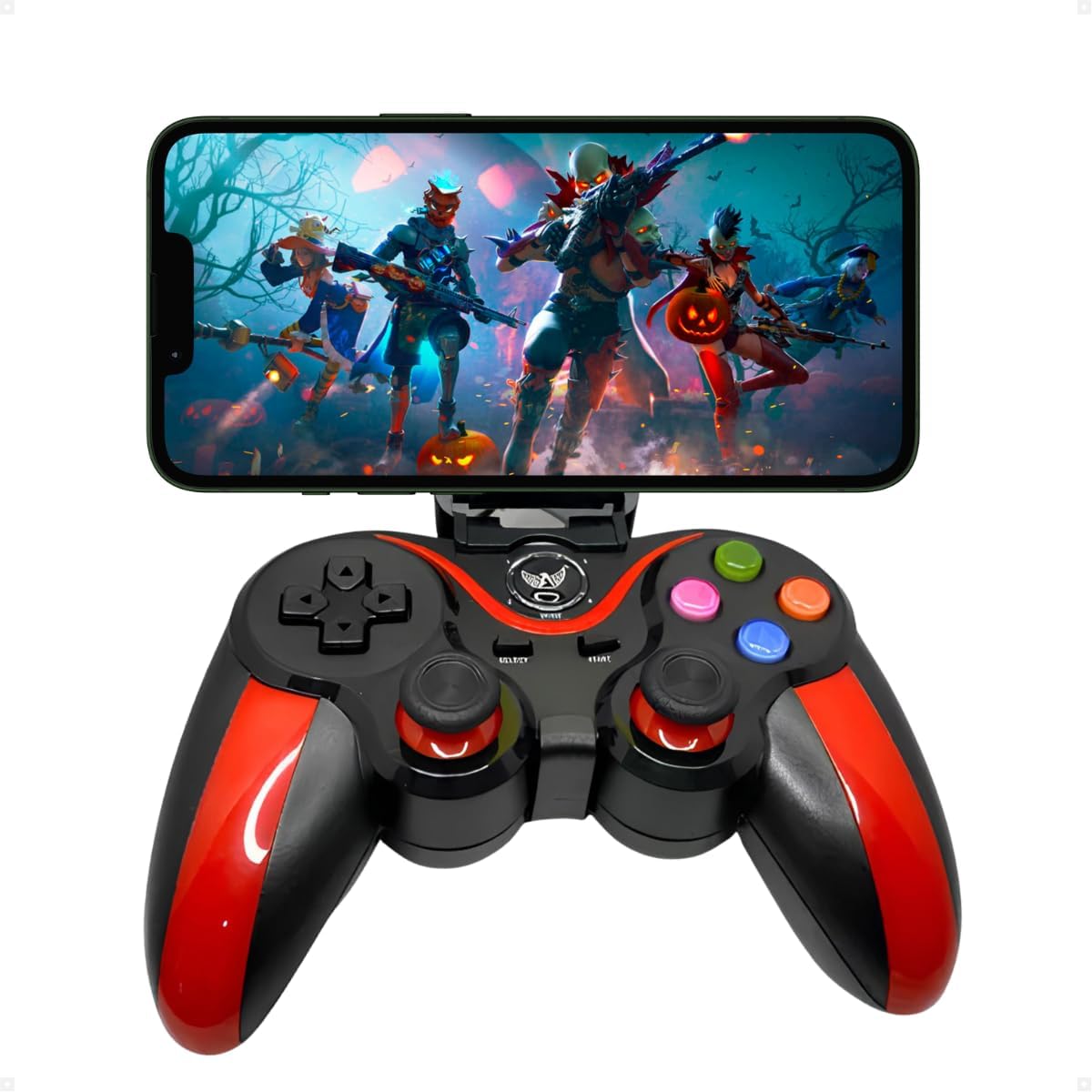
Image 1.1: The AL-G7 controller with a smartphone mounted, ready for gaming.
2. Package Contents
Please check the package for the following items:
- 1x Wireless Game Controller (AL-G7)
- 1x Smartphone Holder
- 1x USB Charging Cable
- 1x Directional Pad Adapter
3. Specifications
| Feature | Detail |
|---|---|
| Model | KAP-G7 / G7 |
| Color | Black (with accents) |
| Number of Buttons | 17 |
| Battery Capacity | 400mAh |
| Usage Time | 6-10 hours |
| Battery Type | 3.7V Lithium-ion |
| Compatibility | Android, iOS (up to 6-inch smartphones) |
| Connection | Wireless (Bluetooth) |
| Dimensions (Packaging) | 18 x 14 x 7 cm |
| Weight (Packaging) | 250 g |

Image 3.1: Detailed view of the controller's buttons and USB charging port.
4. Setup and Connection
4.1 Charging the Controller
- Connect the supplied USB charging cable to the controller's charging port.
- Connect the other end of the USB cable to a standard USB power source (e.g., computer USB port, USB wall adapter).
- The charging indicator light on the controller will illuminate during charging and turn off or change color when fully charged. A full charge typically takes 2-3 hours.
4.2 Attaching Your Smartphone
- Extend the smartphone holder located on the top of the controller.
- Carefully place your smartphone into the holder, ensuring it is securely gripped. The holder supports smartphones up to 6 inches.
4.3 Bluetooth Pairing
- Ensure the controller is sufficiently charged.
- Turn on the controller by pressing the power button (usually the central 'HOME' button or a dedicated power switch). The indicator light will start flashing, indicating it's in pairing mode.
- On your smartphone, go to Settings > Bluetooth.
- Enable Bluetooth if it is not already on.
- Scan for available devices. You should see "AL-G7" or a similar name appear in the list.
- Select "AL-G7" to pair. The controller's indicator light will become solid, indicating a successful connection.
- If prompted for a passcode, enter "0000" or "1234".
Note: The pairing process may vary slightly depending on your smartphone's operating system version.

Image 4.1: The AL-G7 controller highlighting its Bluetooth connectivity and compatibility with Android and iOS devices.
5. Operating Instructions
5.1 Game Compatibility
The AL-G7 controller is compatible with most games that support external gamepads on Android and iOS platforms. It also supports various emulators. For optimal performance, ensure your game has native controller support or allows for button mapping.
5.2 Button Layout
The controller features 17 buttons, including directional pad, action buttons (A, B, X, Y), analog sticks, shoulder buttons (L1, R1, L2, R2), and function buttons (SELECT, START, HOME/MODE).
- Analog Sticks: For precise movement and camera control.
- Directional Pad (D-Pad): For directional input, especially in retro games. An adapter is included for enhanced D-Pad feel.
- Action Buttons: Typically used for primary game actions.
- Shoulder Buttons (L1, R1, L2, R2): For secondary actions, triggers, or weapon selection.
- SELECT/START: For in-game menus, pausing, or specific game functions.
- HOME/MODE Button: To power on/off the controller and return to the device's home screen (functionality may vary by OS).
5.3 Power On/Off
- To power on: Press and hold the HOME/MODE button for a few seconds until the indicator light flashes.
- To power off: Press and hold the HOME/MODE button for a few seconds until the indicator light turns off. The controller will automatically power off after a period of inactivity to save battery.
6. Maintenance
- Keep the controller dry. Moisture can damage internal circuits.
- Do not expose the controller to extreme temperatures.
- Clean the controller with a soft, dry cloth. Do not use harsh chemicals or abrasive cleaners.
- Avoid dropping or subjecting the controller to strong impacts.
- When not in use for extended periods, store the controller in a cool, dry place and charge it periodically to maintain battery health.
7. Troubleshooting
7.1 Controller Does Not Turn On
- Ensure the controller is fully charged. Connect it to a power source using the USB cable and allow it to charge for at least 30 minutes before attempting to power on again.
7.2 Unable to Pair via Bluetooth
- Make sure Bluetooth is enabled on your smartphone.
- Ensure the controller is in pairing mode (indicator light flashing).
- Turn off and on your smartphone's Bluetooth, then try scanning again.
- If previously paired, try "forgetting" or "unpairing" the device from your smartphone's Bluetooth settings and then re-pair.
- Ensure the controller is within the effective range (typically 10 meters) of your smartphone.
- Restart both your smartphone and the controller.
7.3 Buttons or Analog Sticks Not Responding Correctly
- Check if the game you are playing supports external controllers.
- Some games may require specific button mapping settings within their own options.
- Ensure the controller is fully charged, as low battery can affect performance.
- Try restarting the controller and reconnecting it to your smartphone.
7.4 Controller Disconnects Frequently
- Ensure there are no obstructions between the controller and your smartphone.
- Keep the controller and smartphone close to each other.
- Check for other active Bluetooth devices that might be causing interference.
- Ensure the controller battery is not low.
8. Warranty and Support
This product comes with a standard manufacturer's warranty. For specific warranty details, please refer to the documentation provided at the time of purchase or contact your retailer. If you encounter any issues not covered in this troubleshooting guide, please contact customer support for assistance.


