
1. Introduction
This manual provides essential information for the safe and effective operation of your Goopow Kids Digital Video Camcorder Camera. Designed for children aged 3-8, this camera features photo capture, video recording, playback, and built-in games. Please read this manual thoroughly before use and retain it for future reference.
2. Package Contents
Please check the package to ensure all items are present:
- 1 x Goopow Kids Camera
- 1 x USB Cable
- 1 x 32GB Memory Card
- 1 x Card Reader
- 1 x Lanyard
- 1 x User Manual
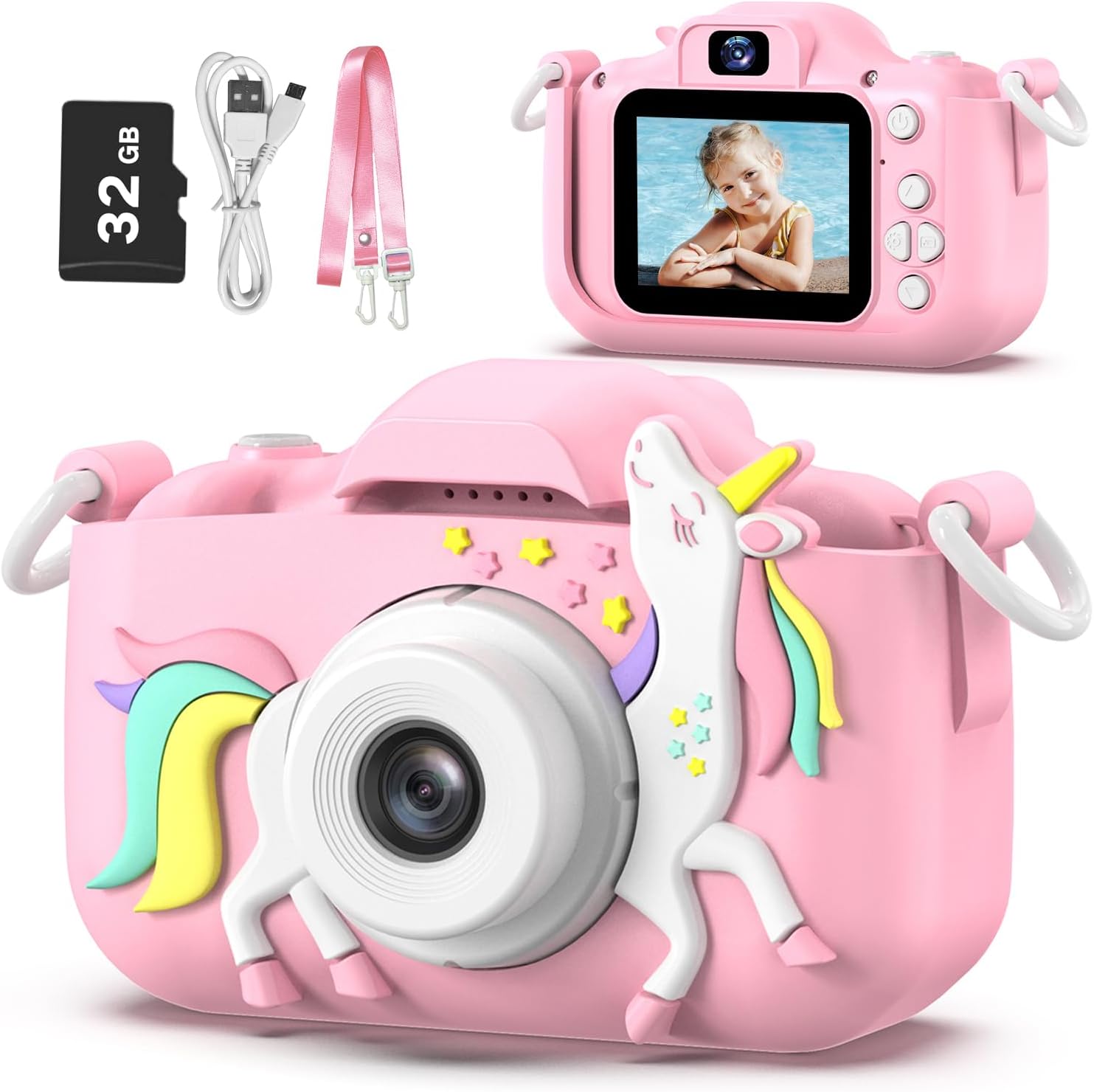
Image: The Goopow Kids Camera in pink with a unicorn design, alongside its included accessories: a 32GB SD card, USB charging cable, and a pink lanyard.
3. Product Features
- High-Definition Capture: Supports 1080P video recording and 12MP photo resolution.
- 2.0-inch LCD Screen: Clear display for viewing photos and videos.
- Multiple Functions: Photo capture, video recording, playback, games, and date setting.
- Selfie Mode: Front-facing camera for self-portraits.
- Digital Zoom: Up to 8x digital zoom for closer shots.
- Creative Options: 28 kinds of scene selections, multiple funny frames, and 5 special effects.
- Built-in Games: Includes multiple puzzle games for entertainment.
- Rechargeable Battery: Built-in 3.7V lithium battery, USB rechargeable.
- Compact and Lightweight: Easy for small hands to hold and carry with the included lanyard.

Image: An overview of the camera's features, including 1080p video, playback, selfie function, funny frames, 2.4-inch screen, games, 8x digital zoom, and portability, shown with children using the camera.
4. Getting Started
4.1. Charging the Camera
The camera has a built-in 3.7V rechargeable lithium battery. Before first use, fully charge the camera.
- Connect the small end of the USB cable to the camera's charging port.
- Connect the larger end of the USB cable to a standard USB power adapter (not included) or a computer's USB port.
- The charging indicator light will illuminate. Once fully charged, the light may change color or turn off.
- Charging typically takes 1.5-2 hours for continuous photograph time.
IMPORTANT TIP: Charging must be supervised by adults. Do NOT charge this camera with chargers exceeding 1A or other fast chargers, as this may damage the battery.
4.2. Inserting the Memory Card
A 32GB SD card is included. The camera supports a maximum capacity of 32GB.
- Locate the SD card slot on the side of the camera.
- Insert the 32GB SD card into the slot with the metal contacts facing the front of the camera until it clicks into place.
- To remove the SD card, gently push it in until it clicks, then release, and it will eject.
5. Basic Operation
5.1. Power On/Off
- To power on, press and hold the Power button for a few seconds.
- To power off, press and hold the Power button again until the screen turns off.
5.2. Taking Photos
- Turn on the camera. It will usually start in photo mode.
- Frame your shot using the LCD screen.
- Press the Shutter button (usually a prominent button on top or front) to take a picture.
5.3. Recording Videos
- From photo mode, use the Mode button to switch to video recording mode.
- Press the Shutter button to start recording. A red 'REC' indicator will typically appear on the screen.
- Press the Shutter button again to stop recording.

Image: The Goopow Kids Camera displaying a video recording in progress, with a red 'REC' icon, showing children playing in a field.
5.4. Playback Mode
- Use the Mode button to navigate to playback mode.
- Use the navigation buttons (up/down or left/right) to browse through your captured photos and videos.
- Press the Shutter button or OK button to view a photo or play a video.
5.5. Selfie Mode
- The camera supports a selfie mode, allowing you to take pictures of yourself.
- Typically, there is a dedicated button or a menu option to switch to the front-facing camera. Consult the on-screen icons for guidance.

Image: The Goopow Kids Camera showing a selfie being taken on its screen, with three girls smiling, illustrating the 'Enjoy Selfie Time' feature.
5.6. Using Digital Zoom
- In photo or video mode, use the zoom buttons (often marked with '+' and '-' or up/down arrows) to adjust the 8x digital zoom.

Image: A demonstration of the camera's 8x digital zoom, showing a child's face at 1x, 2x, 4x, and 8x magnification.
5.7. Applying Photo Frames and Special Effects
- In photo mode, access the menu to find options for photo frames and special effects.
- Choose from 28 scene selections and various funny frames to add creativity to your pictures.

Image: A collage of various photo frames and effects available on the Goopow Kids Camera, demonstrating creative options for pictures.
5.8. Time-Lapse Photography
- Access the camera's settings or mode options to find the time-lapse feature.
- Select a delay setting (e.g., 2s, 5s, 10s) before the photo is taken automatically.

Image: A demonstration of the camera's time-lapse function, showing a child in a field with options for 2-second, 5-second, and 10-second delays.
5.9. Playing Games
- Use the Mode button to navigate to the games menu.
- Select from the available puzzle games and use the navigation buttons to play.

Image: Icons representing three puzzle games available on the Goopow Kids Camera: a block puzzle, a character-based puzzle, and Snake.
5.10. Date and Time Settings
- Access the camera's main menu or settings to find the date and time adjustment options.
- Use the navigation buttons to set the correct date and time.
6. Connecting to a Computer
To transfer photos and videos to a computer:
- Ensure the camera is powered on.
- Connect the camera to your computer using the provided USB cable.
- The camera should appear as a removable disk drive on your computer.
- Open the drive to access the DCIM folder, where your photos and videos are stored.
- Alternatively, you can remove the SD card and use the included card reader to connect it to your computer.
7. Care and Maintenance
- Cleaning: Use a soft, dry cloth to clean the camera body. For the lens and screen, use a specialized lens cleaning cloth. Do not use liquid cleaners.
- Storage: Store the camera in a cool, dry place away from direct sunlight and extreme temperatures.
- Water Resistance: This camera is NOT water resistant. Avoid exposure to water or high humidity.
- Battery Care: Do not attempt to replace the internal battery. If the camera will not be used for an extended period, charge it periodically to maintain battery health.
8. Troubleshooting
| Problem | Possible Cause | Solution |
|---|---|---|
| Camera does not turn on. | Battery is depleted. | Charge the camera fully using the provided USB cable. |
| Cannot take photos/videos. | SD card is full or not inserted correctly. | Check if the SD card is inserted properly. Delete unnecessary files or replace the SD card. |
| Images/videos are blurry. | Lens is dirty or insufficient lighting. | Clean the lens with a soft cloth. Ensure adequate lighting when taking pictures. |
| Camera freezes or becomes unresponsive. | Software glitch. | Press and hold the Power button for 10 seconds to force a restart. If the issue persists, allow the battery to fully discharge and then recharge. |
| Computer does not recognize the camera. | Faulty USB connection or driver issue. | Try a different USB port or cable. Ensure the camera is powered on. Use the included card reader to transfer files directly from the SD card. |
9. Technical Specifications
| Feature | Specification |
|---|---|
| Model Name | H11 |
| Brand | goopow |
| Color | Pink-DJS |
| Screen Size | 2 Inches |
| Display Type | LCD |
| Photo Sensor Resolution | 12 MP |
| Video Resolution | 1080p |
| Digital Zoom | 8 x |
| Memory Storage Capacity | 32 GB (SD Card Included) |
| Battery Type | Lithium Ion (3.7V) |
| Battery Average Life | 2 Hours (continuous photograph time) |
| Connectivity Technology | USB |
| Item Weight | 105 Grams |
| Item Dimensions (D x W x H) | 1.3"D x 7.52"W x 4.45"H |
| Water Resistance Level | Not Water Resistant |

Image: A visual comparison of the Goopow Kids Camera's compact size next to a smartphone, illustrating its dimensions (4.05 inches wide, 2.48 inches high with cover; 3.28 inches wide, 2.08 inches high without cover).
10. Warranty Information
This product comes with a 12-month warranty from the date of purchase. Please retain your proof of purchase for warranty claims. The warranty covers manufacturing defects but does not cover damage caused by misuse, accidents, unauthorized repairs, or normal wear and tear.
11. Support
For further assistance or inquiries, please contact Goopow customer support through the retailer's platform or the contact information provided with your purchase. Please have your model number (H11) and purchase details ready when contacting support.