
1. Introduction
Thank you for choosing the nimin Keyboard Case. This manual provides essential information for setting up, operating, and maintaining your new keyboard case, designed to enhance your iPad experience with a responsive keyboard, multi-touch trackpad, and protective magnetic design.
2. Compatibility
This keyboard case is specifically designed for the following iPad models:
- iPad Air 11-inch 2024 (M2)
- iPad Air 10.9-inch (5th Generation 2022) Model Numbers: A2588, A2589, A2591
- iPad Air 10.9-inch (4th Generation 2020) Model Numbers: A2316, A2324, A2072, A2325
- iPad Pro 11-inch (4th Generation 2022) Model Numbers: A2759, A2435, A2761, A2762
- iPad Pro 11-inch (3rd Generation 2021) Model Numbers: A2377, A2459, A2301, A2460
- iPad Pro 11-inch (2nd Generation 2020) Model Numbers: A2228, A2068, A2230, A2231
- iPad Pro 11-inch (1st Generation 2018) Model Numbers: A1980, A2013, A1934, A1979
Important Note: This keyboard is NOT compatible with the iPad Pro 11-inch 2024 (M4) or iPad 10.9-inch 10th Generation. Please verify your iPad's model number (Axxxx) on the back before use.

Image: Visual guide to compatible and incompatible iPad models for the keyboard case.
3. What's in the Box
- 1 x nimin Magic Keyboard (for iPad Air 11-inch 2024 (M2), iPad Pro 11-inch 4th/3rd/2nd/1st Gen, iPad Air 5th/4th Gen)
- 1 x USB-C Cable
- 1 x User Manual
4. Setup Instructions
4.1 Charging the Keyboard
Before initial use, ensure the keyboard is fully charged using the provided USB-C cable. Connect the USB-C cable to the charging port on the keyboard and a power source.

Image: The keyboard case with a visible USB-C charging port.
4.2 Attaching Your iPad
The keyboard case features a floating magnetic design for secure attachment. Simply align your compatible iPad with the magnetic back of the case. The strong magnetic suction will hold your device in place.
Image: An iPad attached magnetically to the keyboard case, illustrating the floating design.
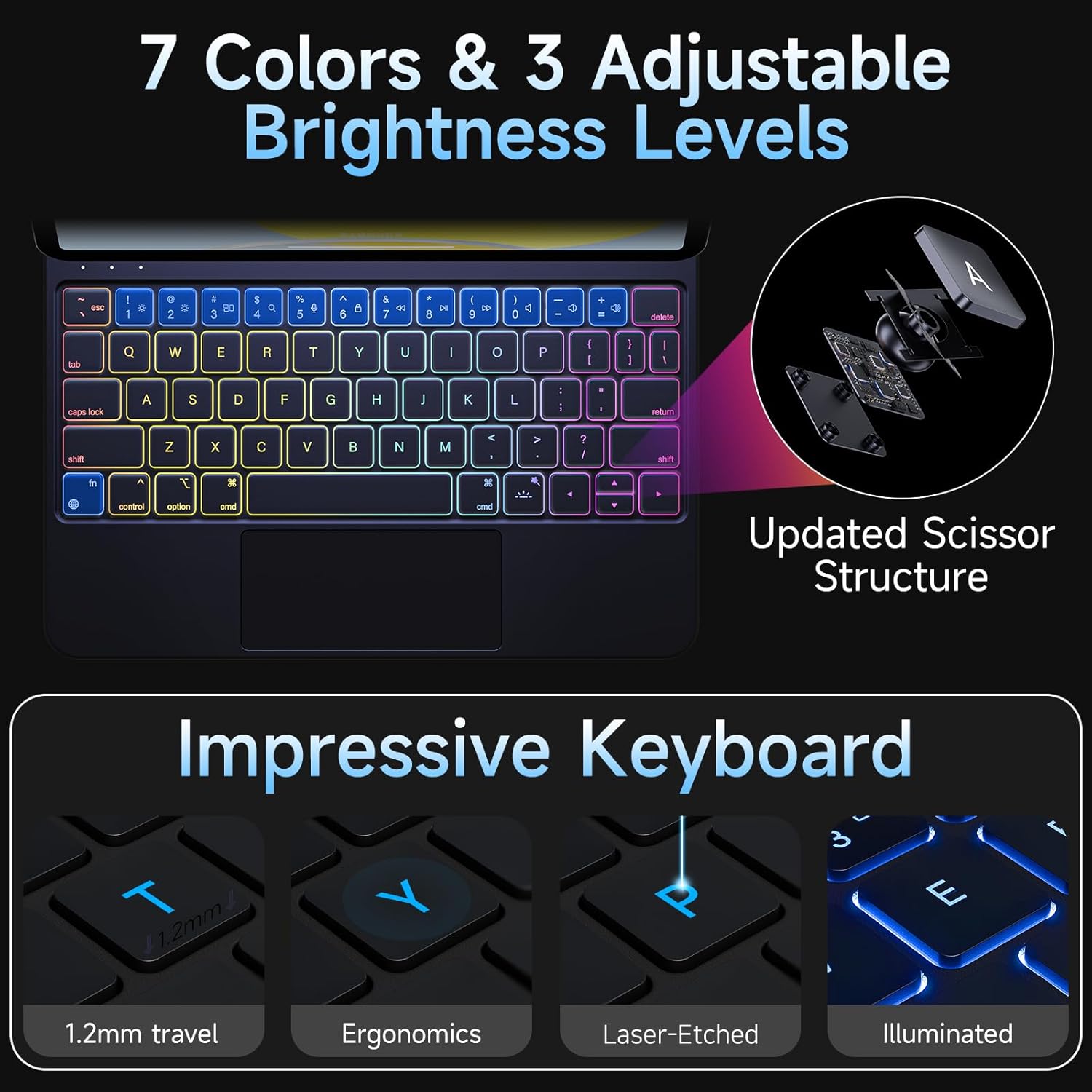
Image: Visual representation of the strong magnetic attraction ensuring device security.
4.3 Bluetooth Pairing
- Ensure the keyboard is charged and powered on.
- On your iPad, go to Settings > Bluetooth and turn Bluetooth on.
- On the keyboard, press and hold FN + CONTROL + R for 5 seconds until the indicator light turns on. This activates the keyboard for pairing.
- On your iPad, look for a device named "MF-11" (or similar, e.g., "MF-11 BT") in the "Other Devices" list and tap to connect.
- Once connected, the keyboard will automatically pair with your iPad in the future.
Video: Demonstrates the Bluetooth pairing process for the nimin Keyboard Case with an iPad, including activating the keyboard and connecting via iPad settings.
Video: Shows the magnetic attachment of the iPad to the keyboard case and basic trackpad and keyboard functionality.
5. Operating Instructions
5.1 Backlight Control
The keyboard features 7-color backlighting with 3 adjustable brightness levels. This allows for comfortable typing in various lighting conditions.
- To change backlight color: Press Fn + Light Bulb key (usually located near the spacebar or function row).
- To adjust brightness: Press Fn + Brightness Up/Down keys (typically F5/F6 or similar on the function row).

Image: Illustration of the 7-color backlighting and 3 brightness levels available on the keyboard.
Video: Demonstrates changing the backlight colors and brightness levels on the keyboard.
5.2 Trackpad Usage
The integrated multi-touch trackpad allows for precise navigation and gesture controls, similar to a laptop. The 3.2 × 1.6-inch trackpad supports various multi-finger gestures:
- Single-finger tap: Click/select.
- Two-finger scroll: Scroll up/down or left/right.
- Three-finger swipe: Switch between applications or access multitasking view.
- Pinch to zoom: Zoom in or out.

Image: Detailed view of the trackpad, emphasizing its precision and responsiveness.
5.3 Function Keys
The top row of keys on the keyboard doubles as function keys when pressed in combination with the Fn key. These include controls for:
- Screen brightness adjustment.
- Media playback (play/pause, skip tracks).
- Volume control.
- Home screen access.

Image: Keyboard layout showing various shortcut keys for enhanced productivity.
5.4 Adjustable Viewing Angle
The floating magnetic design allows for an ergonomically adjustable viewing angle, enabling you to choose the most comfortable tilt for your iPad, up to 135 degrees.

Image: Demonstrates the adjustable viewing angles of the iPad when docked in the keyboard case.
5.5 Auto Sleep/Wake Function
The keyboard case supports automatic sleep and wake functions. Closing the case will put your iPad to sleep, and opening it will wake your iPad, conserving battery life.
6. Maintenance
To ensure the longevity and optimal performance of your nimin Keyboard Case, follow these maintenance guidelines:
- Cleaning: The surface is made of high-quality PU material. Use a soft, damp cloth to wipe away dust or smudges. Avoid harsh chemicals or abrasive cleaners.
- Storage: When not in use, keep the keyboard case closed to protect both the keyboard and your iPad. Store in a cool, dry place.
- Battery Care: For optimal battery life, avoid fully discharging the keyboard frequently. Charge it regularly.
7. Troubleshooting
If you encounter any issues with your nimin Keyboard Case, please refer to the following common solutions:
- Keyboard not connecting: Ensure Bluetooth is enabled on your iPad and the keyboard is powered on and charged. Try re-pairing the keyboard by pressing FN + CONTROL + R for 5 seconds and reconnecting via iPad settings.
- Trackpad not responding: Ensure the keyboard is properly connected via Bluetooth. If the issue persists, try disconnecting and re-pairing the device.
- Backlight not working: Check if the keyboard is charged. Use the Fn + Light Bulb key to cycle through backlight options.
- Keys not typing correctly: Ensure your iPad's language setting is set to English for optimal compatibility with the English version keyboard.
For further assistance, please log into your Amazon account, go to "My Orders," and click on "Contact the Seller."
8. Specifications
| Product Dimensions | 7.76 x 6.02 x 0.67 inches |
| Item Weight | 0.039 ounces |
| Manufacturer | nimin |
| Language | English |
| Item Model Number | DJC-MC11 |
| Batteries | 1 Lithium Polymer batteries required (included) |
| Connectivity Technology | Bluetooth |
| Keyboard Description | Multi Functional |
| Recommended Uses | Business, Education, Everyday Use, Multimedia, Personal, Student |
| Special Feature | Backlit, Ergonomic, Lightweight, Magnetic, Trackpad |
| Color | Black |
| Keyboard Backlighting Color Support | RGB (7 Colors) |
| Style | Floating Magnetic Design |

Image: Detailed features and specifications of the keyboard case.
9. Warranty and Support
For any questions, concerns, or support regarding your nimin Keyboard Case, please contact the seller directly through your Amazon account. Navigate to "My Orders" and select "Contact the Seller" for assistance.