
MITXPC MES-4125A
MITXPC MES-4125A Industrial Fanless PC User Manual
Model: MES-4125A
1. Introduction
This manual provides essential information for the proper installation, operation, and maintenance of your MITXPC MES-4125A Industrial Fanless PC. Please read this manual thoroughly before using the device to ensure optimal performance and safety. The MES-4125A is a compact, fanless industrial PC featuring an Intel Celeron J4125 Quad Core processor, designed for reliable operation in various environments.
2. Safety Information
- Always disconnect the power cord from the electrical outlet before cleaning or servicing the device.
- Do not expose the device to moisture, extreme temperatures, or direct sunlight.
- Ensure proper ventilation. Although fanless, adequate airflow around the chassis is recommended to dissipate heat effectively.
- Use only the power adapter supplied with the device.
- Do not attempt to open or repair the device yourself. Refer all servicing to qualified personnel.
- Keep the device away from strong magnetic fields.
3. Package Contents
Verify that all items are present in the package:
- MITXPC MES-4125A Industrial Fanless PC
- Power Adapter
- Mounting Brackets (if included with your specific model)
- Screws for drive installation
- User Manual (this document)
4. Product Overview
The MITXPC MES-4125A is a robust industrial fanless PC designed for demanding applications. Its compact form factor and fanless operation make it suitable for environments where noise and dust are concerns.
Key Features:
- Intel Celeron J4125 Quad Core Processor
- 2 x DDR4-2400MHz SODIMM slots, supporting up to 8GB Dual Channel memory
- Storage support for 2 x 2.5" Drives and 1 x M.2 SATA Drive
- Integrated Marvell RAID controller for hardware RAID capabilities
- Dual Gigabit Ethernet LAN ports
- Dual COM ports (RS-232/422/485)
- Multiple USB ports (2x USB 2.0, 2x USB 3.0)
- HDMI and VGA display outputs
Physical Layout:

Figure 4.1: Top-Down View of MES-4125A. This image displays the overall compact design of the MITXPC MES-4125A, highlighting the perforated top panel for heat dissipation. The front panel features the power button and two USB 3.0 ports.
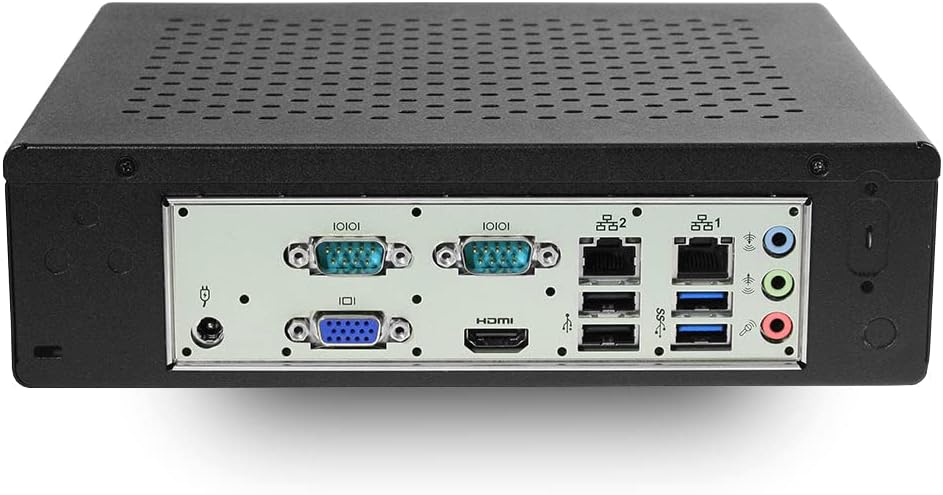
Figure 4.2: Rear Panel Connectivity. This image shows the rear I/O ports of the MES-4125A. From left to right, it includes the DC power input, two COM ports (DB9), a VGA port, an HDMI port, two USB 2.0 ports, two Gigabit Ethernet LAN ports, two USB 3.0 ports, and audio jacks (line-out, mic-in).

Figure 4.3: Side View with Mounting Brackets. This image illustrates the side profile of the MES-4125A, along with the included mounting brackets. These brackets allow for flexible installation options, such as wall mounting or attachment to other surfaces.
5. Setup
5.1. Installing Memory (RAM)
- Carefully open the chassis by removing the screws on the bottom panel.
- Locate the two DDR4 SODIMM slots on the motherboard.
- Align the notch on the SODIMM module with the notch in the slot.
- Insert the module at a 45-degree angle and push down until the clips on both sides snap into place.
- Repeat for the second module if installing dual-channel memory.
5.2. Installing Storage Drives
The MES-4125A supports 2.5" SATA drives and M.2 SATA drives.
- For 2.5" SATA drives: Secure the drive to the designated mounting points inside the chassis using the provided screws. Connect the SATA data and power cables to the motherboard.
- For M.2 SATA drives: Locate the M.2 slot on the motherboard. Insert the M.2 drive at an angle and secure it with the small screw.
5.3. Initial Connections
- Display: Connect your monitor to the HDMI or VGA port on the rear panel.
- Peripherals: Connect your keyboard and mouse to the available USB ports.
- Network: Connect an Ethernet cable to one of the Gigabit LAN ports for network access.
- Power: Connect the power adapter to the DC input port on the rear panel, then plug the adapter into a power outlet.
6. Operating Instructions
6.1. Powering On/Off
- Power On: Press the power button located on the front panel. The system will begin to boot.
- Power Off: For normal shutdown, use the operating system's shutdown procedure. For a forced shutdown, press and hold the power button for approximately 5 seconds.
6.2. Operating System Installation
The MES-4125A does not come with a pre-installed operating system. You will need to install your preferred OS (e.g., Windows, Linux) from a bootable USB drive or external optical drive. Access the BIOS/UEFI settings (typically by pressing DEL or F2 during boot) to configure boot order if necessary.
6.3. Hardware RAID Configuration
The MES-4125A features an onboard Marvell 88SE9230 controller capable of hardware RAID. Refer to the Marvell controller documentation or your operating system's storage management tools for detailed instructions on configuring RAID arrays (e.g., RAID 0, RAID 1).
7. Maintenance
Due to its fanless design, the MES-4125A requires minimal maintenance. However, regular checks are recommended:
- Cleaning: Periodically clean the exterior of the chassis with a soft, dry cloth. Ensure that the ventilation holes are free from dust and obstructions to maintain optimal heat dissipation.
- Software Updates: Keep your operating system and drivers updated to ensure system stability and security.
- Environmental Conditions: Operate the device within its specified temperature and humidity ranges to prolong its lifespan.
8. Troubleshooting
If you encounter issues with your MES-4125A, refer to the following common troubleshooting steps:
- No Power: Ensure the power adapter is securely connected to both the device and the power outlet. Test the outlet with another device.
- No Display: Verify that the monitor is correctly connected and powered on. Try a different display cable or monitor. Ensure RAM modules are properly seated.
- No Boot/OS Not Found: Check the boot order in BIOS/UEFI settings. Ensure the storage drive with the operating system is properly installed and detected.
- Network Connectivity Issues: Verify Ethernet cable connection. Check network adapter drivers in the operating system.
- System Instability: Ensure all internal components (RAM, storage) are securely connected. Check for overheating (though fanless, extreme ambient temperatures can affect performance).
If problems persist, contact MITXPC technical support for further assistance.
9. Specifications
| Feature | Specification |
|---|---|
| Processor | Intel Celeron J4125 Quad Core (2 GHz) |
| RAM | DDR4 (2 x SODIMM slots, Max 8GB, 2400MHz) |
| Storage | Supports 2 x 2.5" Drives and 1 x M.2 SATA Drive |
| Hard Drive Interface | Serial ATA-600 |
| Chipset Brand | Intel |
| Graphics Card | Integrated |
| USB Ports | 2 x USB 2.0, 2 x USB 3.0 |
| Connectivity Technology | Ethernet, LAN, USB |
| LAN | Dual Gigabit Ethernet |
| COM Ports | Dual COM (RS-232/422/485) |
| Video Output | HDMI, VGA |
| RAID Controller | Marvell 88SE9230 (Hardware RAID capable) |
| Dimensions (LxWxH) | 9 x 8 x 3 inches |
| Item Weight | 6 pounds |
| Color | Black |
10. Warranty and Support
For warranty information and technical support, please refer to the official MITXPC website or contact your point of purchase. Keep your proof of purchase for warranty claims. Support resources may include driver downloads, FAQs, and contact information for technical assistance.