
Introduction
This manual provides essential information for the installation, operation, and maintenance of your toncont Wireless Video Doorbell Intercom System, Model KX07TY. This system allows you to communicate with visitors, monitor your entrance, and remotely unlock doors via a 7-inch indoor monitor and a smartphone application. Please read these instructions carefully before using the product to ensure proper function and safety.
Package Contents
Verify that all items listed below are included in your package. If any items are missing or damaged, please contact customer support.
- 1 x Outdoor Camera (Doorbell Unit)
- 1 x Indoor Monitor (7-inch Touch Screen)
- 1 x Power Supply Adapter
- 1 x 32GB TF Card (pre-installed or included separately)
- 4 x 4-core Short Connection Wires
- 1 x 2-core Short Connection Wire
- 1 x Bag of Screws and Wall Anchors
- 1 x User Manual (this document)

Image: All components included in the toncont Video Doorbell Intercom System package.
Product Overview
Outdoor Doorbell Unit
The outdoor doorbell unit features a 1080P HD camera with a 140-degree wide viewing angle, IR night vision, and a rain cover for weather protection. It includes a built-in speaker and microphone for two-way audio communication.
- Camera: 2MP 1080P, Colorful CMOS sensor, 1/3" size
- Viewing Angle: 140 degrees
- Night Vision: IR Cut, B/W Night Vision
- Material: Aluminum Alloy/ABS panel
- Installation: Surface mounting
- Dimensions: 5.7 x 3.6 x 1.5 inches (145 x 93 x 39 mm)
- Weather Resistance: IP65 waterproof, operates in -40°C to +50°C

Image: Outdoor Doorbell Unit components and dimensions.
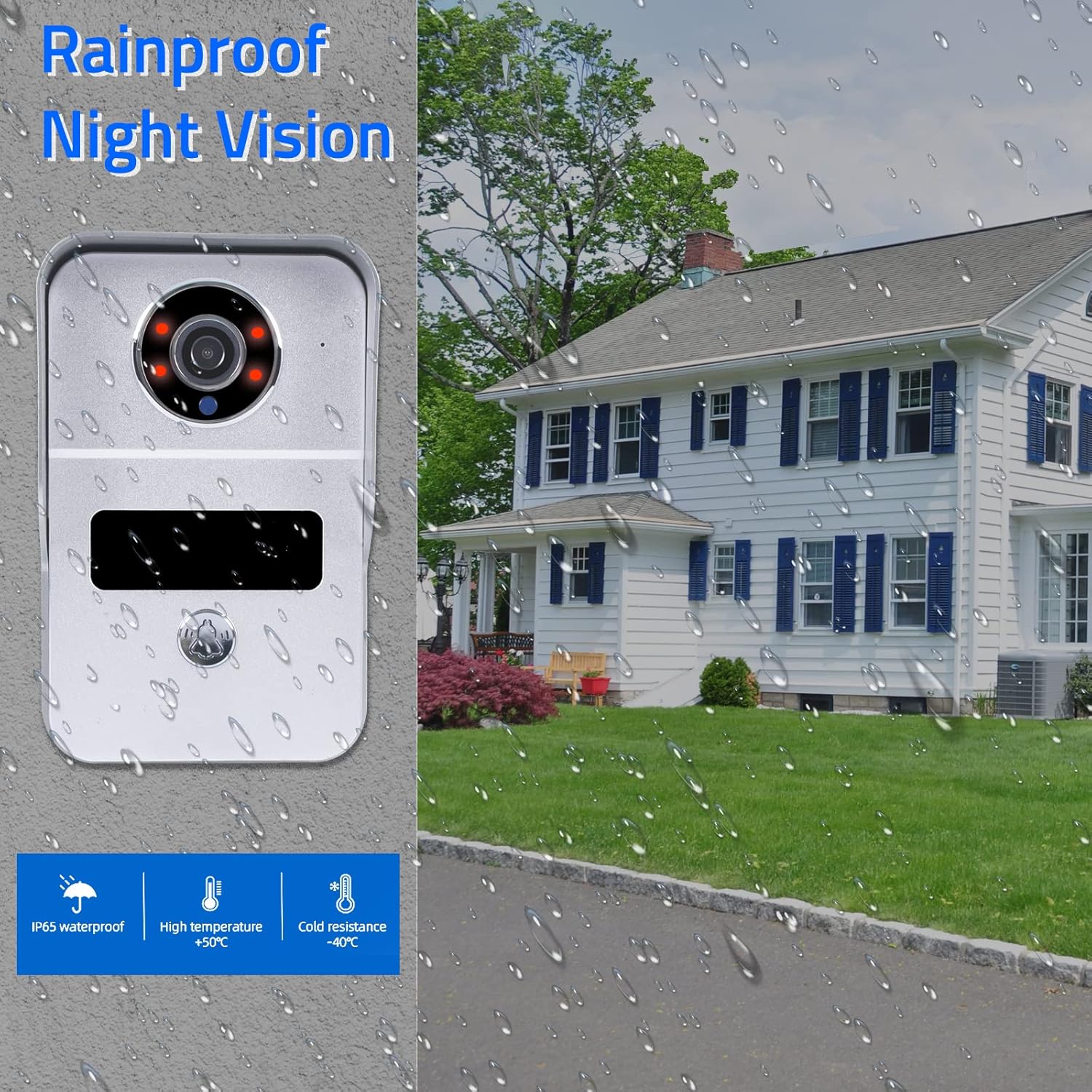
Image: Outdoor Doorbell Unit demonstrating rainproof and night vision features.
Indoor Monitor Unit
The 7-inch TFT-LCD touch screen monitor serves as the central control unit for the intercom system. It supports Wi-Fi connectivity for smartphone integration via the Tuya app.
- Screen: 7-inch TFT-LCD touch screen
- Resolution: 1024 x 680
- Rings: 7-chord melody rings
- Connectivity: 4-wire connection to doorbell, Wi-Fi (2.4G only) for Tuya app
- Material: Acrylic/ABS cover
- Installation: Surface mounting
- Input Voltage: AC 100-240V 50/60Hz
- Working Voltage: DC 12V, 2A
- Dimensions: 7.8 x 5.1 x 0.8 inches (198 x 130 x 21 mm)

Image: Indoor Monitor Unit displaying its touch screen interface.
Setup and Installation
This system requires a wired connection between the outdoor doorbell and the indoor monitor. The monitor then connects to your home's 2.4G Wi-Fi network for smartphone app functionality.
Wiring Diagram
Follow the wiring diagram carefully to connect the outdoor doorbell to the indoor monitor. You can use RVV4 cable or a network cable (Cat5/Cat6) for distances exceeding 100 meters. An optional electric lock can also be integrated.

Image: Wiring Diagram for the Video Doorbell Intercom System.
- Mount the outdoor doorbell unit at your desired entrance location.
- Mount the indoor monitor unit in a convenient location inside your home.
- Connect the outdoor doorbell to the indoor monitor using the provided 4-core connection wires. Ensure correct polarity.
- Connect the power supply adapter to the indoor monitor.
- If installing an electric lock, connect it to the appropriate terminals on the indoor monitor as per the diagram.
- If installing additional indoor monitors, connect them in series using 4-core wires.
Tuya App Installation and Wi-Fi Setup
The indoor monitor supports Wi-Fi connectivity (2.4G only) to integrate with the Tuya Smart app, allowing remote control and monitoring from your smartphone.
- Download the free "Tuya Smart" app from the App Store (iOS) or Google Play Store (Android). You can also scan the QR code provided in the wiring diagram image.
- Register or log in to your Tuya Smart account.
- On the indoor monitor, navigate to the Wi-Fi settings and connect it to your home's 2.4G Wi-Fi network.
- Follow the in-app instructions to add the video doorbell system to your Tuya Smart account. This typically involves scanning a QR code displayed on the monitor or entering device details.
- Once connected, you can view live video, communicate with visitors, and remotely unlock the door via your smartphone.
For more information on the Tuya Smart app, visit: https://smartapp.tuya.com/smartlife
Operating Instructions
Responding to Visitors
- Indoor Monitor: When a visitor presses the doorbell, the indoor monitor will ring and display the visitor's video. You can then answer the call, speak to the visitor, and unlock the door if an electric lock is connected.
- Smartphone App: If your phone is connected to the Tuya app, you will receive a call notification when the doorbell is pressed. You can then see, hear, and speak to the visitor from anywhere, and remotely unlock the door.

Image: Real-time visitor interaction via monitor and smartphone.
Automatic Snapshot and Video Recording
The system is equipped with automatic recording capabilities to capture events at your door.
- When a visitor presses the doorbell, the camera will automatically take a snapshot or begin video recording.
- If motion detection is enabled, the camera will automatically record when motion is detected in its field of view.
- All snapshots and video recordings are saved to the included 32GB Micro SD card in the monitor.
- You can review these recordings at any time via the indoor monitor or through the Tuya Smart app on your smartphone.

Image: Automatic snapshot or video recording in action.
Indoor Monitor Functions
The indoor monitor provides various functions for managing your intercom system:
- Monitoring: View live feed from the outdoor camera at any time.
- Intercom: Two-way audio communication with visitors.
- Unlocking: Remotely unlock connected electronic locks.
- Recording/Snapshot: Manually capture video or images.
- Settings: Adjust volume, color, ringtones, and other system parameters.
- Multi-intercom: Communicate between multiple indoor monitors (if installed).

Image: Key features of the toncont Video Doorbell Intercom System.
Maintenance
- Cleaning: Use a soft, damp cloth to clean the outdoor doorbell and indoor monitor. Avoid abrasive cleaners or solvents.
- Firmware Updates: Periodically check for firmware updates through the Tuya Smart app or the manufacturer's website to ensure optimal performance and security.
- SD Card Management: Regularly back up important recordings from the 32GB TF card. If the card becomes full, older recordings may be overwritten.
- Wiring Inspection: Periodically inspect all wired connections for any signs of wear or damage.
Troubleshooting
| Problem | Possible Cause | Solution |
|---|---|---|
| No power to indoor monitor. | Power adapter unplugged or faulty. | Check power adapter connection. Ensure outlet is functional. |
| No video/audio from outdoor doorbell. | Incorrect wiring between doorbell and monitor. | Review the wiring diagram and ensure all connections are secure and correct. |
| Monitor cannot connect to Wi-Fi. | Incorrect Wi-Fi password; only 2.4G Wi-Fi supported; Wi-Fi signal too weak. | Verify Wi-Fi password. Ensure you are connecting to a 2.4G network. Move monitor closer to router or use a Wi-Fi extender. |
| Tuya app not receiving notifications or connecting. | App permissions not granted; monitor not connected to internet; app not properly linked. | Check app permissions on your smartphone. Ensure monitor has stable internet connection. Re-link the device in the Tuya app if necessary. |
| Poor night vision quality. | IR LEDs obstructed or dirty lens. | Clean the camera lens and ensure no obstructions are blocking the IR LEDs. |
Specifications
| Feature | Detail |
|---|---|
| Model Number | KX07TY |
| Brand | toncont |
| Outdoor Camera Resolution | 1080P (2MP) |
| Viewing Angle | 140 Degrees |
| Night Vision | IR Cut, B/W Night Vision |
| Indoor Monitor Screen | 7-inch TFT-LCD Touch Screen |
| Monitor Resolution | 1024 x 680 |
| Wireless Connectivity | Wi-Fi (2.4G only) |
| Wired Connectivity | 4-wire connection (RVV4/Cat5/Cat6/RG59 compatible) |
| Storage | 32GB TF Card (included) |
| Power Supply | AC 100-240V 50/60Hz (Input), DC 12V, 2A (Working) |
| Outdoor Unit Dimensions | 145 x 93 x 39 mm (5.7 x 3.6 x 1.5 inches) |
| Indoor Unit Dimensions | 198 x 130 x 21 mm (7.8 x 5.1 x 0.8 inches) |
| Operating Temperature | -40°C to +50°C |
| Waterproof Rating | IP65 (Outdoor Unit) |
| Compatible App | Tuya Smart |
Warranty and Support
For warranty information and customer support, please refer to the documentation included with your purchase or contact toncont customer service directly. Keep your purchase receipt as proof of purchase for warranty claims.
For technical assistance or further inquiries, please visit the official toncont website or contact their support team through the contact information provided in your product packaging.
